.jpg)

A shopper shouldn't have to click through a dropdown just to see what "Sage Green" or "Midnight Blue" looks like. Every extra click adds friction, especially when color is one of the biggest factors influencing a purchase. If customers can't quickly compare variants, they're more likely to hesitate, leave the product page, or continue shopping elsewhere.
Color swatches replace text-based variant menus with visual selections, making it easier for customers to compare colors, choose the right option, and continue to checkout with confidence. For Shopify merchants, this creates a smoother shopping experience while making products easier to browse, particularly for stores selling apparel, beauty products, furniture, home décor, and accessories.
Whether you're setting up swatches for the first time or improving how product variants appear across your store, getting the implementation right helps customers find what they want faster and creates a storefront that feels more intuitive from the first click.
Color swatches in Shopify are visual product options that let customers choose a variant by clicking a color or image instead of selecting it from a dropdown menu. They make comparing product variants quicker and more intuitive, especially for products available in multiple colors.
For example, instead of opening a dropdown to preview every available color, shoppers can see all options at a glance and switch between them with a single click. This creates a faster browsing experience and makes product pages feel easier to compare before adding them to the cart.
Color swatches are commonly used to:
Once your product variants are organized correctly, Shopify can display swatches using your theme's native functionality or through additional customization for more advanced merchandising needs.
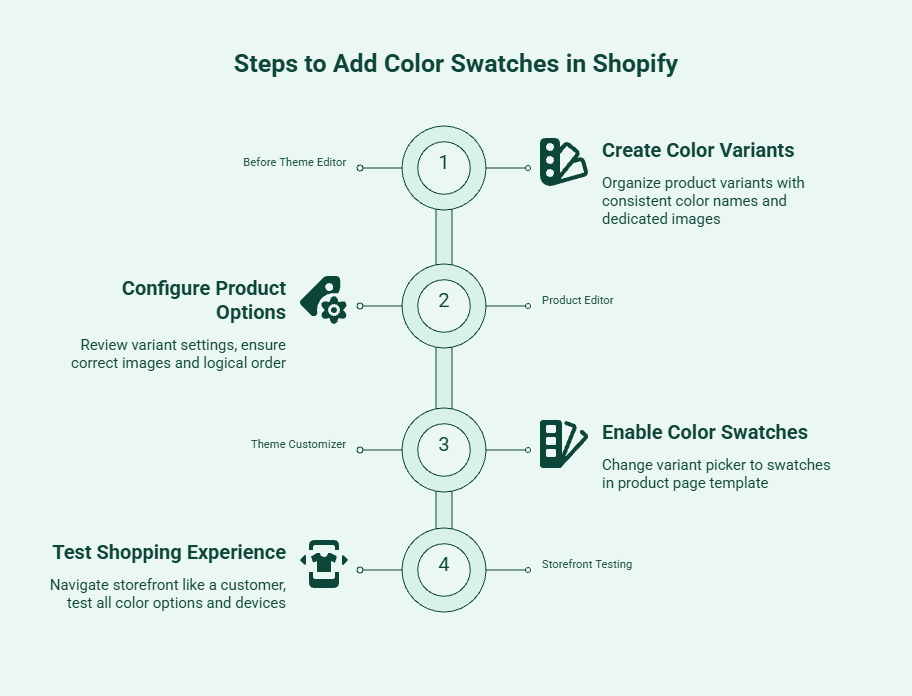
You add color swatches in Shopify by creating well-structured color variants, linking each variant to the correct product image, and enabling swatches in a compatible theme. Most display issues happen because of inconsistent product data rather than missing theme settings.
Before opening the theme editor, make sure your product variants are organised correctly. Shopify uses variant data to generate color swatches, so every color must exist as a separate product option rather than being added to the product description or title.
For example, if a T-shirt is available in Black, White, and Olive, each color should be created as an individual variant under a single Color option. This allows Shopify to connect each swatch with the correct product image and inventory.
Before moving on, check that every variant has:
A clean variant structure also makes product filters, search results, and future catalog updates easier to manage.
Once the variants are in place, review how each option is configured. A common mistake is assigning the wrong image to a variant or using different naming conventions for the same color across products. These inconsistencies may not stop a swatch from appearing, but they create a confusing shopping experience.
Take a few minutes to test each variant inside the product editor before moving to your theme.
Ask yourself:
If you're planning to use image swatches or metafields later, this is the best time to standardize your product data. A consistent catalog is much easier to maintain than fixing hundreds of products after they're published.
After your product data is ready, open Online Store → Themes and customize your active theme. Navigate to a product page template and locate the Variant picker block. If your theme supports native swatches, change the variant selector from a dropdown to Swatches or Color swatches.
Most recent versions of the Dawn theme include native support, while older or customized themes may require additional theme edits or a dedicated app.
Before publishing, confirm that:
If the selector still appears as a dropdown, the issue is usually related to your theme version or variant configuration rather than the product itself.
Don't stop once the swatches are visible. Navigate through your storefront like a customer and interact with every color option. The goal isn't simply to make swatches appear, it's to make choosing a product feel effortless.
Pay close attention to:
Finally, test multiple products instead of relying on a single example. A setup that works for one product doesn't always scale across a larger catalog, especially when products use different variant structures or custom swatch images. Spending a few extra minutes testing now can prevent inconsistent experiences after your changes go live.
Recent versions of the Dawn theme support native color swatches, but they only work when your product variants and theme settings are configured correctly. If swatches don't appear, the issue is usually related to your theme version or product setup rather than Shopify itself.
Not every version of Dawn includes the same swatch functionality. Before troubleshooting, make sure your store is running a version that supports native color swatches. If you're using an older or heavily customized version, some settings may be unavailable or behave differently.
Once you've confirmed your theme version, review the Variant picker block in the product page template and verify that swatches are enabled instead of dropdown selectors.
If your swatches still don't appear, the problem is usually caused by missing product data rather than the theme itself.
Check that:
If everything is configured correctly and swatches still don't display, review your theme customizations or app integrations, as they can sometimes override Dawn's native variant settings.
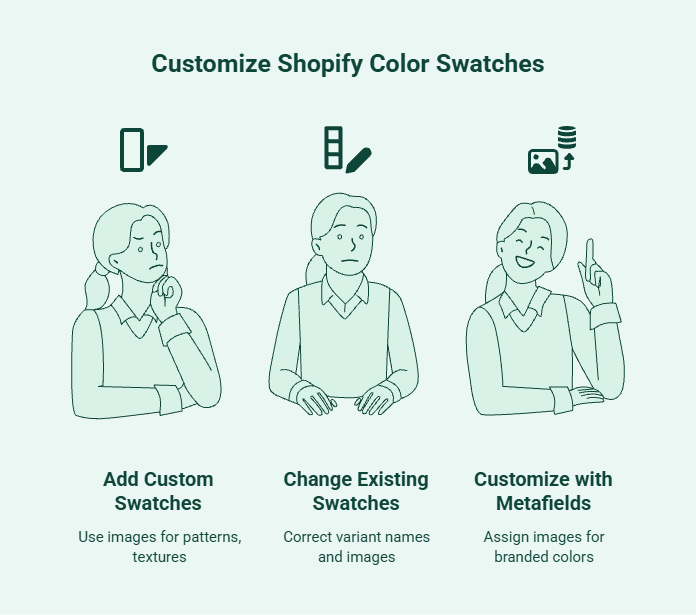
Customizing color swatches isn't about making product pages look better, it's about helping customers recognize product variants faster. The right approach depends on whether a color alone is enough to represent what you're selling.
Not every product can be represented with a coloured circle. Standard color swatches work well for products available in solid colors, but they don't help customers understand patterns, textures, or finishes that influence purchasing decisions.
For example:
Image-based swatches give shoppers a clearer preview of what they're buying, reducing the need to open every product image just to compare variations.
Updating a swatch usually starts with the product data rather than the design. If a swatch displays the wrong colour or doesn't match the product, first check the variant name, linked image, and product configuration before changing theme settings.
Review these areas first:
Only after confirming the product data should you replace swatch images or edit your theme. In many cases, correcting the variant itself resolves the issue without additional customization.
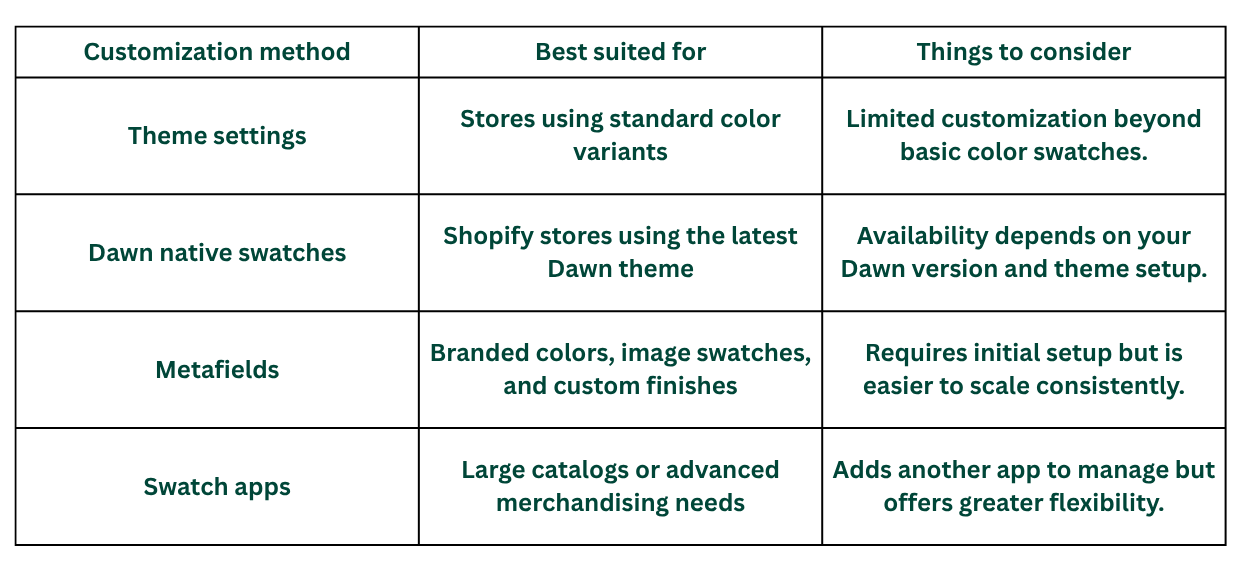
Theme settings are usually enough when every product uses standard color variants. As your catalog grows, that approach becomes harder to maintain, especially if products use custom finishes, branded colors, or image-based swatches.
That's where metafields become valuable. Instead of relying on color names, you can assign dedicated swatch images or custom data to each variant, making the presentation more consistent across your catalog.
As a general rule:
Choosing the right setup early makes future product launches easier because you maintain a single structured system instead of manually updating swatches on individual product pages.
As your product catalog grows, a well-structured swatch system becomes easier to maintain, helping customers find the right variant faster while keeping your storefront consistent across every product page.
Once color swatches work on your product pages, the next step is making them consistent across your storefront. That means displaying swatches where shoppers discover products first and using the same setup across every product you add.
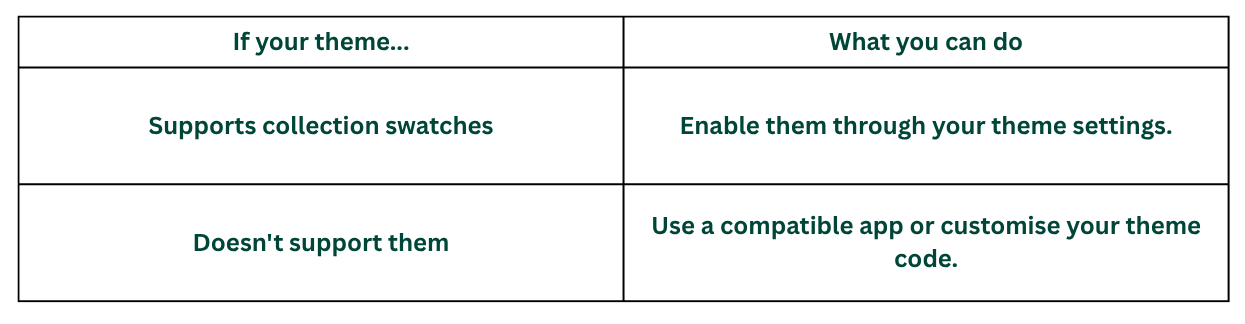
Collection pages are often where customers decide which product to explore. Showing color options here helps them compare products before opening individual product pages. Before enabling collection page swatches, check whether your theme supports them natively.
Before publishing, make sure:
Adding swatches is easy. Keeping them consistent across hundreds of products is where most stores struggle. Create a simple standard before your catalogue grows.

A consistent setup reduces maintenance, keeps filters organized, and makes future product launches much easier.
Adding color swatches one product at a time works for small catalogs, but it quickly becomes difficult to manage as your inventory grows. For stores with dozens or hundreds of products, the goal is to standardize your setup so swatches remain consistent across the entire catalog.
To manage color swatches efficiently at scale:
Building a consistent workflow early makes future catalog updates faster, reduces maintenance, and keeps color swatches consistent as your Shopify store grows.
Shopify's native color swatches work well for many stores. An app becomes worth considering when managing swatches starts taking more time than selling your products.
You don't need an app just because it offers more features. For many Shopify stores, native swatches are enough to create a clean and intuitive shopping experience.
Native swatches are usually the right choice when:
Keeping your setup simple also means fewer apps to maintain and fewer theme customizations to troubleshoot.
As your product catalog grows, your merchandising needs often change, too. You may want shoppers to compare colors before opening a product page, display fabric or pattern swatches instead of plain colors, or reduce the time your team spends updating product variants.
An app is worth considering when you want to:
The decision isn't about adding more features; it's about reducing manual work while creating a more consistent shopping experience as your store grows.
Color swatches help customers choose the right product variant, but they represent just one part of the shopping journey. As your Shopify store grows, helping customers discover relevant products, compare options, and find complementary items becomes equally important.
Kefi Commerce helps merchants strengthen product discovery by bringing merchandising, promotions, bundles, upsells, and customer engagement into one platform. Instead of relying on multiple apps to manage different parts of the buying journey, merchants can create more connected shopping experiences from product discovery through checkout.
With Kefi Commerce, you can:
As your merchandising strategy evolves beyond product variants, Kefi Commerce helps simplify how customers discover products, compare options, and increase cart value without adding operational complexity.
Most color swatch issues aren't caused by Shopify. They usually result from inconsistent product data, incomplete variant setup, or skipping final testing. Before publishing your changes, check for these common mistakes:
Spending a few extra minutes reviewing these details helps create a more consistent shopping experience and reduces the need for rework as your Shopify catalog grows.
Color swatches do more than replace dropdown menus; they make product variants easier to compare and help customers find the right option with less effort. Whether you use Shopify's native functionality or a more advanced setup, the biggest difference comes from keeping your variants organized, your swatches consistent, and your storefront easy to navigate as your catalog grows.
As your merchandising strategy evolves, managing product discovery, promotions, bundles, and customer engagement across multiple apps can become difficult. Kefi Commerce brings these growth tools together in one platform, helping Shopify merchants create a more connected shopping experience while simplifying campaign management as their stores scale.
Use Shopify metafields to assign custom color or image swatches to product variants. Your theme can then reference these metafields to display branded colors, patterns, or textures instead of relying only on standard color names.
Shopify's newer themes support native color swatches, while third-party apps let you add image swatches, custom designs, and advanced variant displays without making manual changes to your theme's code.
Review your variant names, image assignments, and theme settings first. Most display issues are caused by inconsistent product data, outdated theme versions, or themes that don't support native color swatches.
While Shopify themes or swatch apps can handle variant swatches, Kefi Commerce helps merchants improve product discovery, bundles, promotions, and customer engagement as their catalog grows.
Create separate color variants, assign matching images, and organize your product options consistently. Once your variants are ready, enable native swatches or use metafields and a compatible app for advanced custom swatches.
Most premium Shopify themes include swatch settings. Enable them through your theme editor, then configure variants, images, or metafields to display consistent color and image swatches across your storefront.
.svg)
