The Rewards feature in the Slide Cart motivates shoppers to increase their cart value with real-time, goal-based incentives. Customers instantly see how close they are to unlocking rewards, which creates urgency and a sense of achievement—all within the cart experience.
This dynamic interaction raises average order value (AOV), keeps shoppers engaged, and makes the checkout journey more exciting and conversion-focused.
Note: Rewards are calculated on the cart total before discounts are applied.
STEP 1
Go to the Kefi Bundle Builder Homepage and select the ‘Slide Cart’ option. Click ‘Select’.

STEP 2
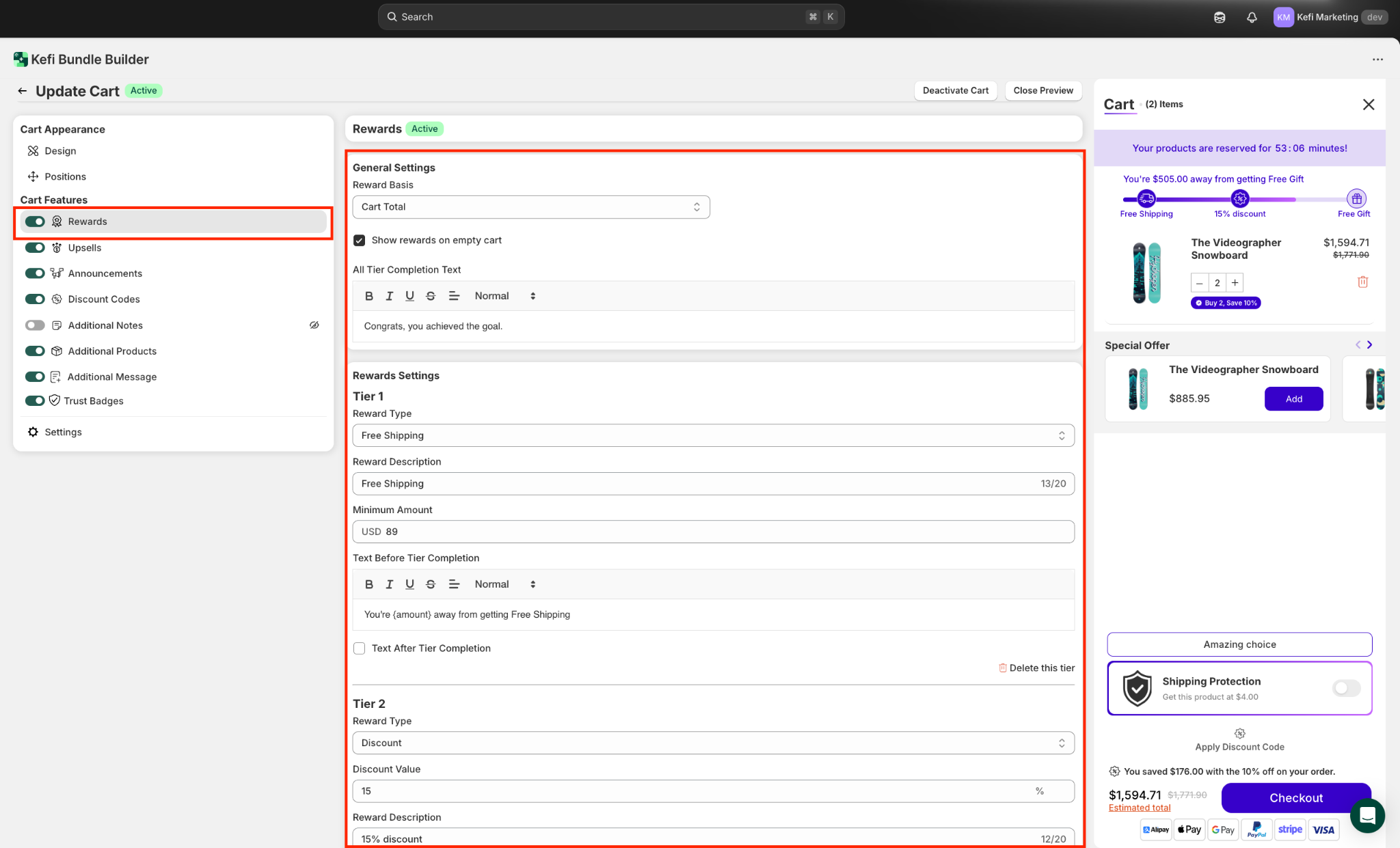
On the redirected page, in the left panel under Cart Features, you’ll find the Rewards section. This allows you to configure tier-based incentives like free shipping or discounts based on cart value.
As you adjust these settings, the live preview on the right updates instantly—showing how reward progress bars, messages, and milestones will appear to your customers in real time.
STEP 3
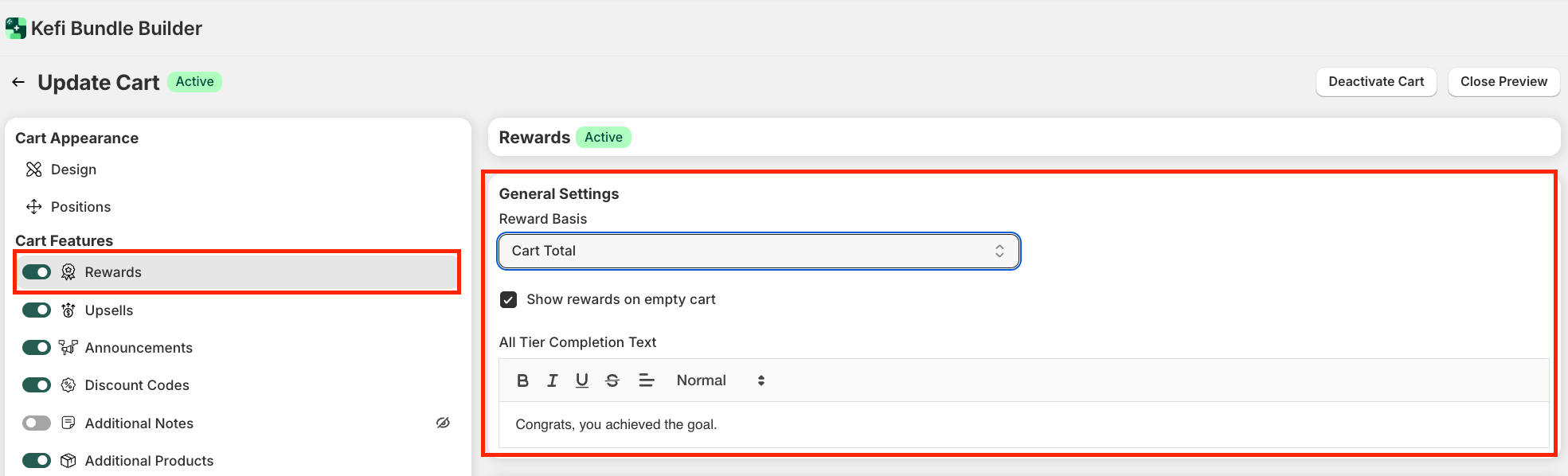
In the Rewards section, you can set milestone-based perks like free shipping, discounts, or free gifts to boost cart value as customers reach spend thresholds.
General Settings - In the General Settings of the Rewards tab, you define how rewards are calculated and displayed in the cart.
Tip: Use “Deactivate” to pause rewards anytime without deleting them.
STEP 4
Reward Settings - This section allows you to configure tiered rewards that encourage customers to increase their cart value in order to unlock exclusive benefits like discounts or free shipping.
Tier 1 -

STEP 5
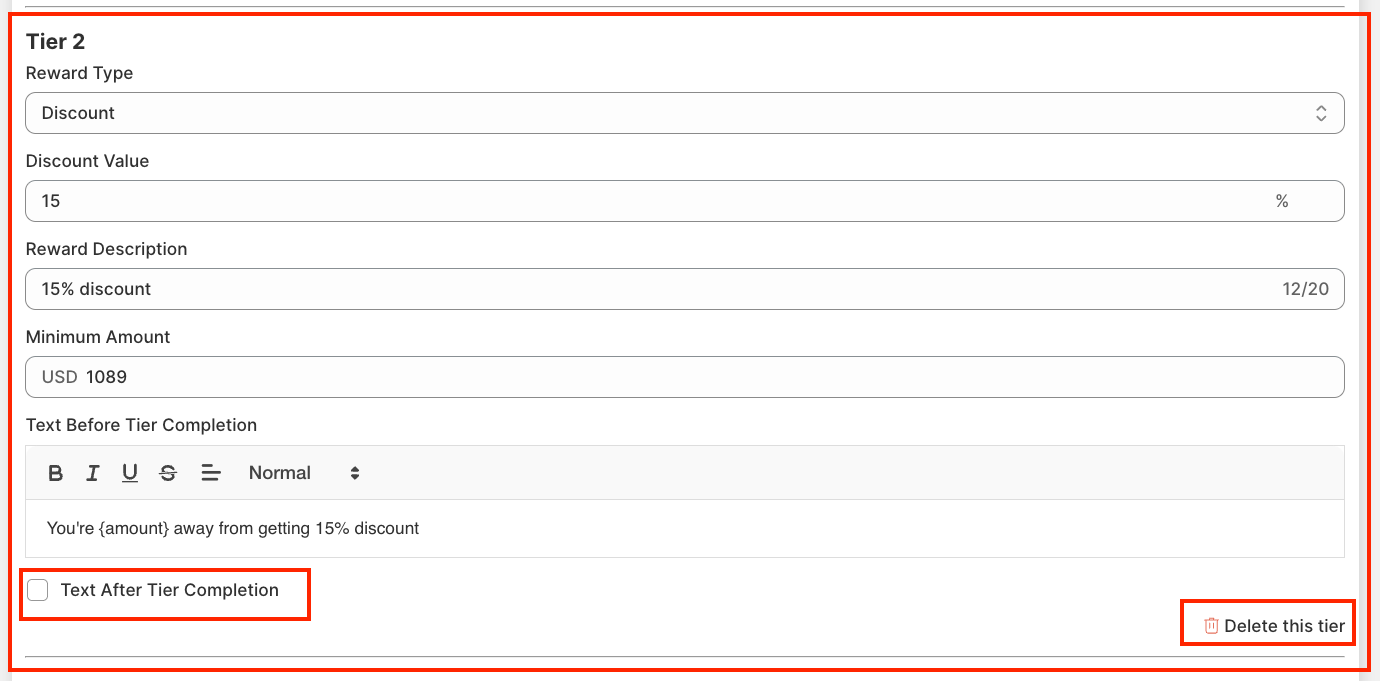
TIER 2- Tier 2 works just like Tier 1 but offers a percentage discount in this case (e.g., 15%) when a customer reaches a higher cart value (e.g., USD 1089). You can customize the reward type, minimum amount, and messages shown before and after tier completion.
Click “Delete this tier” to remove it as needed. This lets you build a flexible, multi-step reward system tailored to your sales goals.
STEP 6
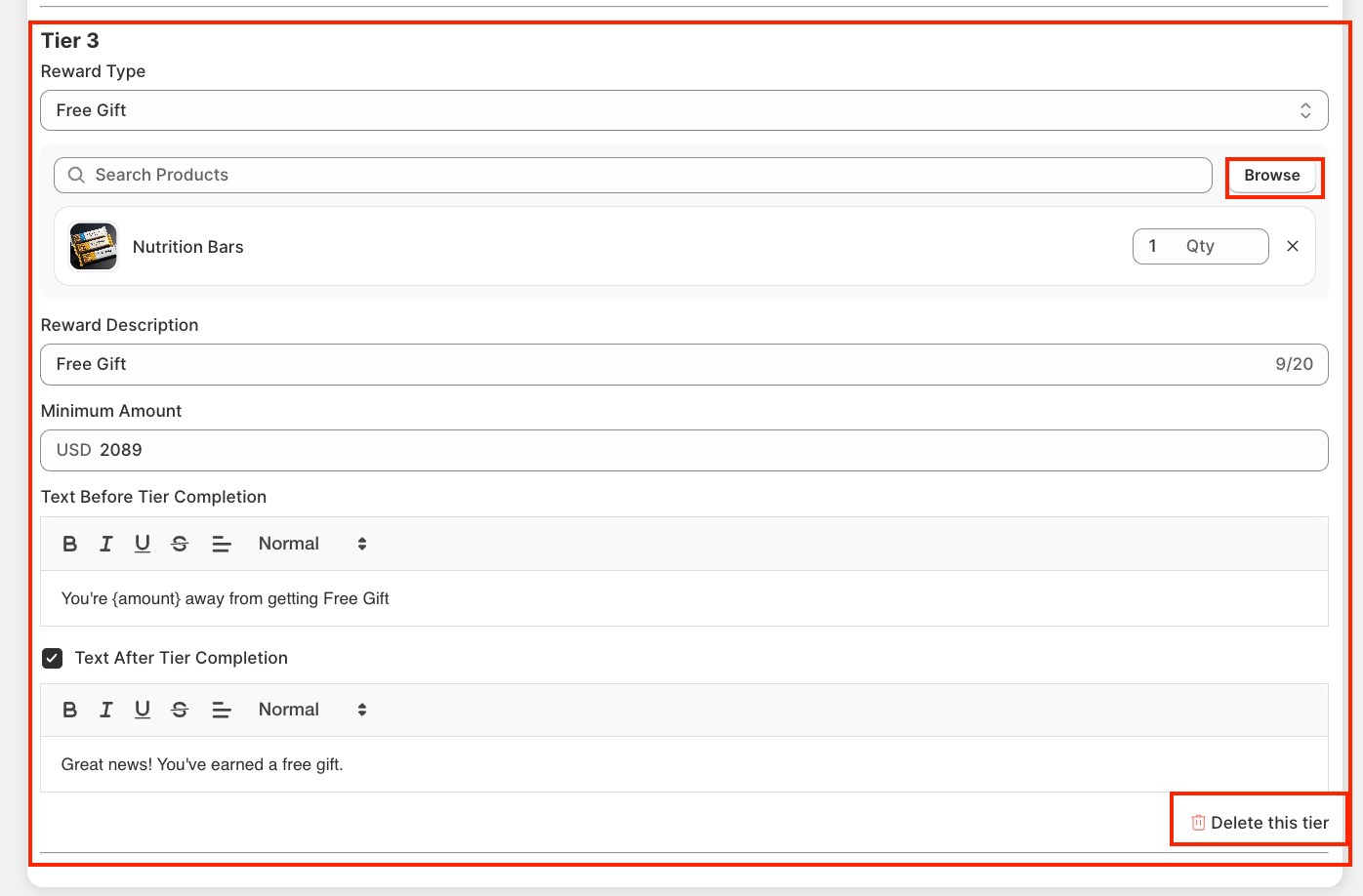
You can also add Tier 3 - Free Gift Reward (OPTIONAL)
This reward tier offers a free product when the cart reaches a specific value (e.g., USD 2089).
Once the goal is met, the selected product is added to the cart automatically, creating a high-impact incentive to drive larger purchases.
STEP 7
Color - This section controls the appearance of progress bars and free gift elements in your store.

STEP 8
Advanced Settings - Advanced Settings let you control how rewards and free gifts behave in the cart for a smoother, more motivating shopping experience.

STEP 9
Use the live preview on the right to check how your reward setup will appear to customers in real time.
When everything looks good, click ‘Save’ to apply the reward settings to your Slide Cart.

Adding rewards is a great way to incentivize higher spending, keep shoppers engaged, and create a more compelling checkout experience.
If you have any questions or need assistance, feel free to contact us:
.svg)
