The Product Add-on feature lets you boost sales and enhance customer experience by offering related products at a special value when customers purchase a main item. This is a powerful tool for increasing average order value and promoting complementary products.
With Product Add-ons, you can:
This feature is ideal for promotions, bundles, seasonal offers, and driving upsells without the need for complex configurations.
Go to the Kefi Bundle Builder homepage and select the Product Add-ons. Click “Select”
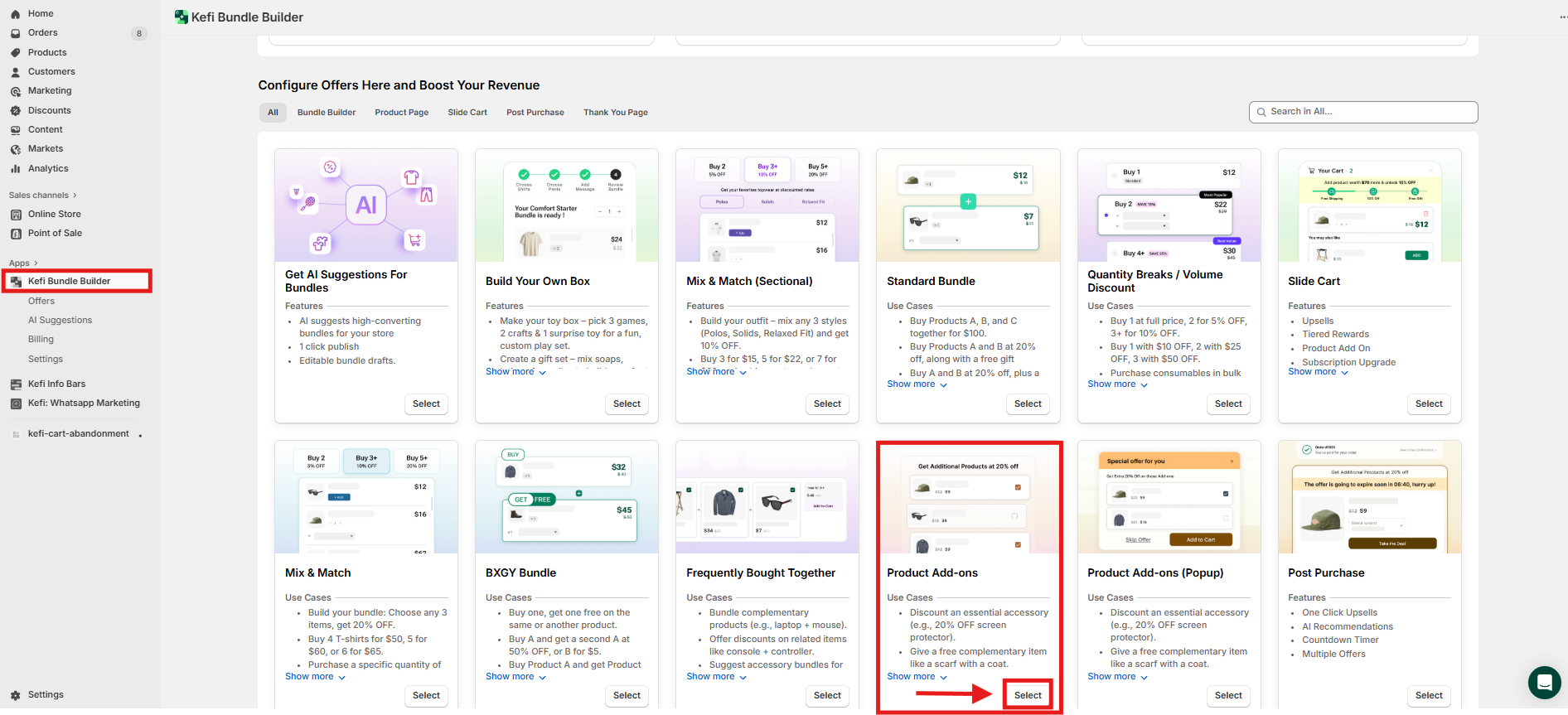
After you choose to create a Product Add-on, you'll be redirected to the Content section. This area is divided into four key sub-sections that help you customize how your bundle looks and works on your store:
1. Bundle Info
This section lets you customize the title of your bundle, which appears on the widget customers see while shopping. You can use this field to create an eye-catching or descriptive title that communicates the value of the add-on offer—like “Complete the Look”, “Bundle & Save”, or “Recommended Add-ons”.

2. Product Setup
In this section, you’ll choose which products in your store will trigger the Product Add-on offer. You have three targeting options:
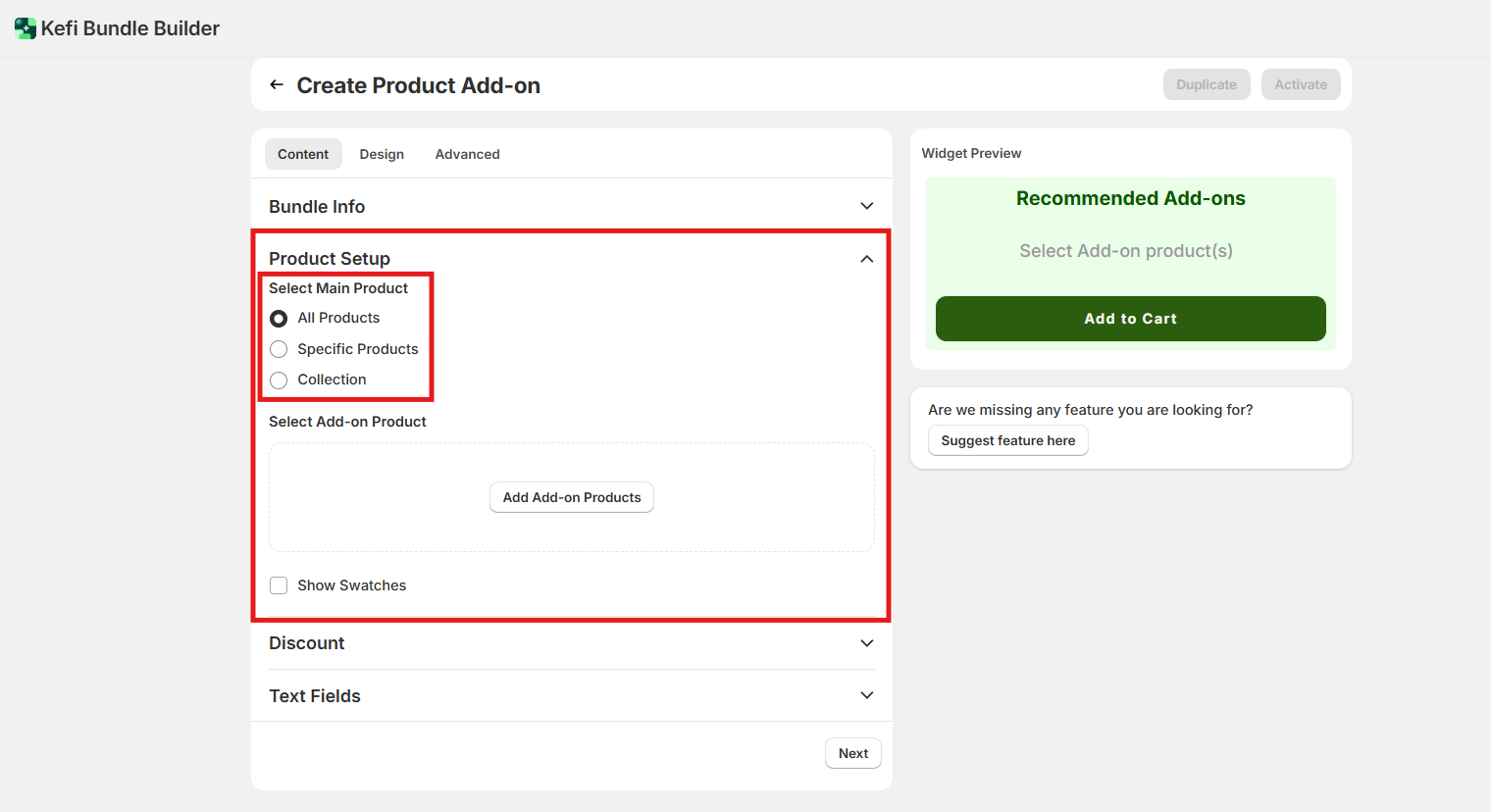
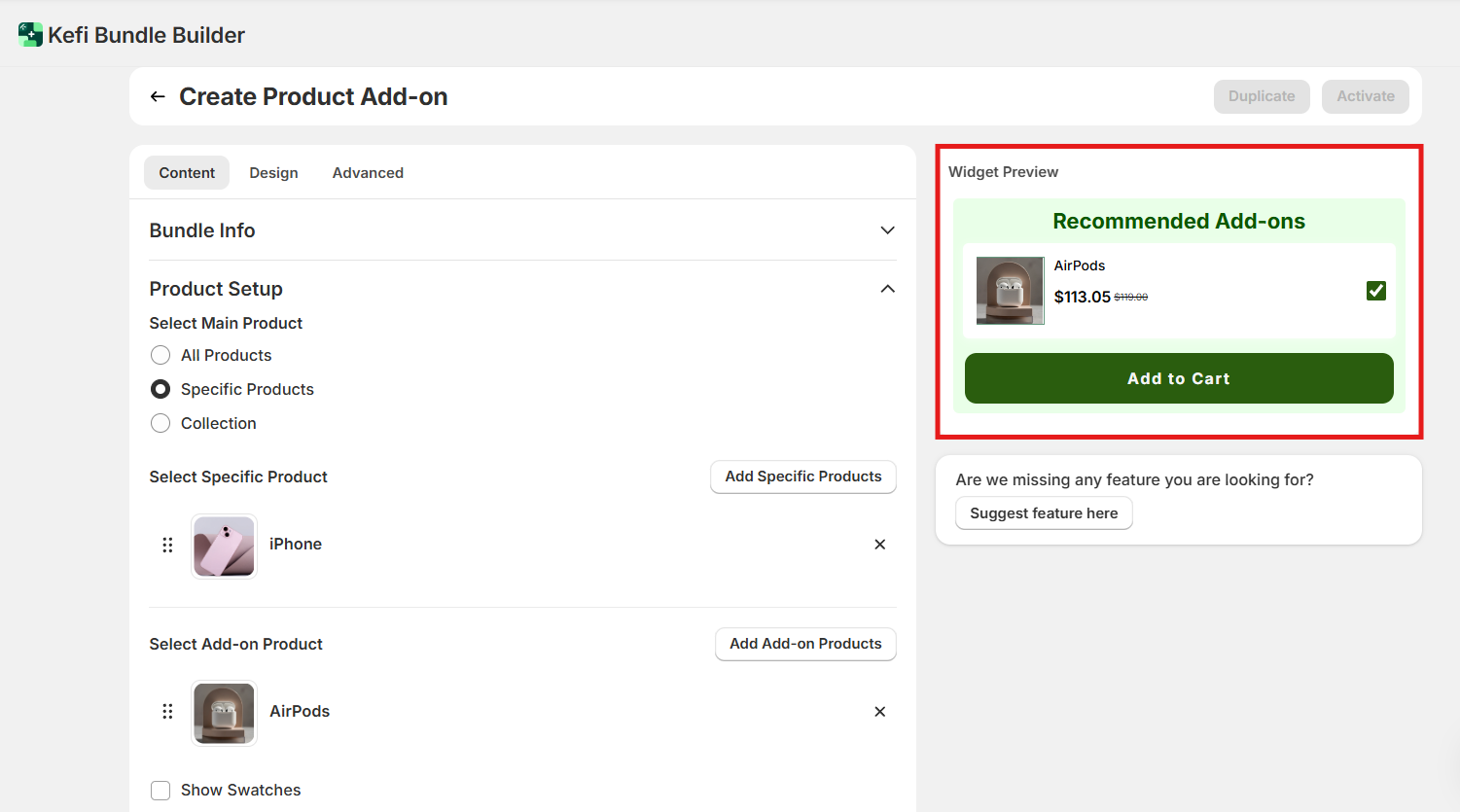
In this help guide, we've selected the Specific Product option and added a product from the list as an example.
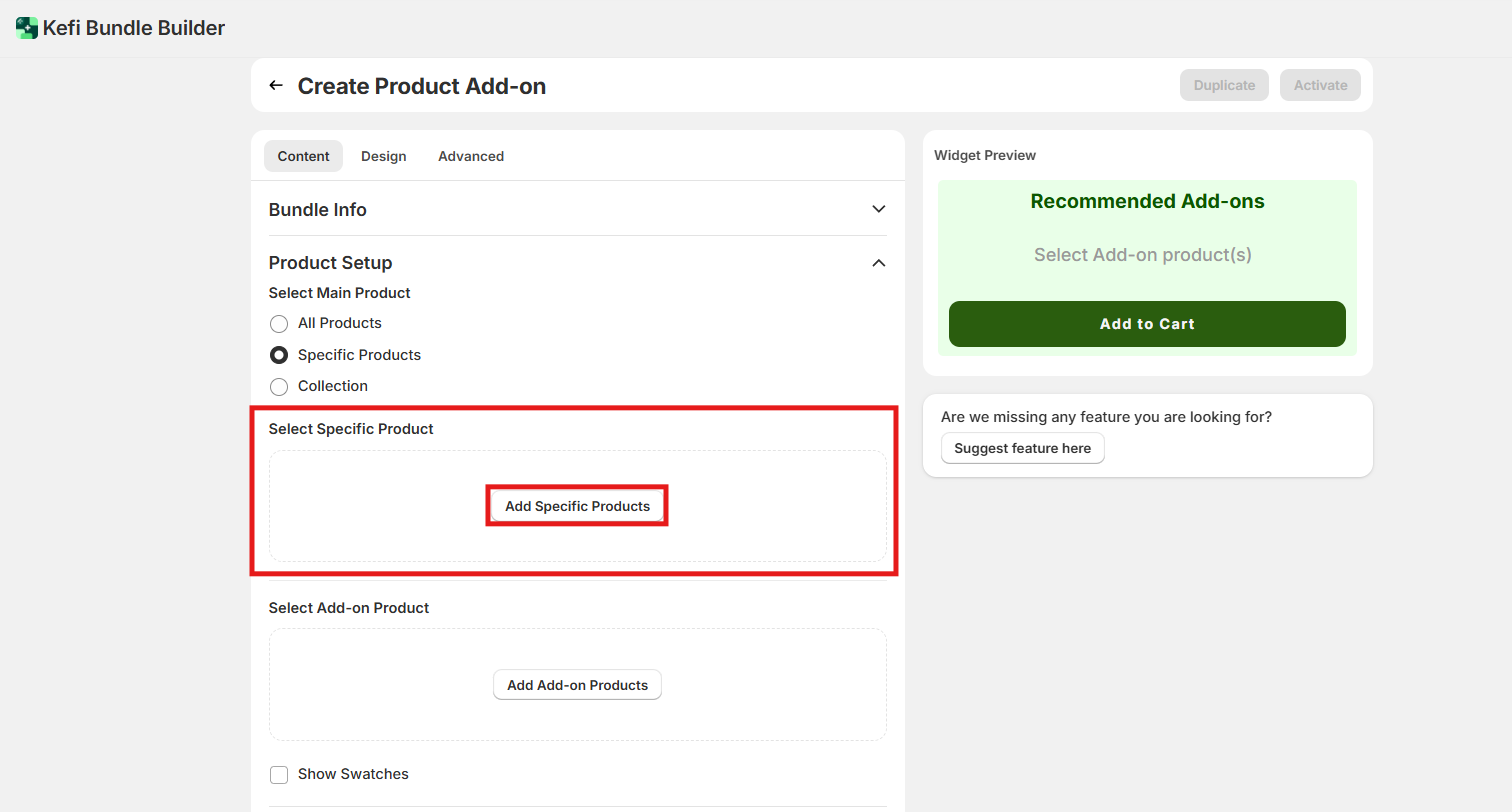
Once you select the product category-for example, Specific Products-you'll then be prompted to choose the Add-on Product you want to offer alongside those items. This is the product that will be shown as an optional add-on in the bundle widget.
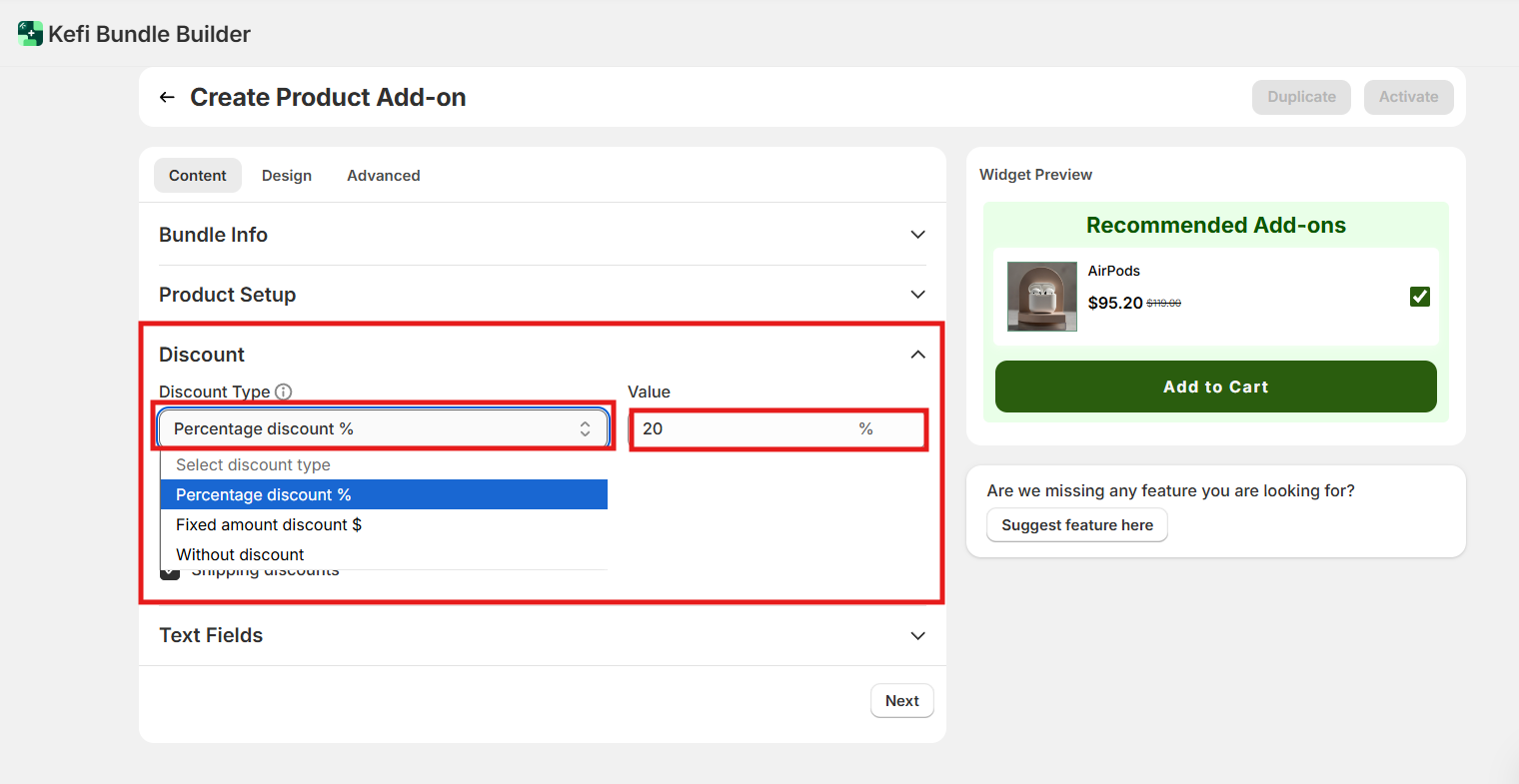
For instance, if you're running a promotion to offer 20% off air pods with any I-phone, you would select a specific product (Iphone) and then choose the air pods as the add-on product.
This setup allows you to pair relevant items easily and encourage customers to add more to their cart.

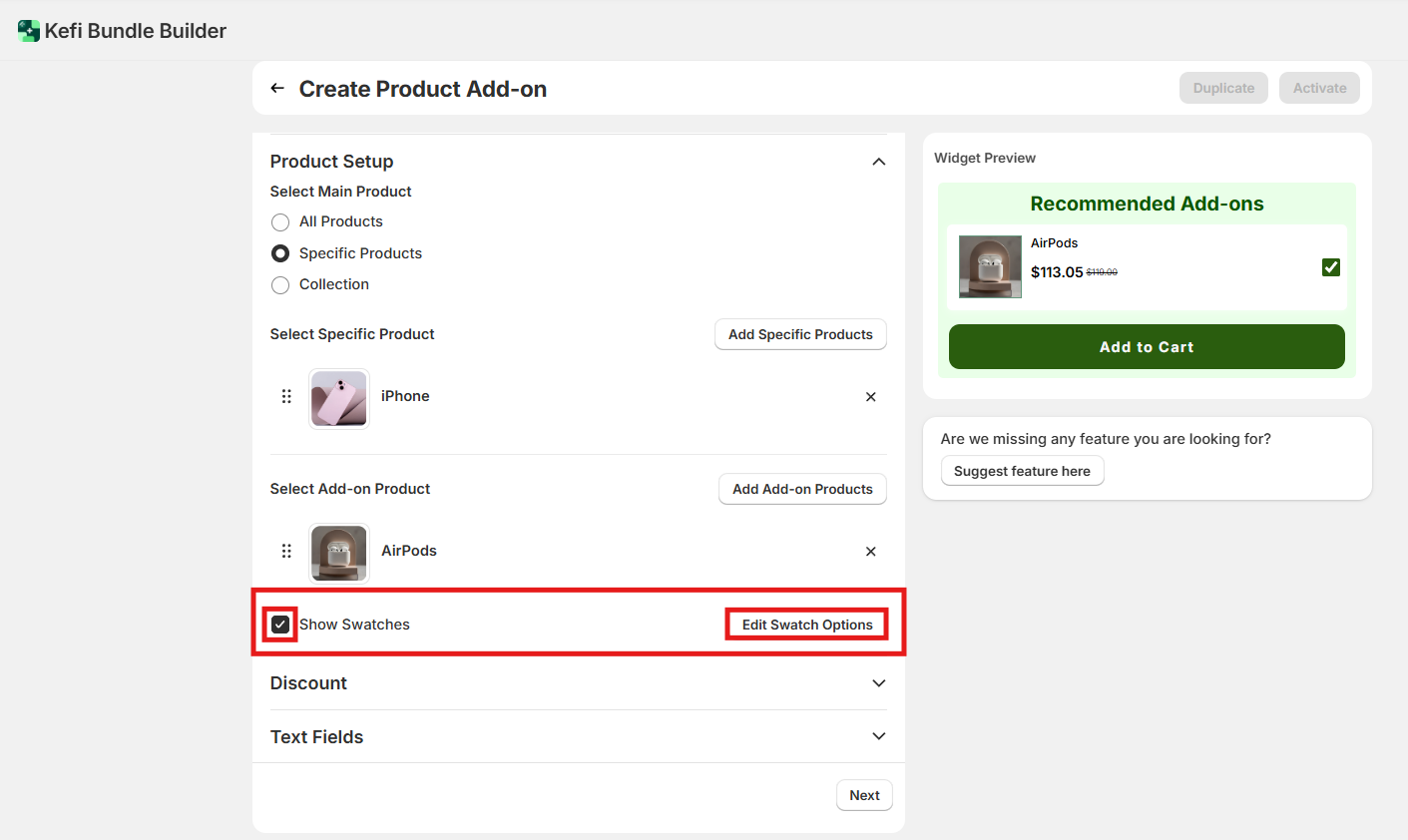
Show Swatches - You can also display product variants-such as different colors, sizes, or styles-by enabling the Show swatches option.
This allows customers to view and select from the available variants directly within the bundle widget, improving the shopping experience.
To further personalize how these options appear, click on Edit swatches. Here, you can customize the swatch layout, labels, and appearance—for example:
Widget Preview
On the right side of the screen, you’ll see a live preview of the bundle widget. This preview updates in real-time as you configure your Product Add-on settings.
The widget preview shows exactly how the offer will appear on your product page, including the selected add-on product, pricing details, and any customizations you've made (like text or discount settings). This helps you visualize the final design and ensures everything looks correct before publishing.
Use this area to double-check your layout, confirm product selection, and make any adjustments to improve the customer experience.
3. Discount
In this section, you’ll decide how you want to price the add-on product. There are three discount types available:
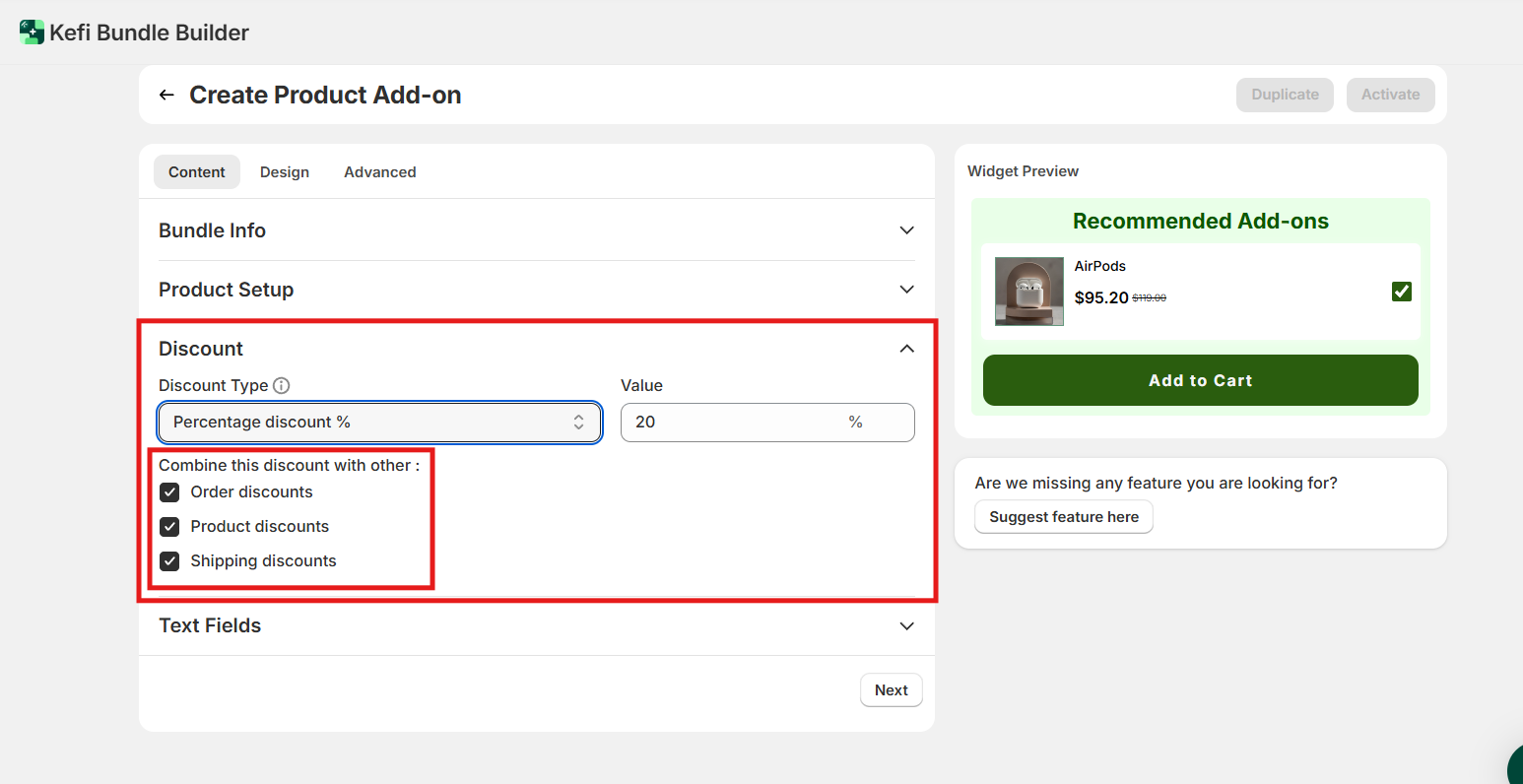
Combine this discount with other:
You can choose to combine your add-on discount with other types of discounts active in your store, including:
This allows you to create more compelling promotions by layering multiple incentives for your customers.
4. Text Fields
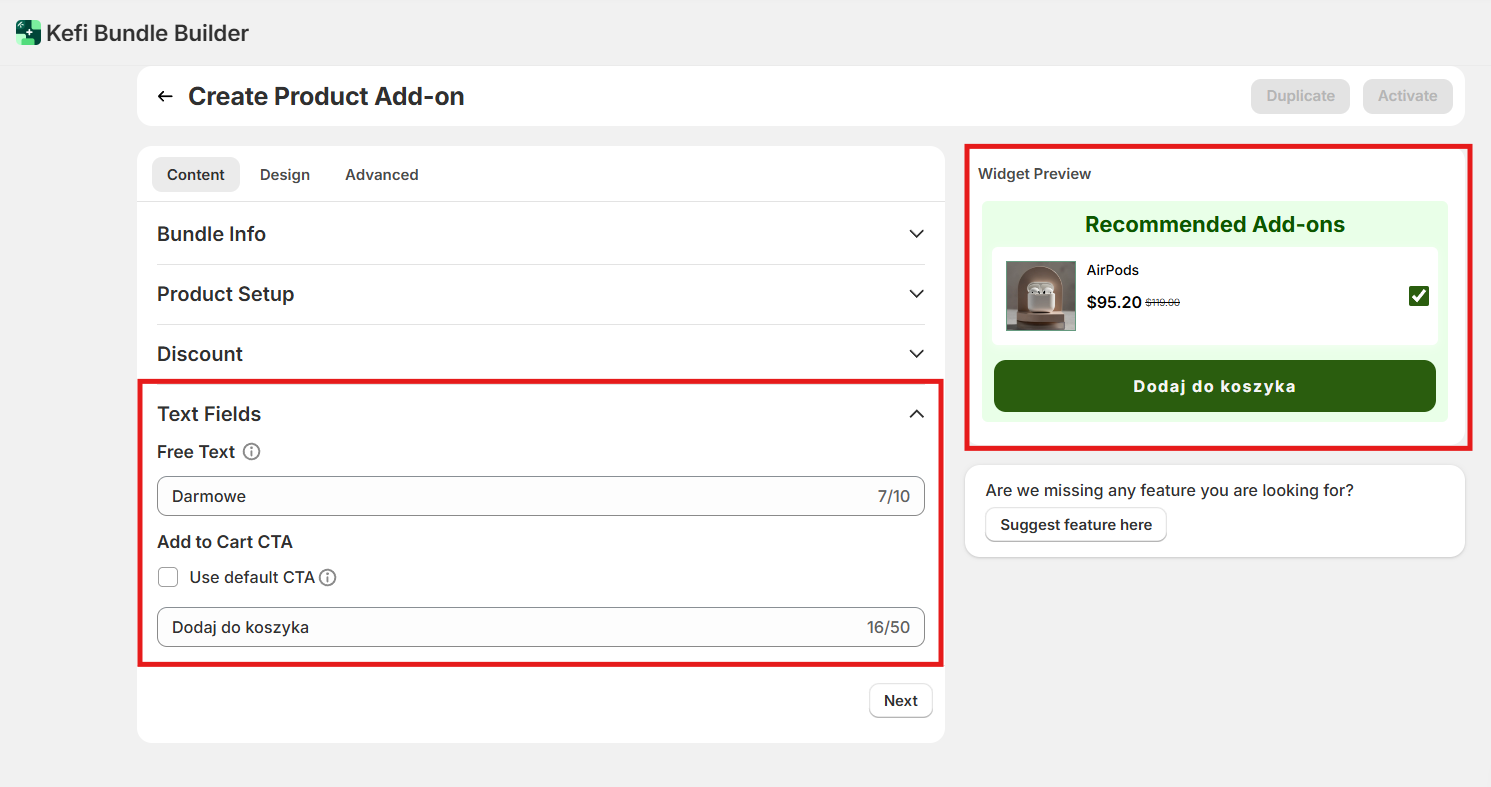
This section lets you customize all the text displayed on the bundle widget, making it easy to translate the content into a different language or align the messaging with your brand voice.
You can update elements like the Free Text, and call-to-action labels to better engage your audience or fit regional preferences.
Now , click on the “Next” button to proceed to the next section .
After clicking the next you would be redirected to the next section that is Design
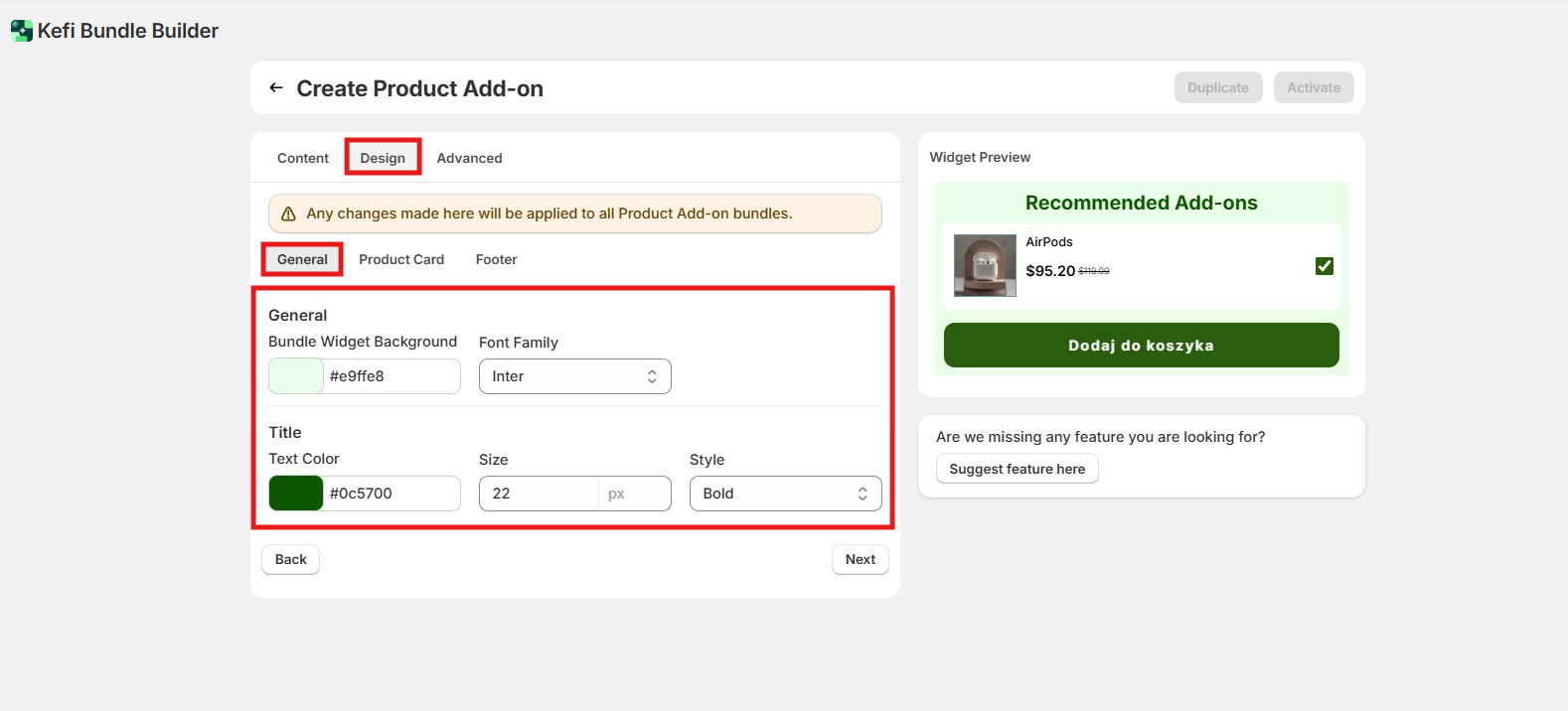
The Design step allows you to fully customize the appearance of your bundle widget, so it blends seamlessly with your store’s branding and user experience. This includes layout, colors, fonts, image behavior, and interactive elements like buttons. Below is a breakdown of all the customization options available in this section:
1. General
General Settings
Title Customization
2. Product Card
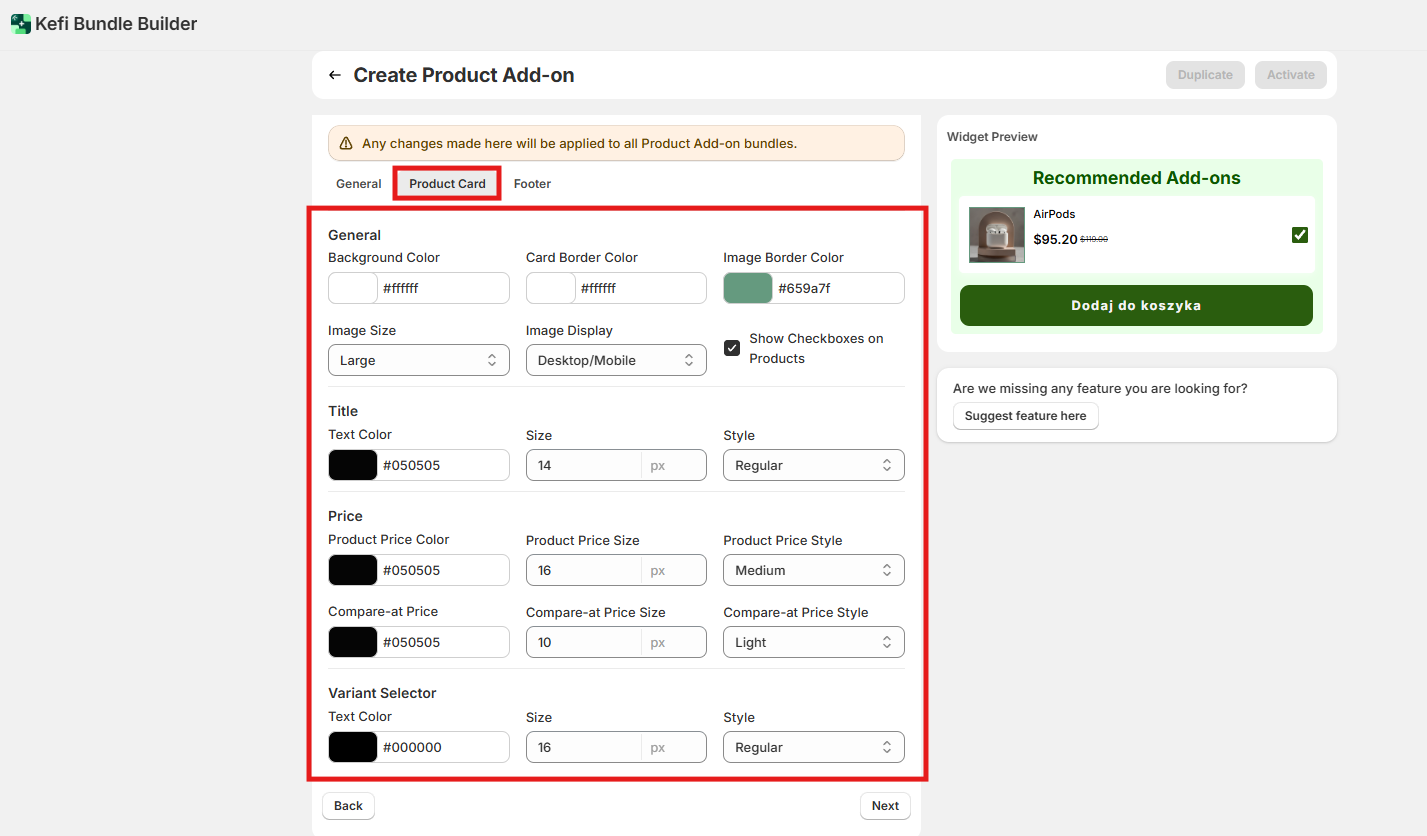
Customize the visual style of the individual product cards shown within the bundle widget.
General Settings
Title Settings
Price Settings
Variant Selector
3. Footer (Add to Cart Section)
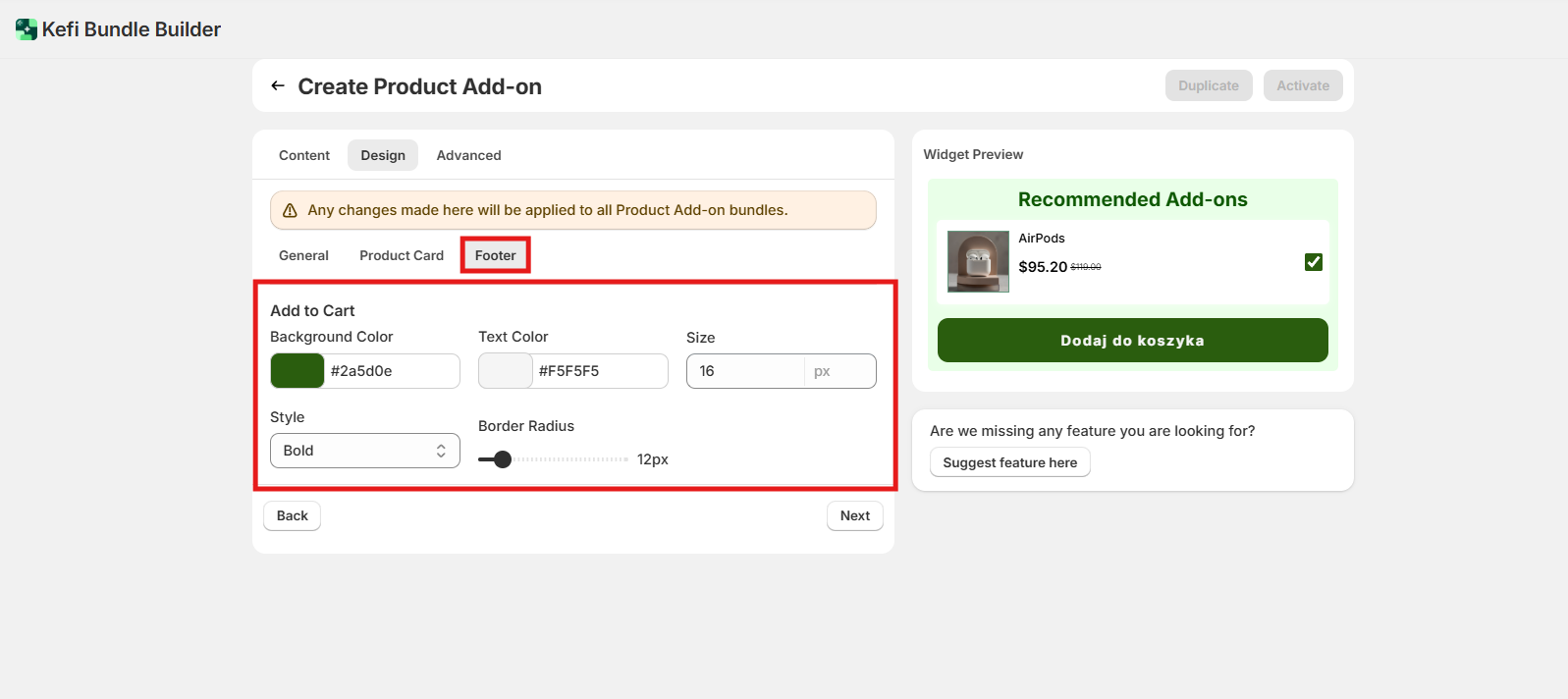
Customize the styling of the call-to-action area at the bottom of the widget.
Add to Cart Button
These flexible design options let you tailor every visual element of the bundle widget, ensuring a consistent, branded experience across your storefront.
Now , click on the “Next” button to proceed to the next section .
After clicking the next you would be redirected to the next section that is “Advance”
Advanced Settings - The Advanced section gives you greater control over when, where, and to whom the bundle widget is shown. These settings are useful for precise targeting and scheduling. Let’s dive into each option:
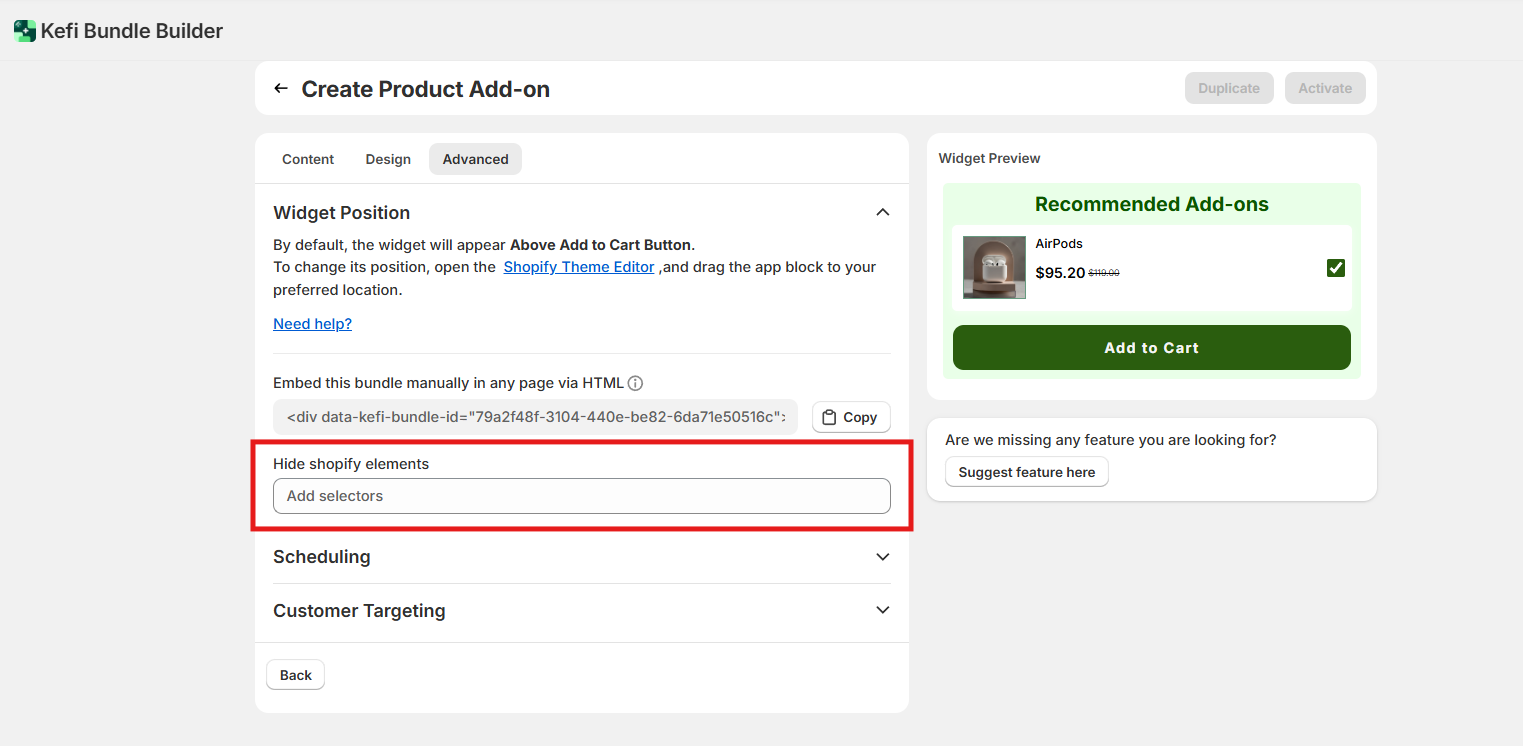
1. Widget Position
By default, the widget will appear below the Add to Cart button.
To change its position, open the Shopify Theme Editor, and simply drag the app block to your preferred location on the product page—no coding required.

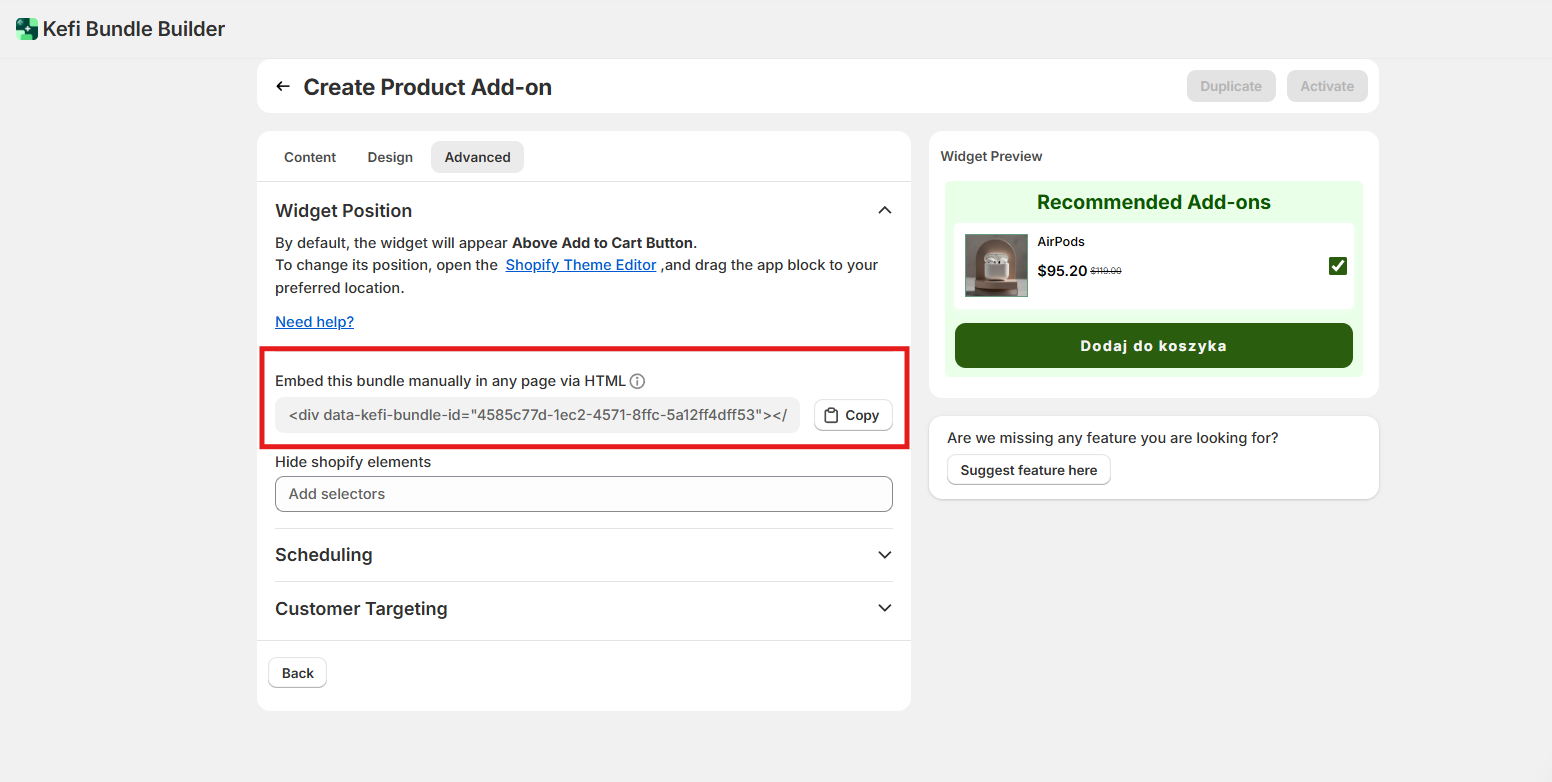
Embed Bundle via HTML
You can also embed this bundle manually on any page using HTML.
Display the bundle wherever you like by placing the provided HTML tag directly into your theme file.
Hide Shopify Elements
You have the option to hide specific Shopify elements (like the default Add to Cart button or product price) to reduce redundancy when showing bundles.
Simply enter the CSS selectors of the elements you'd like to hide.
For example:
.product__price
.product-form__buttons
This helps create a cleaner, more focused layout around your bundle widget.
For a detailed step-by-step guide, refer to this help article:
How to Position Bundles on Your Product Page
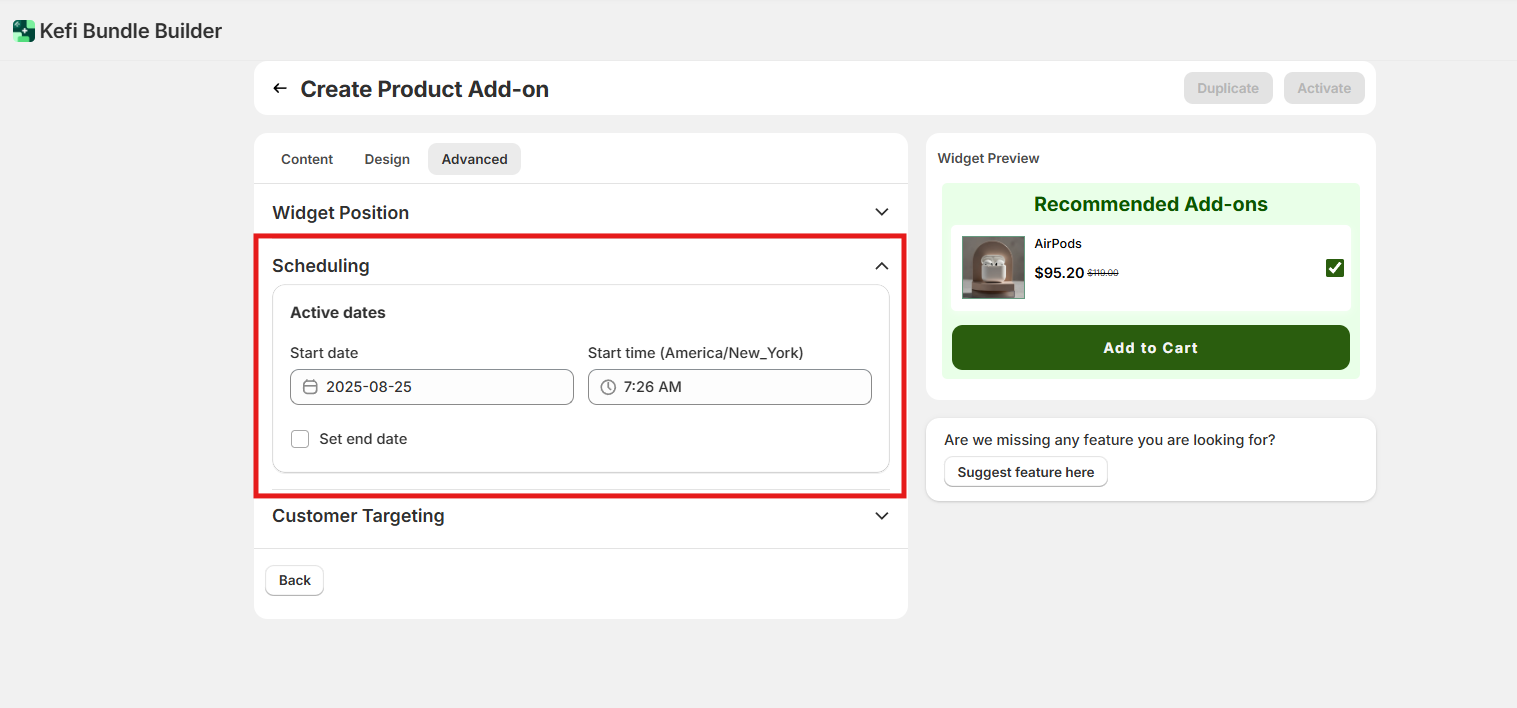
2. Scheduling
Set a start and end date for your bundle campaign. This is perfect for time-sensitive promotions, seasonal offers, or flash sales. The widget will only display during the defined period.
3. Customer Targeting
Control who sees the bundle by targeting:
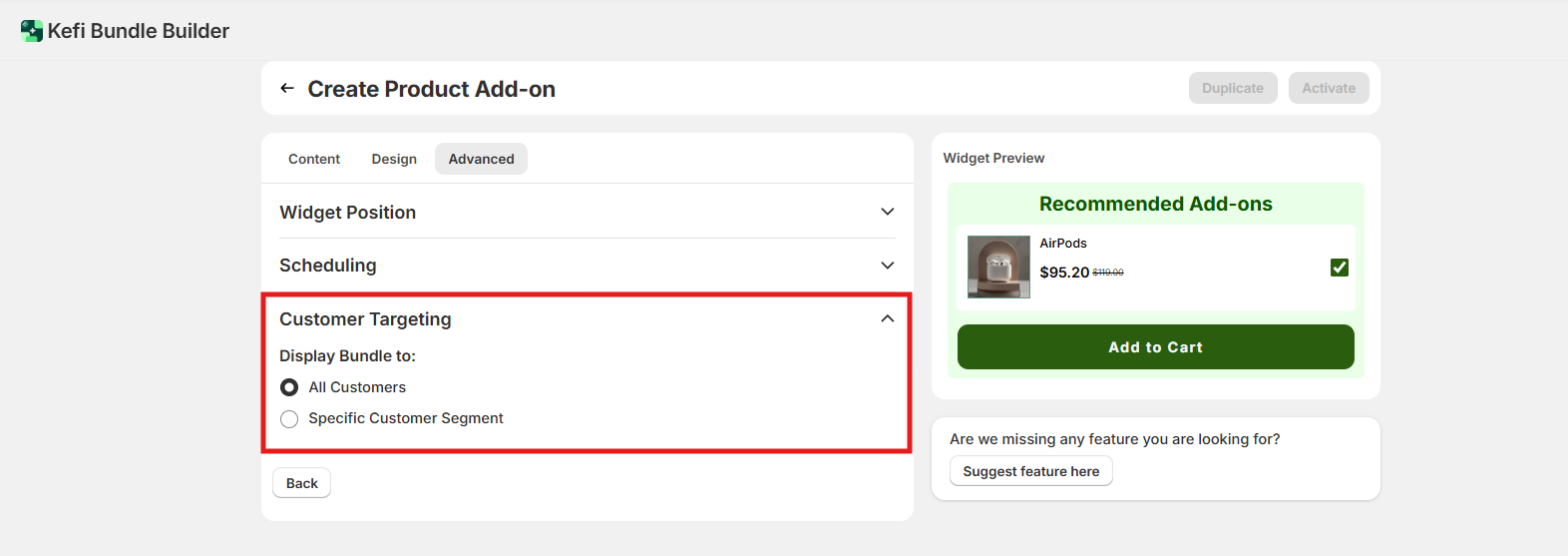
In case of Specific Customer Segment -
These filters can be combined using "AND" logic for precise control, perfect for offering exclusive deals, loyalty rewards, or regional promos.

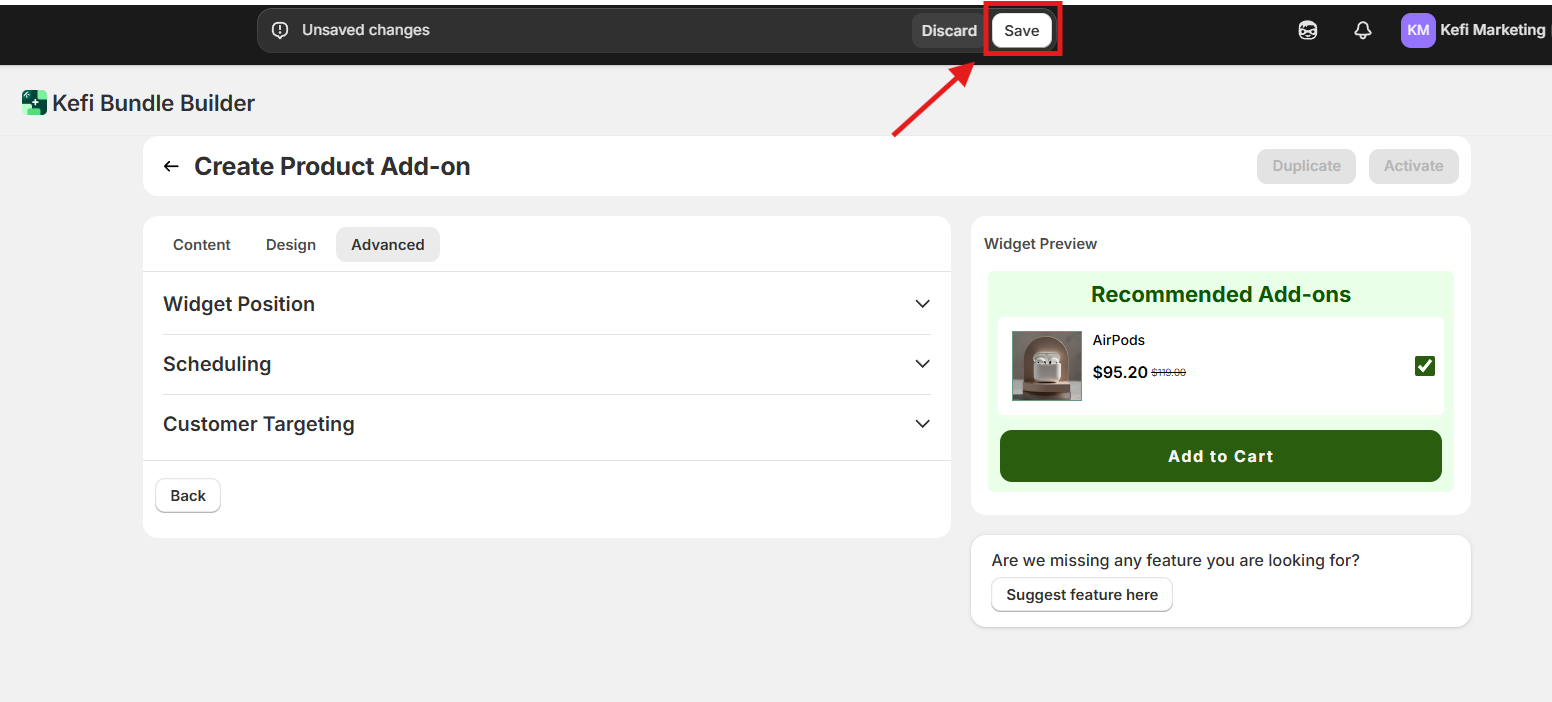
Click on “Save” button to save all the changes
Click on “Activate” to activate the widget on your shopify store(make sure you have enabled the core snippet button in order to see the bundles on your store).

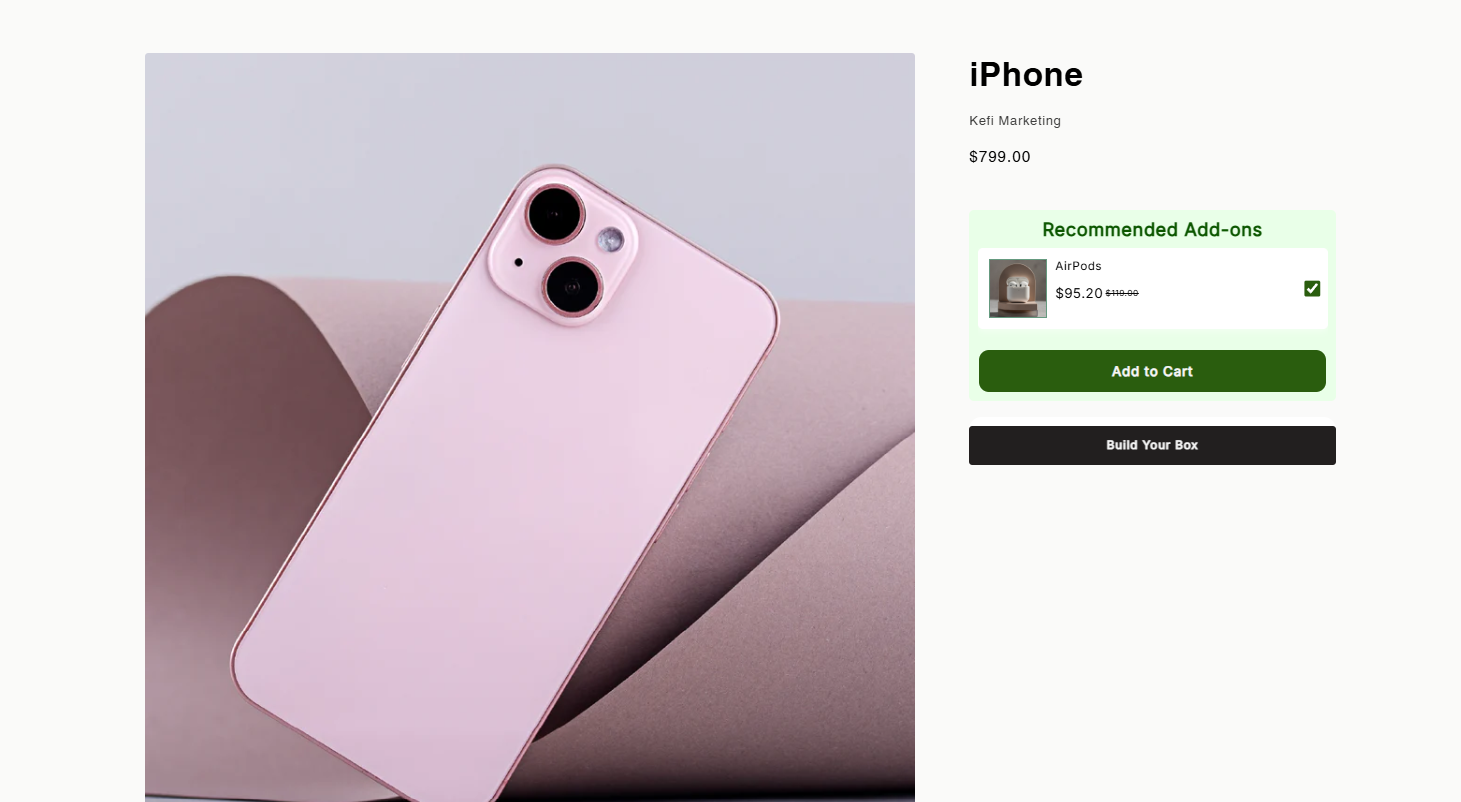
You can preview it on your store by clicking the “Show on Store” button.
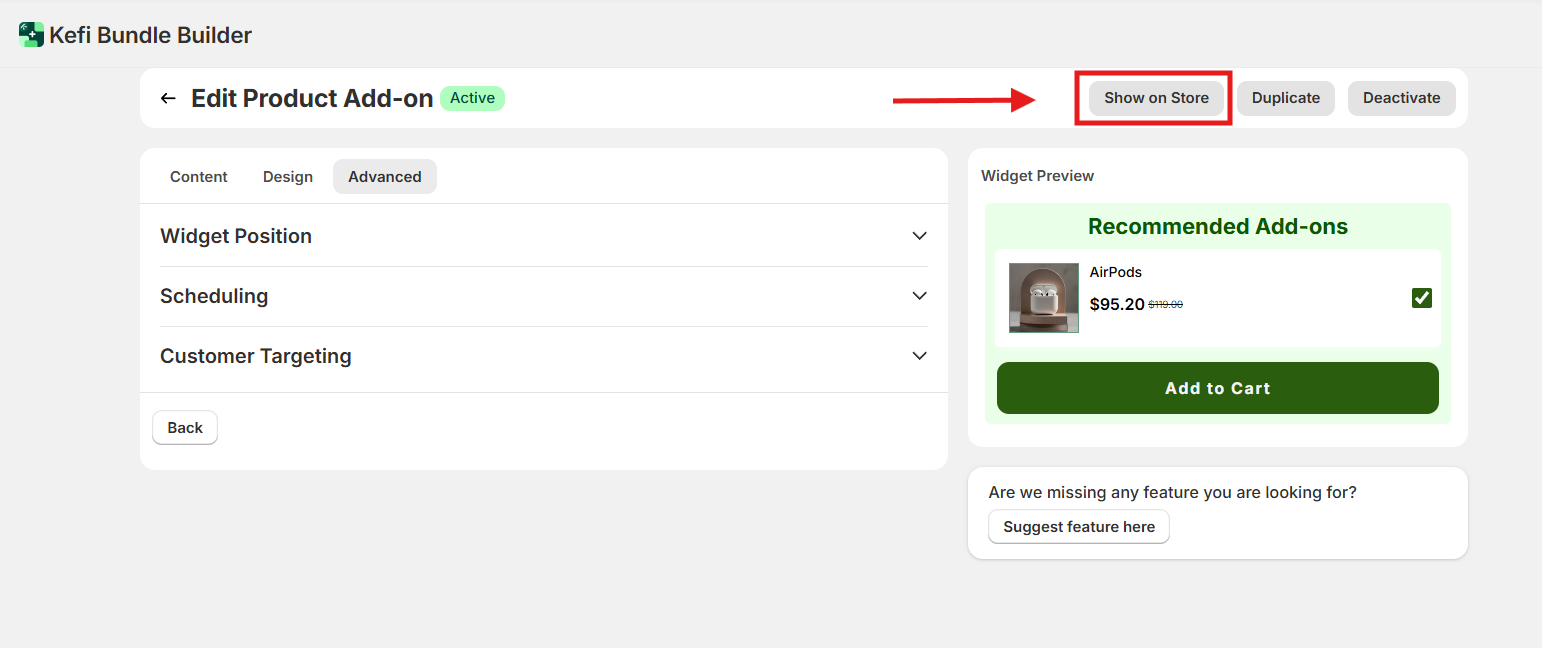
Your Product Add-on is now live.
If you have any questions or need assistance, feel free to contact us:
.svg)
