Kefi’s Slide Cart transforms the checkout moment into a powerful sales opportunity. Instead of treating the cart as just a summary, it becomes a space to showcase relevant upsells, complementary products, and exclusive offers—right when customers are most ready to buy.
With flexible customization, you can highlight add-ons, bundles, or limited-time deals that naturally encourage shoppers to increase their order value.
This guide will walk you through setting up and optimizing upsell offers in your Slide Cart, helping you boost conversions and maximize the revenue potential of every transaction.
STEP 1
Go to the Kefi Bundle Builder Homepage and select the ‘Slide Cart’ option. Click ‘Select’.

STEP 2
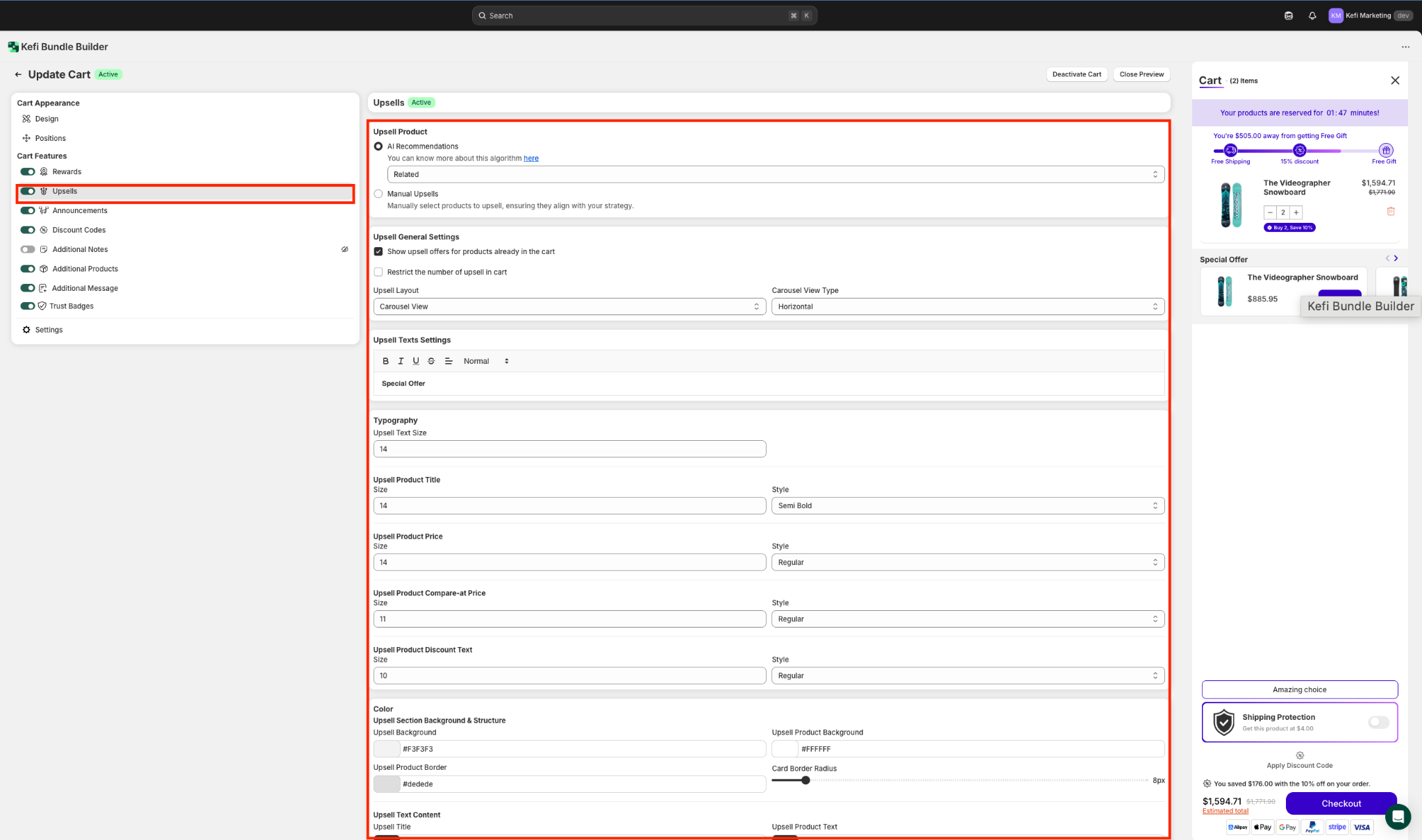
From the left-side panel, select Upsell, then make sure the Upsells toggle is set to Active. This ensures that your upsell offers will be displayed in the Slide Cart.
The Upsells section lets you show targeted product suggestions in the Slide Cart, boosting average order value by encouraging shoppers to add more before checkout.
STEP 3
Now, select your Upsell strategy.
Kefi allows you to select between AI Recommendations and Manual Upsells to show the most relevant product suggestions in the Slide Cart.
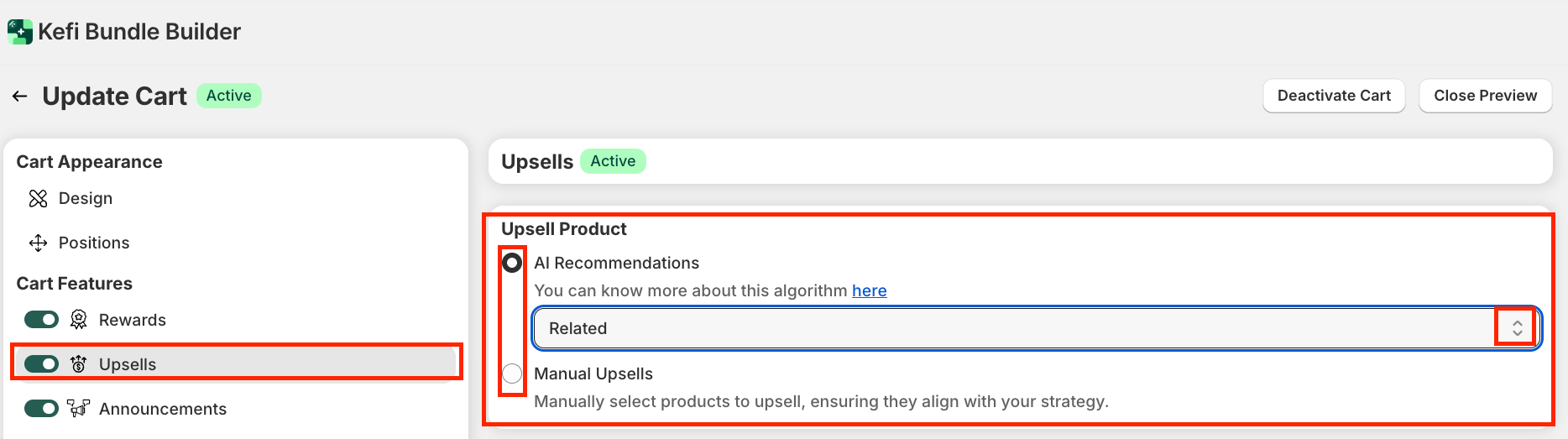
1. AI Recommendations
AI-powered upsells automatically suggest products tailored to what customers already have in their cart—making it a smart, hands-free way to drive more sales.
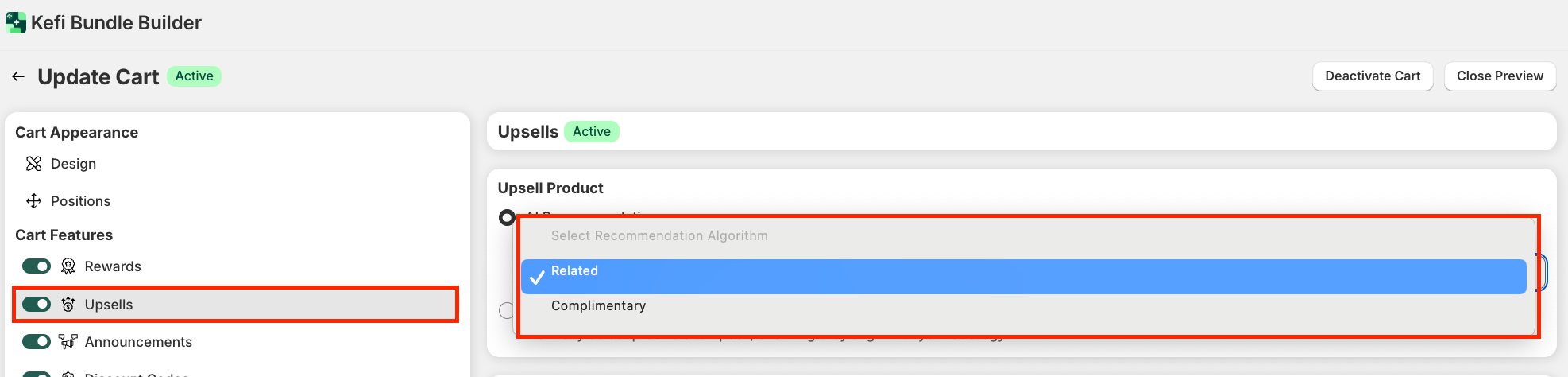
Kefi provides two recommendation styles:
For more details on Shopify’s AI recommendation system, refer to Shopify’s AI Upsell Guide.
2. Manual Upsells
With Manual Upsells, you have full control over which products appear in the Slide Cart. This is useful when promoting seasonal items, best-sellers, or exclusive offers.
To set up Manual Upsells:
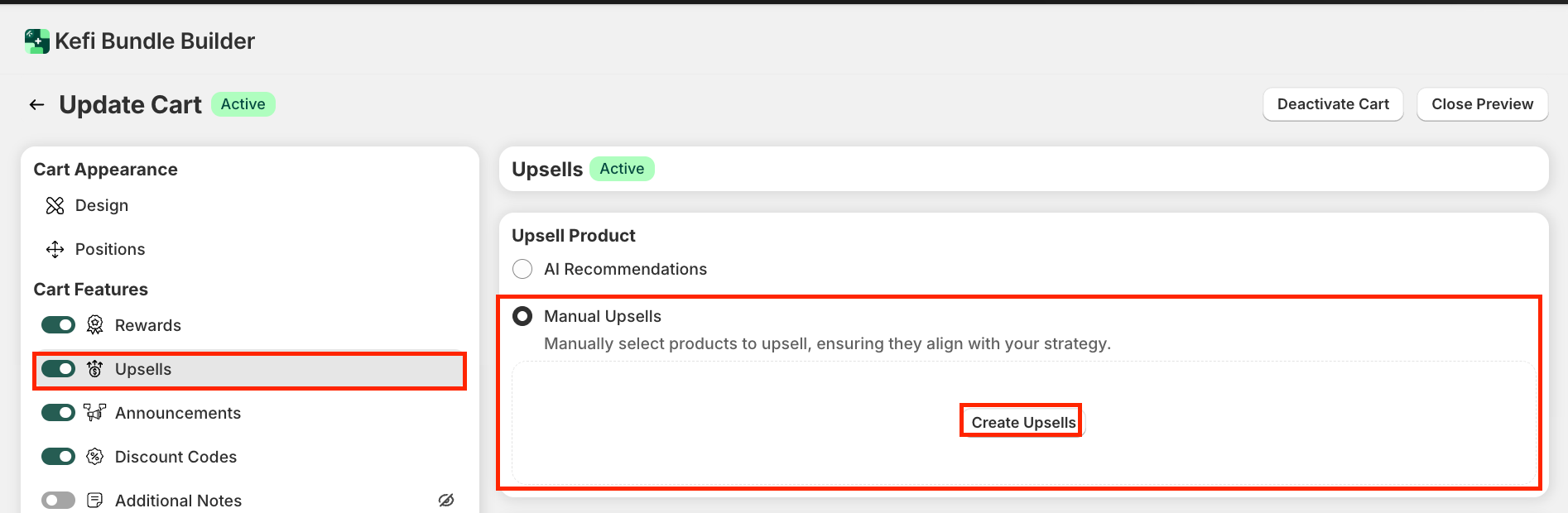
When you click Create Upsell, a configuration panel opens where you can:

STEP 4
Next, configure the Upsell General Settings.
The General Upsell Settings let you control how upsell offers are displayed and behave inside the Slide Cart. Key options include:
1. Upsell Layout – Choose between a carousel for a scrollable view or stacked blocks for a more static display.
2. View Type – Select horizontal or vertical scrolling based on your store’s design.

STEP 5
Once the general settings are taken care of, move on to the Upsell Text Settings.
This section lets you customize and style the header text above your upsell offers using rich text options like bold, italic, underline and more. You can use phrases like "Special Offer" to grab attention and boost engagement.

STEP 6
Next, head over to the Typography section.
This section allows you to control the font size and style for all upsell elements—like product titles, prices, compared prices, and discount text. You can fine-tune the visual hierarchy and ensure consistency with your store’s design.

STEP 7
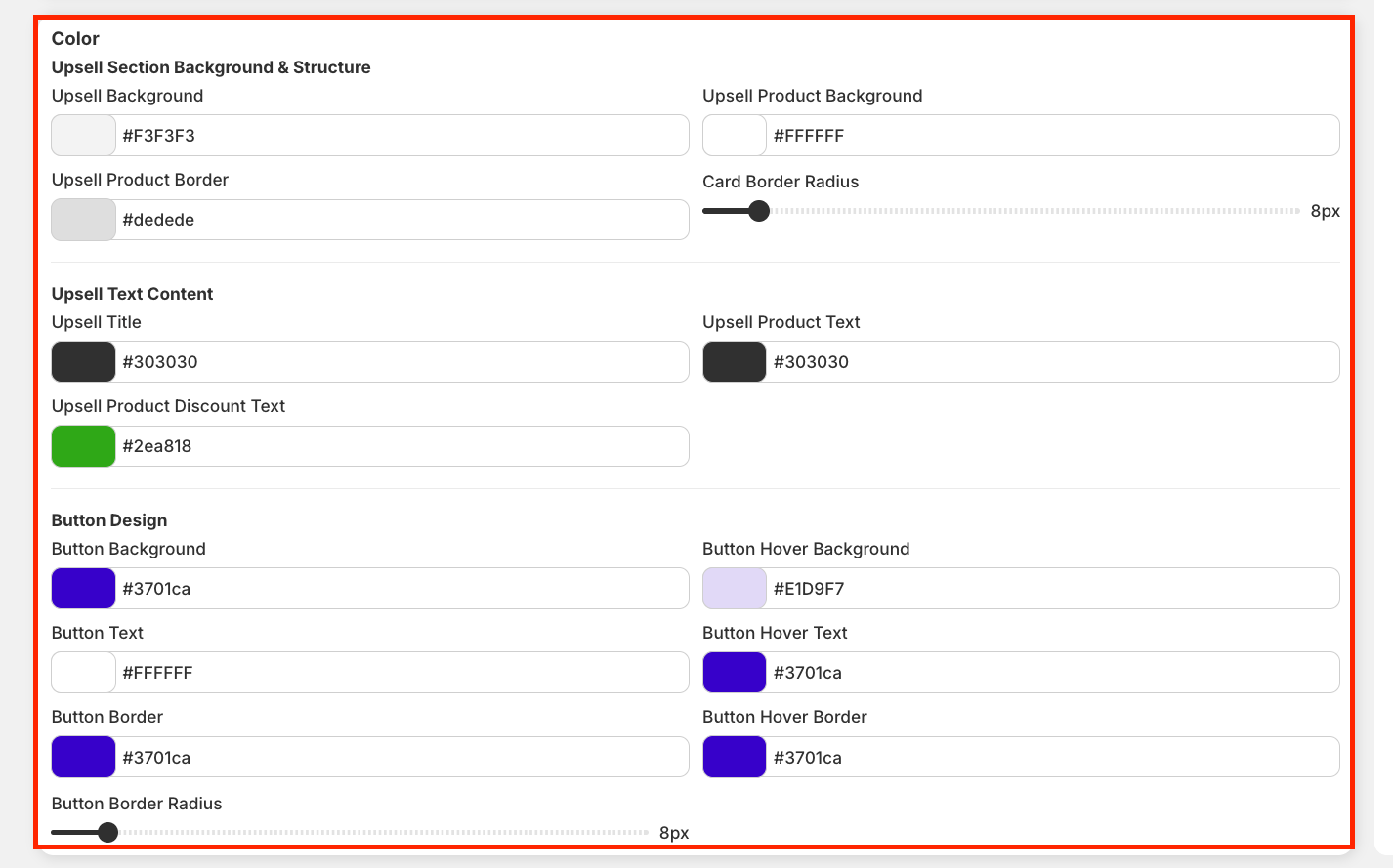
The Color section under Upsells lets you customize the color scheme for all upsell components—including product cards, text, buttons, and hover states.
You can also control the button border radius for a sharper or more rounded look that fits your brand’s style.
STEP 8
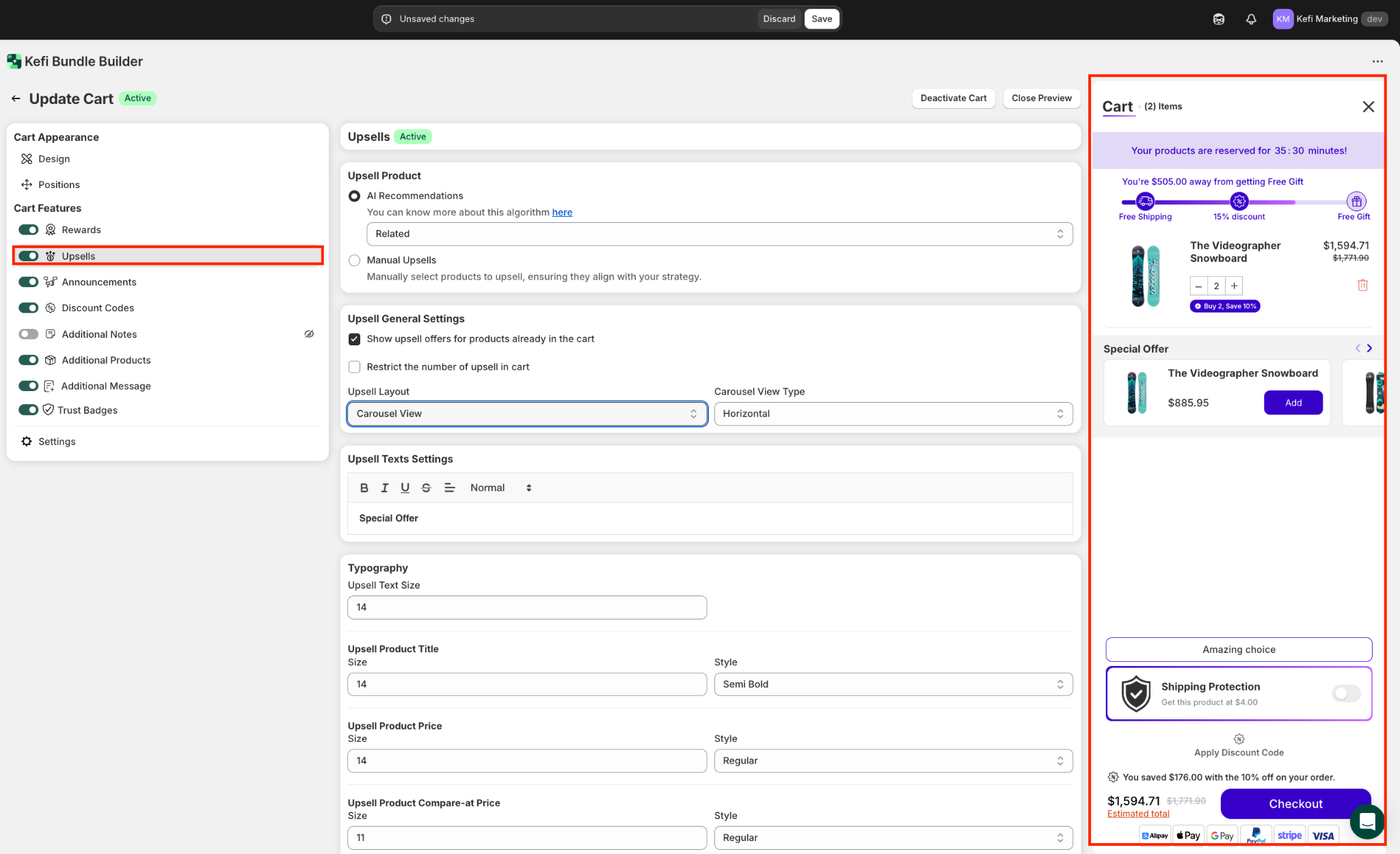
Before publishing your upsell setup, double-check that both the design and functionality work as expected.
Use the Cart Preview on the right side of the screen to see instant updates as you adjust your upsell offers and styling.
STEP 9
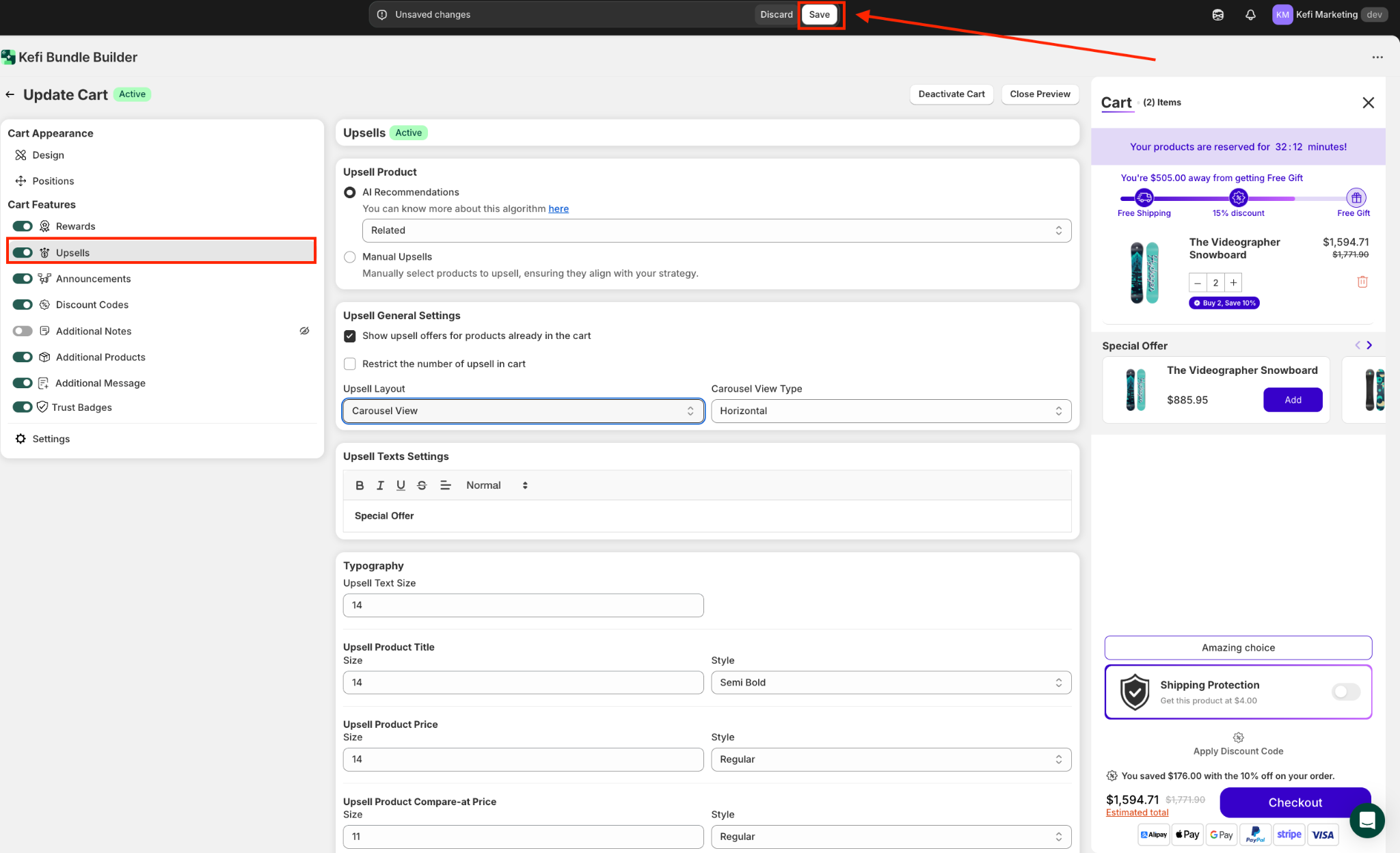
Once you're satisfied with the setup, click Save to apply your upsell offers and cart deals to the live Slide Cart.
If you have any questions or need assistance, feel free to contact us:
.svg)
