A successful e-commerce strategy relies on delivering the right offer to the right shopper at the exact right moment. Traditional automated discounts can sometimes feel generic or disconnect from what a shopper is actually looking at.
With Triggered Rewards in Kefi’s Slide Cart, you can create hyper-targeted, automated reward rules that trigger instantly when a customer adds specific products or collections to their cart. Whether it’s offering a free gift with purchase, rewarding customer interest in a specific product line, or boosting high-margin collections, Triggered Rewards make your cart drawer feel interactive, personalized, and rewarding.
Why are Triggered Rewards Useful?
Integrating Triggered Rewards into your Slide Cart brings several strategic benefits to your online store:
Drives Targeted Product Promotions Instead of applying site-wide minimum spend rules, you can create focused promotions around specific high-value items, new collection launches, or overstocked inventory.
Increases Conversion Rates Offering a surprise or immediate incentive when a shopper selects a specific item creates a powerful psychological reward, encouraging them to proceed straight to checkout without hesitation.
Eliminates Manual Coupon Hassle Customers don't need to hunt for promo codes or type them into checkout boxes. The free gift automatically attaches to the cart as soon as the trigger conditions are met.
Boosts Specific Collection Sales You can easily run campaign-based offers (e.g., "Buy any jacket from the Winter Collection and get a free beanie") to clear seasonal stock or incentivize new catalog categories.
Prerequisites
To use Triggered Rewards, ensure:
Your store is subscribed to the Starter or Unlimited plan.
You have enabled the Slide Cart feature.
Step-by-Step Guide: Setting Up Triggered Rewards
Follow these simple steps to configure your first triggered reward rule inside Kefi’s Slide Cart.
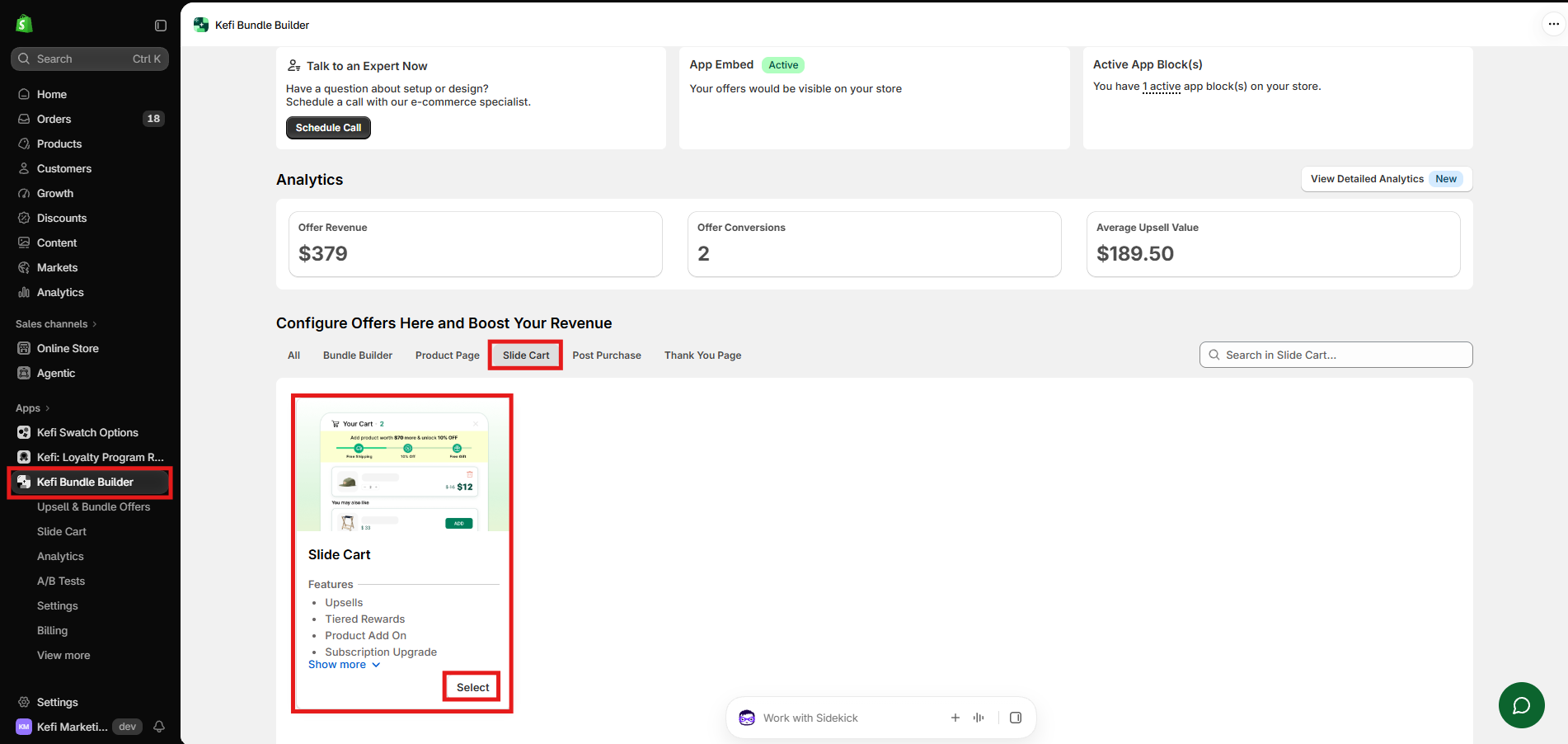
Step 1: Open the Slide Cart Editor
Log in to your Shopify store admin dashboard.
Navigate to Apps > Kefi Bundle Builder.
Select Slide Cart from the dashboard menu.
Step 2: Access the Triggered Rewards Feature
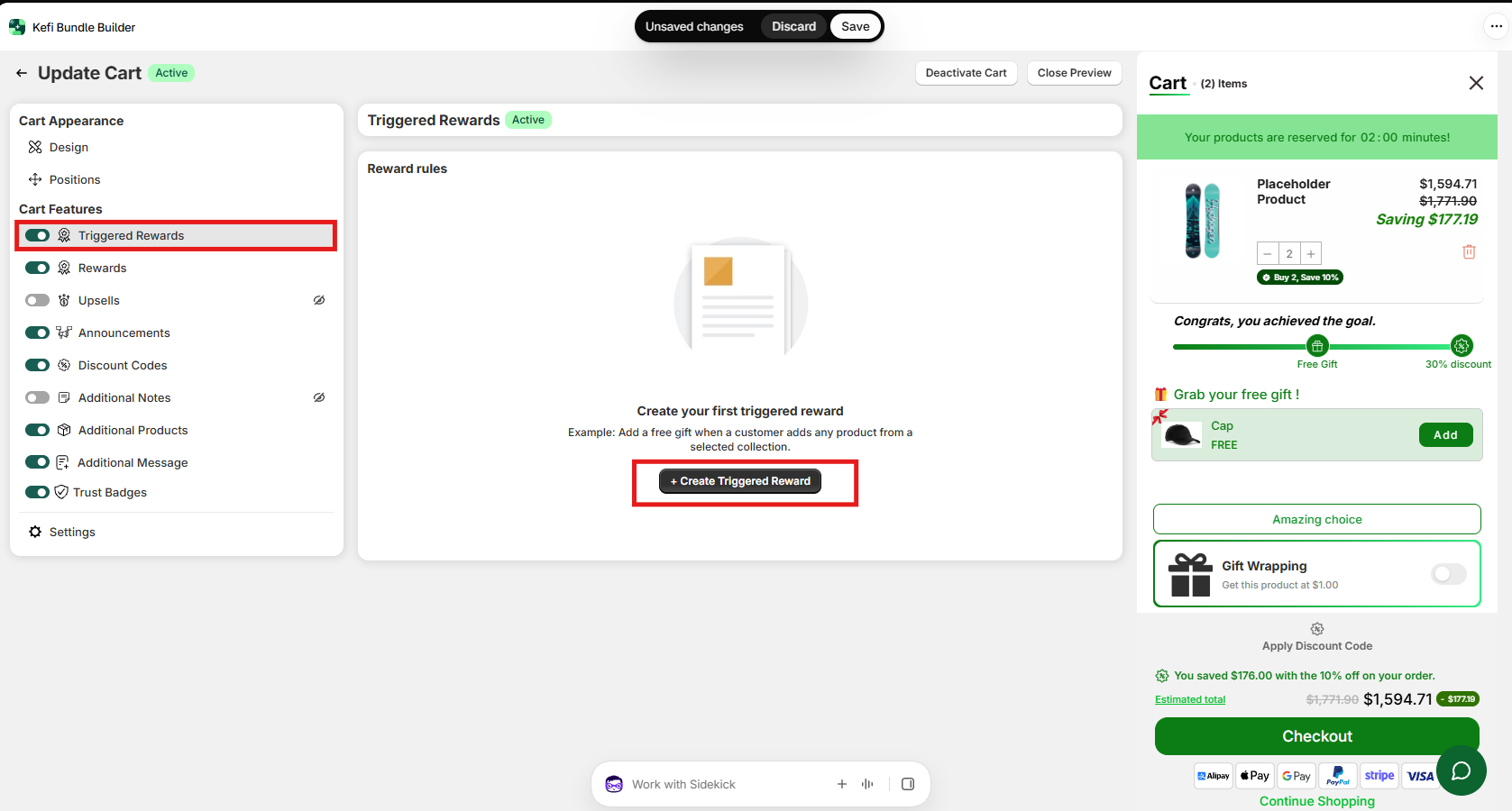
Look at the left navigation panel under Cart Features.
Click on Triggered Rewards.
Ensure the toggle switch next to Triggered Rewards is switched ON (Active).
In the main editor window, click the + Create Triggered Reward button to open the configuration modal.
Step 3: Configure Trigger Conditions
The trigger condition dictates what item(s) a customer must add to their cart to unlock the reward.
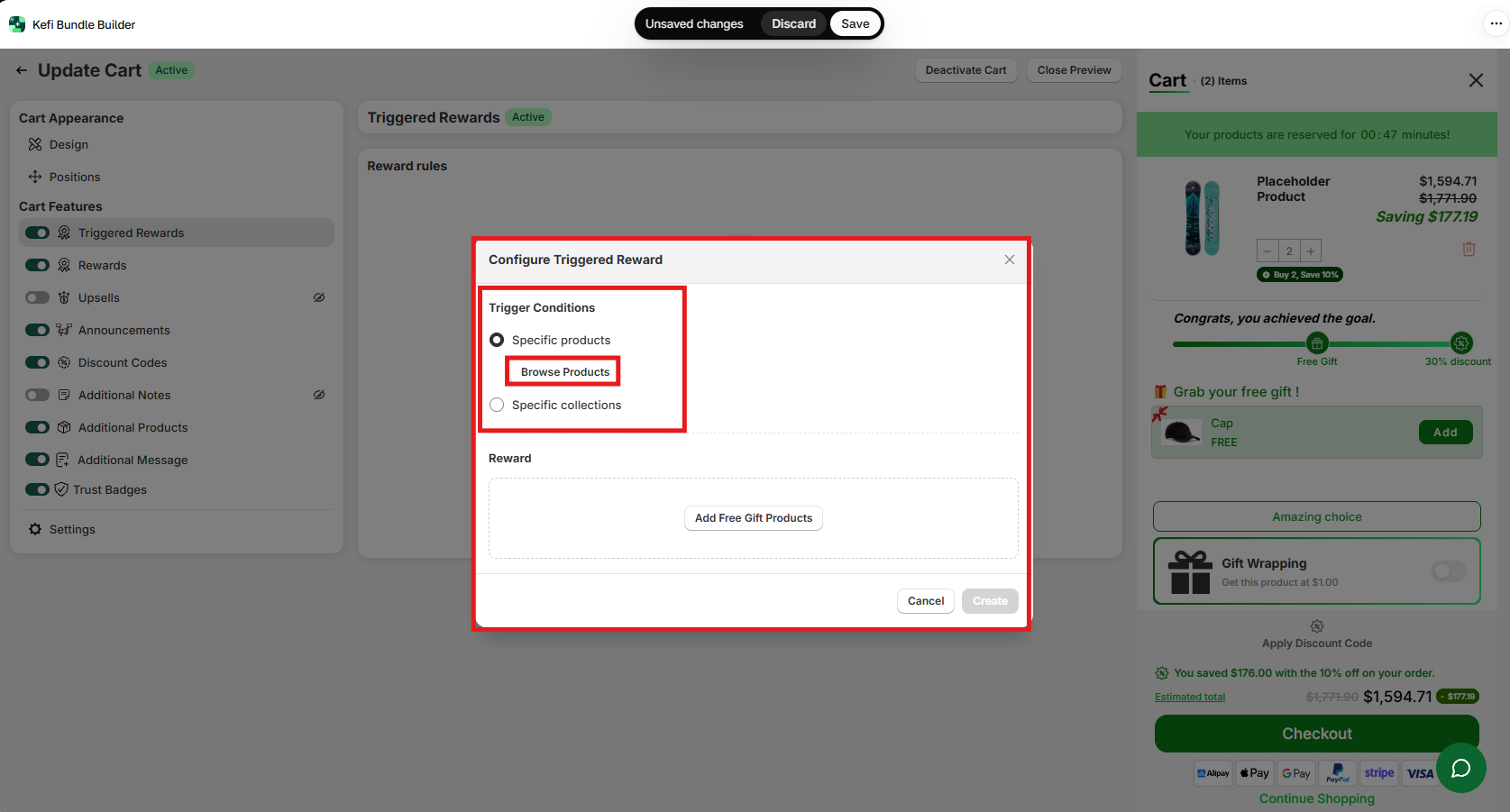
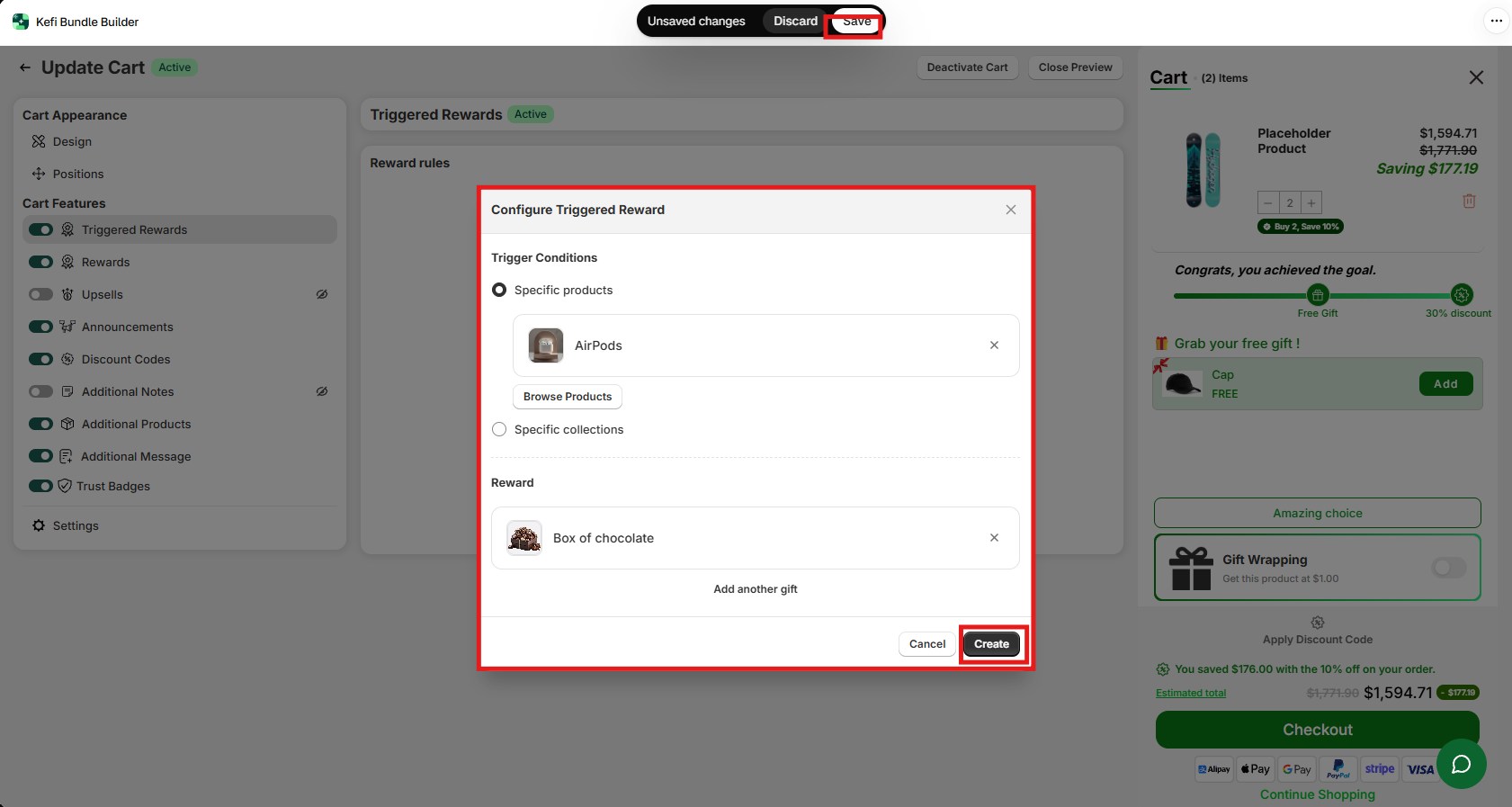
In the Configure Triggered Reward popup, choose your trigger condition under Trigger Conditions:
Option A: Specific Products
Select the radio button for Specific products.
Click the Browse Products button.
Search for and select the qualifying product(s) from your catalog.
Click Add or Save to confirm your product choices.
Option B: Specific Collections
Select the radio button for Specific collections.
Search and select the collection(s) you want to use as the trigger. Adding any product from the chosen collection into the cart will satisfy the rule.
Step 4: Add the Free Gift Reward
Next, define the reward product that the customer will receive once the trigger condition is met.
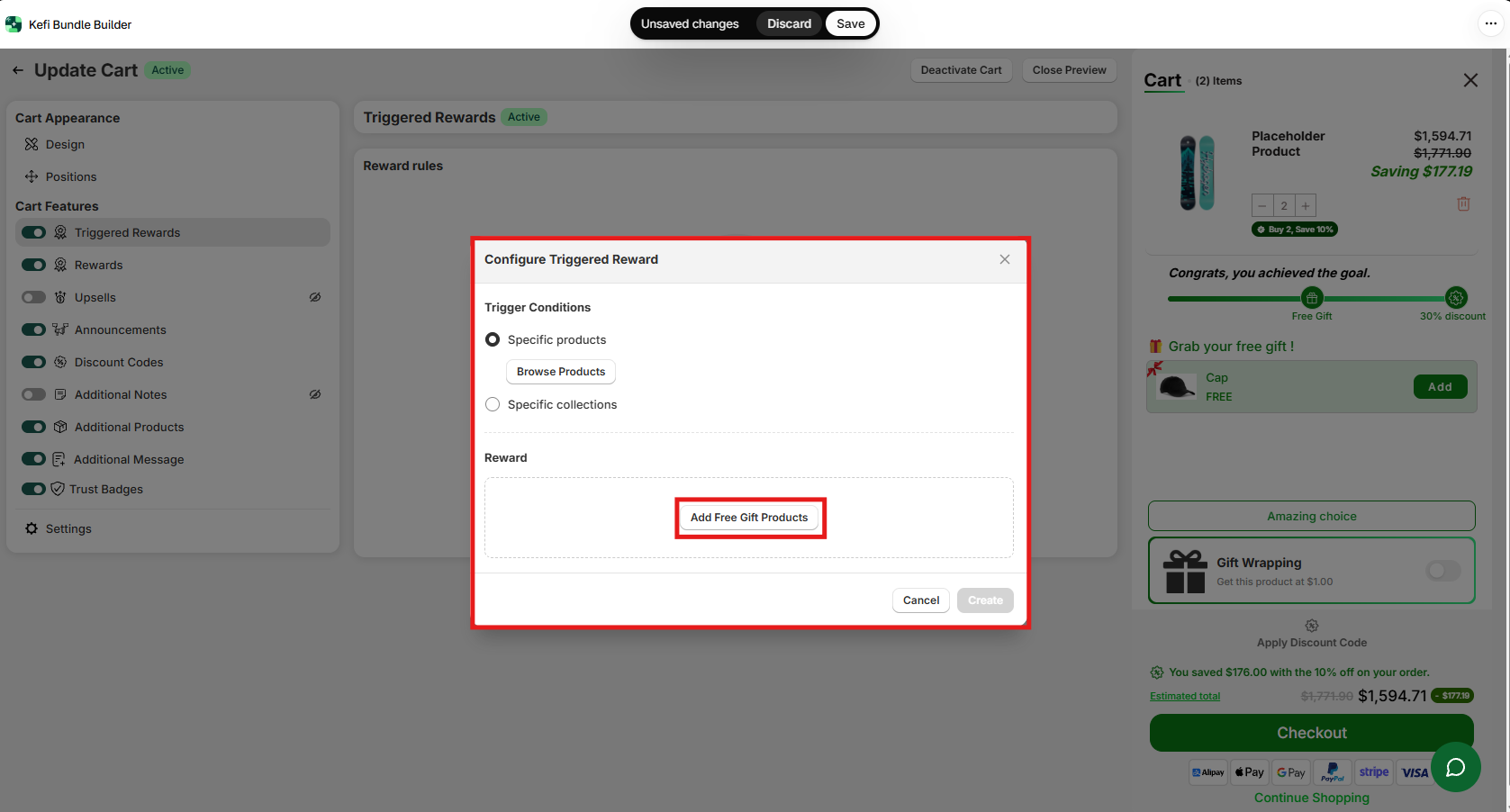
Under the Reward section inside the popup, click Add Free Gift Products.
Search your product catalog to choose the item you wish to gift (e.g., a cap, tote bag, or sample item).
Select the specific variant(s) if applicable.
Set the item quantity to be gifted.
Step 5: Save and Activate the Rule
Click Create at the bottom right of the configuration modal to save your rule.
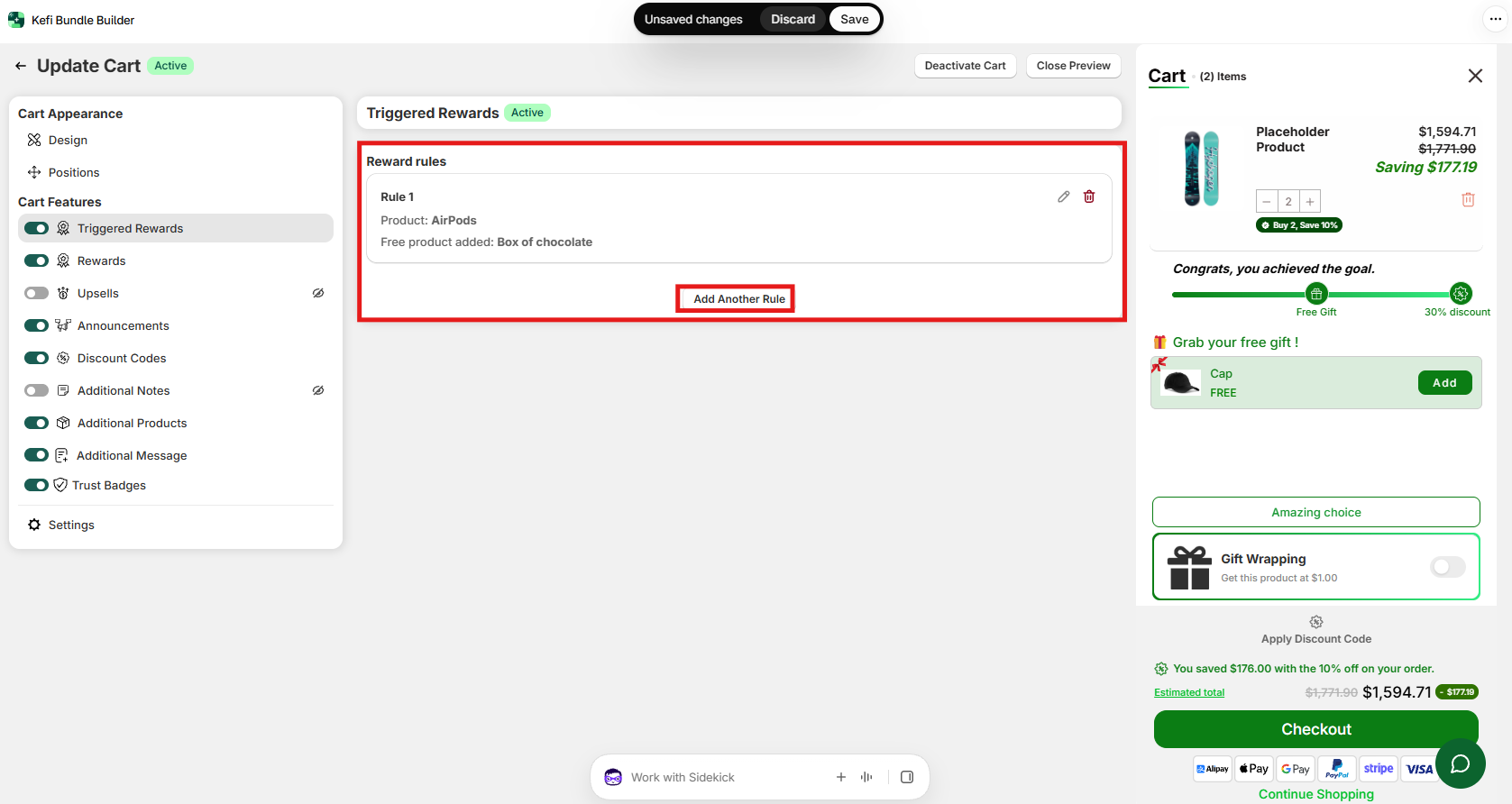
The rule will now appear listed under your Reward rules summary screen.
Click Save in the top-right corner of the Slide Cart dashboard to publish your updates live to your store.
Best Practices for Triggered Rewards
Pair Accessories with Main Products: Offer free shoe cleaner when buying premium sneakers, or a free screen protector when buying a phone case.
Highlight the Offer visually: Make sure the free gift display title clearly indicates that it is a FREE item so shoppers instantly notice the added value.
Test the Customer Journey: Add a trigger product to your live store cart to confirm that the free gift product automatically loads and displays as expected in the Slide Cart drawer.
Frequently Asked Questions (FAQ)
Q: Can I set up multiple triggered reward rules at once?
A: Yes! You can create multiple reward rules for different products or collections.
Q: What happens if a customer removes the trigger product from their cart?
A: If the qualifying item is removed, the Slide Cart automatically adjusts and removes the free gift reward from the cart as well.
Need Support?
If you need any assistance setting up your Triggered Reward rules, our support team is happy to help:
Live Chat: Contact us via the chat widget inside the Kefi Bundle Builder app.