The Thank You Page—also known as the Order Confirmation Page—is shown to customers immediately after they complete a purchase.
While many stores leave this page static, Kefi turns it into a smart conversion opportunity by allowing you to offer additional, relevant products to an already-converted customer.
This is a low-pressure, high-intent moment, and Kefi leverages it with upselling features that are subtle yet effective.
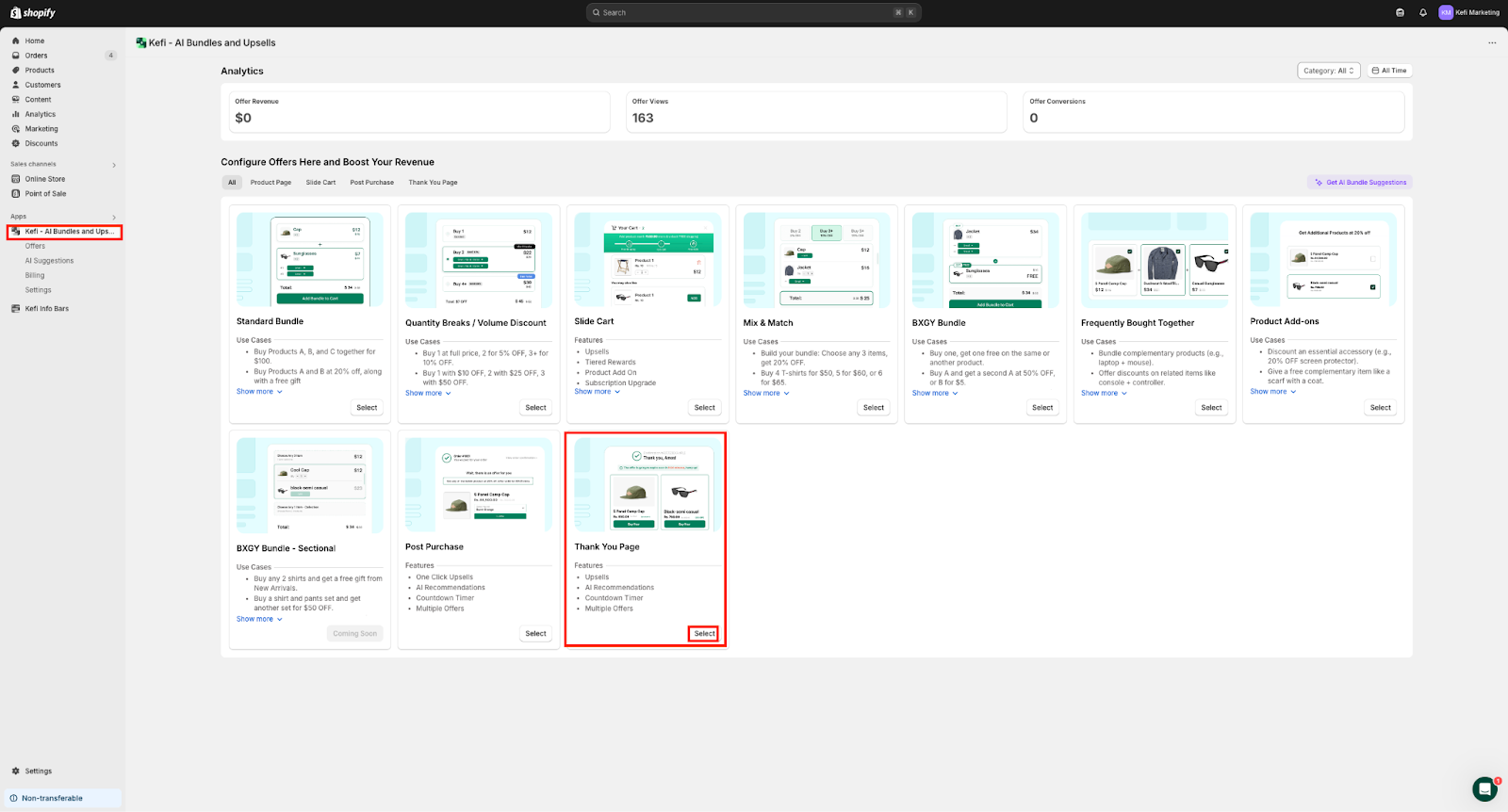
When you select the Thank You Page module in Kefi, you unlock the following tools:
1. Upsells
Offer personalized product suggestions directly on the Thank You Page. These can be based on:
These upsells are non-intrusive and appear as gentle suggestions, not hard sells.
2. AI Recommendations
Leverage AI Recommendations to suggest relevant products tailored to the customer’s previous behavior and cart history. This automation ensures your upsells feel relevant rather than random.
3. Countdown Timer
Drive urgency by showing a limited-time offer even after the order is placed.
For example:
“Get 20% off on this item for the next 10 minutes!”
This subtly encourages impulse add-ons without friction.
4. Multiple Offers
You’re not limited to just one upsell.
With the “Multiple Offers” feature, you can showcase several related items, increasing the chances of an additional purchase while giving customers more choice.
Create a Thank You Page.
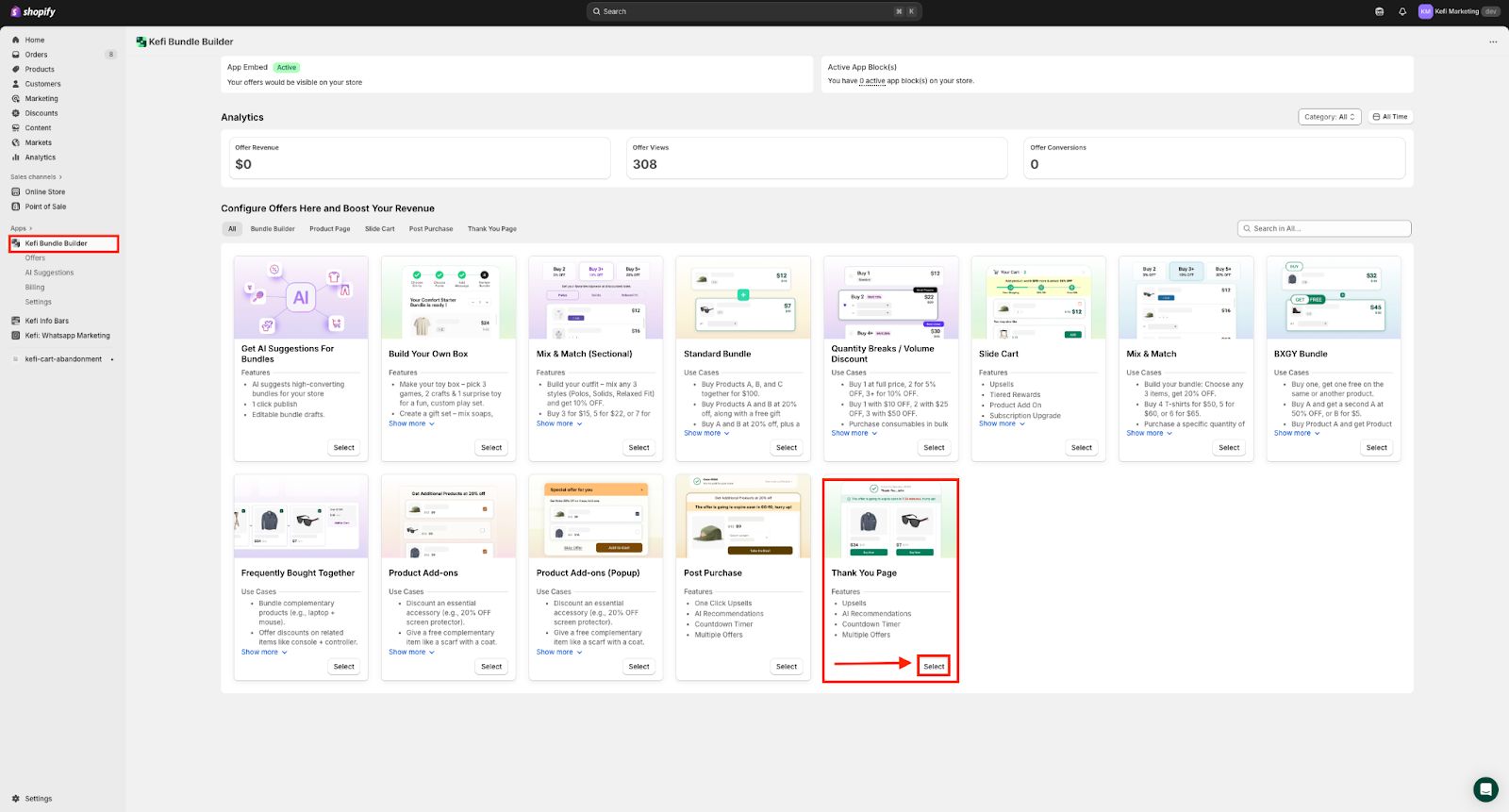
Go to the Kefi Bundle Builder homepage and select the Thank You Page option to create the page. Click ‘Select’.
There are two sections available: Offer customization and Design.
The Widget Preview is available on the right side.
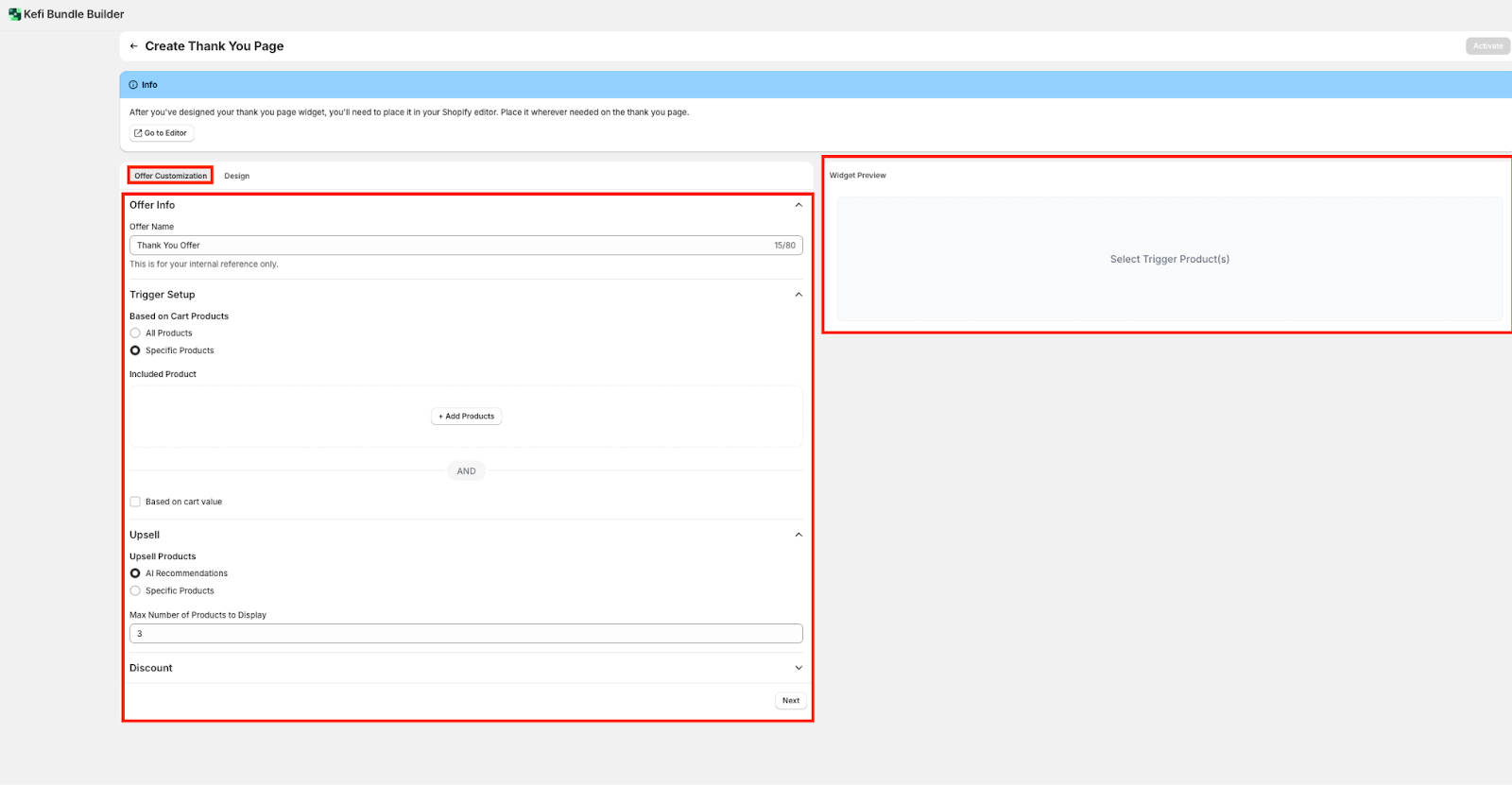
Let’s first begin with Offer Customization.
This section lets you configure exactly how and when your thank you page upsell offers appear. You can tailor the content to match specific products or cart values, giving you full control over the upsell.

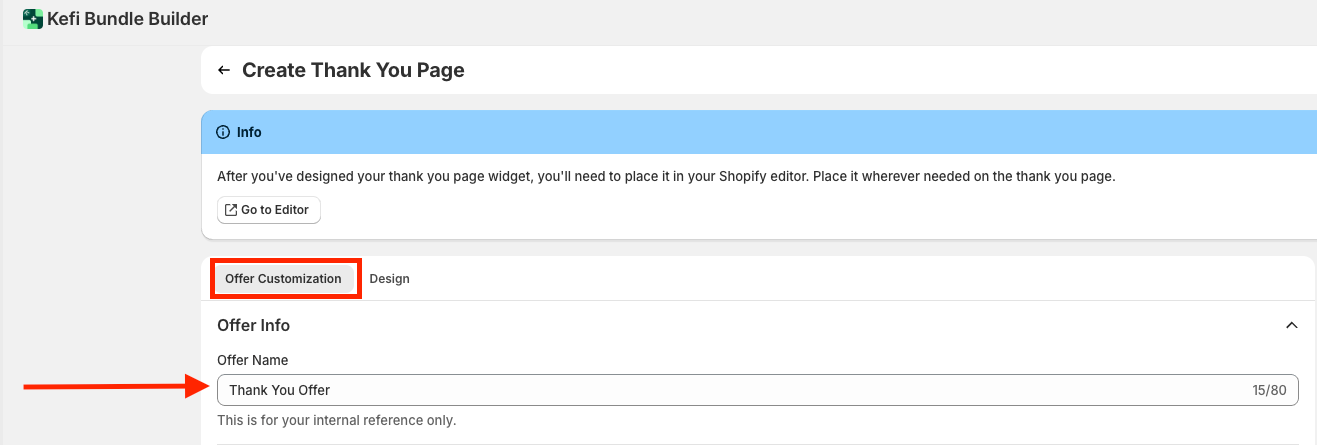
Offer Name:
Here, you can set a reference title for internal use. This helps you label and manage your Thank You Page offers efficiently.
Note- The character limit is set to 80.
Trigger Setup Section.
This section controls when the upsell appears based on customer purchase behavior.
Based on Cart Products:
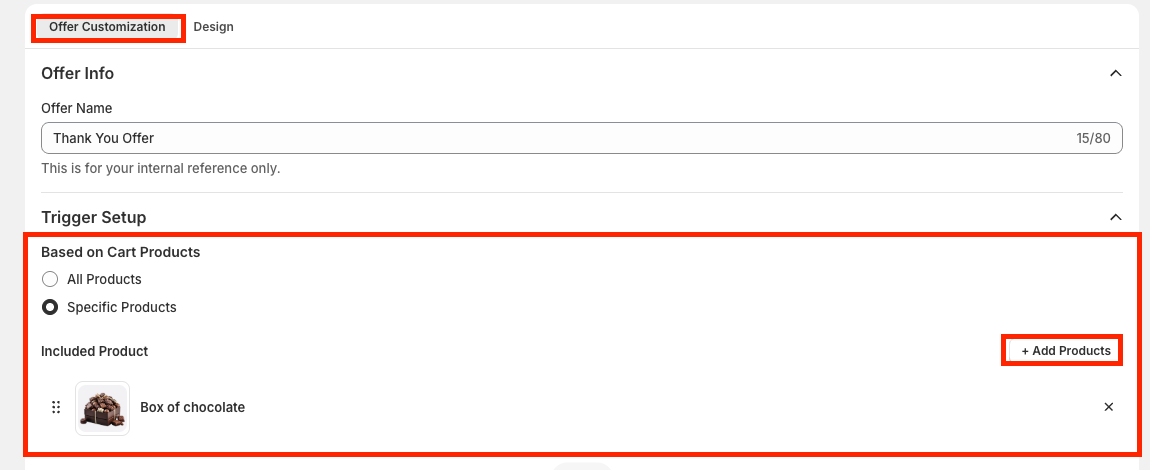
Based on Cart Value (optional):
Add an extra condition to show upsells only if the customer’s cart meets a minimum (or specific) value threshold.

Let us work on the Trigger Setup based on Cart Products for Specific Products.
On clicking ‘Add Products’, your entire product list will be visible. Select the boxes beside the product you wish to add.
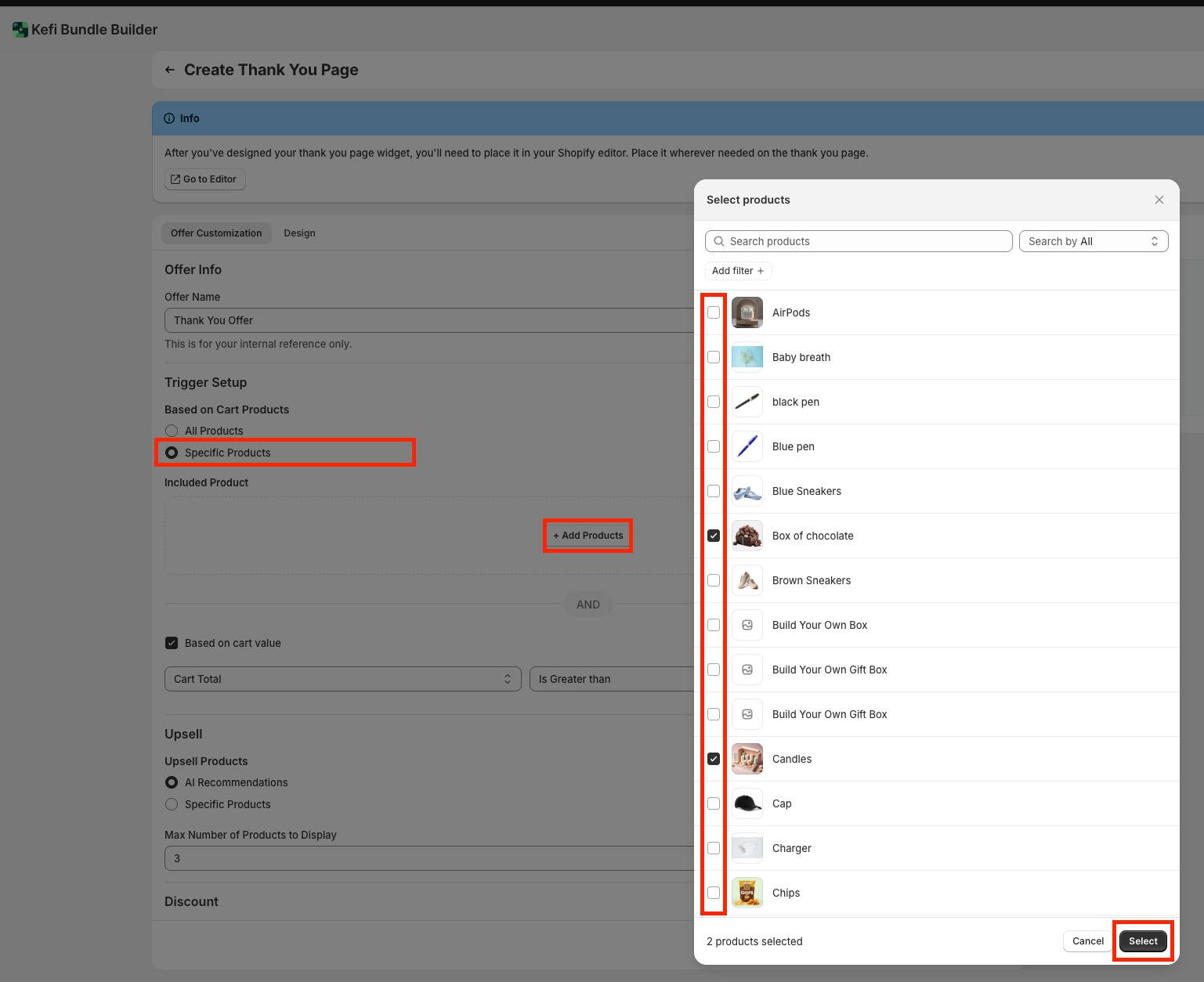
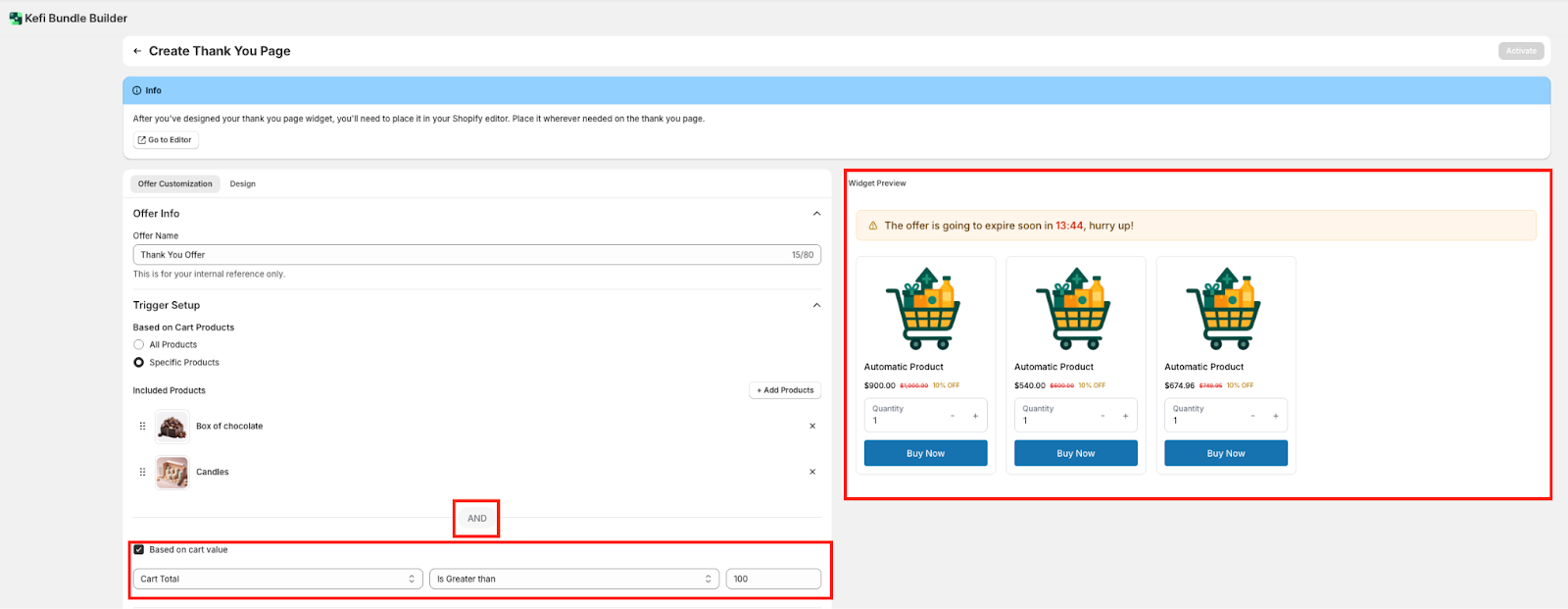
Now, let’s say you also want to Trigger Setup - Based on Cart Value.
This feature allows you to add an extra condition to show upsells only if the customer’s cart meets a minimum (or specific) value threshold.
Simply click the check box beside it, and give the necessary input as per your requirement.
AND Condition:
Combine multiple conditions for more precise targeting (e.g., specific product based on cart products AND cart total above $100)
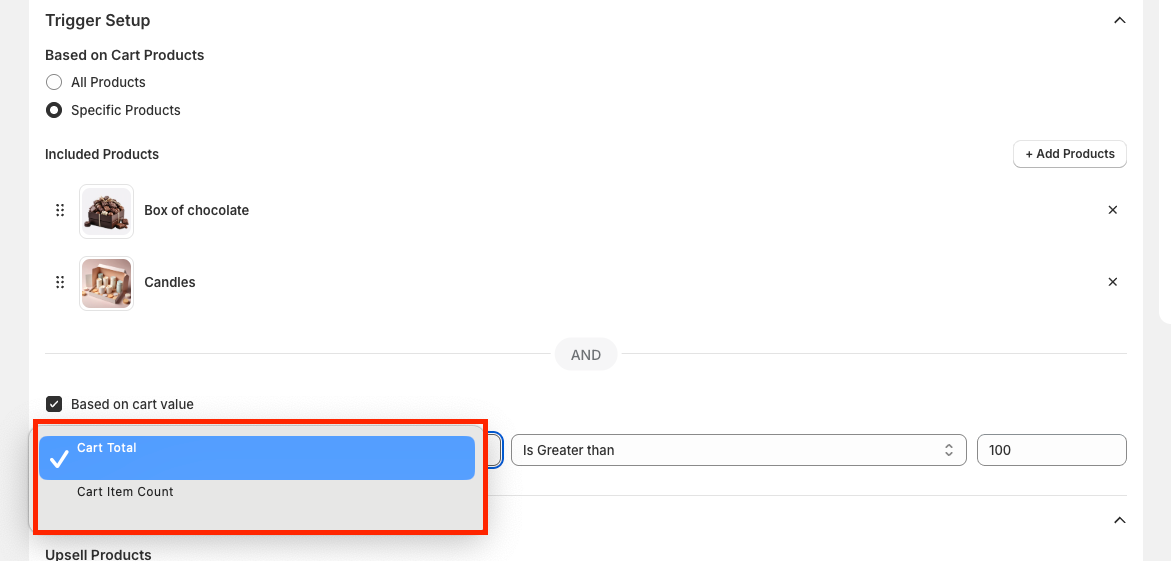
Cart Type- This determines what metric is being evaluated to trigger the offer:
Cart Operator - Defines the condition that must be met when comparing the cart metric (total or item count) to your specified value:
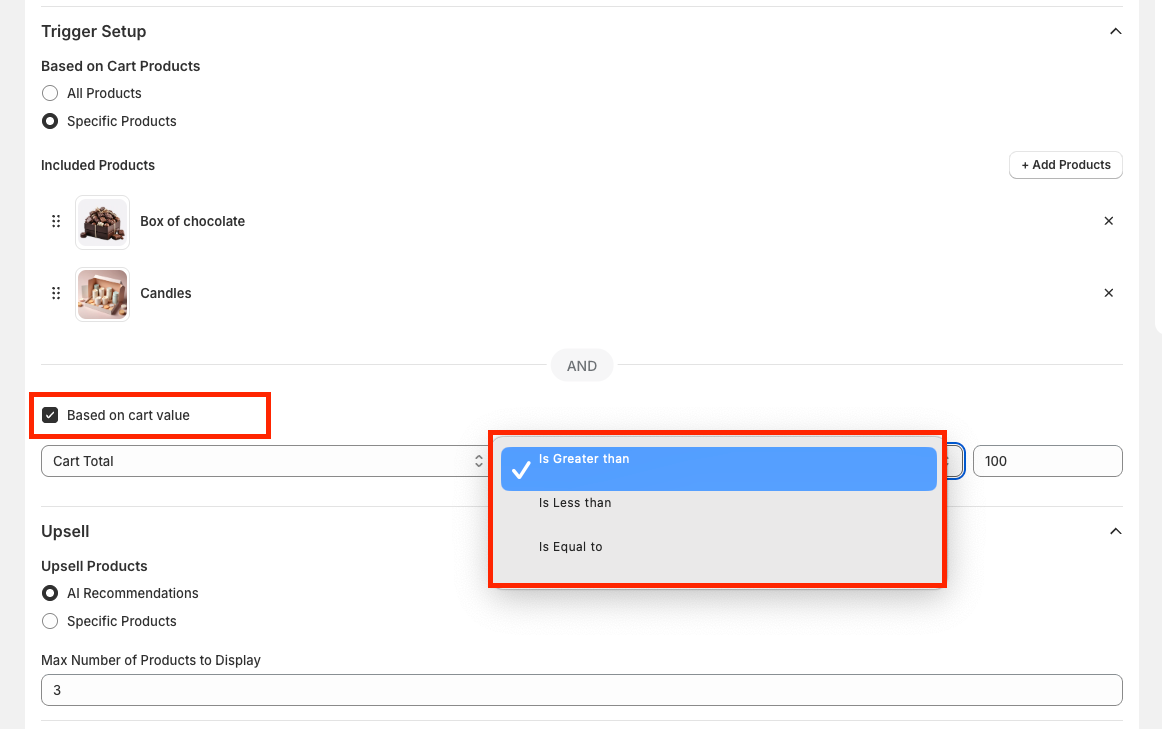
Cart Value -The numeric value paired with your selected cart type and operator.
Examples:

Upsell Section - This section defines what is being offered as an upsell.
Upsell Products:
Max Number of Products to Display: Control how many upsell items appear (e.g., show top 3 products only). This helps to keep the layout clean and prevents overwhelming the customer.

To set an upsell for Specific Products, simply select ‘Specific Products’ and click on ‘Add Products’ to choose your pick.
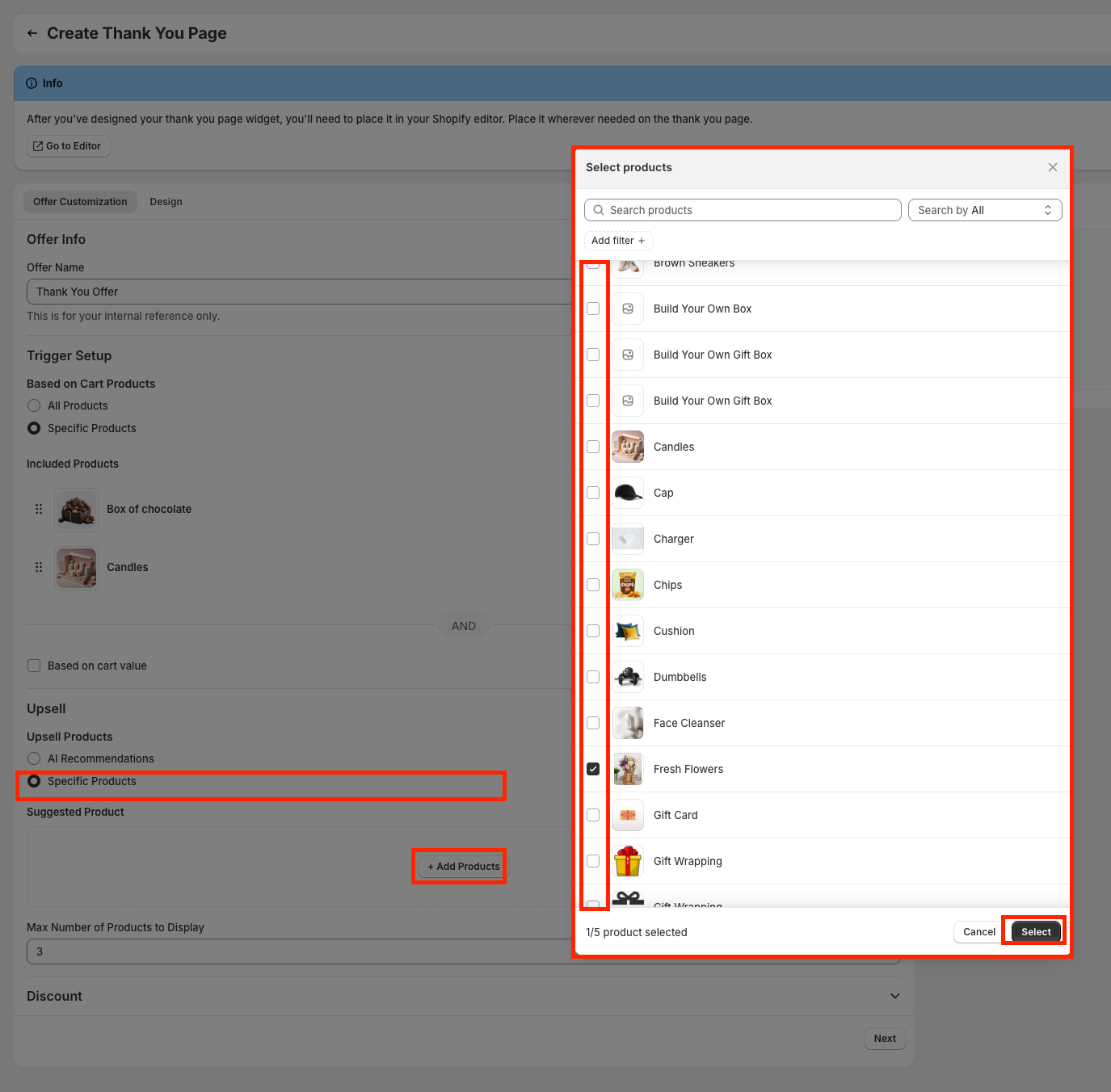
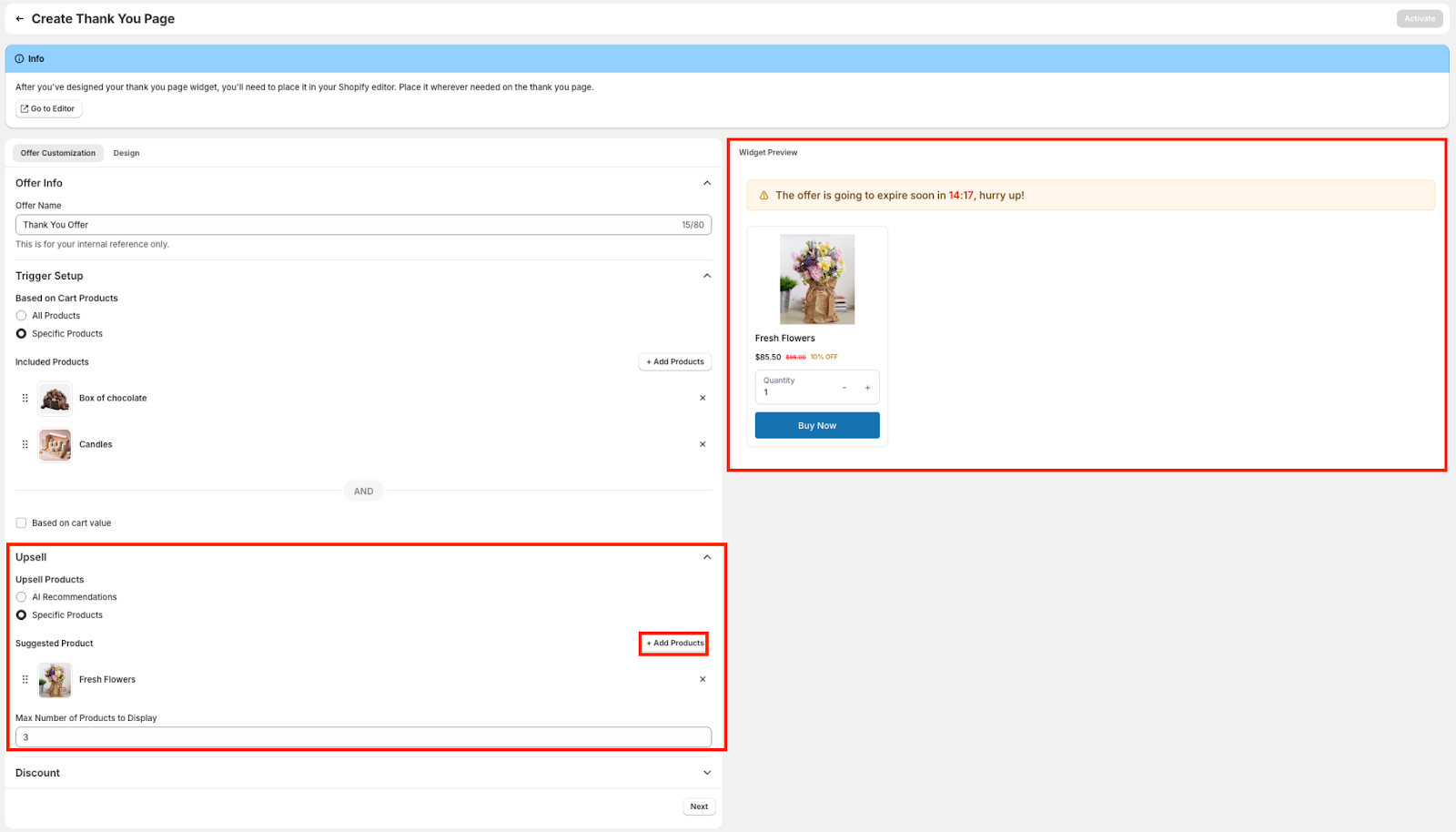
Let’s say you’ve selected specified product, you still have the option to add more products by clicking on ‘Add Products’. You can also view how the Upsell would appear on the right side of the screen in the Widget Preview.
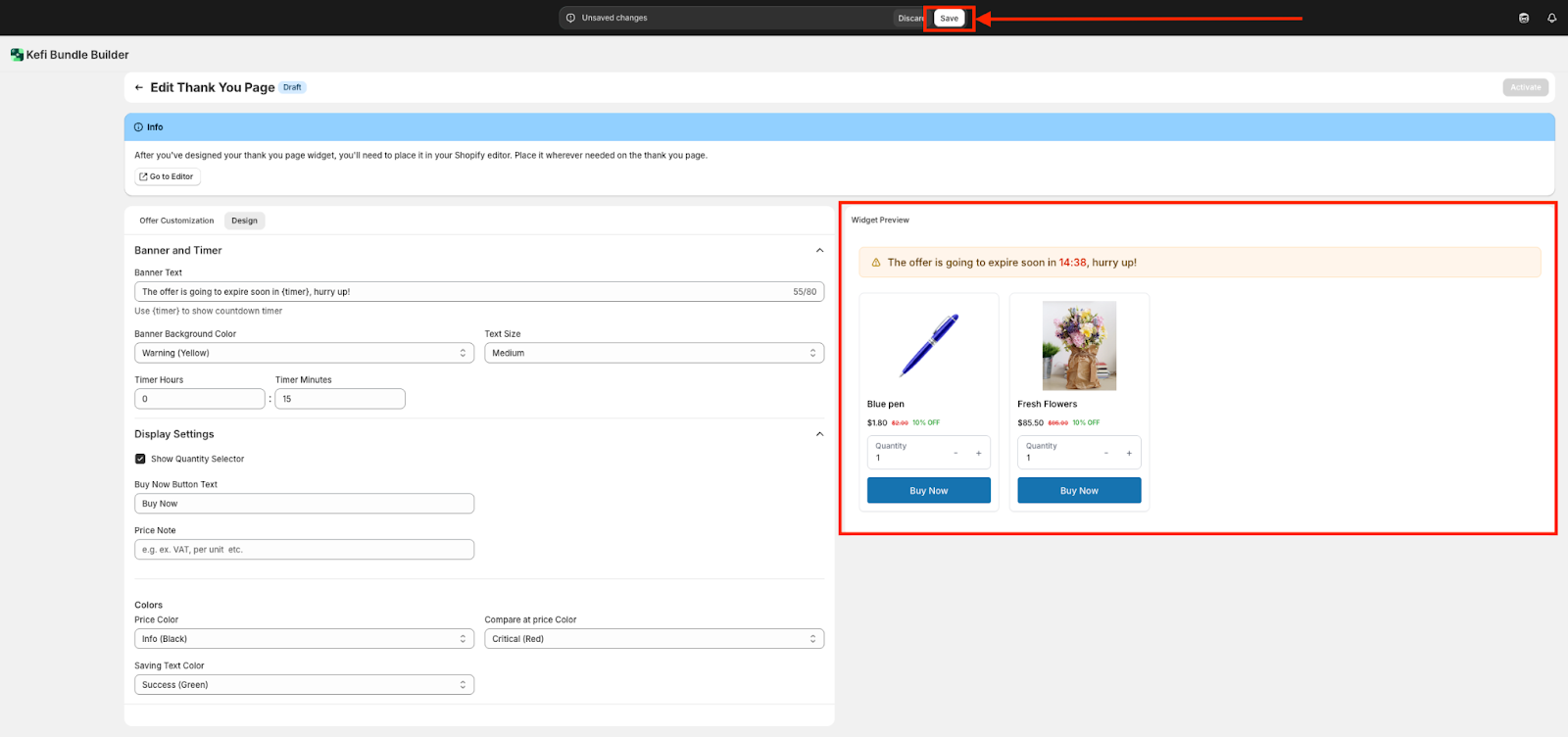
The Widget Preview on the right panel gives you a live visual preview of how the upsell widget will look on the Thank You Page.
Set Discount
Choose whether to apply a percentage on upsell items. It helps incentivize action and make the post-purchase offer more appealing.

Type: Choose between percentage, fixed discount or no discount.
Value: Define the discount amount, e.g., 10% off.

The Design tab allows you to fully customize the visual appearance and messaging of your Thank You Page upsell widget, ensuring it aligns with your brand and captures post-purchase attention.
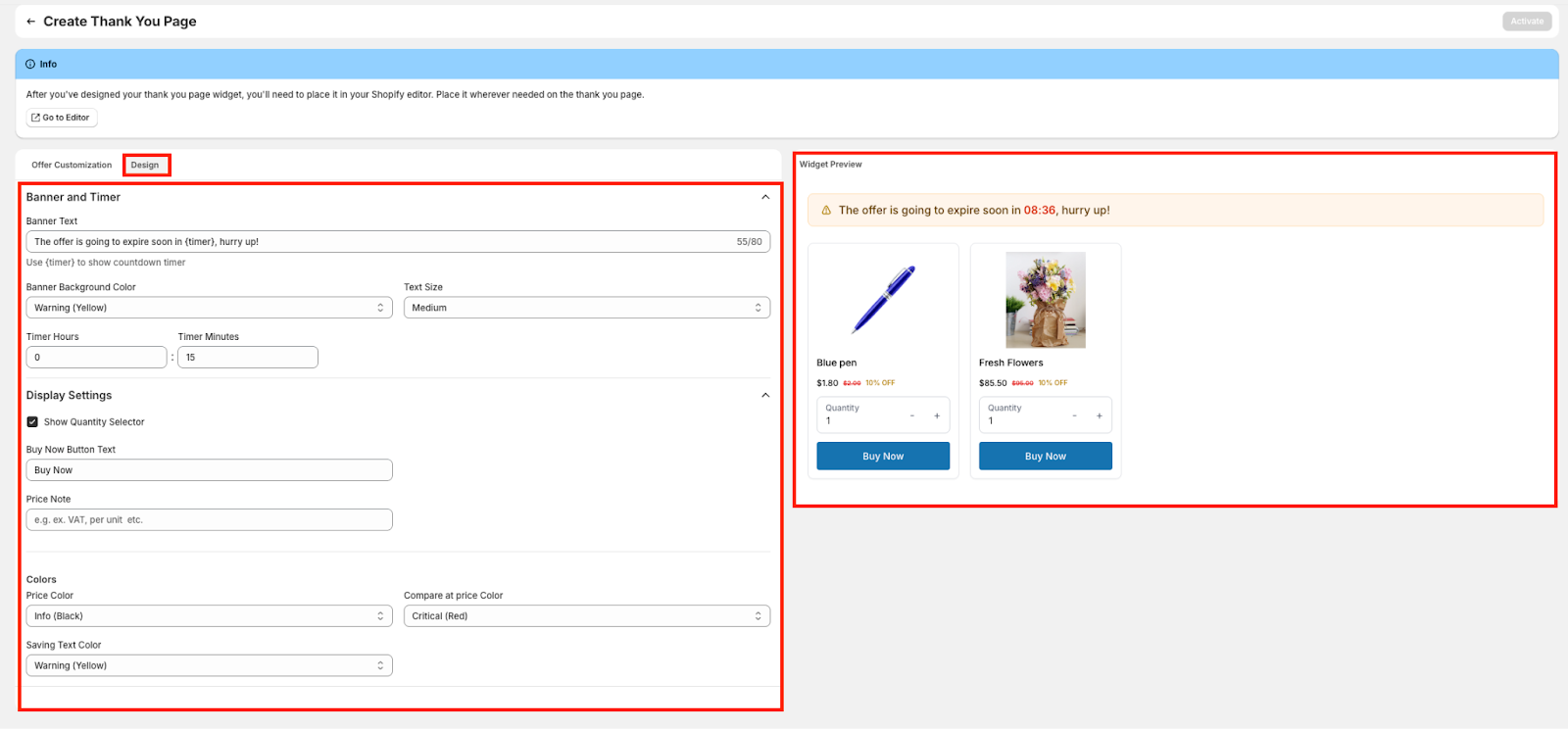
Banner and Timer

Display Settings -

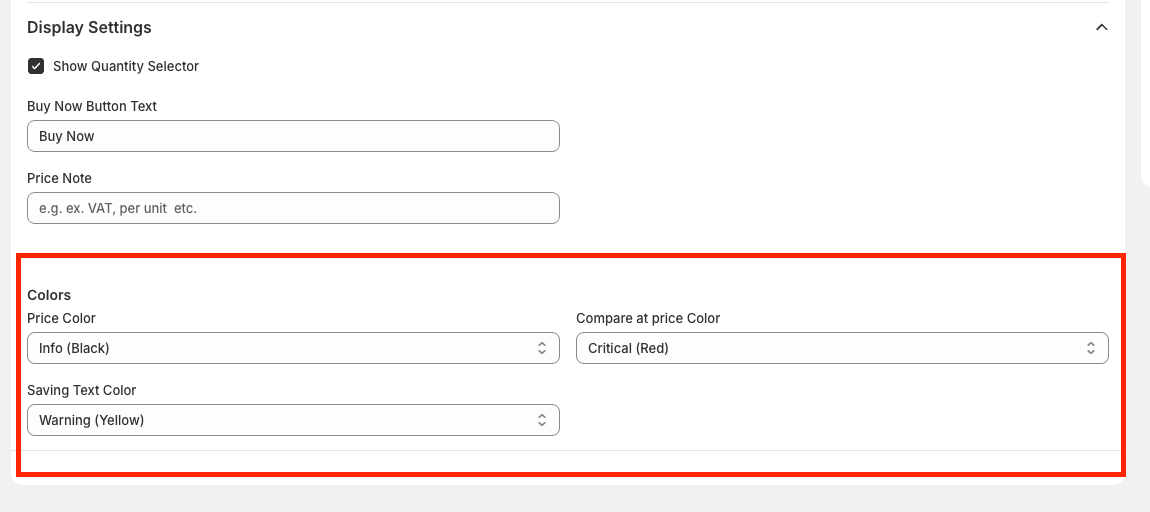
Set the Color
Click ‘Save’ to apply the customizations.
Once you’ve finished designing your Thank You Page upsell widget in Kefi, clicking the ‘Go to Editor’ button is your next essential step.
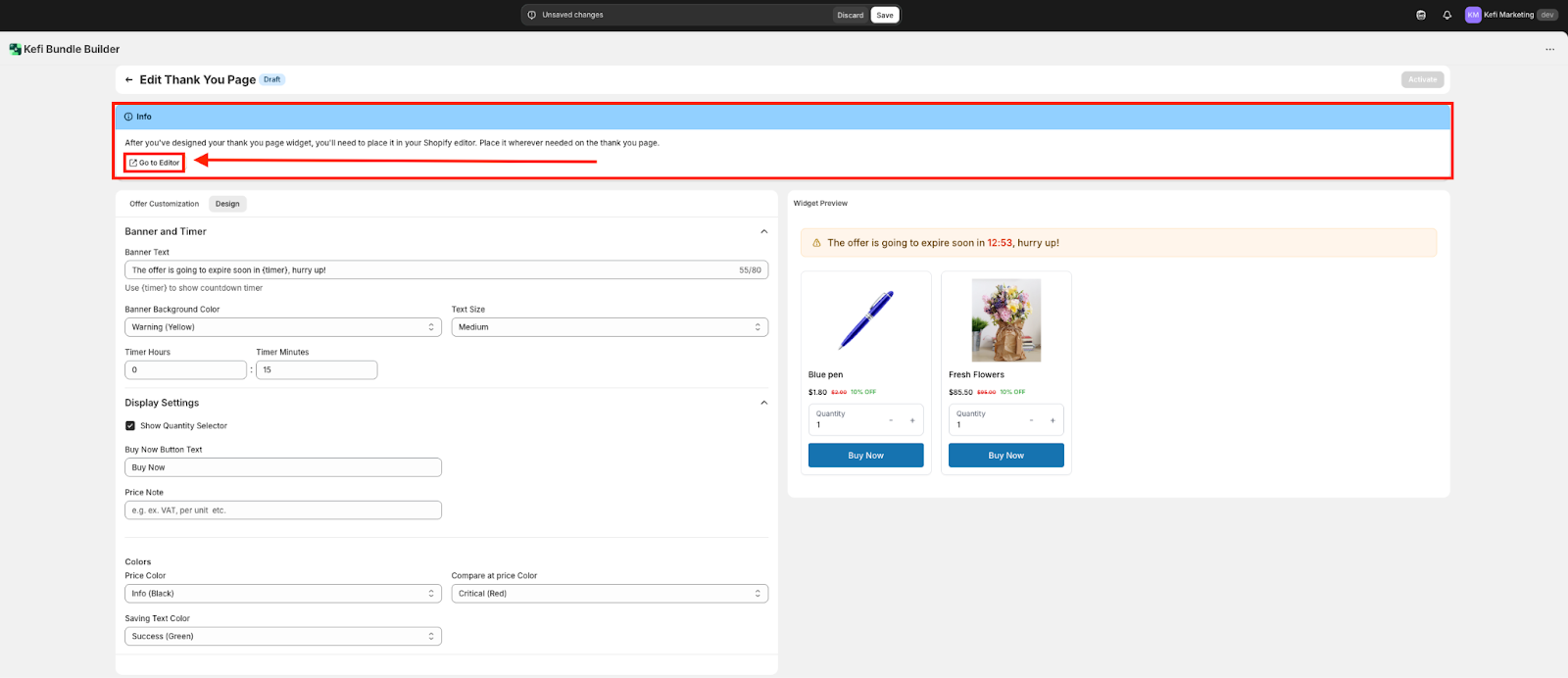
The button redirects you to Shopify’s Theme Editor, where you can manually place the widget on your store’s actual Thank You Page.
Without adding the widget through the Shopify editor, your Thank You Page upsell will not appear live, even if you’ve designed and saved it. It remains in draft mode and doesn’t get injected into the actual checkout flow.
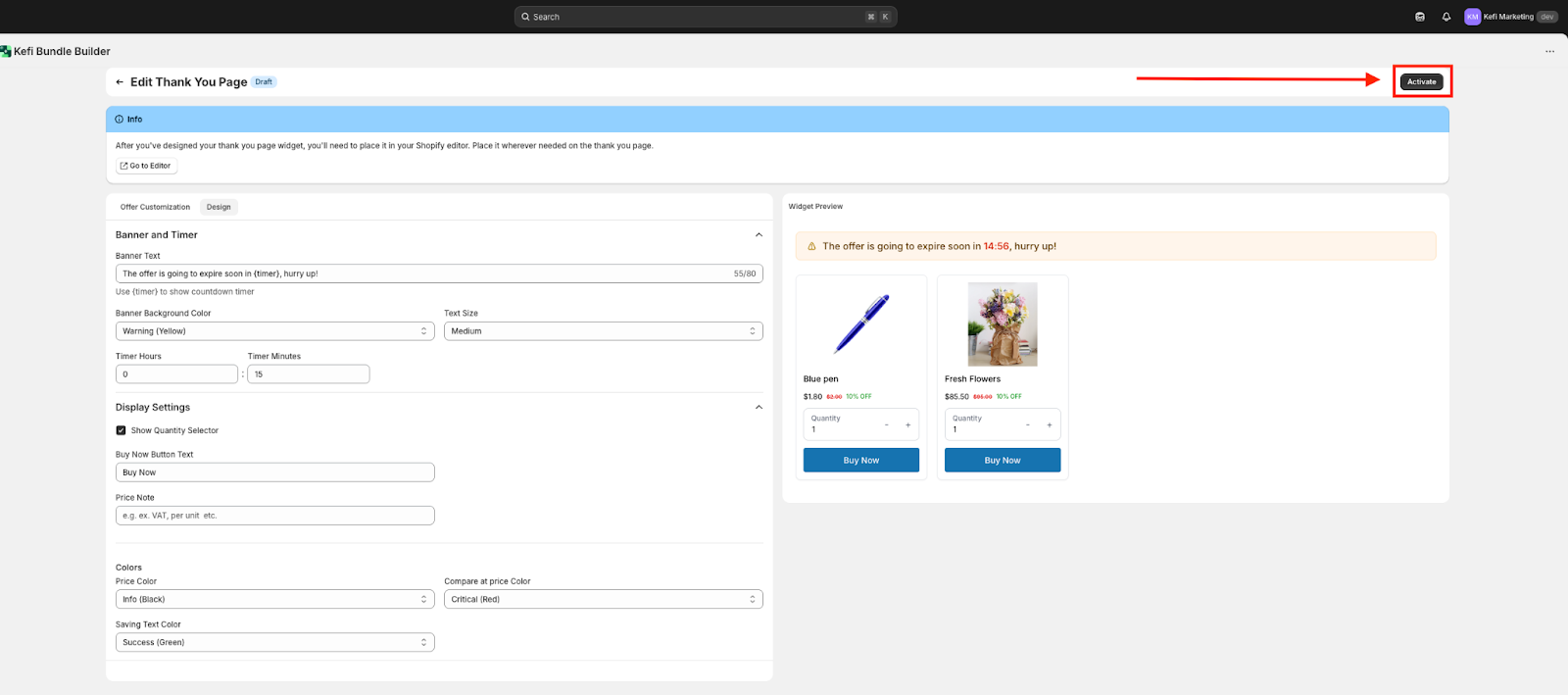
Finally, activate the Thank You Page by simply clicking on ‘Activate’.
If you have any questions or need assistance, feel free to contact us:
.svg)
