How to Set Up Review Step Add-Ons in a Build Your Own Box Bundle
Add-on products let you offer extra items right before a shopper completes their Build Your Own Box bundle—either on the final step or in a pop-up before adding to cart. Unlike items chosen in regular box steps, add-ons are added as separate cart lines outside your bundle's selection rules and discount tiers.
Step 1: Open Add-On Products in the Bundle Builder
Open your Build Your Own Box bundle in the Bundle Builder editor.
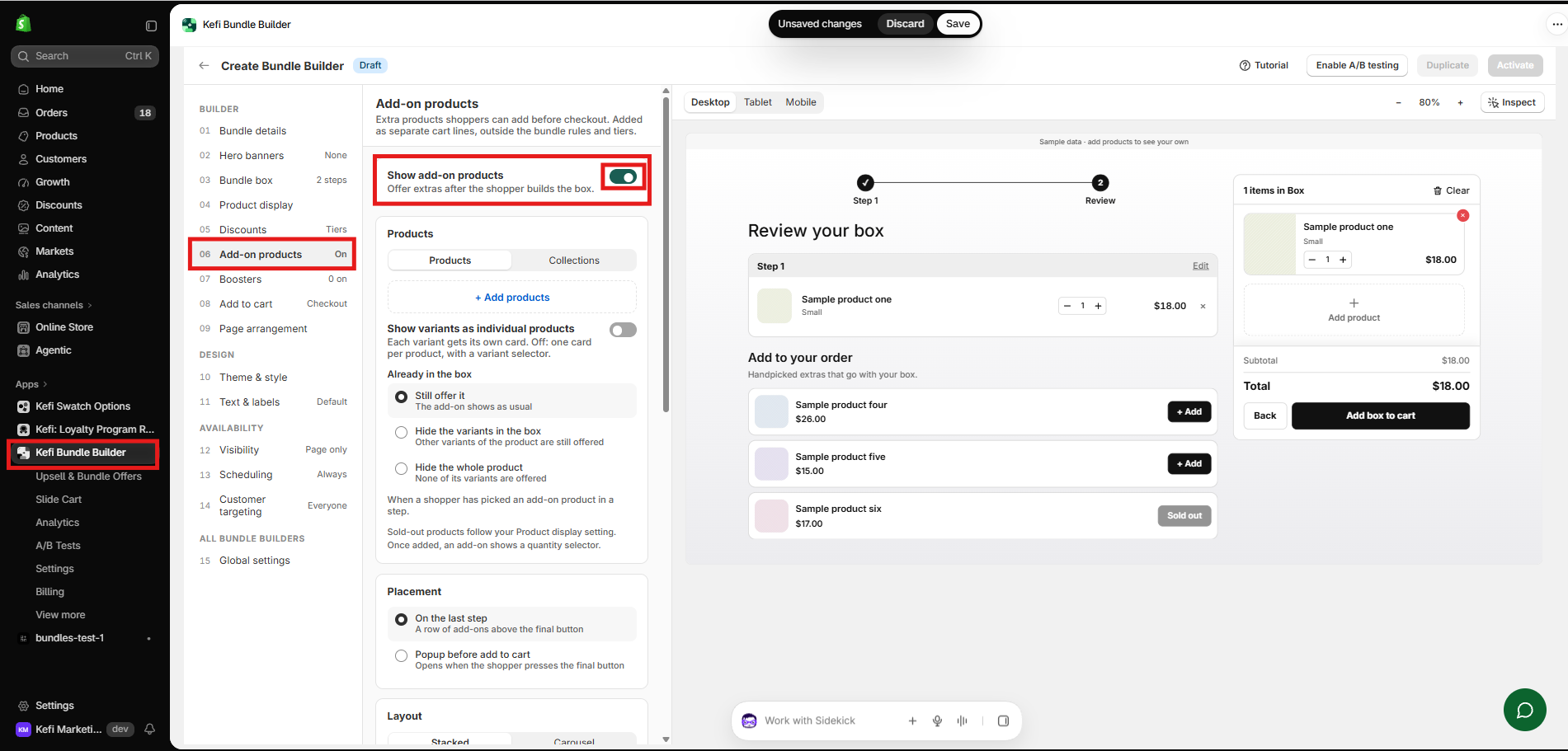
Select 06 Add-on products from the left-hand menu.
Toggle on Show add-on products to reveal the configuration options.
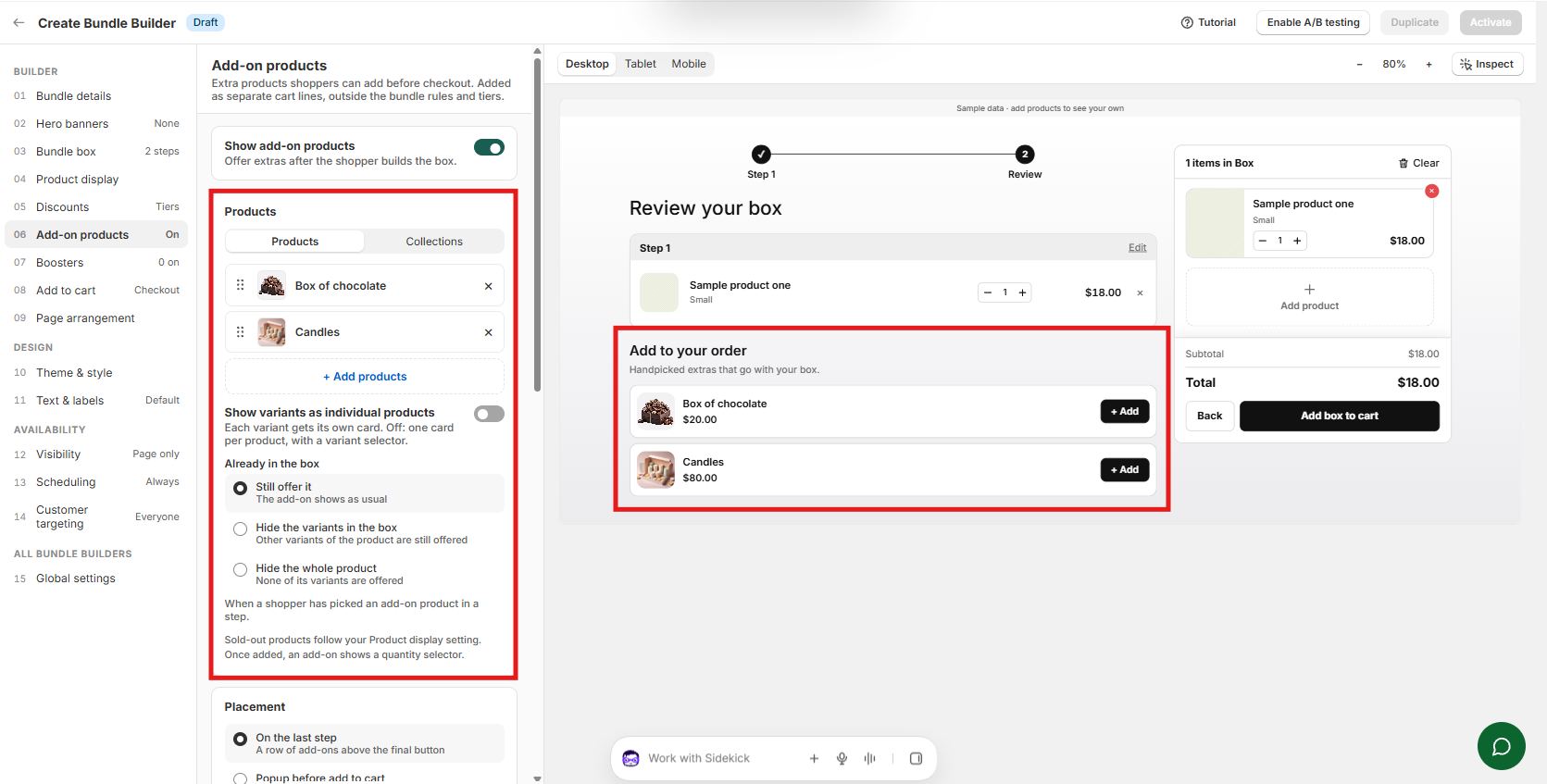
Select products or collections: Choose Products or Collections, then click + Add products (or + Add collections) to pick the items you want to offer as extras.
Show variants as individual products: Toggle this on to display each variant as its own card, or leave it off to show one card per product with a variant selector.
Already in the box: Decide how add-ons behave when a shopper has already selected that item in a step:
Still offer it: The add-on shows as usual
Hide the variants in the box: Other variants of the product are still offered
Hide the whole product: None of its variants are offered
Stock and quantity behavior: Sold-out products follow your Product display setting, and once added, an add-on shows a quantity selector.
Step 3: Set Placement, Layout & Add-On Discounts
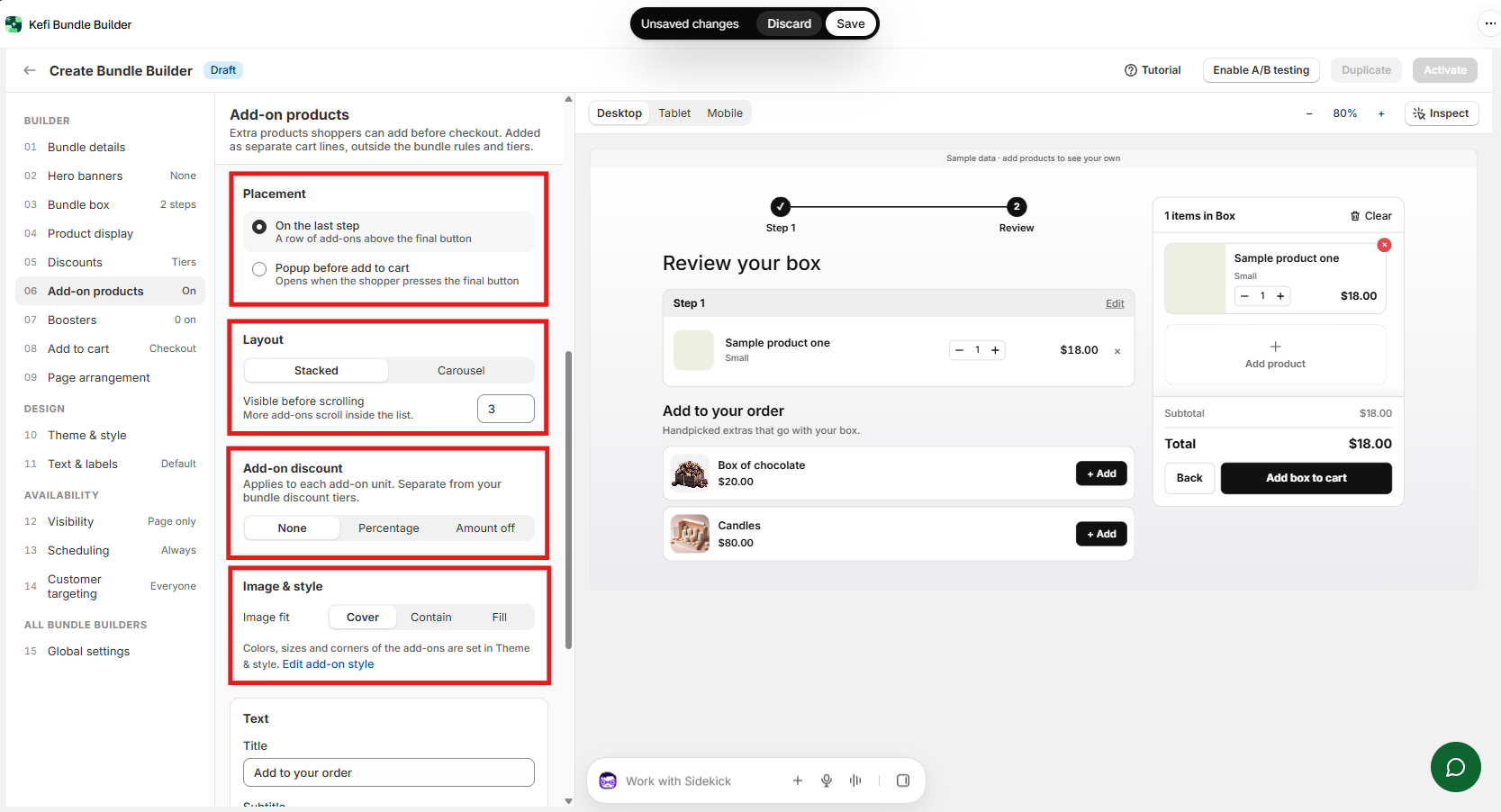
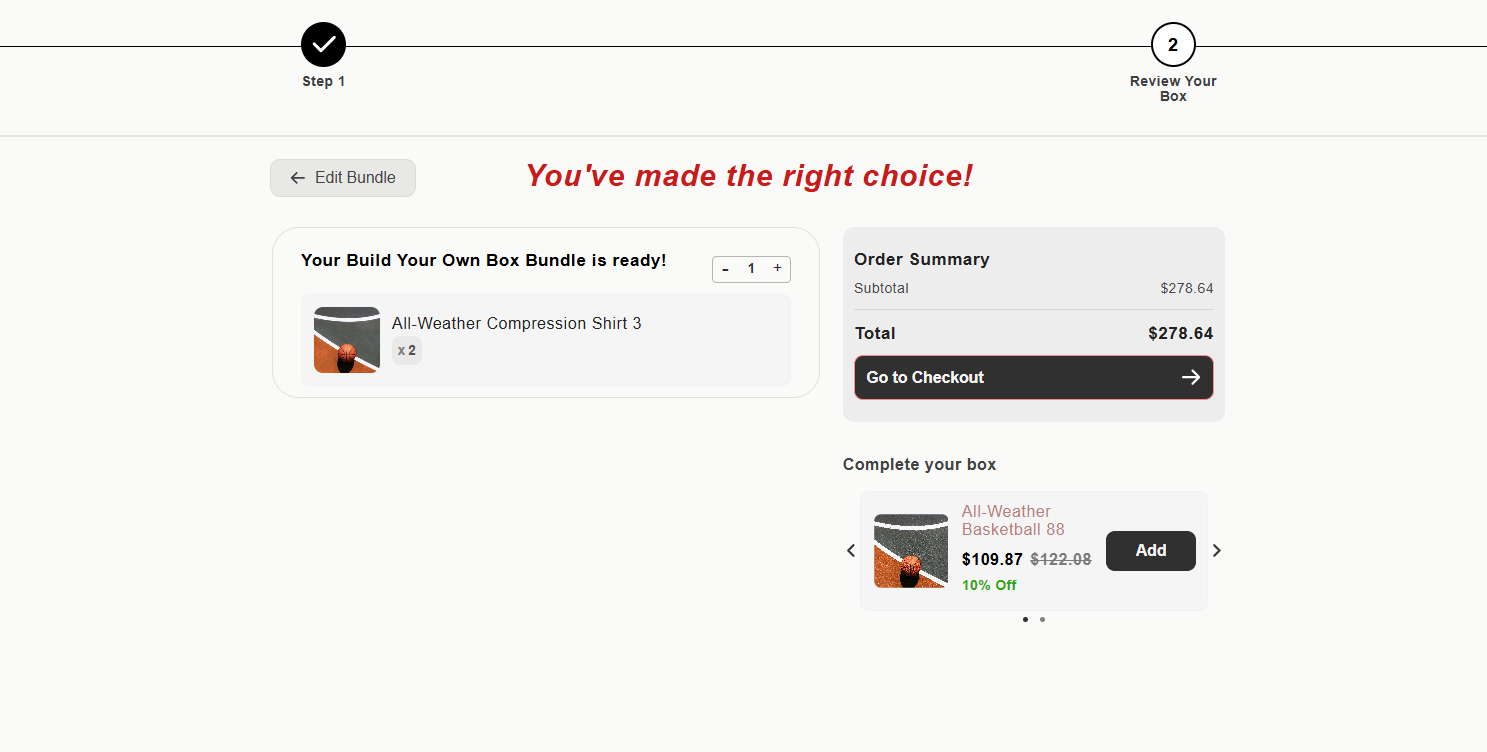
Placement: Choose On the last step (a row of add-ons above the final button) or Popup before add to cart (opens when the shopper presses the final button).
Layout & visible before scrolling: Choose Stacked or Carousel, and set Visible before scrolling (default: 3) to control how many add-ons show before more items scroll inside the list.
Add-on discount: Choose None, Percentage, or Amount off. Any discount applies to each add-on unit and stays separate from your bundle discount tiers.
Image & style: Set Image fit to Cover, Contain, or Fill, or click Edit add-on style to adjust colors, sizes, and corners in Theme & style.
Step 4: Customize Text, Save & Preview
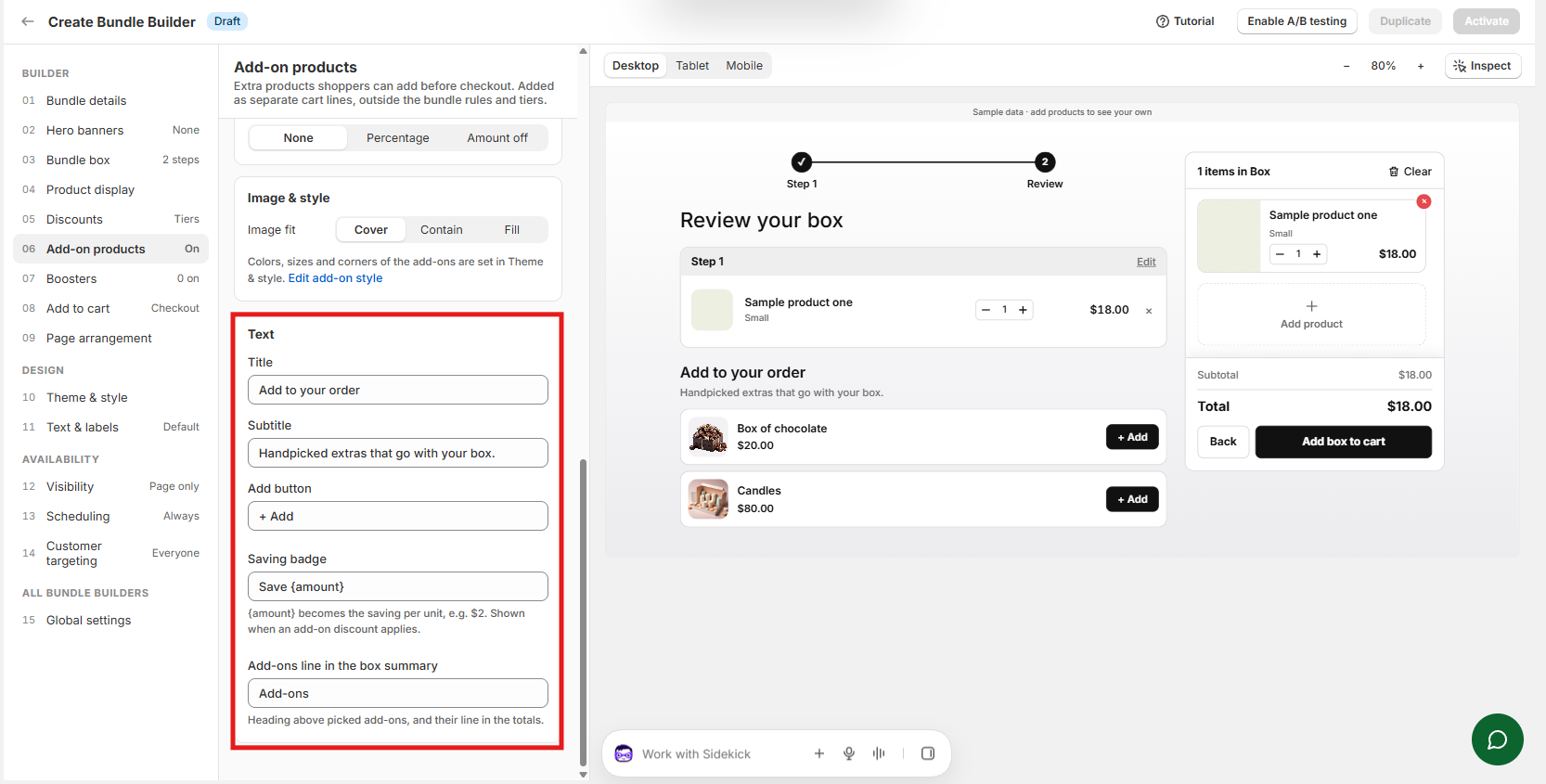
Text: Update the shopper-facing copy as needed:
Title: Default is Add to your order
Subtitle: Default is Handpicked extras that go with your box.
Add button: Default is + Add
Saving badge: Default is Save {amount}, where {amount} becomes the saving per unit (such as Rs. 2) when an add-on discount applies
Add-ons line in the box summary: Customize the heading above picked add-ons and their line in the totals (default: Add-ons).
Save: Click Save at the top of the editor and preview the bundle to confirm your add-on products appear and behave as expected.
Using the Legacy Bundle Builder Editor?
Existing merchants may see both the updated Bundle Builder experience and the earlier version on their store. If you are working inside the legacy flow or prefer our earlier setup, you can select one of the Legacy templates (From our earlier Bundle Builder) and follow the legacy guide below.
How to Set Up Review Step Add-Ons in a Build Your Own Box Bundle (Legacy Guide)
Kefi’s Review Step Add-Ons feature lets you display additional products as upsell offers on the final review step of your Build Your Own Box (BYOB) bundle. Customers can discover and add these complementary products before completing their bundle, helping you increase average order value (AOV).
You can also offer discounts on these add-on products to encourage customers to purchase them.
How to Configure Review Step Add-Ons
Follow these steps to set up add-on products in your Build Your Own Box bundle.
Step 1: Open the Bundle Settings
Open your Build Your Own Box bundle in Kefi.
Navigate to the Content tab.
Click Configure Steps.
Step 2: Open the Review Step
Locate and open the Review Step.
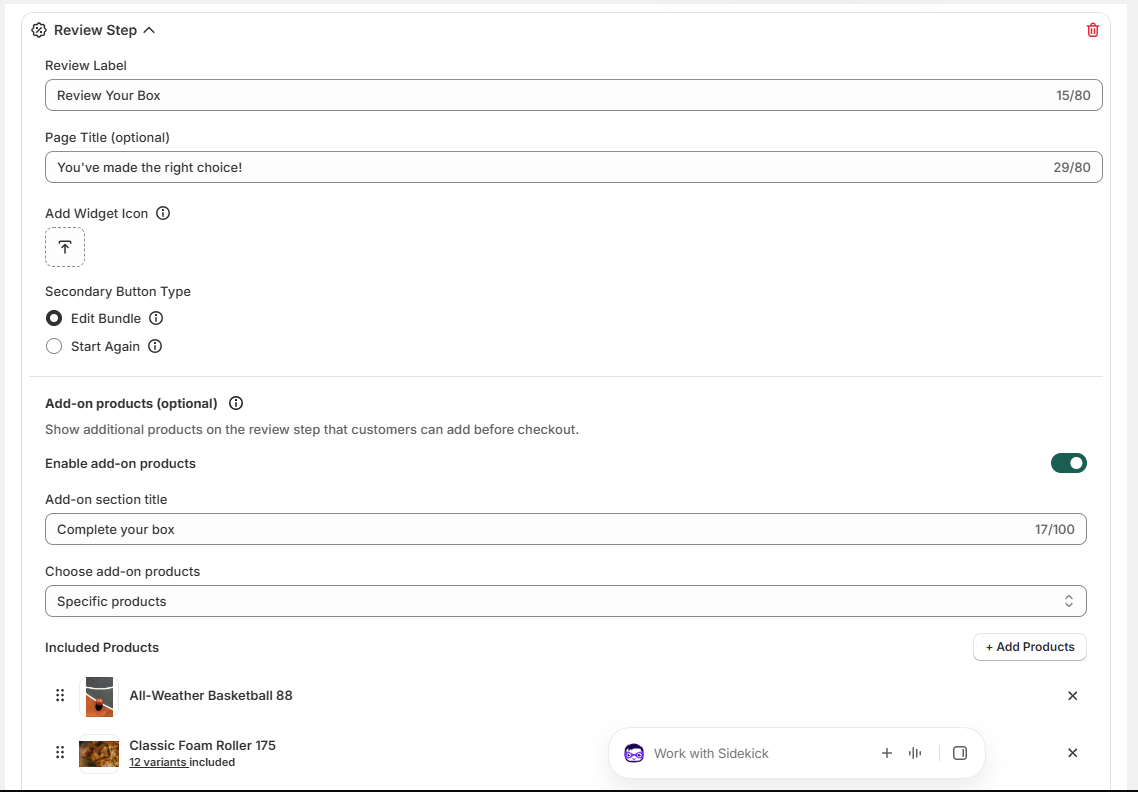
Find the Add-On Products section.
Step 3: Configure Add-On Products
Select the products you want to display as add-on offers on the final review step.
Configure the add-on products according to your requirements.
If you want to encourage customers to purchase these products, you can also configure a discount for the add-ons.
Step 4: Save Your Changes
Save your configuration and preview the bundle to ensure the add-on products appear correctly on the final review step.
How It Works
When customers finish selecting products for their Build Your Own Box bundle, they reach the final review step. Here, they can see the additional products you've configured as add-on offers and choose whether to add them to their purchase.
For example, if a customer builds a skincare box, you could display a complementary face mask or moisturizer as an add-on, optionally offering a special discount to encourage the purchase.
Benefits of Review Step Add-Ons
Increase average order value: Encourage customers to purchase additional products alongside their bundle.
Promote complementary products: Recommend products that pair well with the items customers have selected.
Offer exclusive discounts: Make add-ons more attractive by providing discounts on eligible products.
Improve the shopping experience: Present relevant product recommendations at the final review stage.
With Review Step Add-Ons, you can turn the final review step into an additional sales opportunity while helping customers discover products that complement their selected bundle.