How to Set Up Product-Based Discounts in a Build Your Own Box Bundle
Product discounts let you apply targeted discounts to specific products, variants, or collections inside your Build Your Own Box bundle while leaving unselected items at their regular price or governed only by your chosen box discount rules.
1.jpg+ 1
Step 1: Open Discounts and Select the Product Discounts Tab
Open your Build Your Own Box bundle in the Bundle Builder editor.
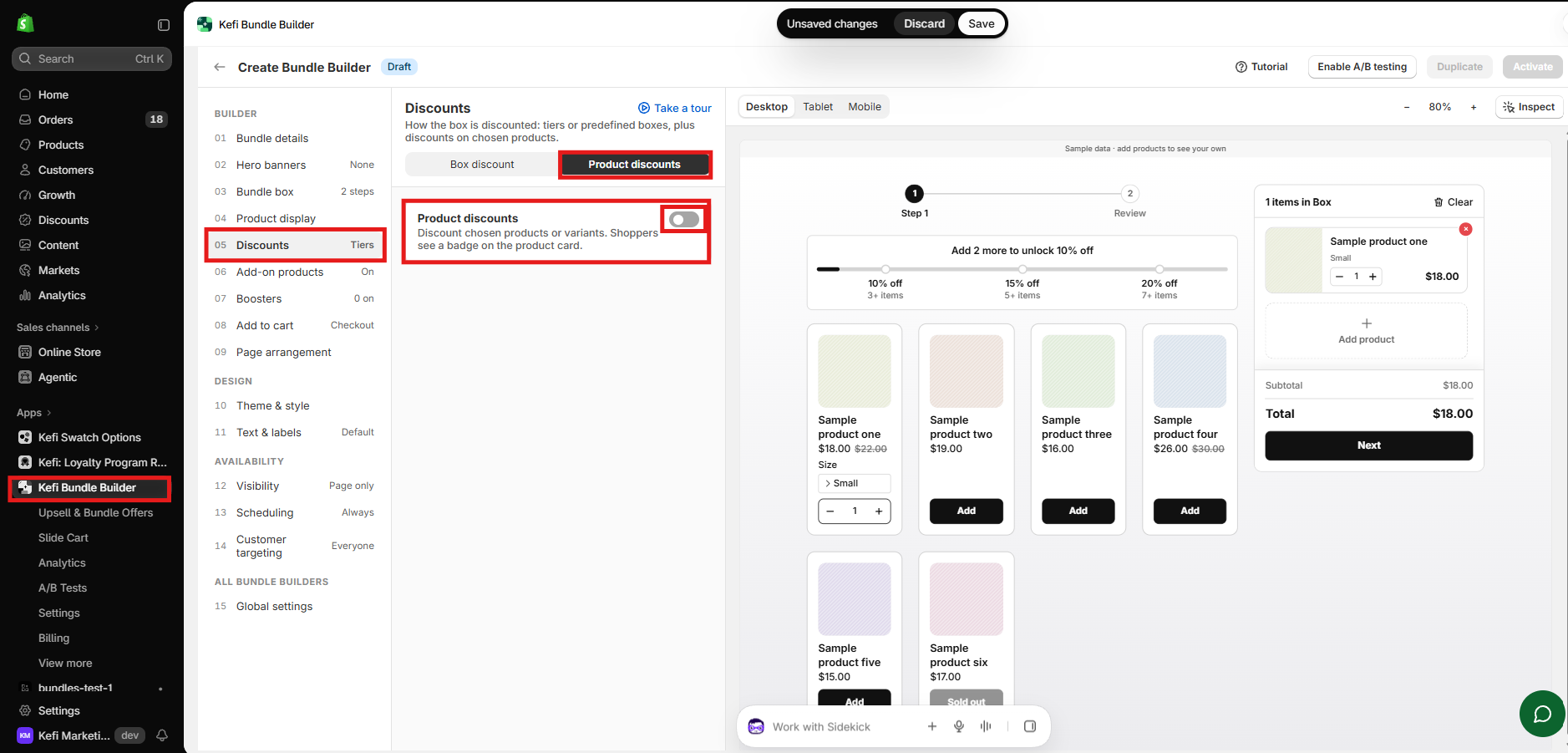
Select 05 Discounts from the left-hand menu.
Switch to the Product discounts tab at the top of the settings panel and toggle Product discounts on.
Step 2: Add Product Discount Rules and Choose Stacking Behavior
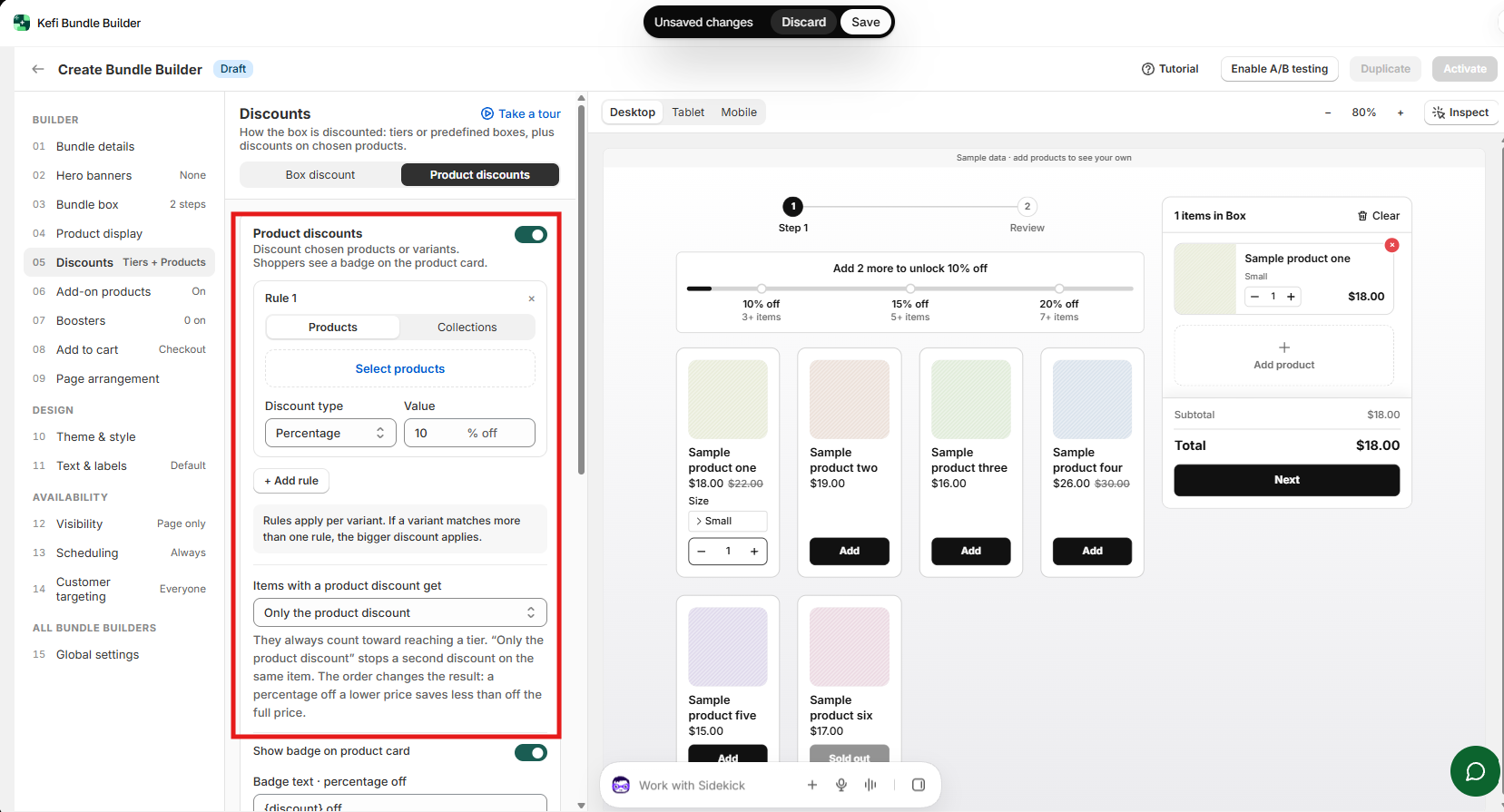
Add discount rules: Click + Add rule, select Products or Collections, and choose Percentage or Amount Off along with your discount value. Rules apply per variant—if a variant matches more than one rule, the larger discount applies.
Set how product discounts combine with box discounts: Under Items with a product discount get, choose how discounted items interact with your box discount (discounted items still count toward reaching a tier or filling a box size):
Only the product discount: Applies only the item-level discount and stops a second discount on that same item.
Product discount, then tier discount: Applies the product discount first, then applies the tier/box discount on top.
Tier discount, then product discount: Applies the tier/box discount first, then applies the product discount
Step 3: Configure Card Badges and Summary Labels
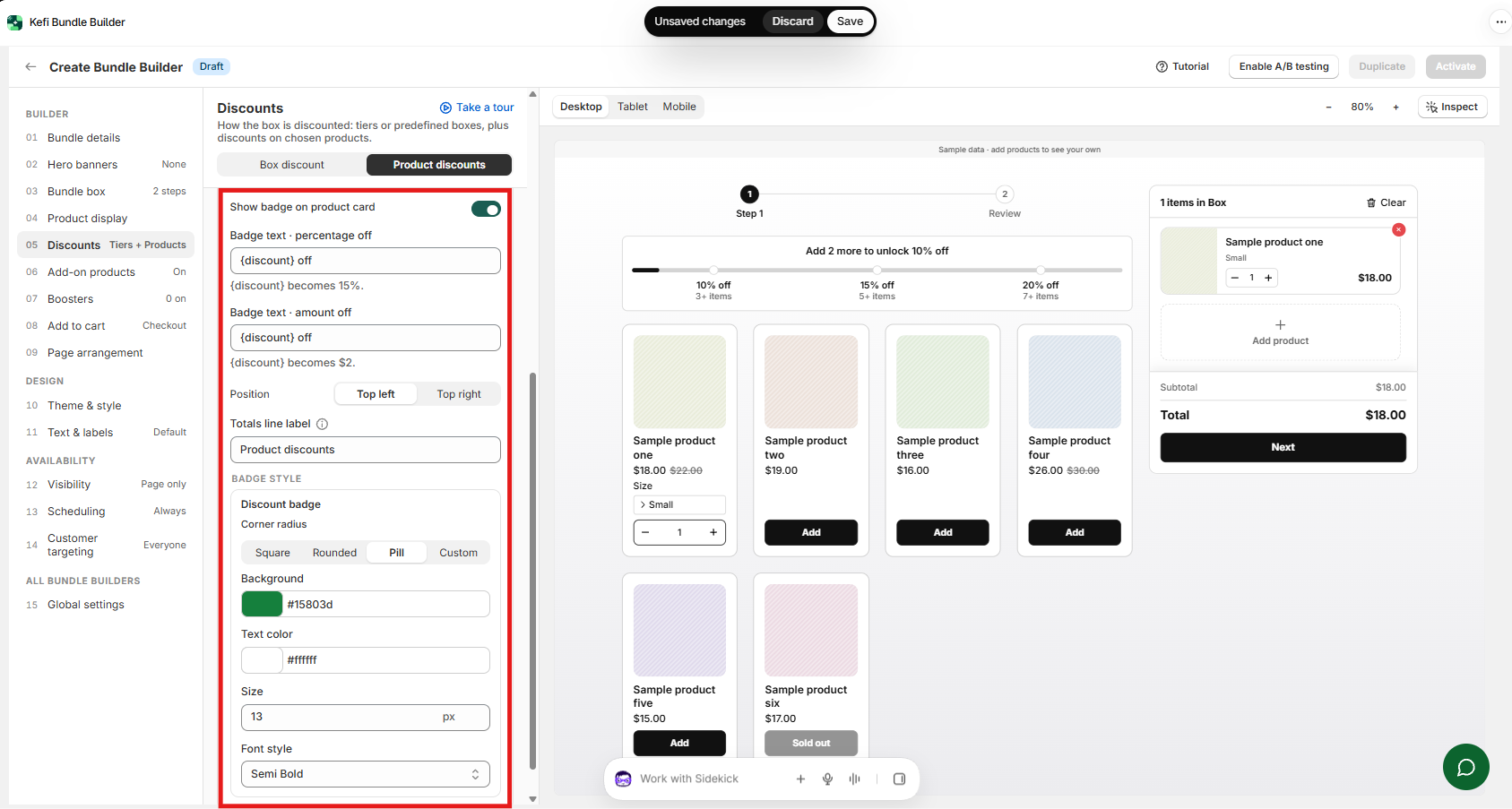
Show badge on product card: Toggle this on to display a discount badge on eligible product cards.
Badge text: Customize Badge text · percentage off (default: {discount} off, where {discount} becomes e.g. 15%) and Badge text · amount off (default: {discount} off, where {discount} becomes e.g. $2).
Badge position & styling: Choose Top left or Top right, and customize the badge's Corner radius (Square, Rounded, Pill, or Custom), Background, Text color, Size, and Font style.
Totals line label: Set the label shown for product discounts in the totals summary
Step 4: Save and Preview
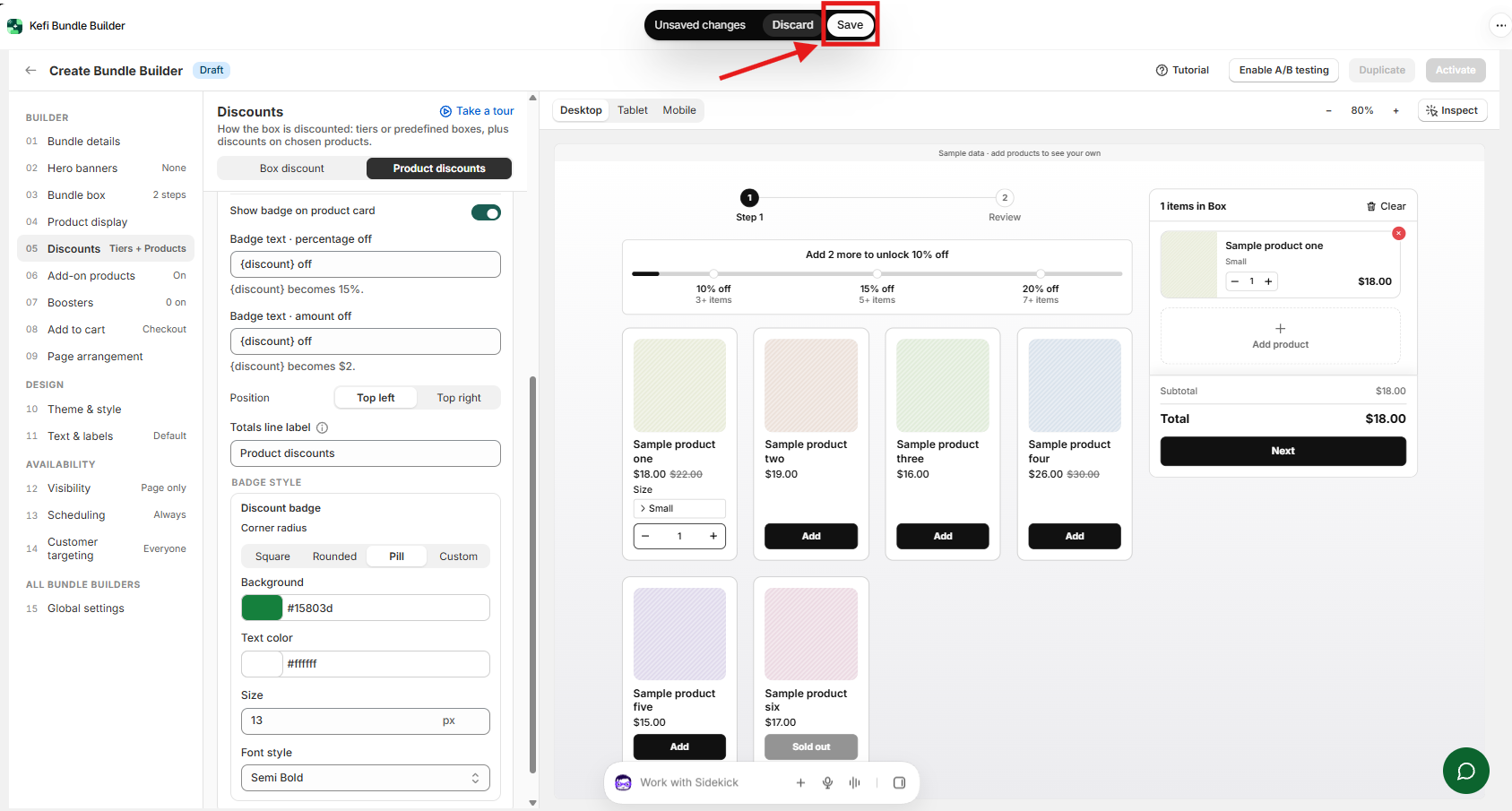
Click Save at the top of the editor and preview the bundle to confirm that discounted items display their badges, calculate discounts accurately, and leave non-eligible items untouched.
Using the Legacy Bundle Builder Editor?
Existing merchants may see both the updated Bundle Builder experience and the earlier version on their store. If you are working inside the legacy flow or prefer our earlier setup, you can select one of the Legacy templates (From our earlier Bundle Builder) and follow the legacy guide below.
How to Set Up Product-Based Discounts in a Build Your Own Box Bundle (Legacy Guide)
Kefi’s Product-Based Discount feature lets you apply discounts only to specific products in your Build Your Own Box (BYOB) bundle. Products not selected for the discount will be excluded and won’t receive the discount.
How to Set Up Product-Based Discounts
Follow these steps to configure product-based discounts for your bundle.
Step 1: Open the Bundle Discount Settings
Open the Build Your Own Box bundle in Kefi.
Navigate to the Content tab.
Find the Discounts section.
Step 2: Select the Pricing Strategy
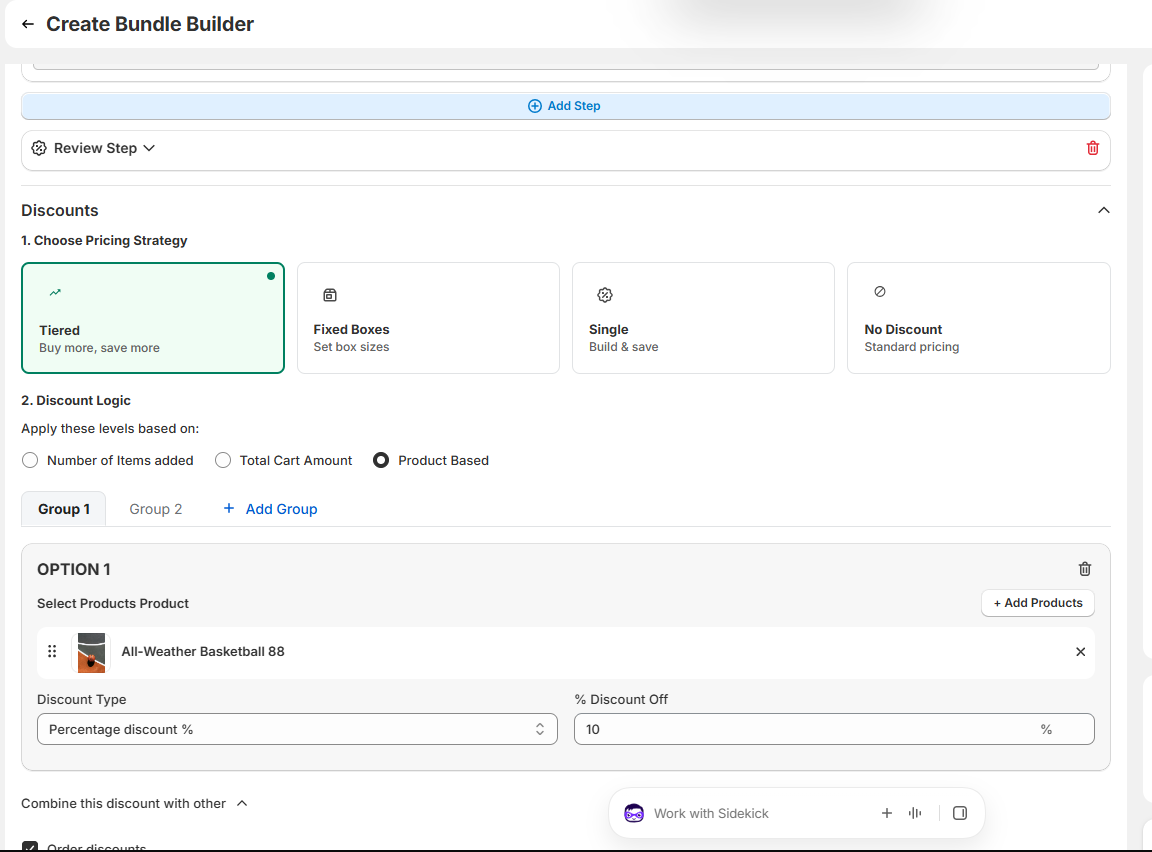
Under Pricing Strategy, select Tiered Discounts.
Choose the third radio button: Product Discounts.
Step 3: Select the Products Eligible for Discounts
Select the products you want to include in the product-based discount.
Make sure these products are also present in the bundle’s main product list.
Important: Only products selected in the Product Discounts settings will be eligible for the discount. All other products in the bundle will be exempt from it.
Example
Suppose your Build Your Own Box bundle contains Product A, Product B, Product C, and Product D. If you select only Product A and Product B in the Product Discounts settings, the discount will apply only to those two products, while Product C and Product D will remain at their regular prices because they are not eligible for the discount.
Important Notes
Product selection: Products must be present in the bundle’s main product list to be included in the discount configuration.
Discount eligibility: Only products selected under Product Discounts will receive the discount.
Excluded products: Products not selected for the discount will remain at their regular prices.
With Product-Based Discounts, you can offer targeted discounts on selected products while keeping other products in your Build Your Own Box bundle at their regular prices.