A Frequently Bought Together (FBT) Bundle is a smart product recommendation tool that showcases complementary or related items commonly purchased together by other shoppers.
These bundles appear directly on the product page, making it easy for customers to add multiple products to their cart with a single click.
FBT Bundles not only enhance the shopping experience but also help boost average order value by encouraging thoughtful, relevant add-ons. You can configure them manually by selecting specific product combinations, or use AI-driven suggestions based on real customer behavior and purchase history.
STEP 1
Create an FBT Bundle
Go to the Kefi Bundle Builder dashboard and select the Frequently Bought Together Bundle option to create the bundle. Click ‘Select’.

STEP 2
Choose the Template
Select one of the available Frequently Bought Together (FBT) templates:
For the purpose of this help guide, we’ll be selecting the Amazon Style template.

STEP 3
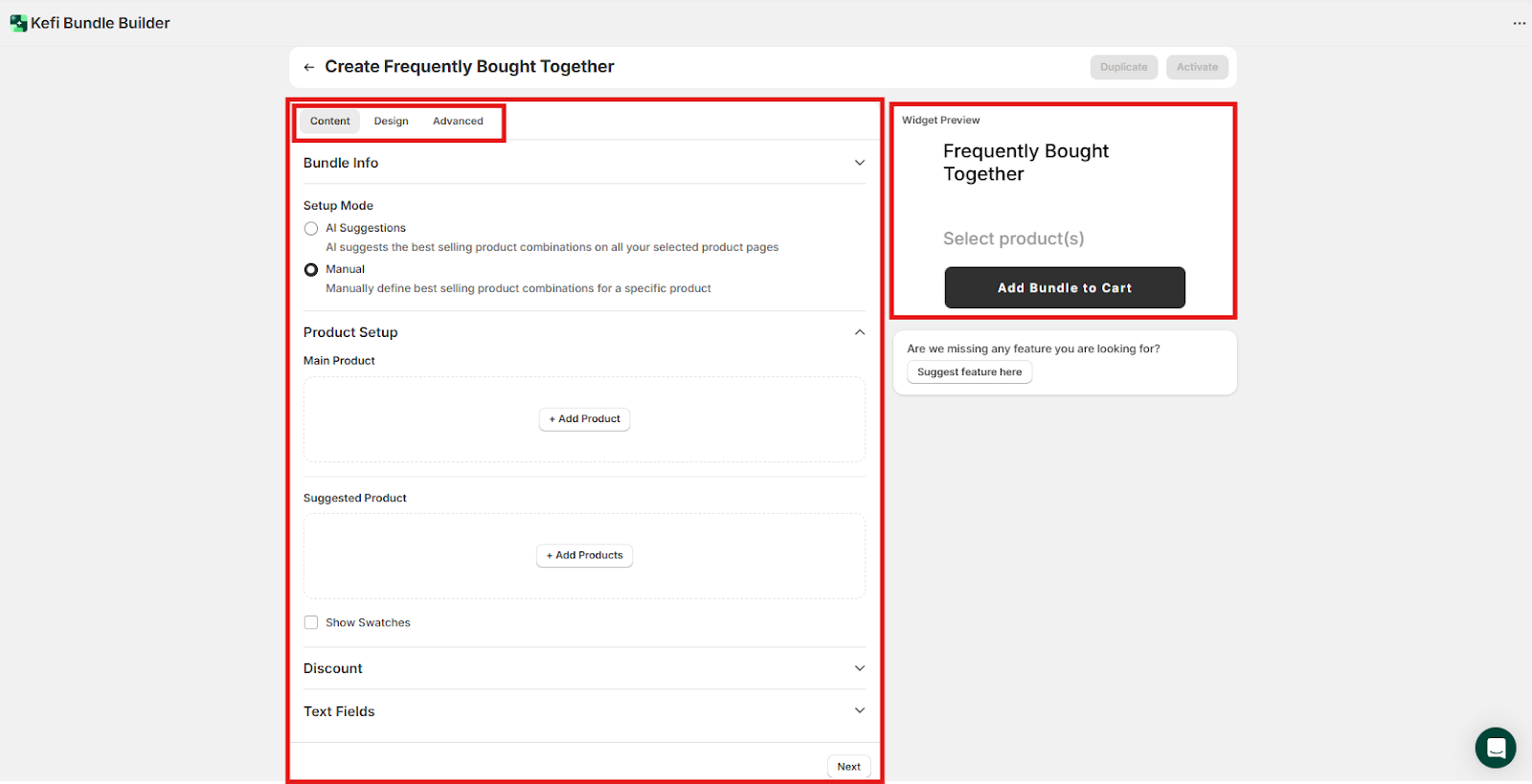
There are 3 sections available: Content, Design and Advanced.
The Widget Preview is available on the right side
STEP 4
The Content tab is where you configure the core setup of your Frequently Bought Together bundle. This section allows you to input a title, choose how your product combinations are generated, and manage key offer components.
1. Bundle Info -

STEP 5
2. Product Setup - The Product Setup section allows you to manually configure the product pairings for your Frequently Bought Together (FBT) bundle.
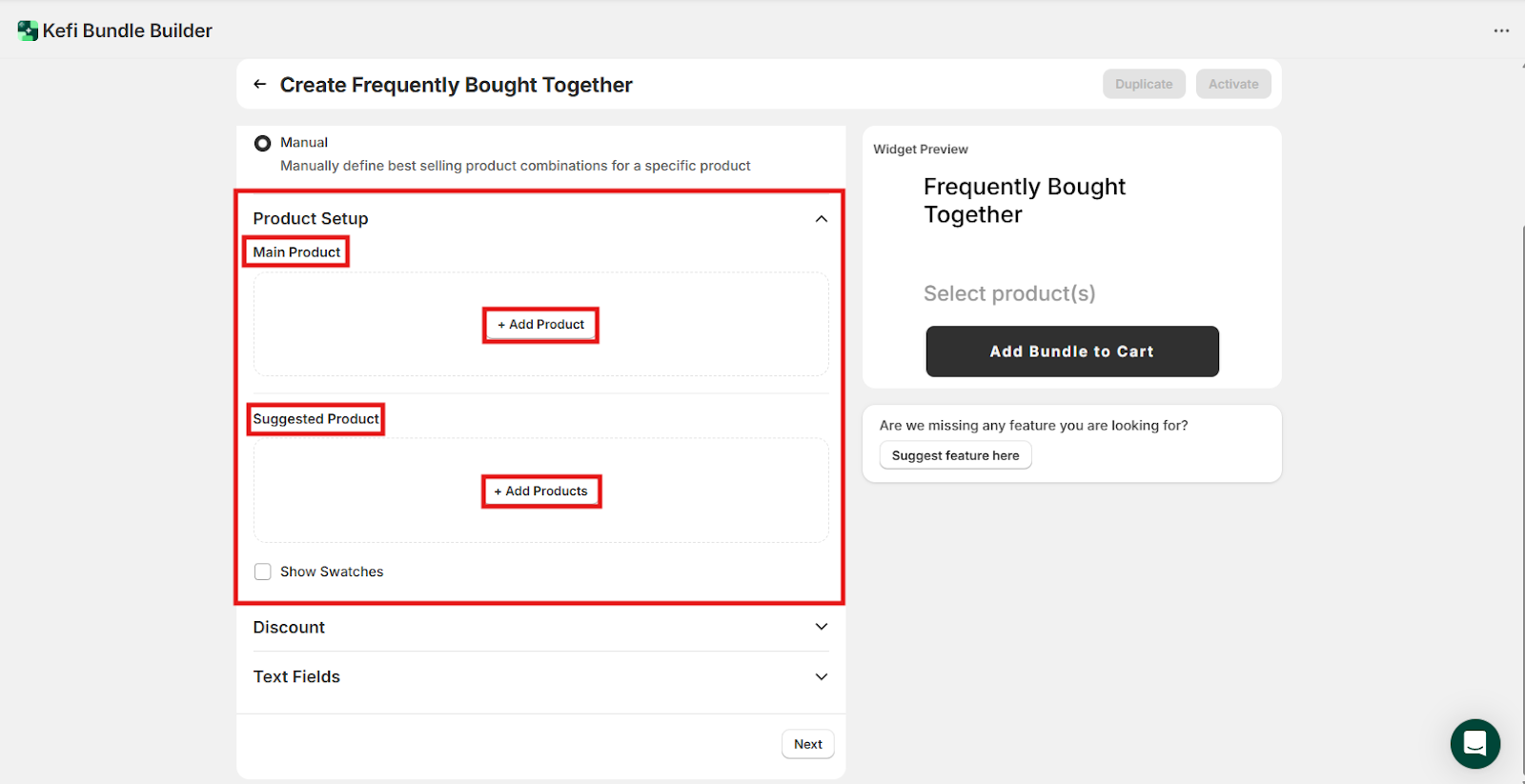
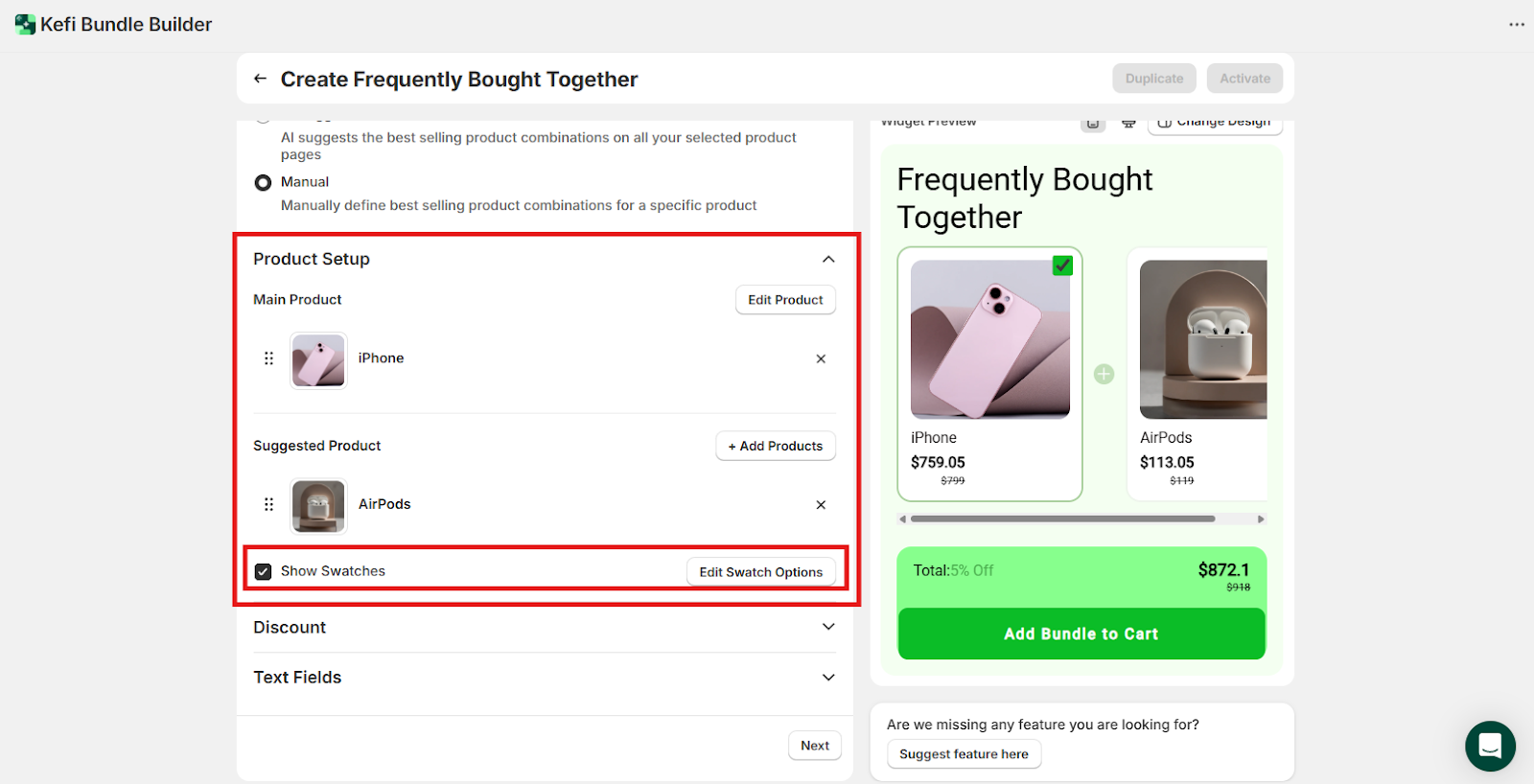
You can also change the Main Product by clicking on ‘Edit’, or make any changes (addition, removal or change of product) in the suggested product range by clicking ‘Add Products’.
As you add or update these selections, the Widget Preview on the right will reflect your configuration in real time, allowing you to see how the bundle will appear to shoppers in your store.

If you want to show the different variants available, tick the ‘Show Swatches’ option. Then, click ‘Edit Swatches’ if you want to add swatches to the Variant Picker.
STEP 6
3. Discount - The Discount section allows you to apply special pricing to encourage customers to purchase all suggested items in a Frequently Bought Together bundle. This helps increase conversions by offering visible value and savings.
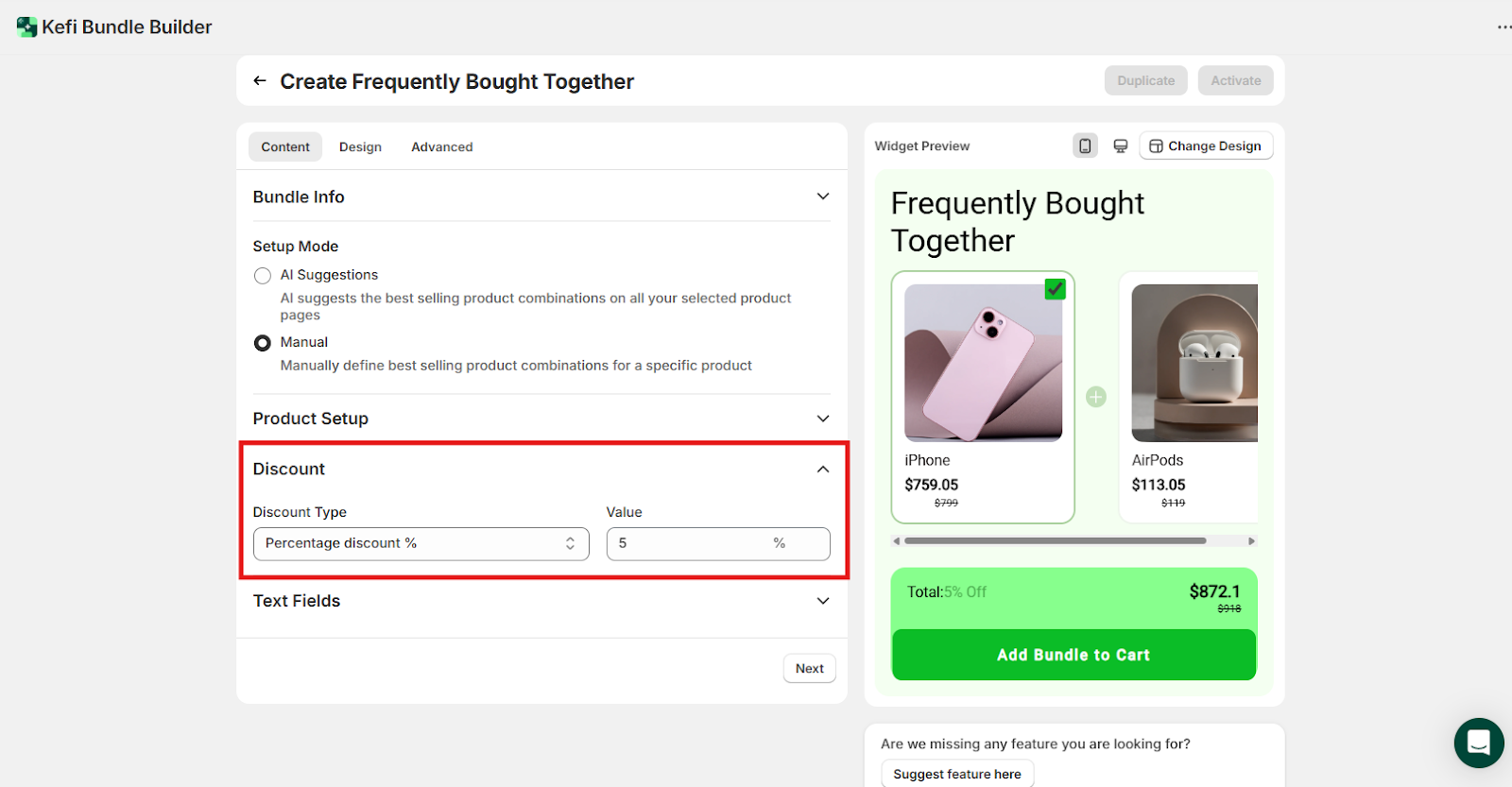
Discount Type: Choose from: Percentage Discount (%), Fixed Amount Discount ($), Fixed Bundle Price, Without Discount.
You can enter the Value beside the selected type (e.g., 5% for a percentage discount), and the Widget Preview updates in real time to reflect the discounted pricing across all bundled items.

STEP 7
4. Text Fields - The Text Fields section allows you to customize the text that appears in the Frequently Bought Together widget. This is especially useful if you want to display the widget content in other languages to cater to a multilingual audience. It also helps you align the messaging with your brand voice and enhance the user experience.
Footer Text - Customize the labels for:
Free Text - Display a short label for any free item included in the bundle (e.g., "Free", "Gift", or "Included").
Add to Cart CTA (Call to Action) - Choose to either use the default CTA (“Add to Cart”) or uncheck the box and enter your own text (e.g., “Get This Bundle” or “Complete My Set”)

STEP 8
Design – Customize Your FBT Widget Appearance
The Design tab allows you to visually style your Frequently Bought Together (FBT) widgets so they align with your store’s branding. All changes made here will be applied globally to every FBT bundle on your storefront, ensuring consistency in presentation and customer experience.
1. General Settings
These settings affect the overall layout and visual consistency of your FBT widget.
General
Title
Product Card Customization
Style individual product blocks in your FBT widget to match your design preferences and storefront aesthetic.
General
-Desktop/Mobile
-Desktop only
-None (hide images)
Title
Price
Compare-at Price
Variant Selector
Footer Styling
Customize the bottom section of your FBT widget, where the total price, discount, and Add to Cart button appear.
Total Section
Add to Cart Button
These design tools give you complete control over the presentation of your FBT bundles, making it easy to create a cohesive and engaging shopping experience across your store.
STEP 9
Finally, move on to the ‘Advanced’ section.
The Advanced tab gives you additional control over how your Frequently Bought Together (FBT) bundle behaves on your storefront. It includes options for widget placement, scheduling, and customer targeting to ensure your offers are shown at the right place, time, and to the right audience.
1. Widget Position

STEP 10
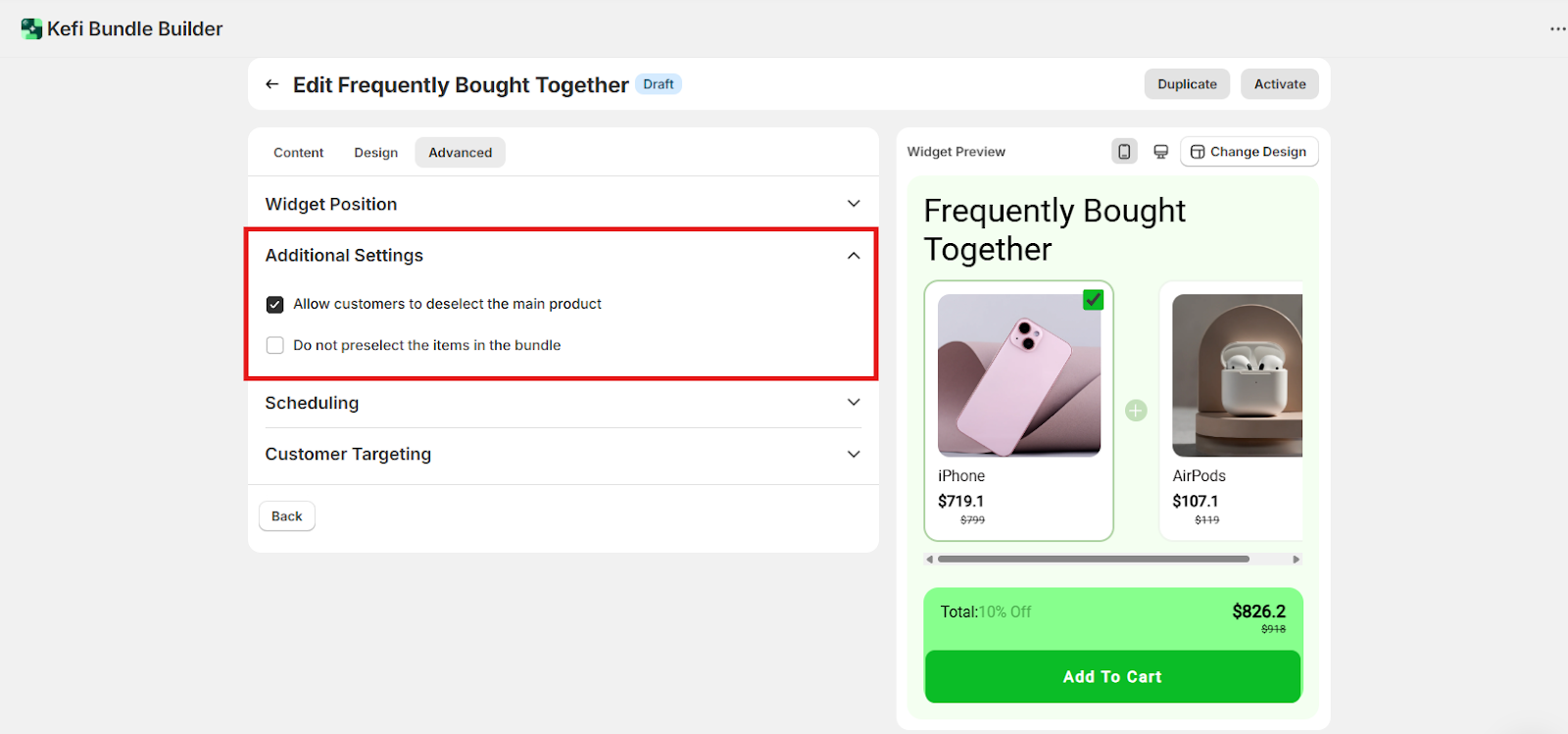
2. Additional Settings
In this section, you can fine-tune customer interaction with the bundle:
STEP 11
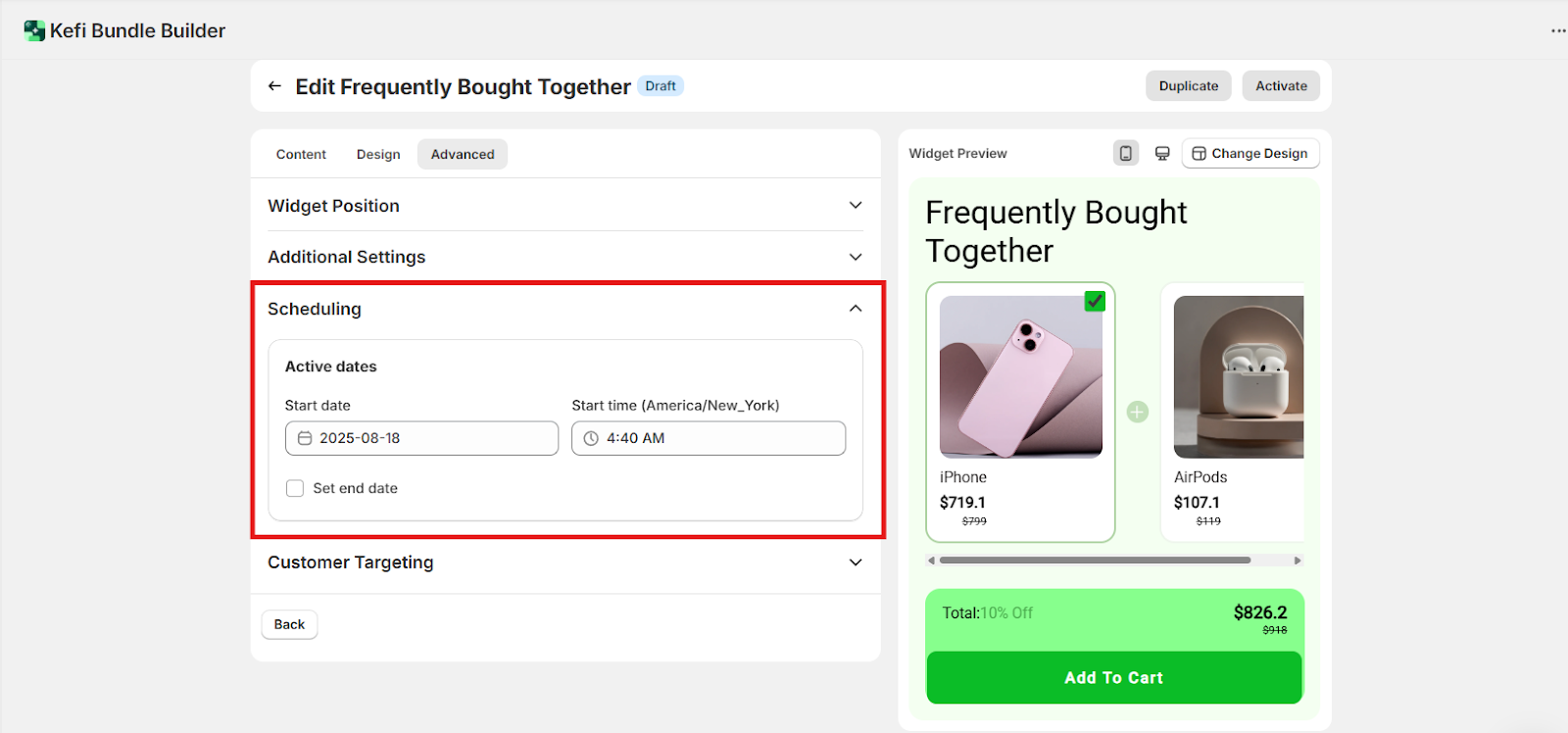
3. Scheduling - Set a start date and time, and even an end date (click on the checkbox and set it) for your FBT Bundle offer. Ideal for limited-time campaigns, flash sales, or seasonal promos.
STEP 12
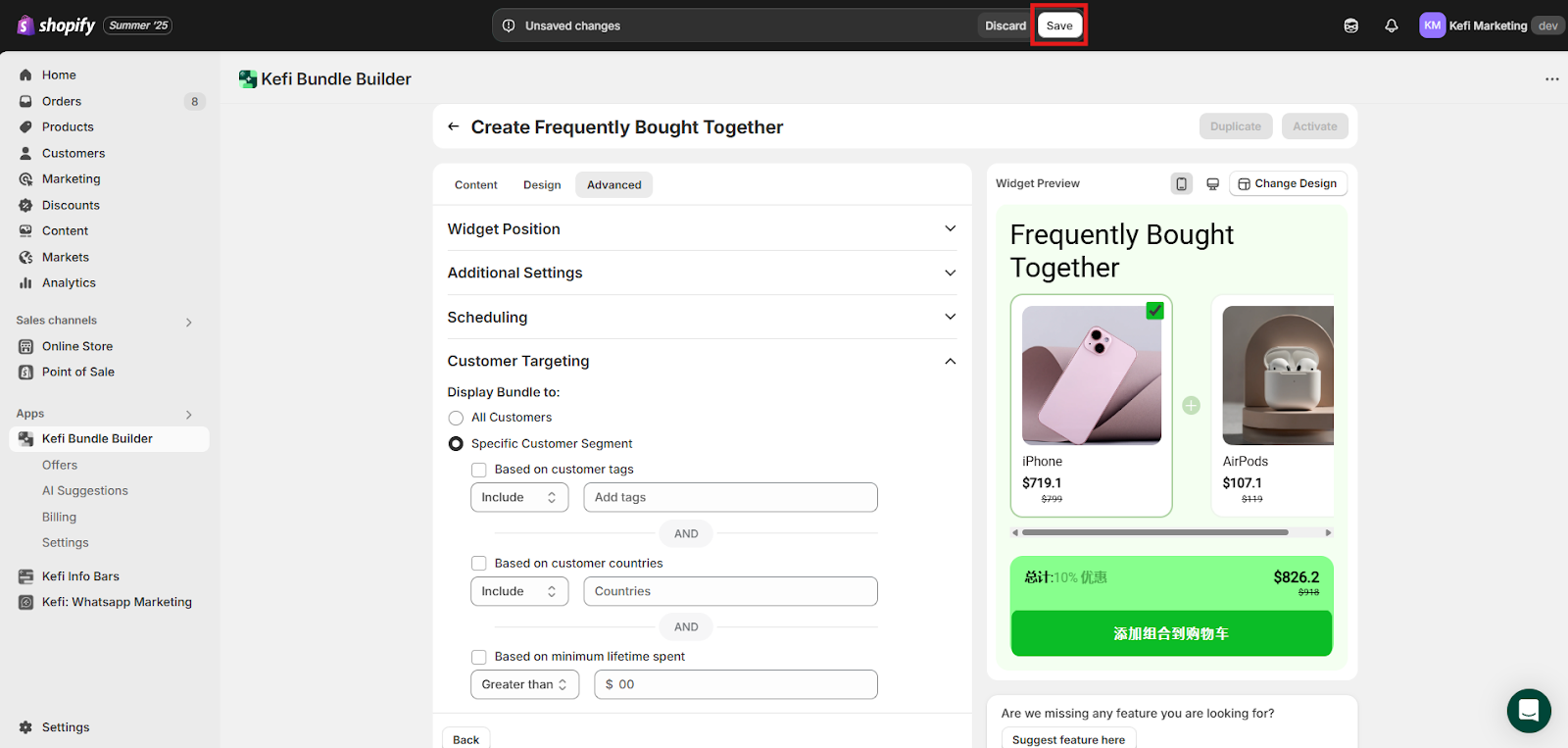
4. Customer Targeting - The Customer Targeting feature allows you to control who sees your Frequently Bought Together (FBT) bundle based on specific customer attributes. This is especially useful for offering exclusive bundles, running targeted campaigns, or rewarding high-value shoppers.
Display Bundle To:
In case of Specific Customer Segment -
You can combine multiple rules using "AND" logic for even more precise targeting.

STEP 13
Click ‘Save’ to apply the customizations.
STEP 14
Finally, activate the FBT Bundle by simply clicking on ‘Activate’.
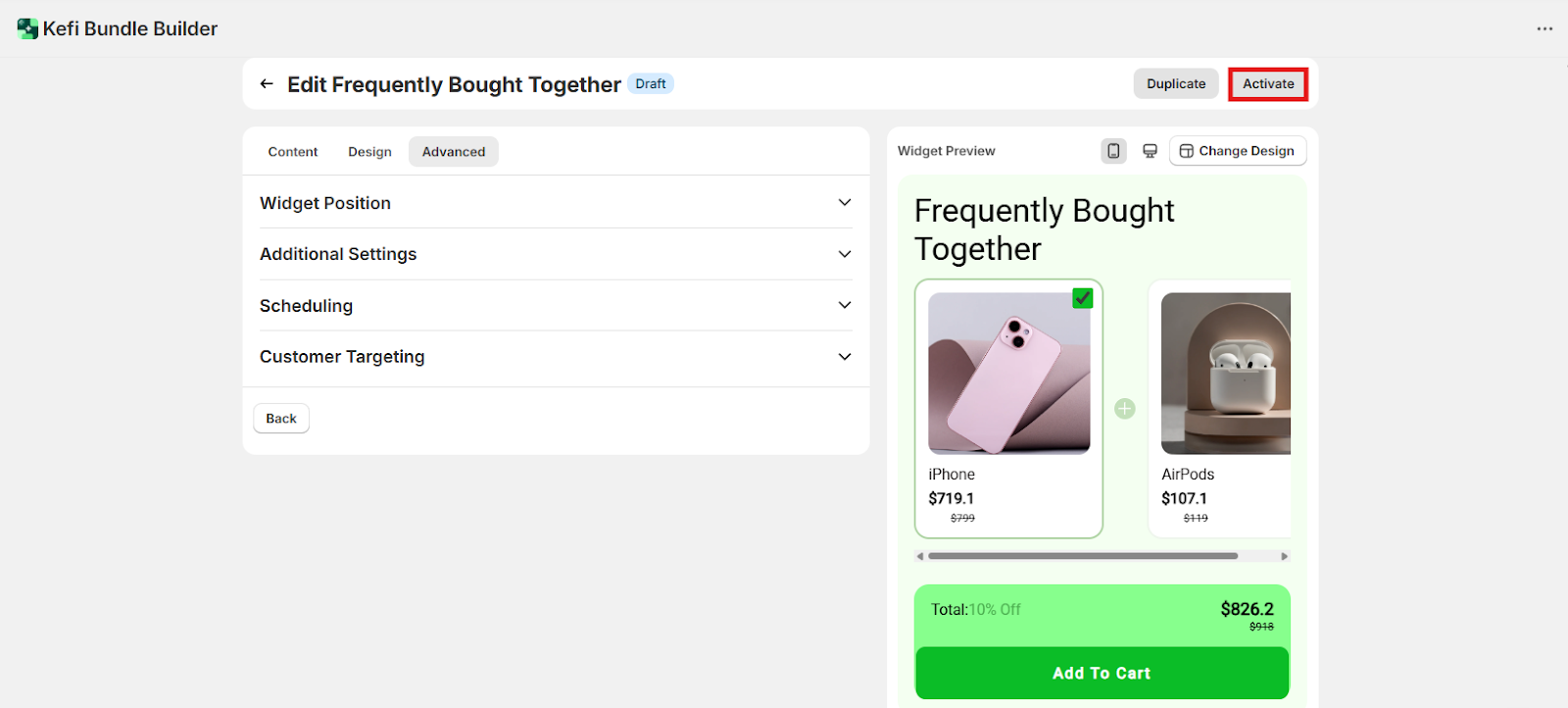
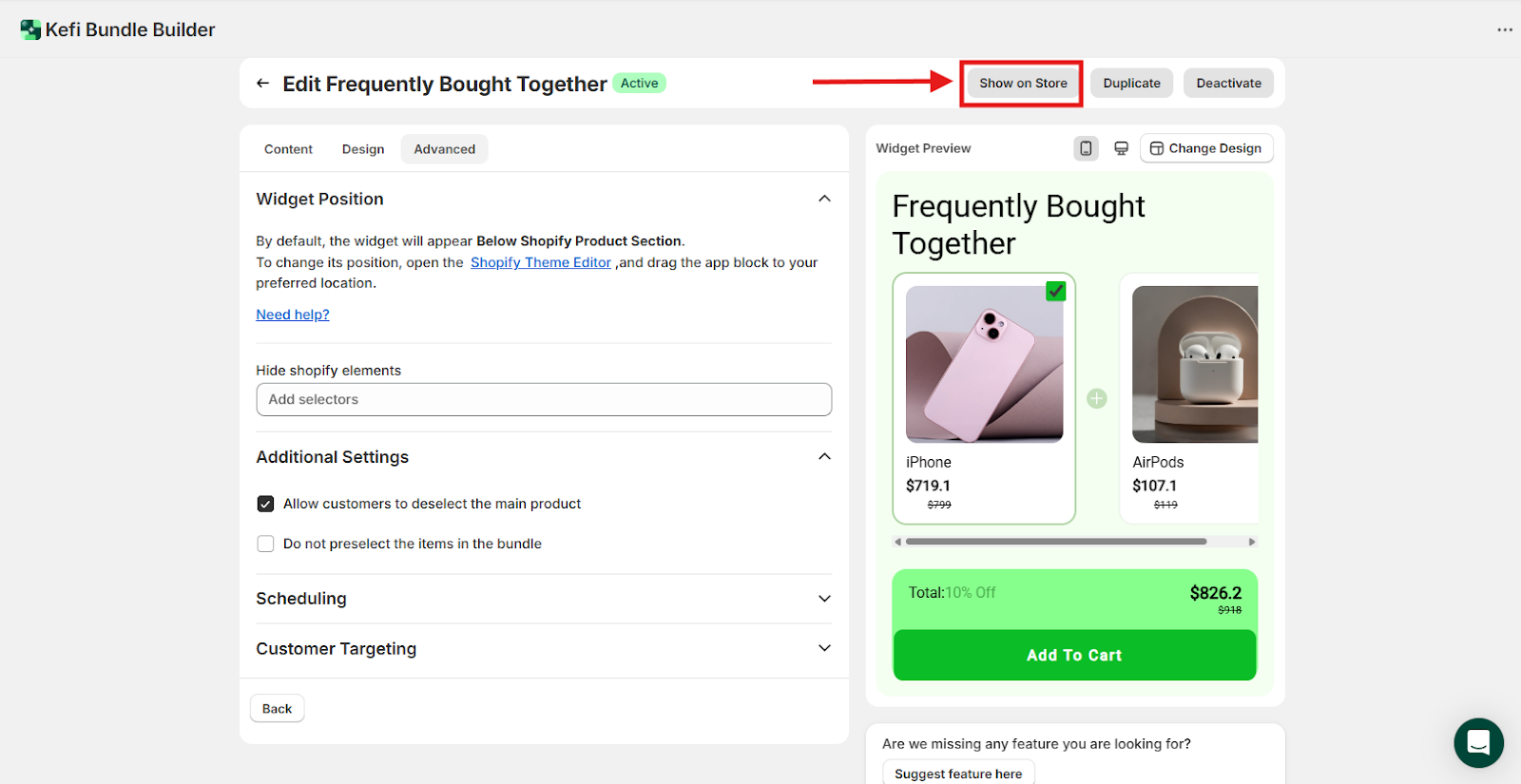
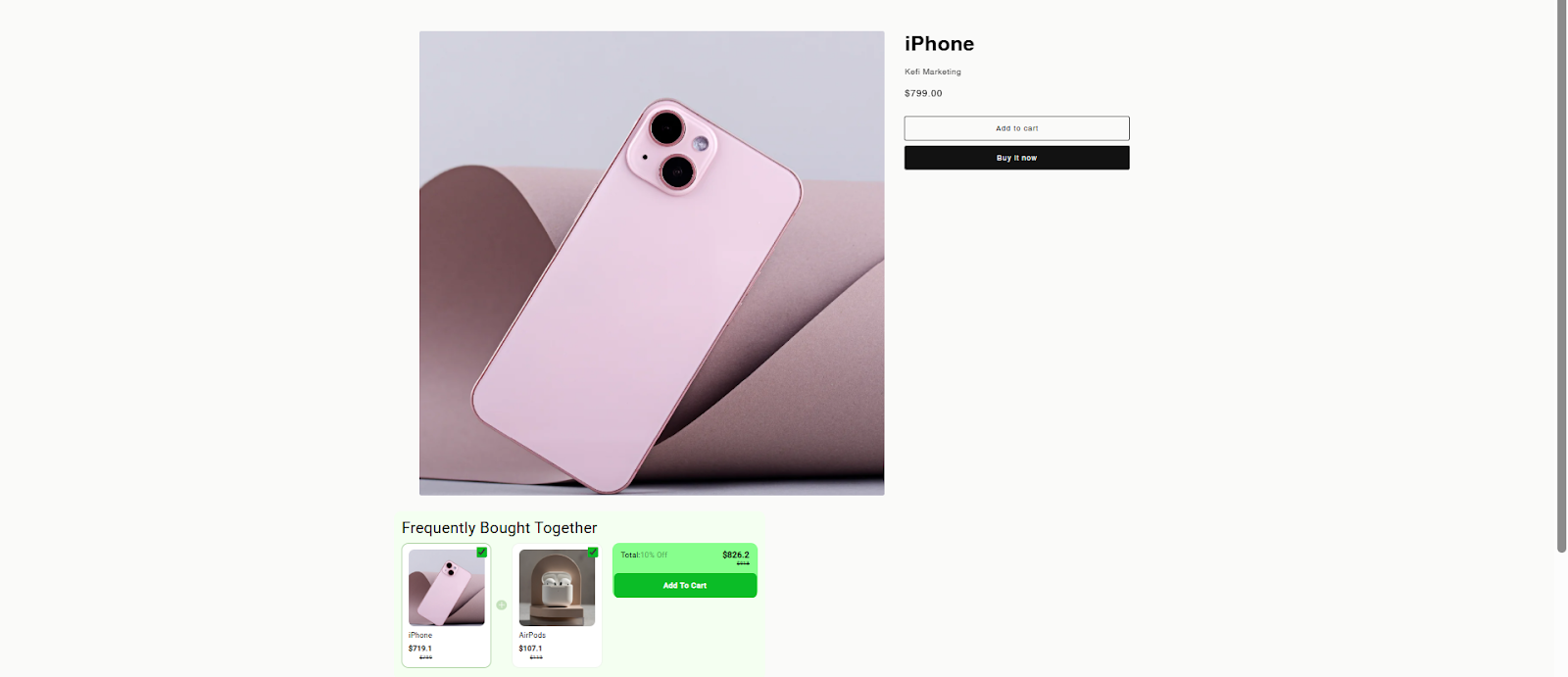
Once you’ve activated the bundle, you can also view it on the store. Simply click ‘Show on Store’
For Example -
If you have any questions or need assistance, feel free to contact us:
.svg)
