Offering discounts is one of the most effective ways to convert browsing shoppers into paying customers. However, forcing customers to wait until the final checkout page to apply a promo code often leads to friction, cart abandonment, or lost sales when shoppers leave your site to hunt for coupons.
With the Discount Codes feature in Kefi’s Slide Cart, you can allow customers to input and apply promotional codes directly inside the cart drawer. By giving shoppers instant feedback on their savings right as they review their order, you create a smooth, transparent, and high-converting shopping experience.
Why is the Discount Code Feature Useful?
Integrating a discount field into your Slide Cart offers key strategic advantages for your online store:
Reduces Cart Abandonment When shoppers see a clear field to enter their coupon code right inside the cart, they are far less likely to leave your website to search for promo codes on discount aggregate sites.
Provides Instant Gratification Shoppers instantly see their updated total and dynamic savings breakdown, giving them immediate validation and confidence to click Checkout.
Streamlines the Mobile Checkout Experience On mobile devices, navigating to the final Shopify checkout page just to test a discount code can feel slow and cumbersome. Applying codes directly inside the Slide Cart simplifies the buyer journey across all screen sizes.
Seamless Store Branding Customize every visual aspect—from background colors to button hover states—to make the coupon entry area feel like a natural extension of your store’s design.
Prerequisites
To use Discount Codes in Slide Cart, ensure:
Your store is subscribed to the Starter or Unlimited plan.
You have enabled the Slide Cart feature.
You have active discount codes or automatic discounts created in your Shopify admin.
Step-by-Step Guide: Setting Up Discount Codes in Slide Cart
Follow these simple steps to enable and customize the Discount Code input inside your Slide Cart.
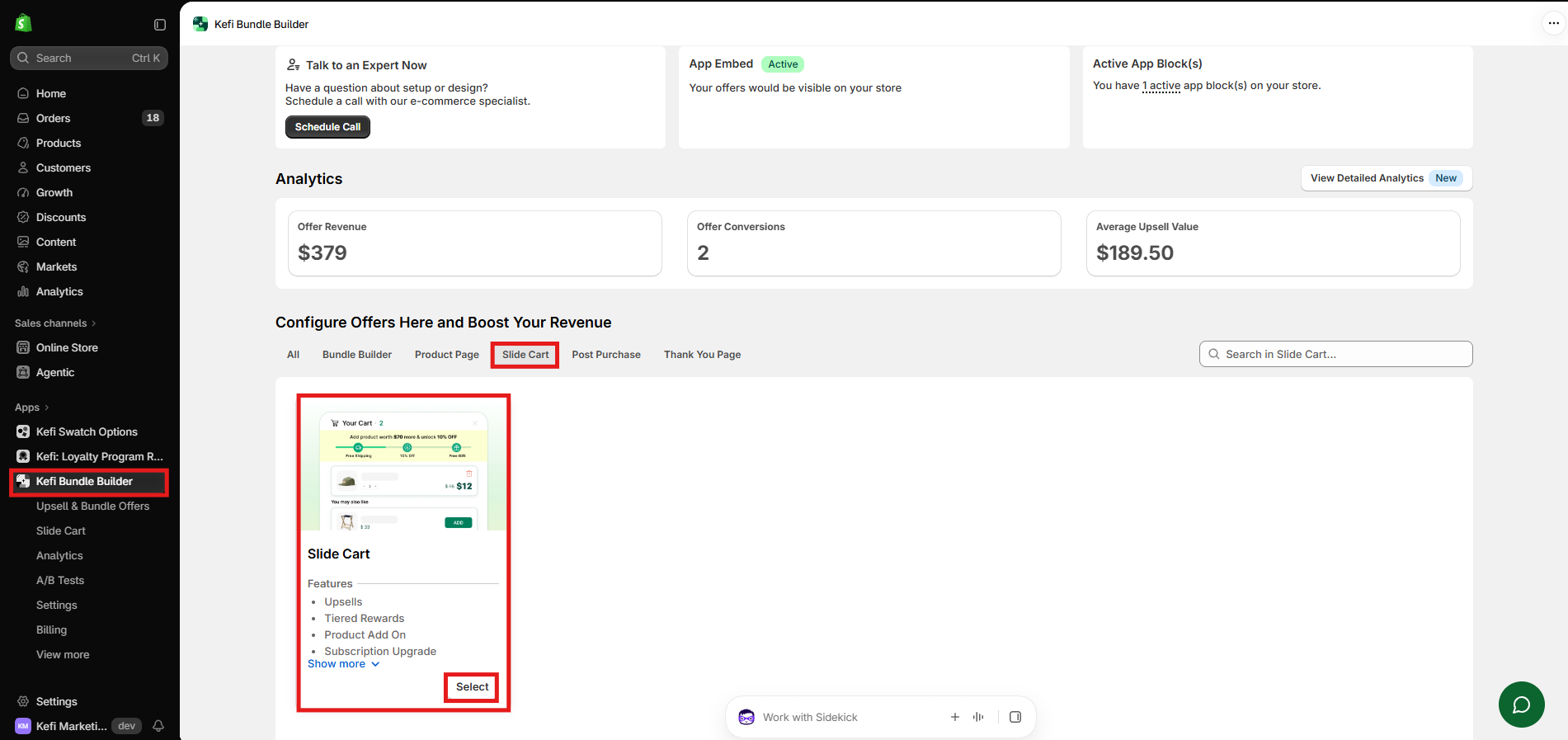
Step 1: Open the Slide Cart Editor
Log in to your Shopify store admin dashboard.
Navigate to Apps > Kefi Bundle Builder.
Select Slide Cart from the dashboard menu.
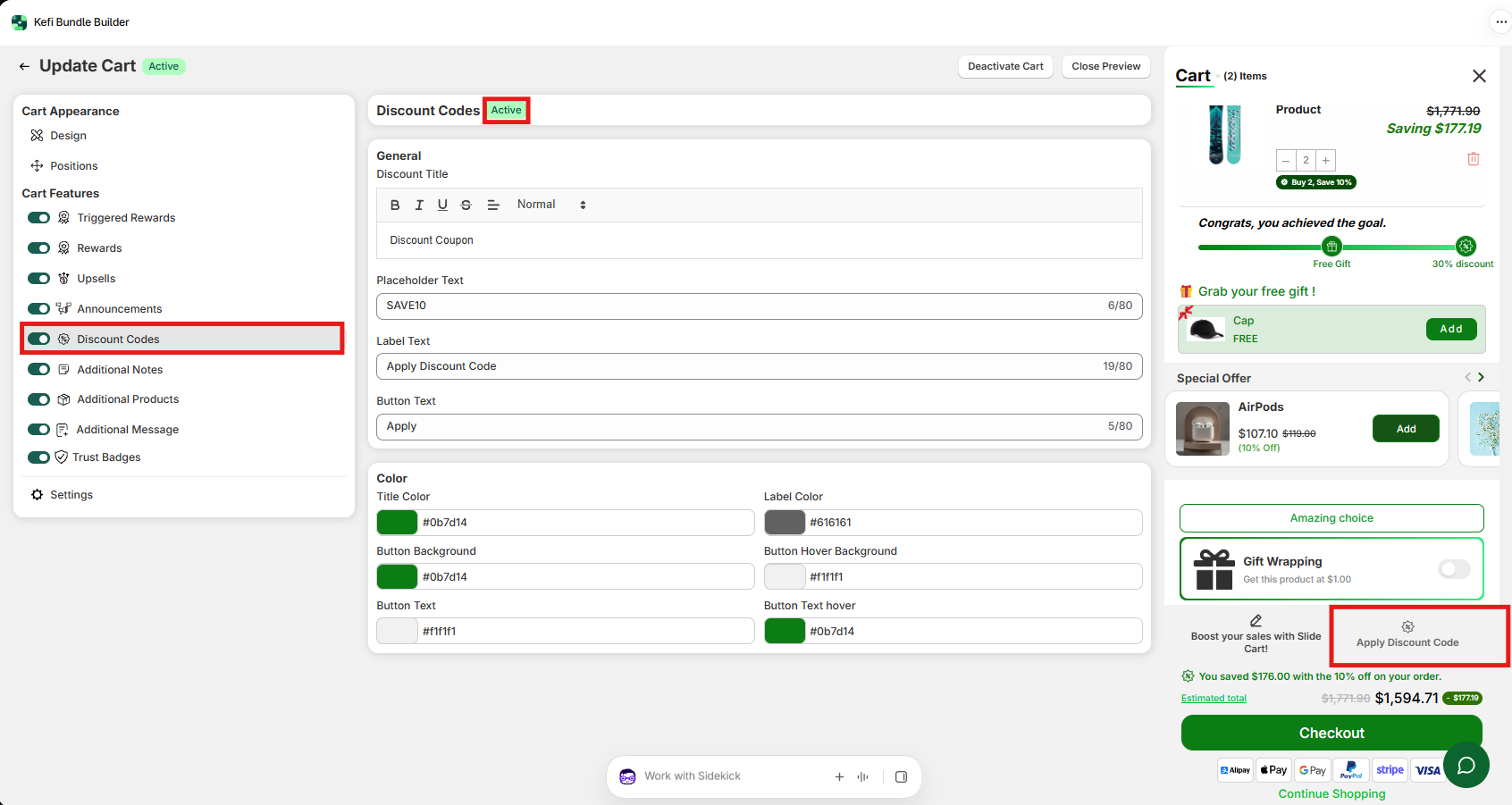
Step 2: Access the Discount Codes Feature
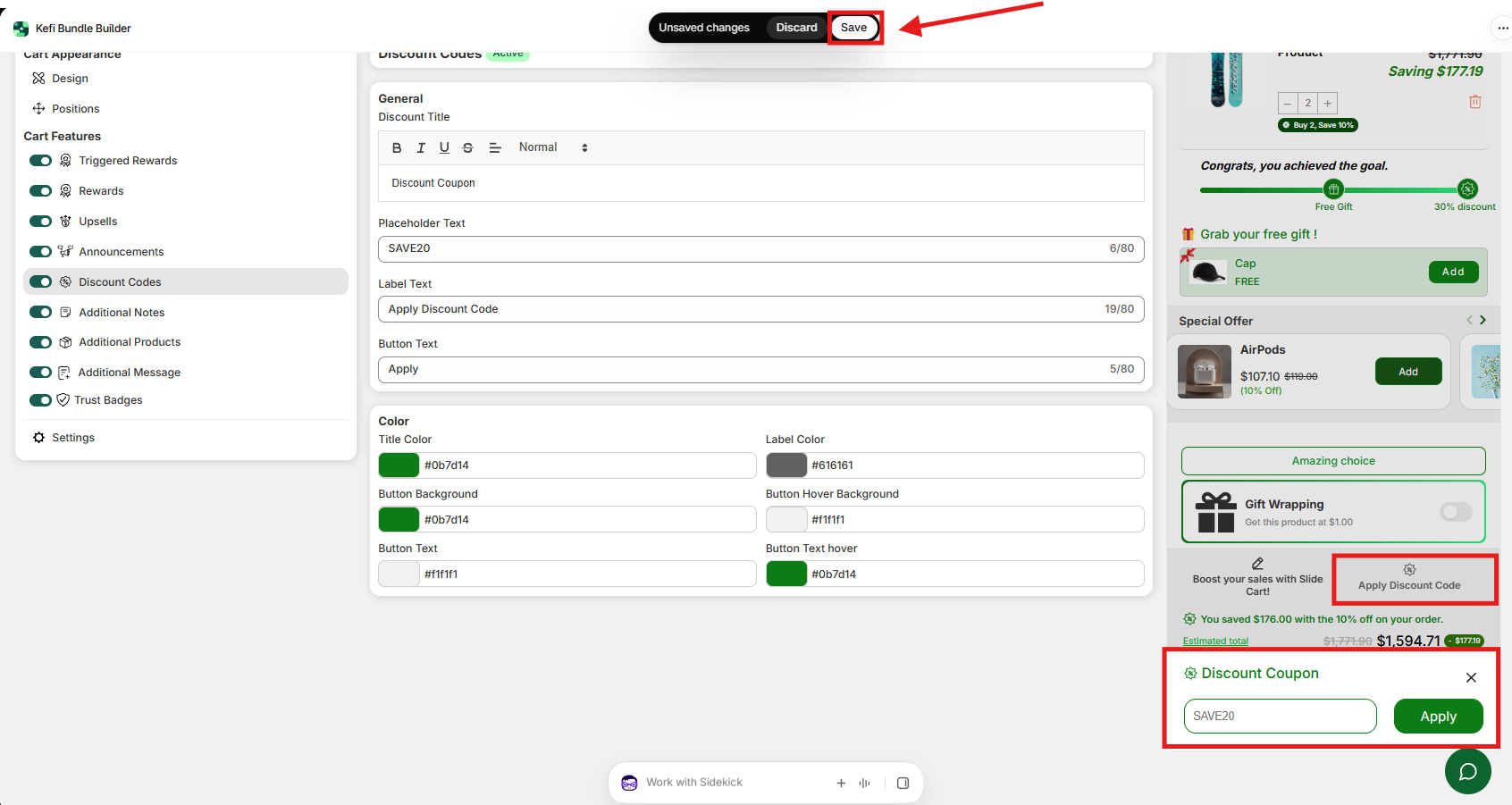
In the left navigation panel under Cart Features, select Discount Codes.
Make sure the toggle switch next to Discount Codes is set to ON (Active).
Observe the real-time preview panel on the right side of your screen to see live visual updates as you adjust settings.
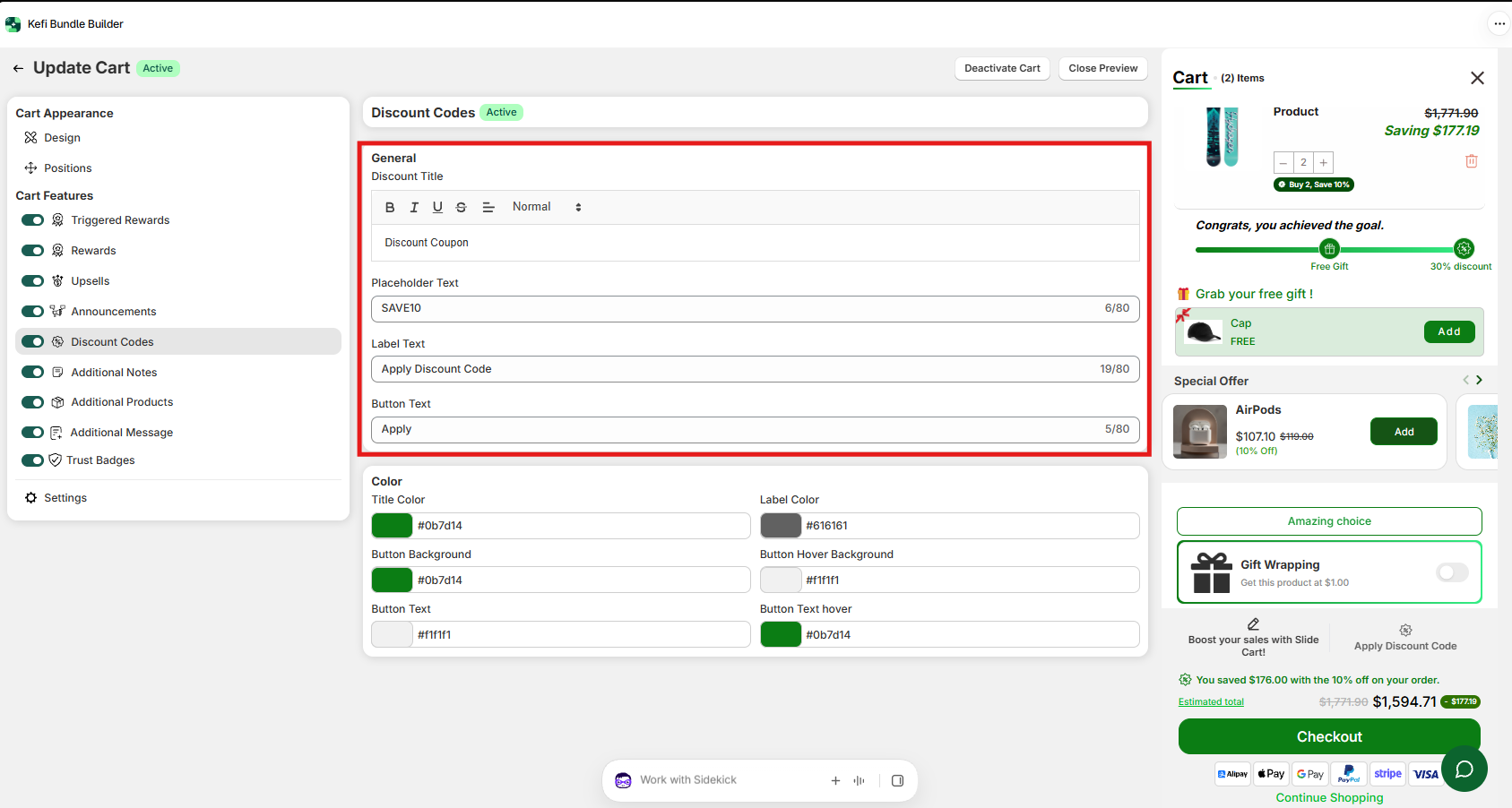
Step 3: Customize General Settings
Under the General tab, configure the copy and placeholder text for your coupon field:
Discount Title: Set a welcoming header above the coupon box (e.g., "Apply Discount Code" or "Have a promo code?").
Placeholder Text: Input example text inside the input box to guide shoppers (e.g., SAVE10 or ENTER CODE).
Button Text: Customize the call-to-action button text next to the input field (e.g., Apply or Redeem).
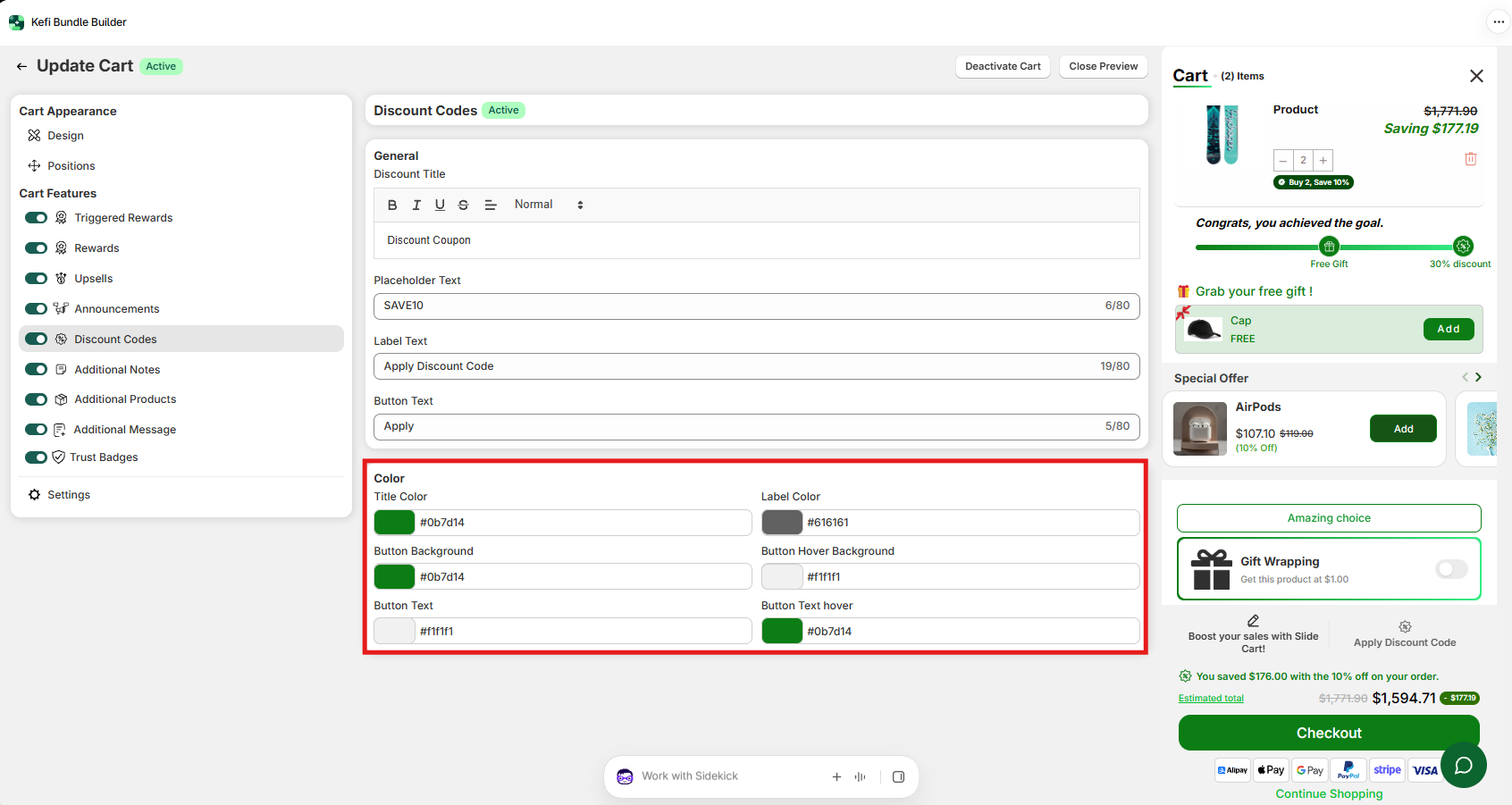
Step 4: Customize Colors & Design
Align the coupon section with your brand identity under the Color section:
Title Color: Adjust the font color of your discount heading.
Icon Color: Set the color of the promo code tag icon.
Button Background Color: Select the default fill color for the apply button.
Button Text Color: Choose a contrasting font color for maximum readability.
Button Hover State: Define how the button changes background and text colors when a customer hovers over it to signal interactivity.
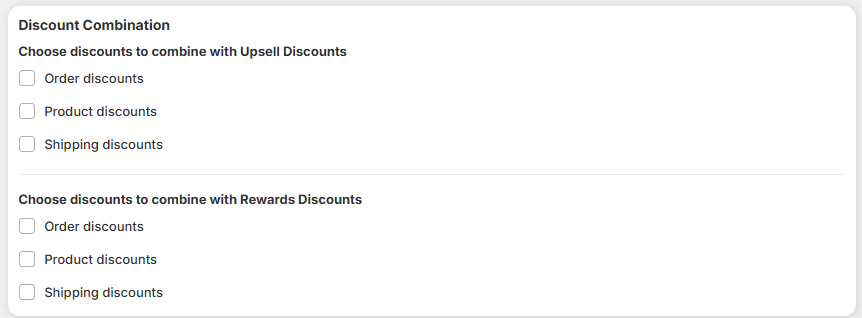
If you are using discounts across multiple Slide Cart features (such as Upsell Discounts or Reward Tiers), configure how they stack with coupon codes:
In the left menu, click Settings.
Scroll down to Discount Combination.
Choose whether order-level, product-level, or shipping-level coupon discounts can combine with your active Upsell Discounts or Rewards Discounts.
Step 6: Save and Publish
Check the live preview drawer on the right side to verify your text and color choices.
Click Save in the top-right corner of the editor to push your updates live to your online store.
Best Practices for Discount Codes
Keep Placeholders Clear: Use familiar placeholder text like SAVE10 so customers immediately recognize what to type into the box.
Combine with Announcements: Use the Announcement Banner at the top of your Slide Cart to display your current active promo code (e.g., "Use code WELCOME10 for 10% off your order!").
Ensure Strong Button Contrast: Make sure your Apply button stands out clearly against your cart background so shoppers don't miss it.
Frequently Asked Questions (FAQ)
Q: Where do I create the actual discount codes?
A: Discount codes are generated directly within your Shopify Admin under Discounts. Kefi’s Slide Cart validates and applies these codes seamlessly through Shopify's engine.
Q: What happens if a customer enters an invalid or expired code?
A: The Slide Cart will display an error message informing the customer that the code is invalid, prompting them to try again.
Need Support?
If you have any questions or need help setting up Discount Codes in your Slide Cart, feel free to reach out to our team:
Live Chat: Contact us via the chat widget inside the Kefi Bundle Builder app or website.