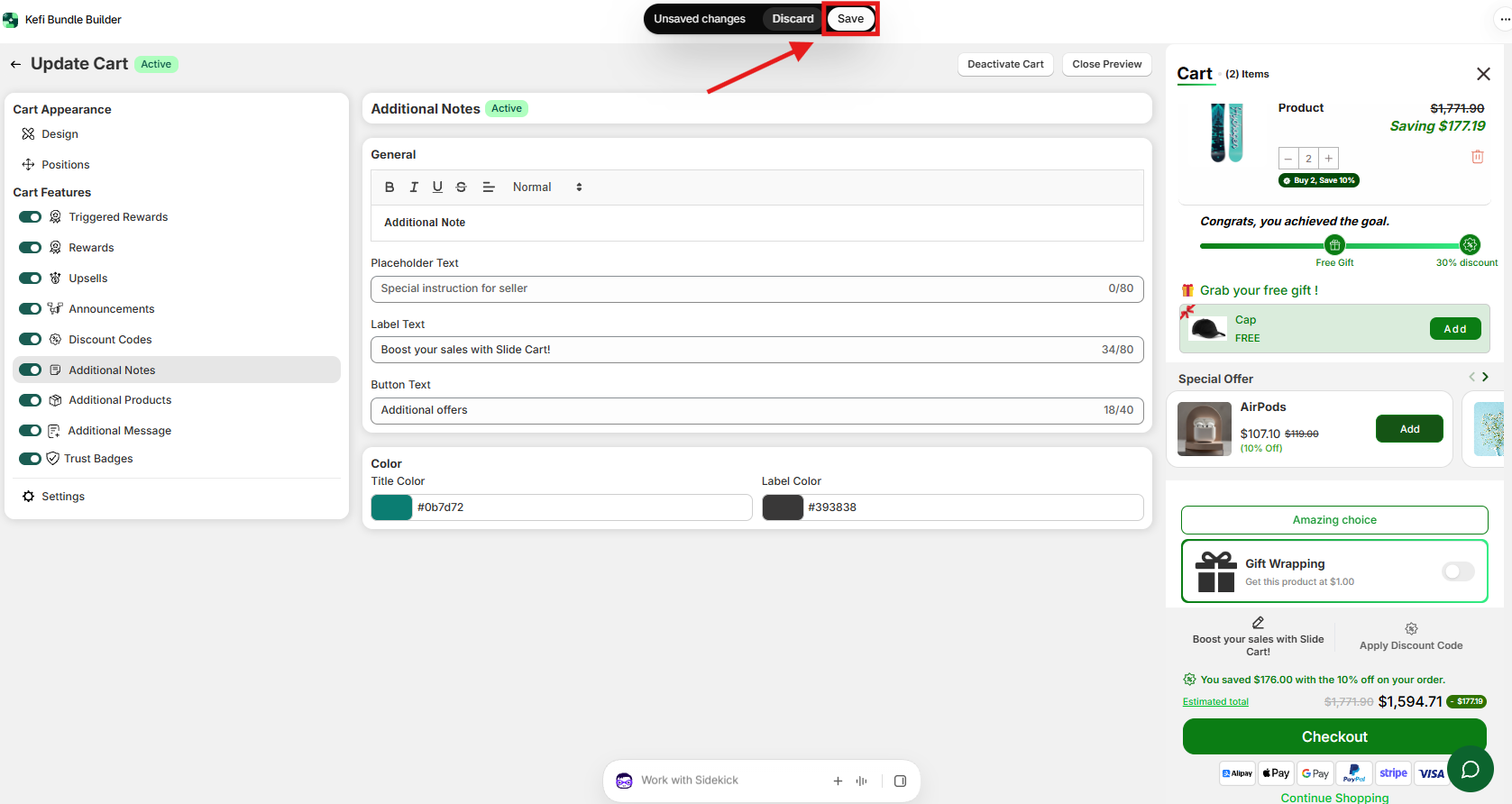
Providing a personalized shopping experience is key to building customer loyalty and satisfaction. Often, shoppers need to share specific requests—such as gift messages, delivery preferences, or specialized product instructions—before finalizing their order.
The Additional Notes feature in Kefi’s Slide Cart allows customers to add custom notes or instructions directly inside the cart drawer. By enabling this seamless input field right before checkout, you eliminate post-purchase support emails, reduce order errors, and ensure a smooth fulfillment process.
Why is the Additional Notes Feature Useful?
Adding an Additional Notes field to your Slide Cart provides several key benefits for your store:
Captures Special Order Requests Effortlessly Whether customers want to request a gift note, ask for subtle packaging, or leave special handling instructions, giving them a clear box inside the cart keeps all order details in one place.
Reduces Support Tickets & Delivery Friction Collecting delivery instructions upfront prevents missed deliveries and minimizes the need for customers to email customer support after placing an order.
Streamlines Order Fulfillment Order notes automatically flow into your Shopify Admin under order details, allowing your fulfillment team to view and process special requests immediately.
Enhances Customer Experience & Brand Trust Offering a flexible note field shows shoppers that your store pays attention to detail and values their custom preferences.
Prerequisites
To use Additional Notes in Slide Cart, ensure:
You have installed Kefi Bundle Builder on your store.
Your store is subscribed to the Starter or Unlimited plan.
You have enabled the Slide Cart feature.
Step-by-Step Guide: Setting Up Additional Notes in Slide Cart
Follow these simple steps to activate and customize the Additional Notes feature in your Slide Cart.
Step 1: Open the Slide Cart Editor
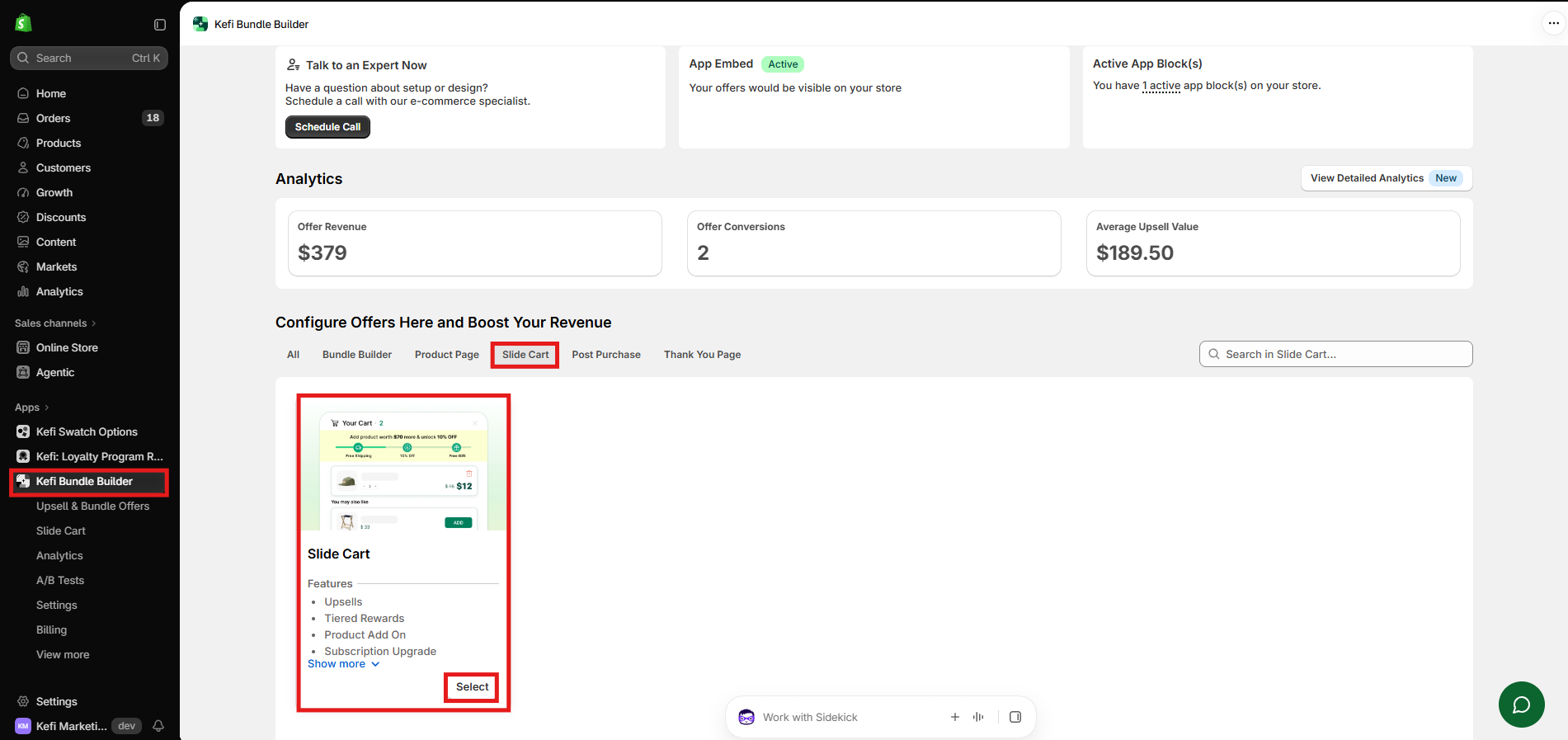
Log in to your Shopify store admin dashboard.
Navigate to Apps > Kefi Bundle Builder.
Select Slide Cart from the dashboard menu.
Step 2: Access the Additional Notes Feature
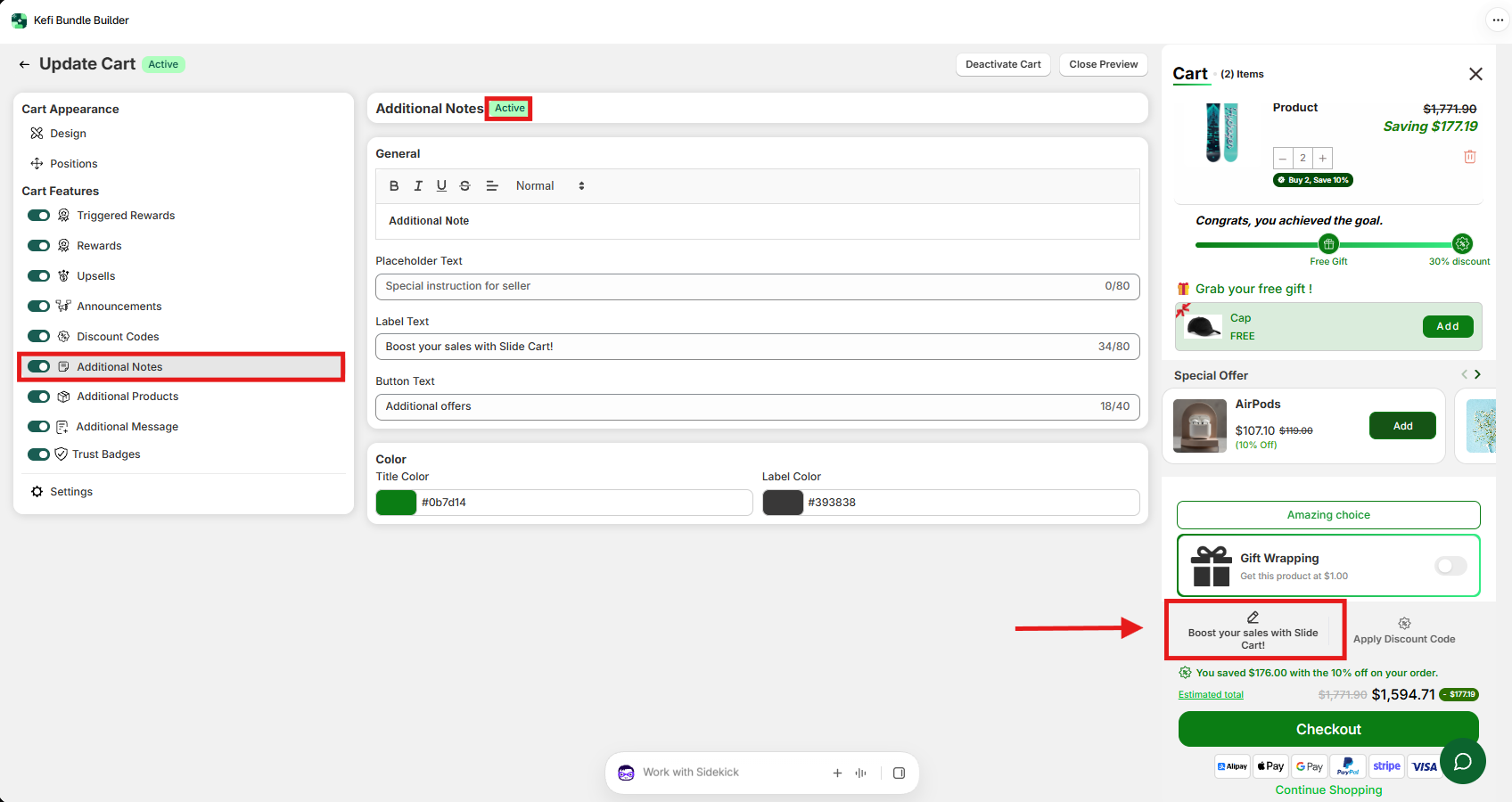
In the left navigation panel under Cart Features, select Additional Notes.
Make sure the toggle switch next to Additional Notes is set to ON (Active).
The real-time preview panel on the right side of the screen will display live visual updates as you adjust settings.
Step 3: Customize Text & Content Settings
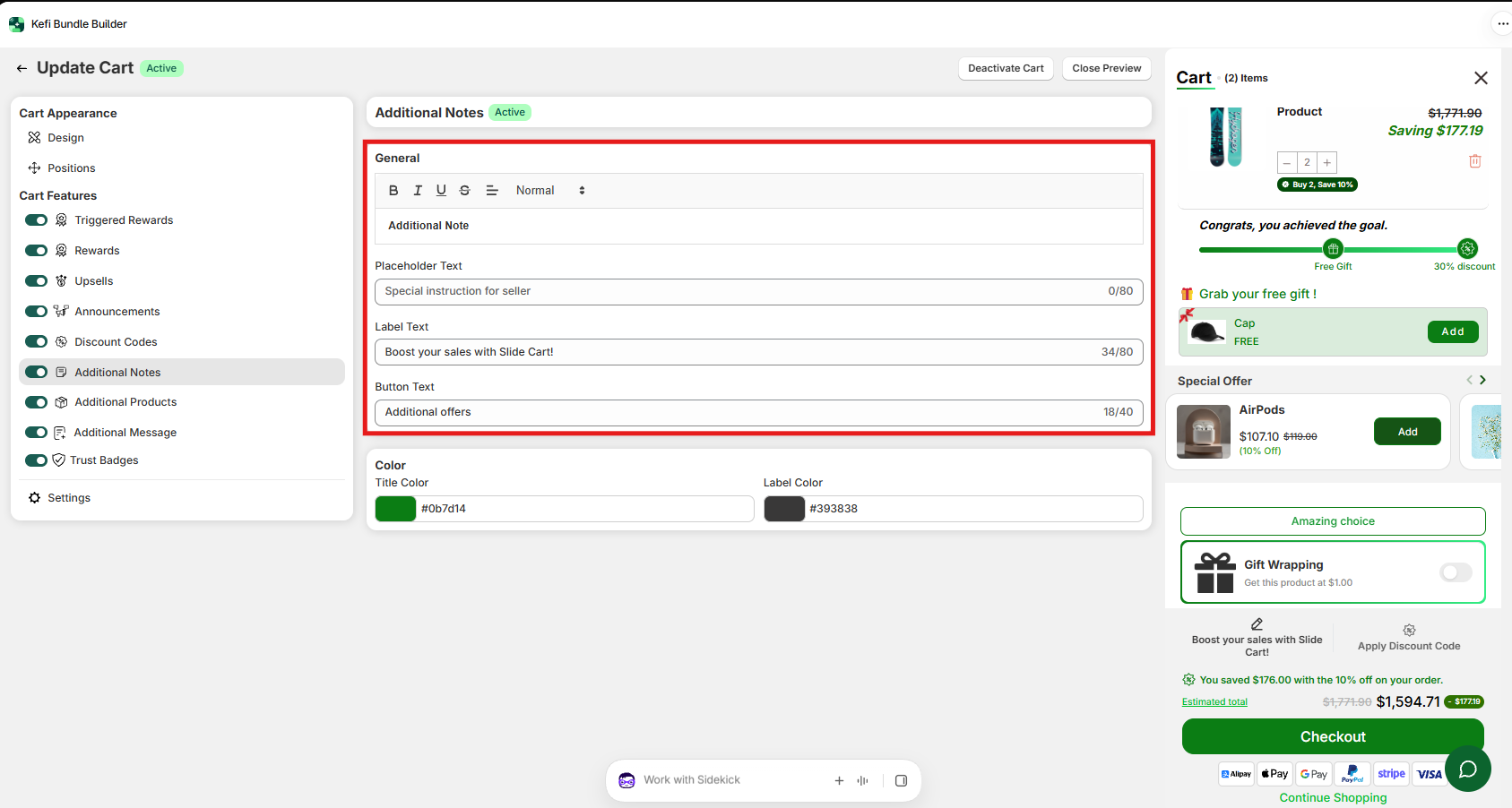
Under the General settings tab, define the copy that guides your customers:
Note Label / Title: Enter a clear, welcoming title above the text box (e.g., "Order Special Instructions", "Add a Gift Note", or "Delivery Notes").
Placeholder Text: Input sample text inside the note box to guide shoppers on what they can write (e.g., "Write your personalized gift message or delivery instructions here...").
Save / Action Button Text: Set the label for the button used to submit or update the note (e.g., "Save Note" or "Update").
Step 4: Customize Colors & Design
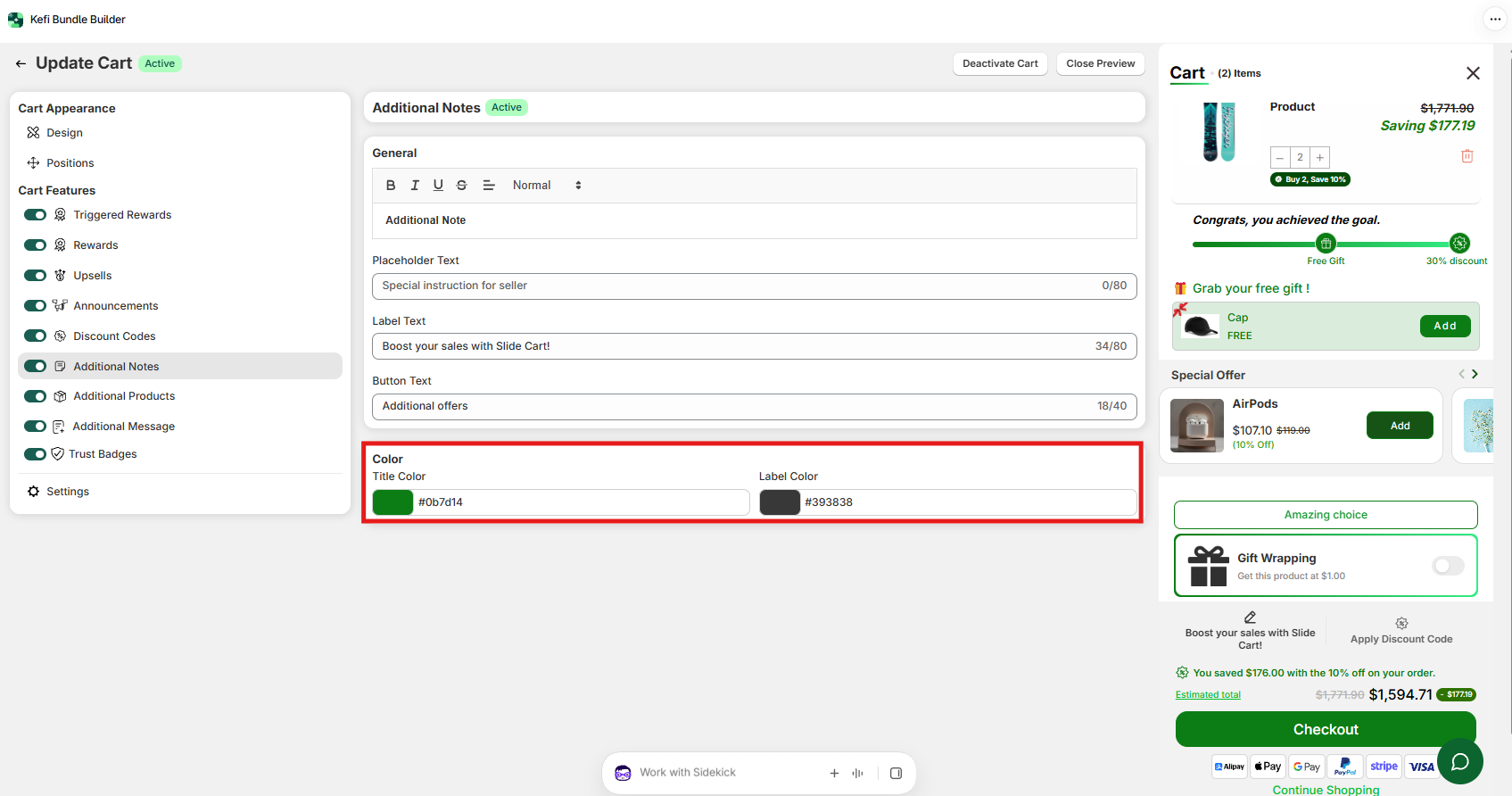
Match the note field to your storefront's branding under the Color section:
Label Color: Adjust the font color of your Label.
Title Color: Adjust the font color of your note title/heading
Step 5: Save and Publish
Check the live preview panel on the right side to verify your text and design choices.
Click Save in the top-right corner of the editor to push your updates live to your online store.
Best Practices for Additional Notes
Use Direct Placeholder Prompts: Give explicit examples in the placeholder text (e.g., "Need gift wrap? Leave a message here!") so customers know exactly what the box is for.
Keep It Optional: Avoid making order notes mandatory unless essential, keeping checkout fast and low-friction for standard orders.
Combine with Custom Addons: If you charge extra for services like custom engraving or greeting cards, consider pairing notes with the Additional Products / Addons feature so you can collect instructions alongside paid add-ons.
Need Support?
If you have any questions or need assistance setting up Additional Notes in your Slide Cart, feel free to reach out:
Live Chat: Available via the Kefi Bundle Builder app or website.