Micro-copy and motivational messages play a significant role in guiding shoppers through the sales funnel. Displaying encouraging text directly inside your cart drawer can reassure customers about their product selections, highlight ongoing store policies, or reinforce brand trust.
The Additional Message feature in Kefi’s Slide Cart allows you to display a clean, dedicated message box inside the cart drawer. Whether you want to compliment their product choices (e.g., "Amazing choice!"), remind them of benefits (e.g., "Hassle-Free 30-Day Returns"), or share promotional highlights, this feature helps keep shoppers engaged and confident right up to checkout.
Why is the Additional Message Feature Useful?
Adding a dedicated message box to your Slide Cart offers several strategic benefits for your store:
Reassures Shoppers at Key Moments Displaying positive reinforcement like "Amazing choice" or "Great selection" validates the customer's buying decision, reducing purchase hesitation.
Highlights Important Policies & Value Props Use the message area to communicate essential guarantees, eco-friendly practices, or fast shipping assurances without cluttering your product pages.
Increases Visual Engagement Custom colors and font styling allow you to draw attention to important announcements or motivational notes seamlessly integrated into the cart drawer layout.
Flexible Placement & Activation Easily toggle the banner on or off or adjust its position in the cart layout to optimize visual hierarchy and shopper flow.
Prerequisites
To use Additional Message in Slide Cart, ensure:
Your store is subscribed to the Starter or Unlimited plan.
You have enabled the Slide Cart feature.
Step-by-Step Guide: Setting Up Additional Message in Slide Cart
Follow these simple steps to enable and customize the Additional Message feature in your Slide Cart.
Step 1: Open the Slide Cart Editor
Log in to your Shopify store admin dashboard.
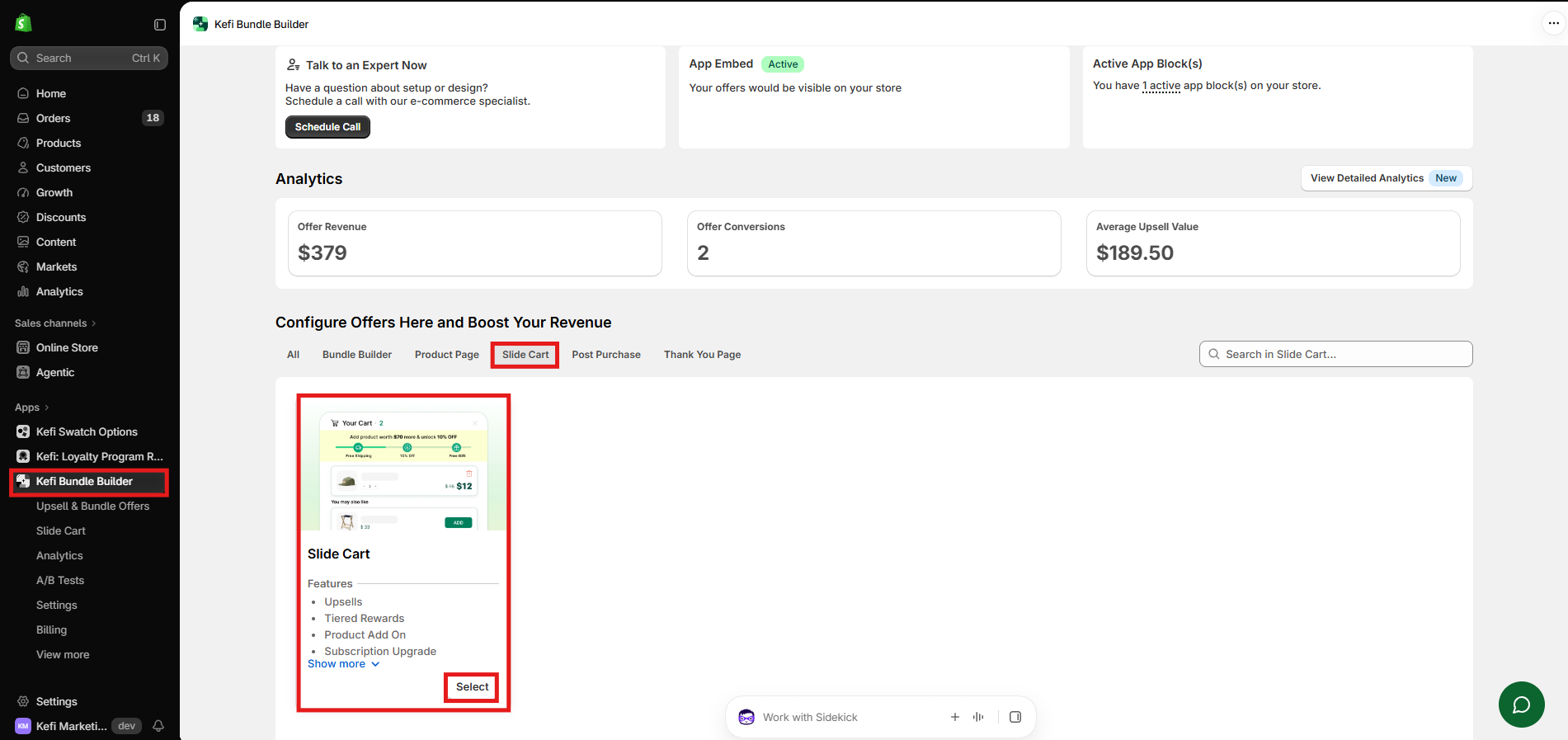
Navigate to Apps > Kefi Bundle Builder.
Select Slide Cart from the dashboard menu.
Step 2: Access the Additional Message Feature
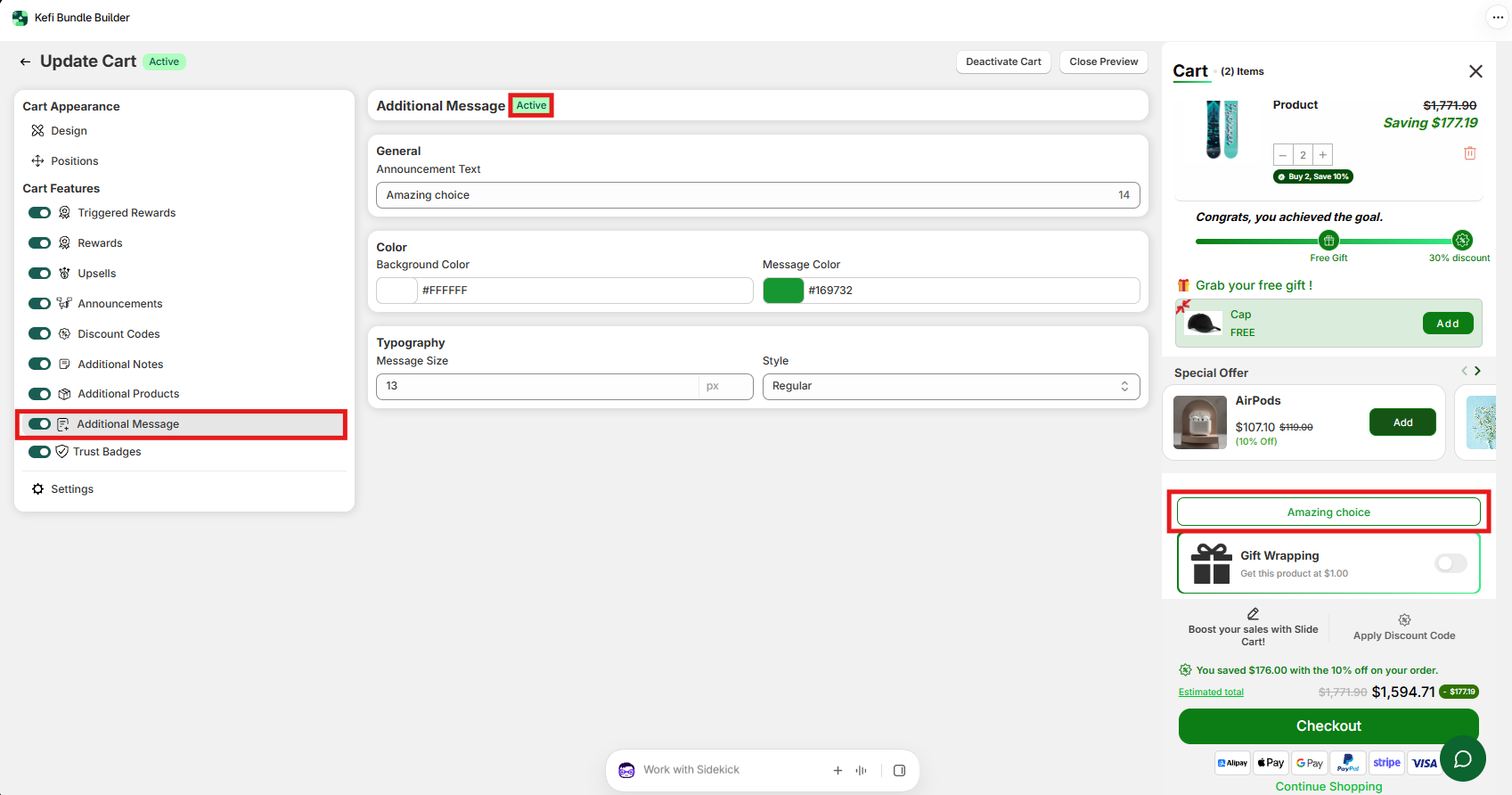
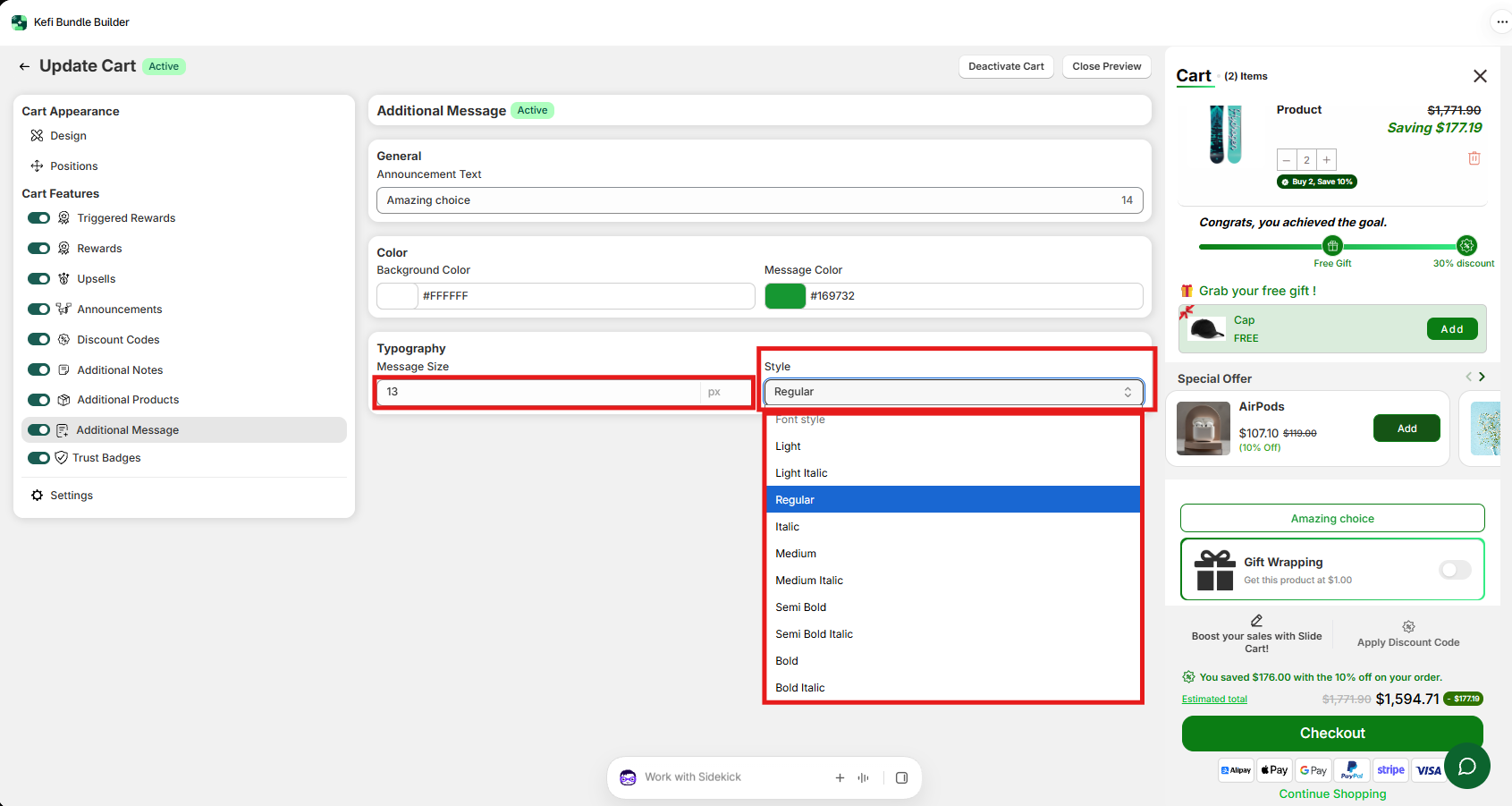
In the left navigation panel under Cart Features, select Additional Message.
Ensure the toggle switch next to Additional Message is set to ON (Active).
Use the real-time preview panel on the right side of the screen to view live updates as you adjust settings.
Step 3: Configure General Message Text
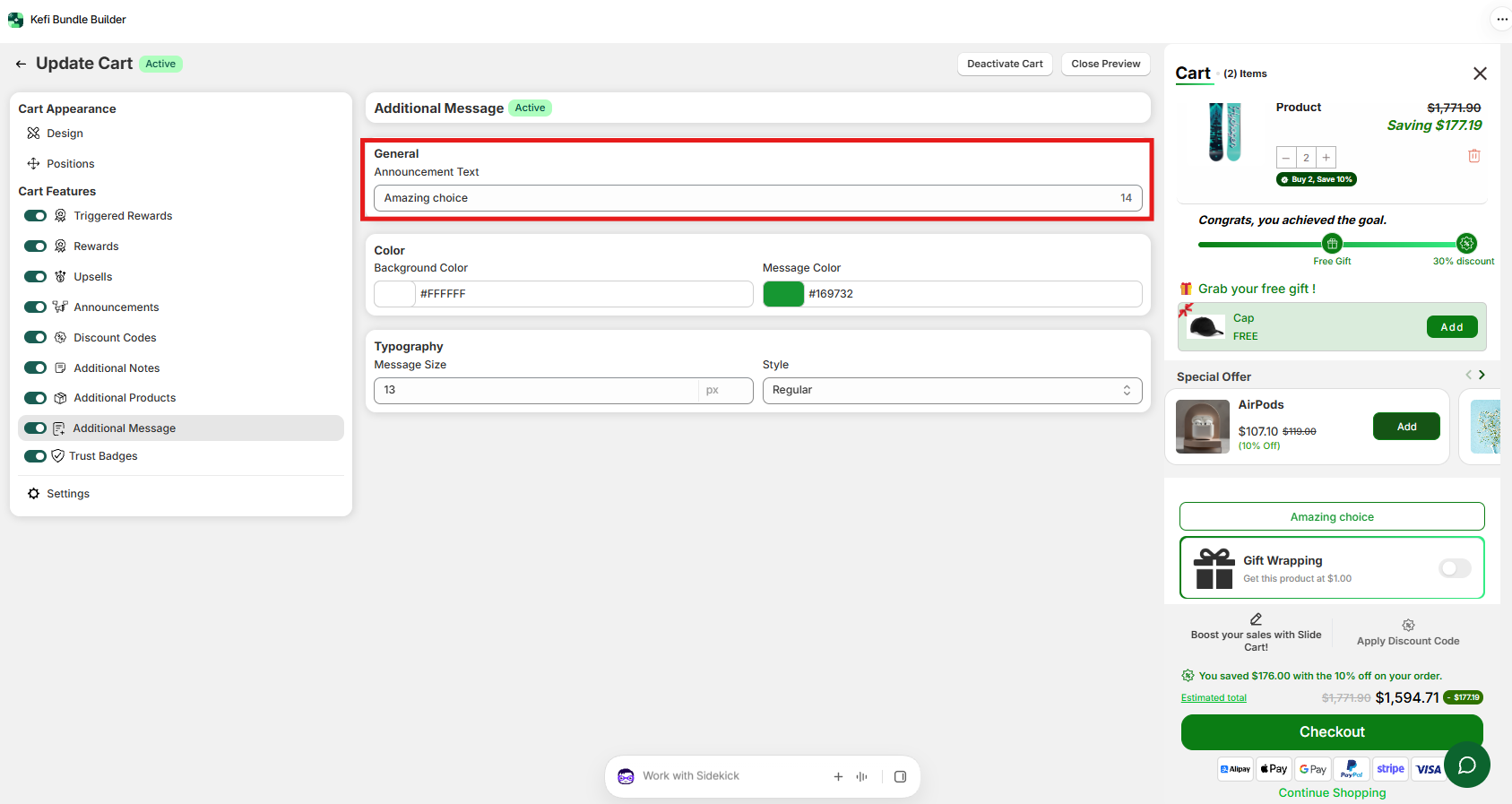
Under the General section:
Announcement Text: Type the custom message you want to show customers in your cart drawer (e.g., "Amazing choice", "Free returns on all orders").
Step 4: Customize Colors
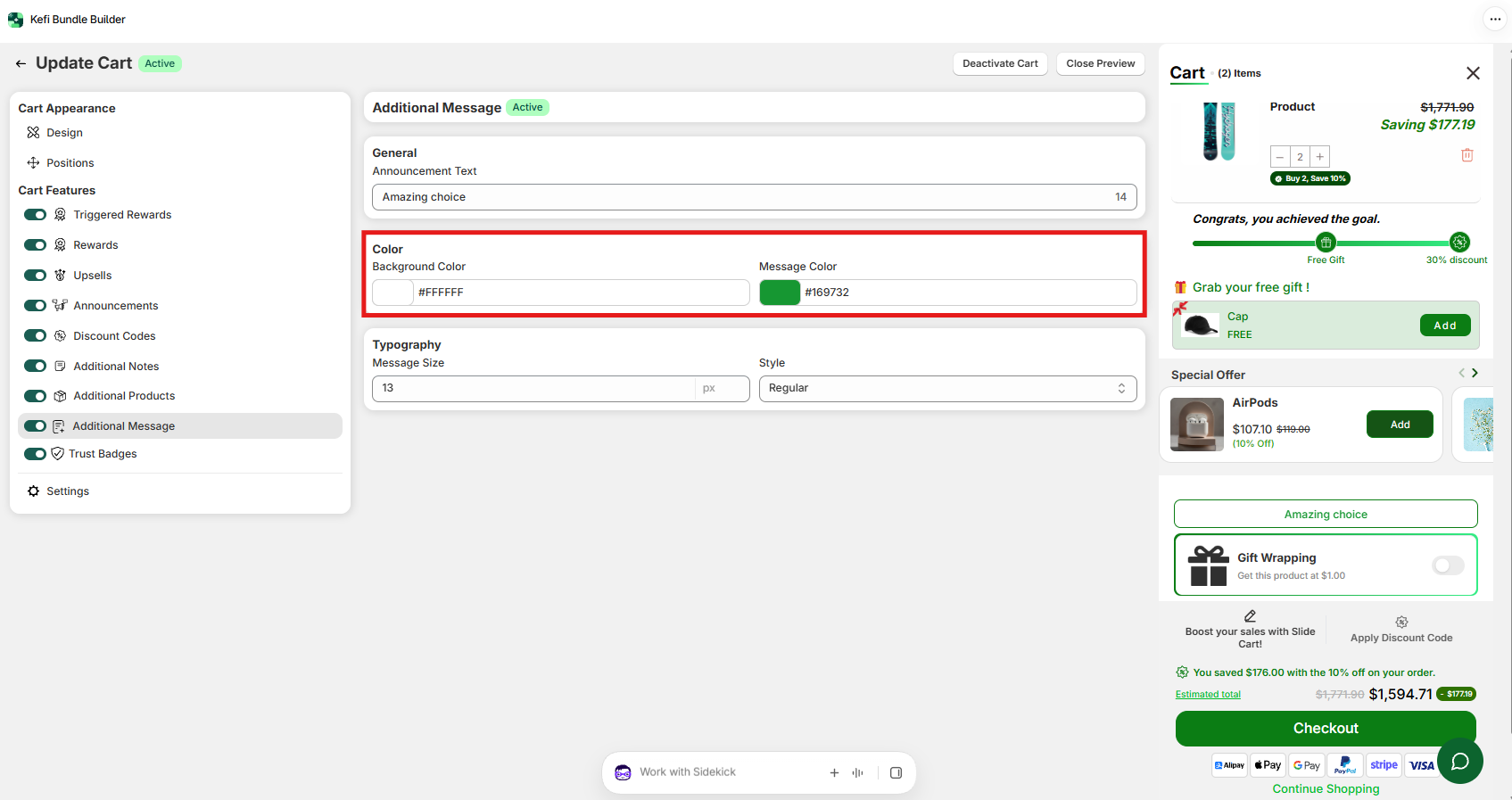
Style the message container to match your brand theme under the Color section:
Background Color: Set the background color swatch for the message box
Message Color: Select the font text color swatch
Step 5: Configure Typography & Style
Adjust font settings under the Typography section to match your store aesthetics:
Message Size: Enter the font size in pixels (e.g., 13px) to control visibility.
Style: Choose your preferred text font weight/style from the dropdown menu (e.g., Regular, Bold, Italic).
Step 6: Save and Publish
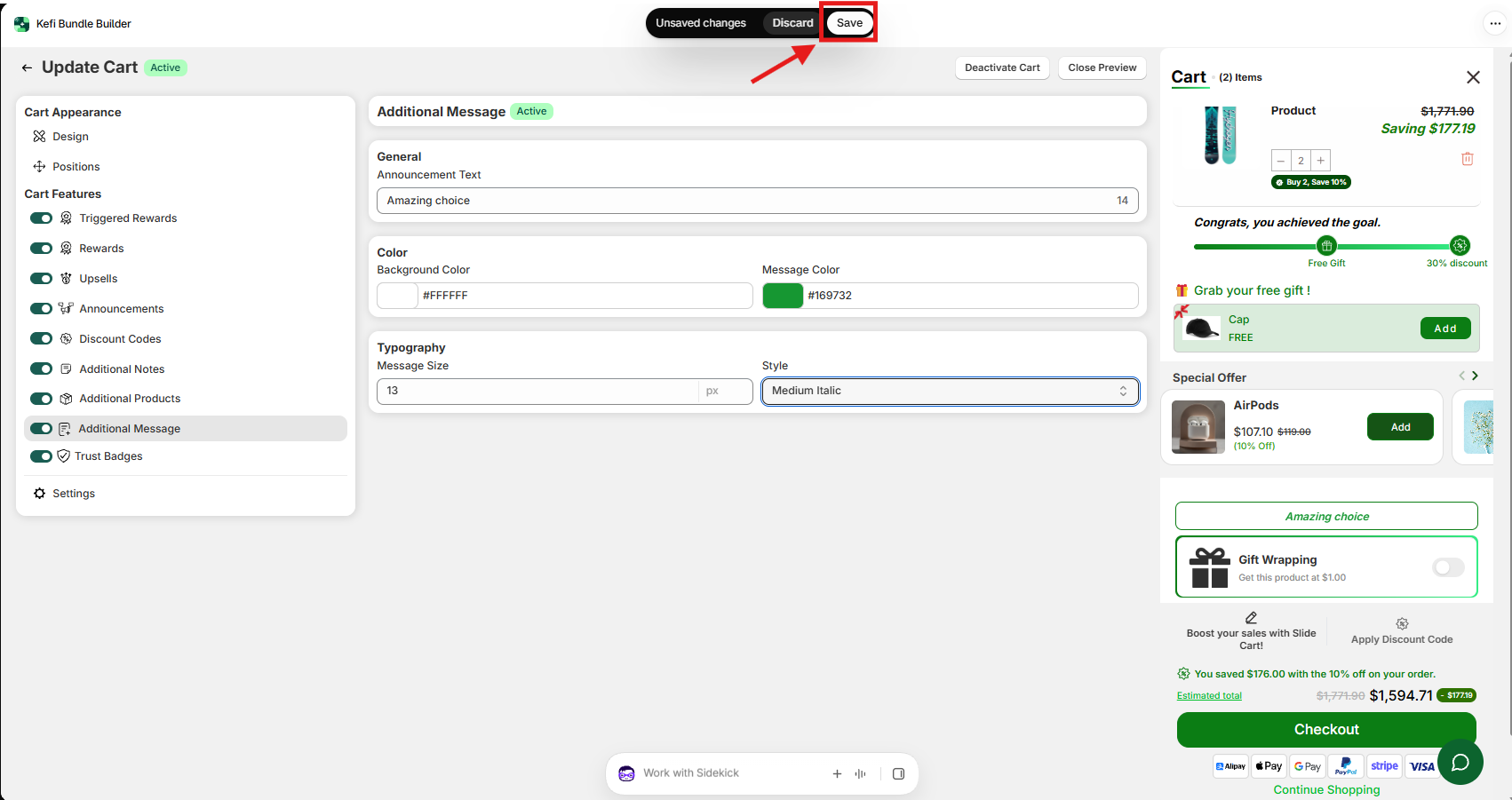
Review the message appearance in the real-time preview panel on the right.
Click Save in the top-right corner of the dashboard to push your changes live to your online store.
Best Practices for Additional Messages
Keep It Concise: Short, punchy copy (2–6 words) works best so it stays readable on mobile screens without taking up too much cart space.
Use High-Contrast Colors: Ensure high contrast between the Background Color and Message Color for clear readability.
Align with Cart Goal: Match your message to your store's priorities—use motivational copy to boost conversions or policy copy to build trust.
Need Support?
If you have any questions or need help configuring Additional Message in your Slide Cart, reach out to our team:
Live Chat: Contact us via the chat widget inside the Kefi Bundle Builder app or website.