How to Manage Pricing Display Options in the Bundle Builder
Pricing display options in Build Your Own Box let you control whether product cards show selling prices, compare-at prices, or both, as well as whether tiered bundle discounts calculate against compare-at prices instead of standard selling prices. This helps you communicate item-level value clearly while keeping discount calculations accurate.
Step 1: Configure Price Display on Product Cards
Open your Build Your Own Box bundle in the Bundle Builder editor.
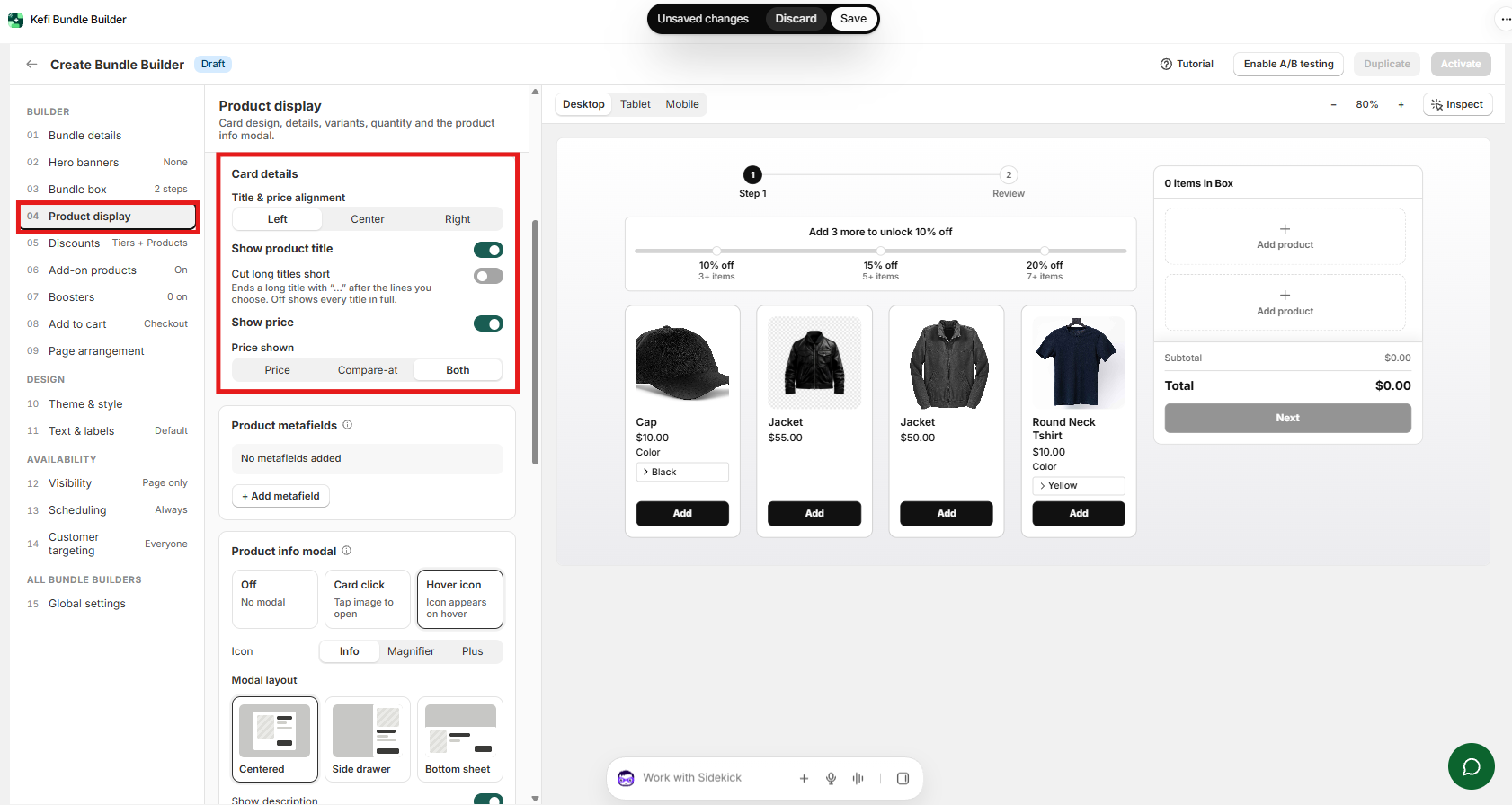
Select 04 Product display from the left-hand menu.
Under Card details, configure how prices appear on each product card:
Toggle Show price on to display product pricing (or turn it off to hide card prices).
Choose Price, Compare-at, or Both to control which price values appear on the card.
Set Title & price alignment (Left, Center, or Right) to match your card layout.
Step 2: Calculate Tiered Discounts Against Compare-At Prices
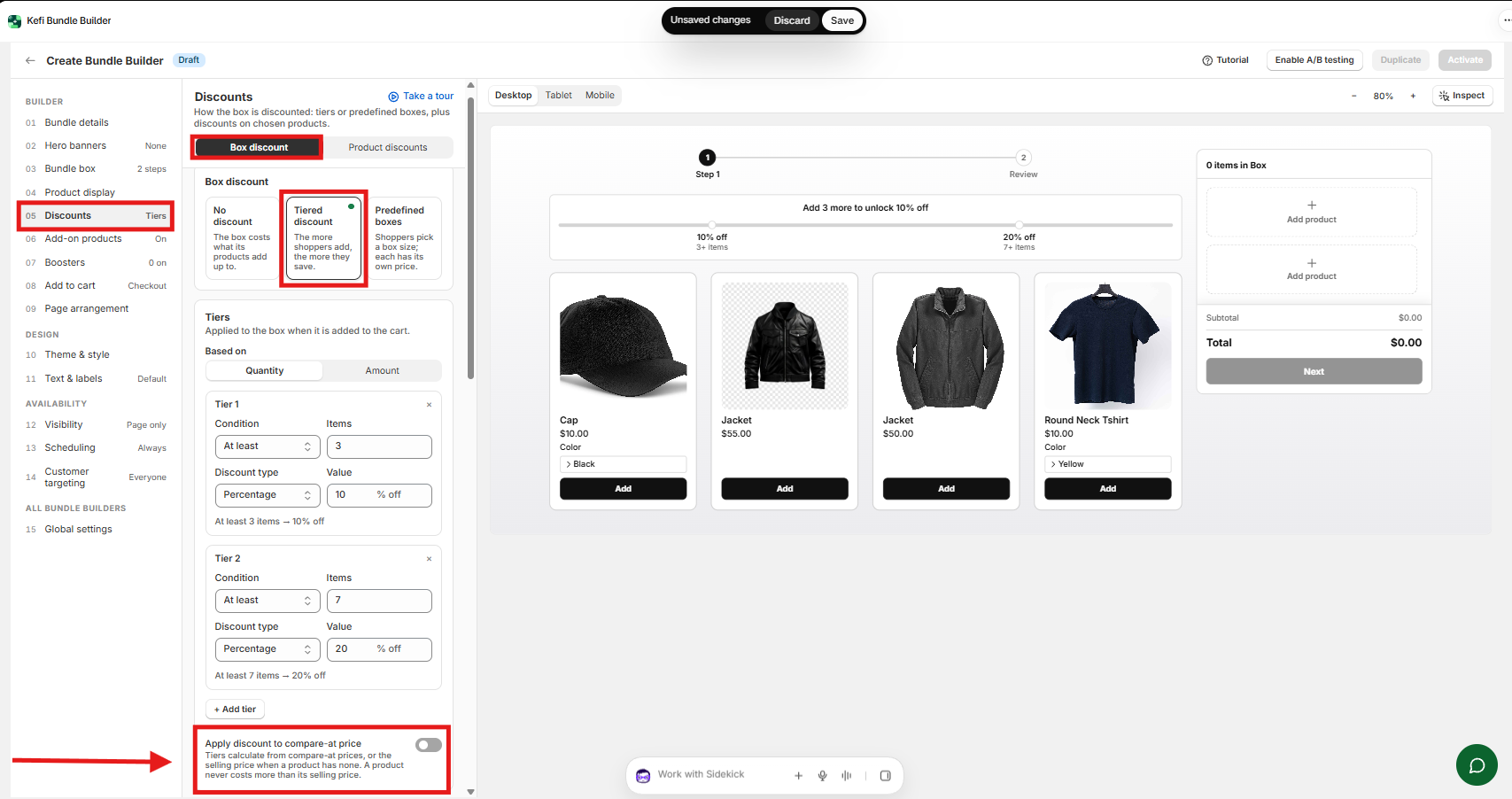
Select 05 Discounts from the left-hand menu and stay on the Box discount tab.
Select Tiered discount as your box discount mode.
Toggle on Apply discount to compare-at price if you want tiers to calculate from each product's compare-at price (falling back to the selling price when no compare-at price is set).
Note: When Apply discount to compare-at price is enabled, a product never costs more than its selling price. If a product already has a gap between its compare-at price and selling price in Shopify, ensure your bundle discount is set high enough to account for that existing price difference.
Step 3: Save and Preview
Click Save at the top of the editor.
Preview the bundle to verify that product cards display the right price format and that bundle discounts calculate cleanly.
Using the Legacy Bundle Builder Editor?
Existing merchants may see both the updated Bundle Builder experience and the earlier version on their store. If you are working inside the legacy flow or prefer our earlier setup, you can select one of the Legacy templates (From our earlier Bundle Builder) and follow the legacy guide below.
How to Manage Pricing Display Options in the Bundle Builder (Legacy Guide)
The Pricing settings provide you with granular control over how product costs and discounts are calculated and displayed within your bundle. These options are essential for highlighting the value of your bundle to customers.
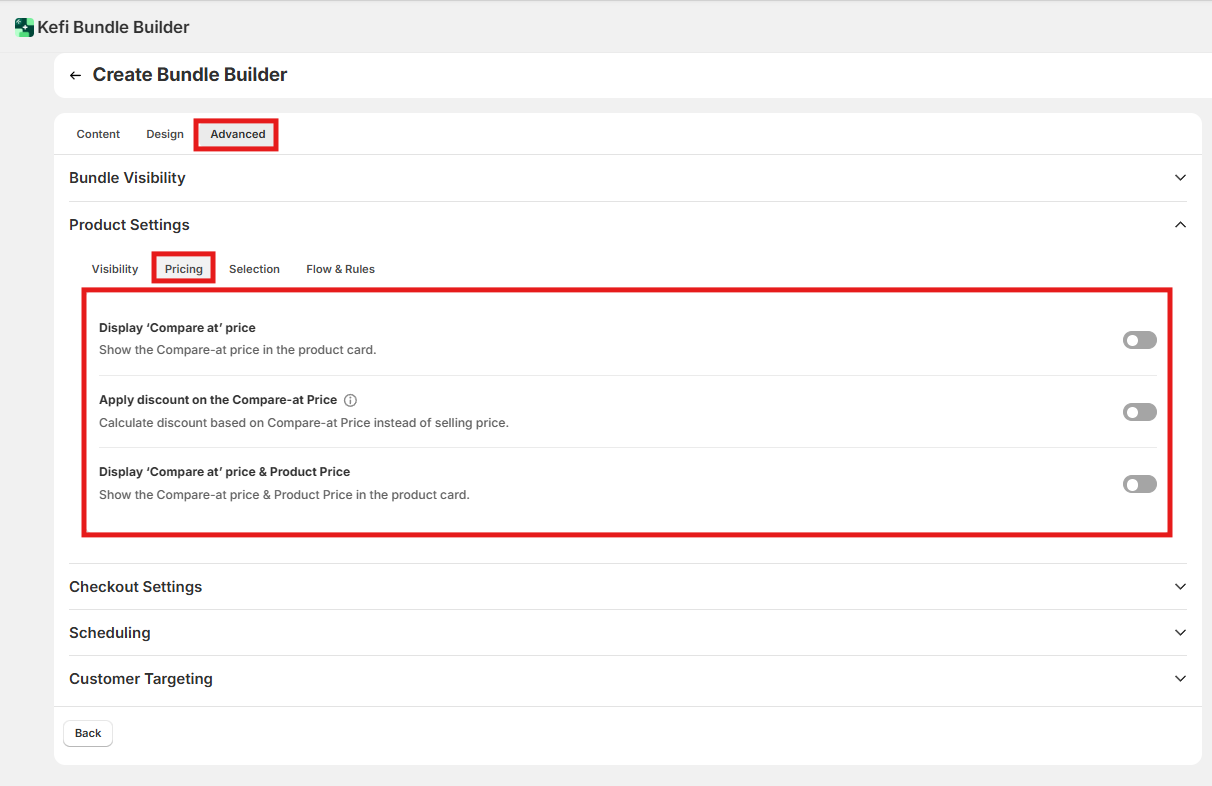
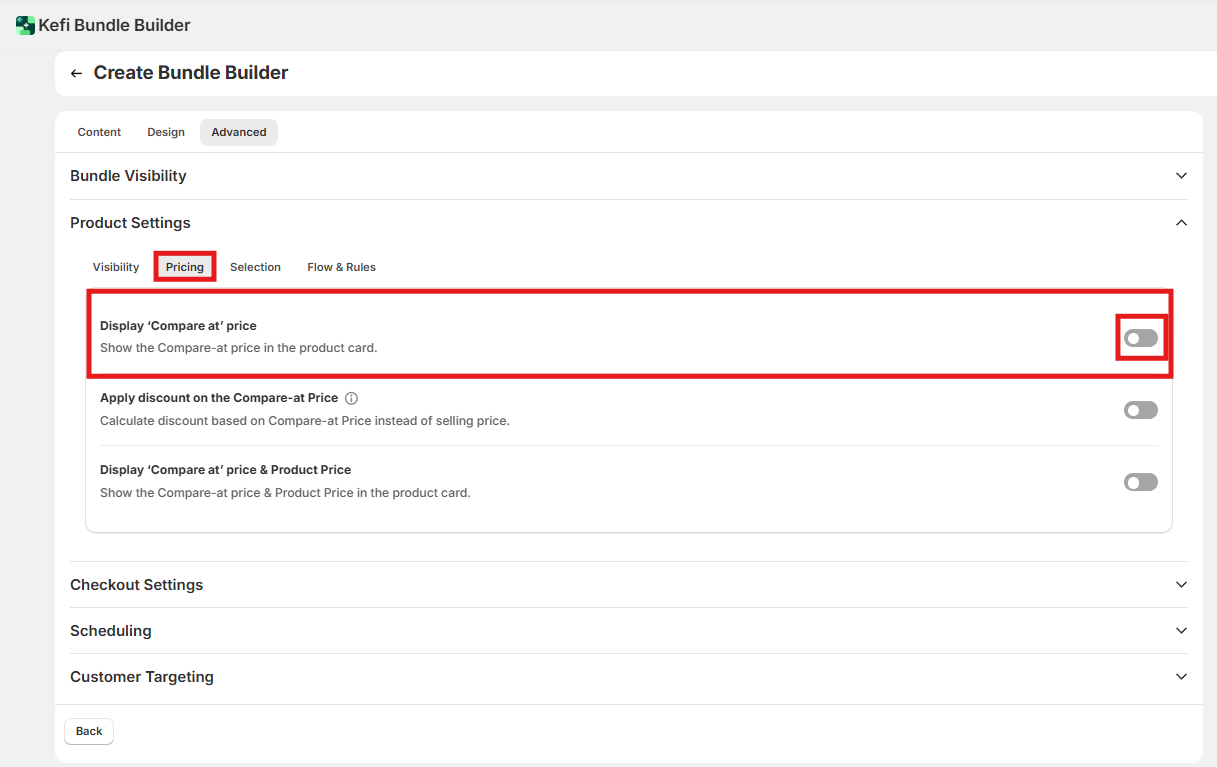
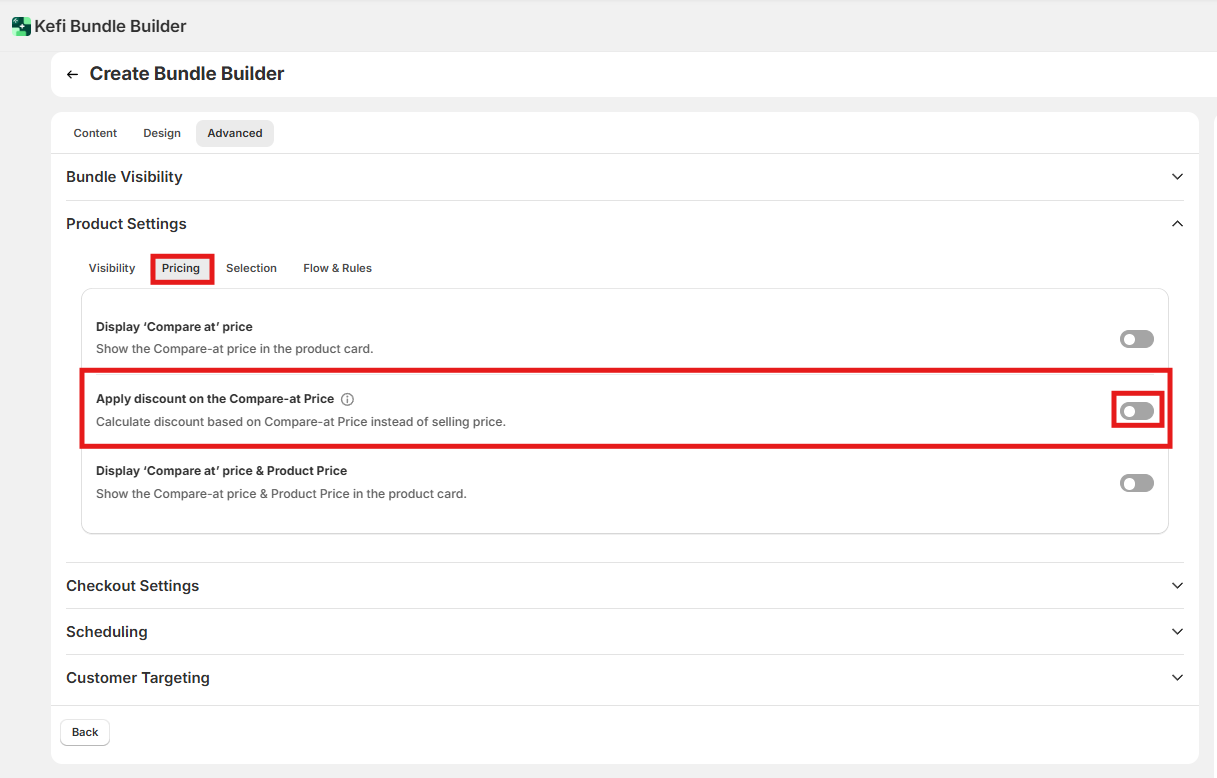
To access these settings, go to the Bundle Builder editor → Advance tab → Product Settings section and click on the Pricing tab.
Display Options
Display Compare-At Price
Default: Off — no compare-at price appears on product cards inside the bundle.
When enabled: Each product card inside the bundle shows the original compare-at price (typically shown as a crossed-out figure), so shoppers can see per-item savings at a glance.
When to enable: Turn this on when your products have a compare-at price set in Shopify and you want to surface individual item savings — not just the bundle total. Leave it off if your compare-at prices aren't consistently set, or if you want a cleaner card layout.
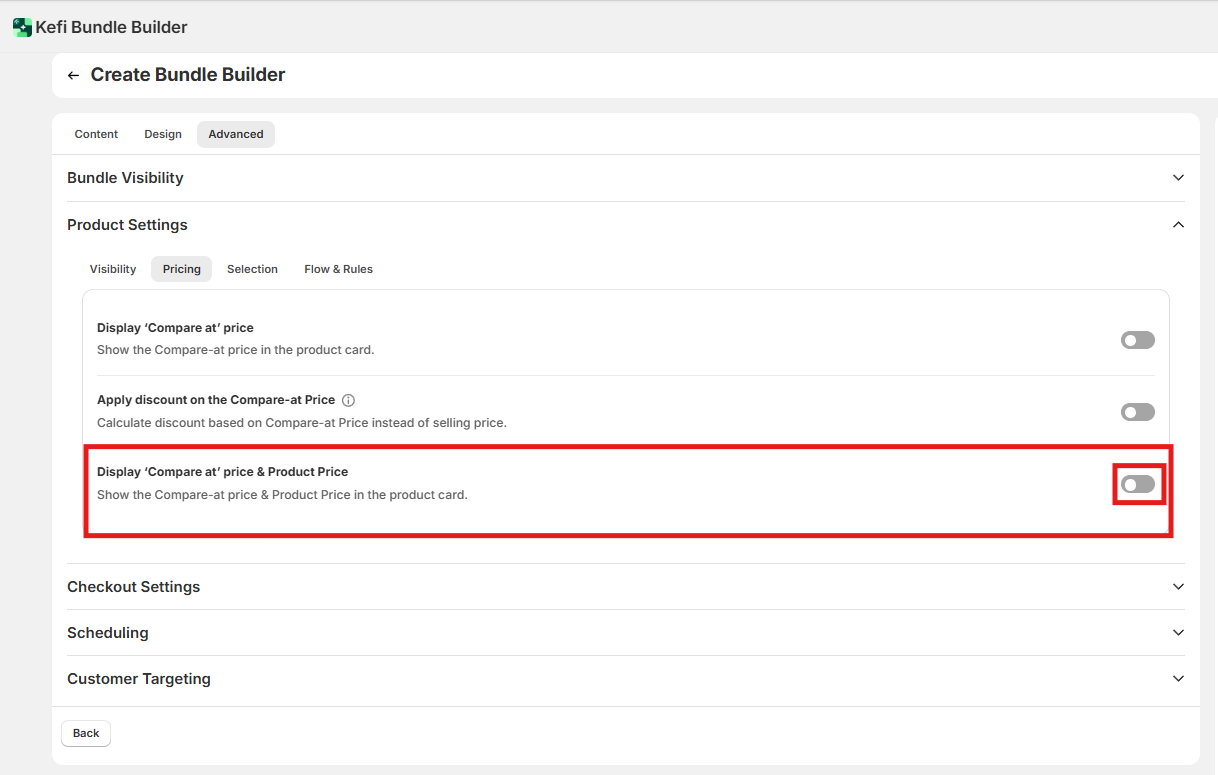
Display Compare-At Price and Product Price
Default: Off — only the bundle/sale price shows on each product card.
When enabled: Both the discounted bundle price and the original compare-at price appear simultaneously on the product card.
When to enable: Use this when you want to show the full "was / now" pricing structure per item. This gives the clearest savings signal and works well for promotional bundles. Requires that compare-at prices are set in Shopify for the products in your bundle.
Note: This setting builds on the one above — enabling it without also having compare-at prices set in Shopify will have no visible effect.
Advanced: Apply Discount on Compare-At Price
Default: Off — bundle discounts are calculated against each product's current selling price in Shopify.
When enabled: The bundle discount percentage is applied to the compare-at price instead of the selling price. This inflates the effective discount shown to customers if the compare-at price is higher than the selling price.
When to enable: Use this only when you want the bundle discount to appear larger by anchoring it to the original (higher) compare-at price. Be aware of the Shopify price gap rule below before enabling this — it can cause discounts to apply incorrectly if misconfigured.
The Shopify Price Gap Rule
This only applies when Apply discount on compare-at price is enabled.
If a product already has a gap between its compare-at price and selling price in Shopify, Shopify is already applying an implicit discount. Your bundle discount must be greater than that existing gap, or the app discount won't apply correctly.
How to calculate your minimum bundle discount:
Find the product's compare-at price and selling price in Shopify.
Set your bundle discount higher than that percentage.
For example, with a $100 compare-at price and a $90 selling price, there is a 10% gap—so your bundle discount must exceed 10%.
End-to-End Example: Seasonal Sale Bundle
Scenario: You're running a summer sale. Products are already marked down in Shopify (compare-at set to original prices). You want to add a bundle discount on top, and make the savings obvious to shoppers.
Settings to use:
Display compare-at price: On
Display compare-at price and product price: On
Apply discount on compare-at price: Off
Why this combination works: The first two settings surface the crossed-out original prices on every card, showing per-item value. Keeping the third setting off means your bundle discount applies cleanly against the current (already-reduced) selling price — no risk of hitting the Shopify price gap issue.
Result: Shoppers see both the marked-down price and original price per item, plus the additional bundle savings on top. The value story is clear without any discount calculation issues.