Bundling products is a great way to offer more value to your customers while increasing average order value. With Kefi Bundle Builder, you can easily create bundles as products to suit different merchandising strategies and customer preferences.
Kefi supports three types of product bundling:
In this help guide, we will choose the Standard Bundle to create a bundle as a product.
Access the Dashboard and Select Standard Bundle
Start by logging into your Kefi dashboard.
From the main navigation menu, locate and select “Standard Bundle”
This will take you to the setup page where you can begin creating your bundle as a product.

Configure Product Setup in the Content Tab
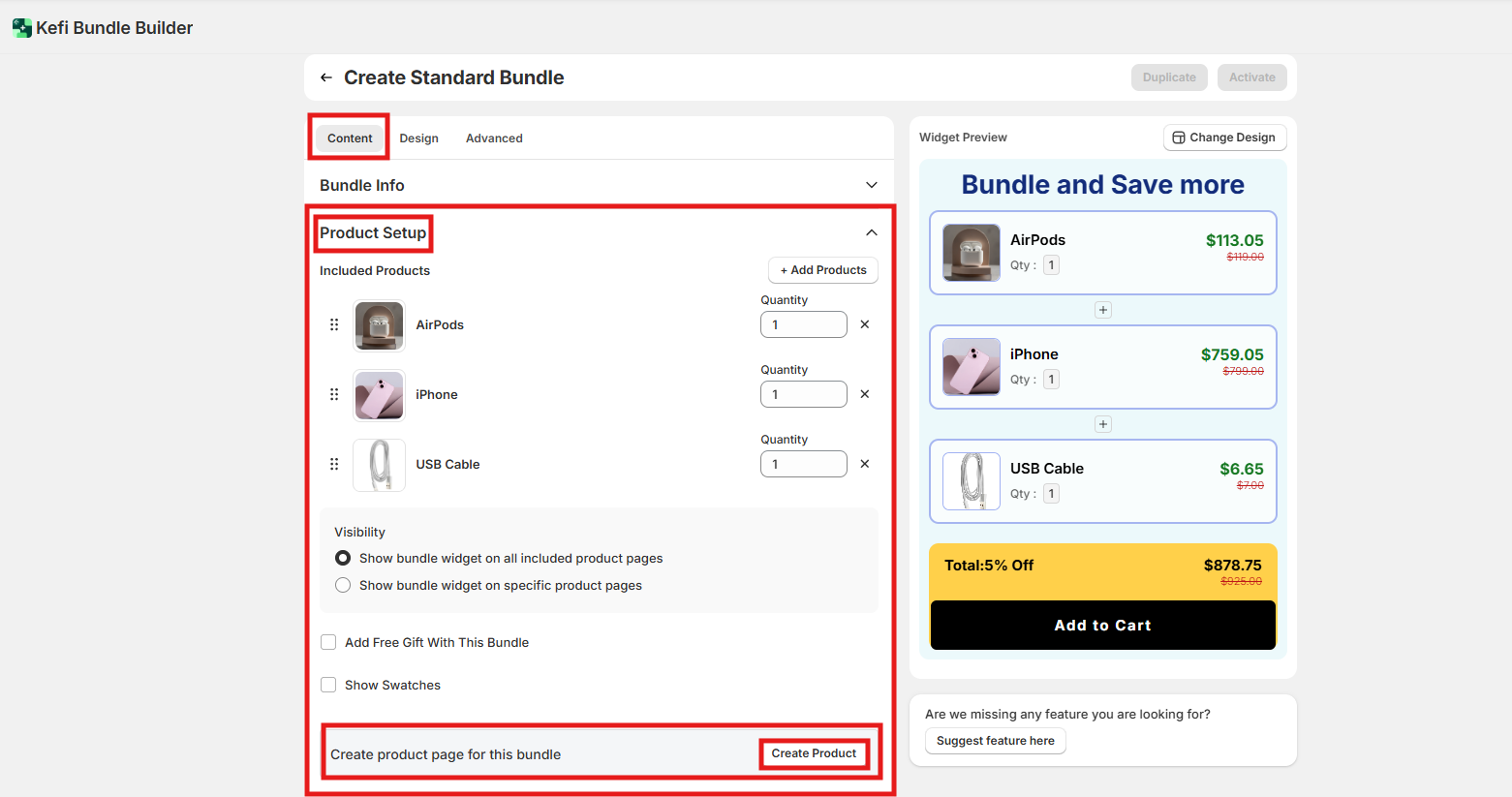
Once you select Standard Bundle, you will be redirected to the Content tab.
Within this tab, you’ll find the Product Setup section where you can choose the products to include in your bundle.
After selecting the desired products, you’ll see an option to “Create product page for this bundle.”
Click on “Create Product” to generate a dedicated product page for the bundle.
Set Up Product Details
When you click “Create Product”, you’ll be prompted to set up the key details for your Standard bundle product page. This step allows you to fully customize how the bundle will appear on your storefront.
You’ll be able to configure the following:

Finalize Customization and Save
Next, complete the remaining customization options to tailor your bundle experience:
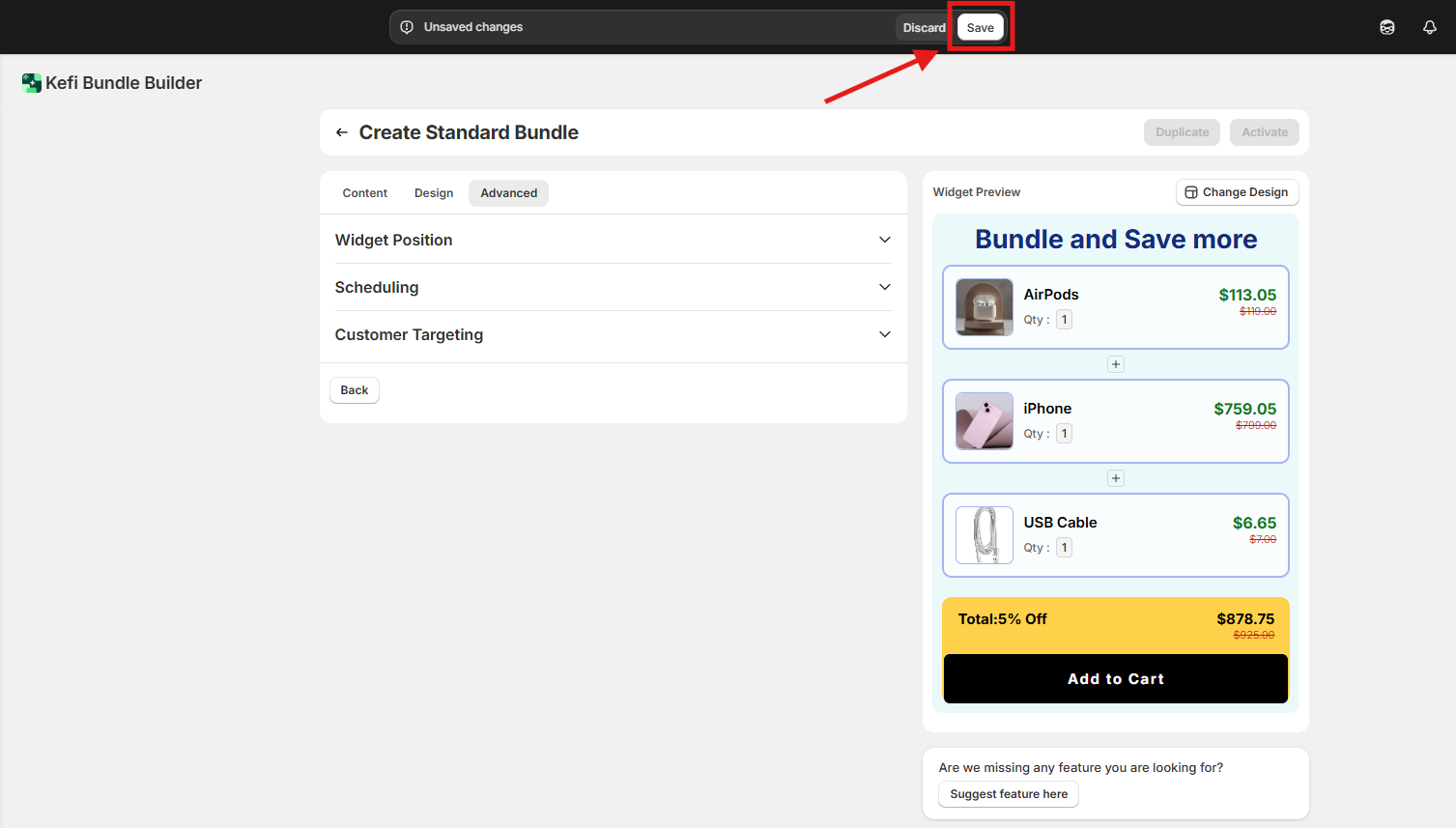
Once everything is set, click “Save”
Activate Your Bundle
Once you’ve saved all your customizations, the final step is to make your bundle live.
Click on “Activate” to publish the bundle product to your storefront.

Preview with “Show on Store”
To see how your bundle appears to customers, click on “Show on Store.”
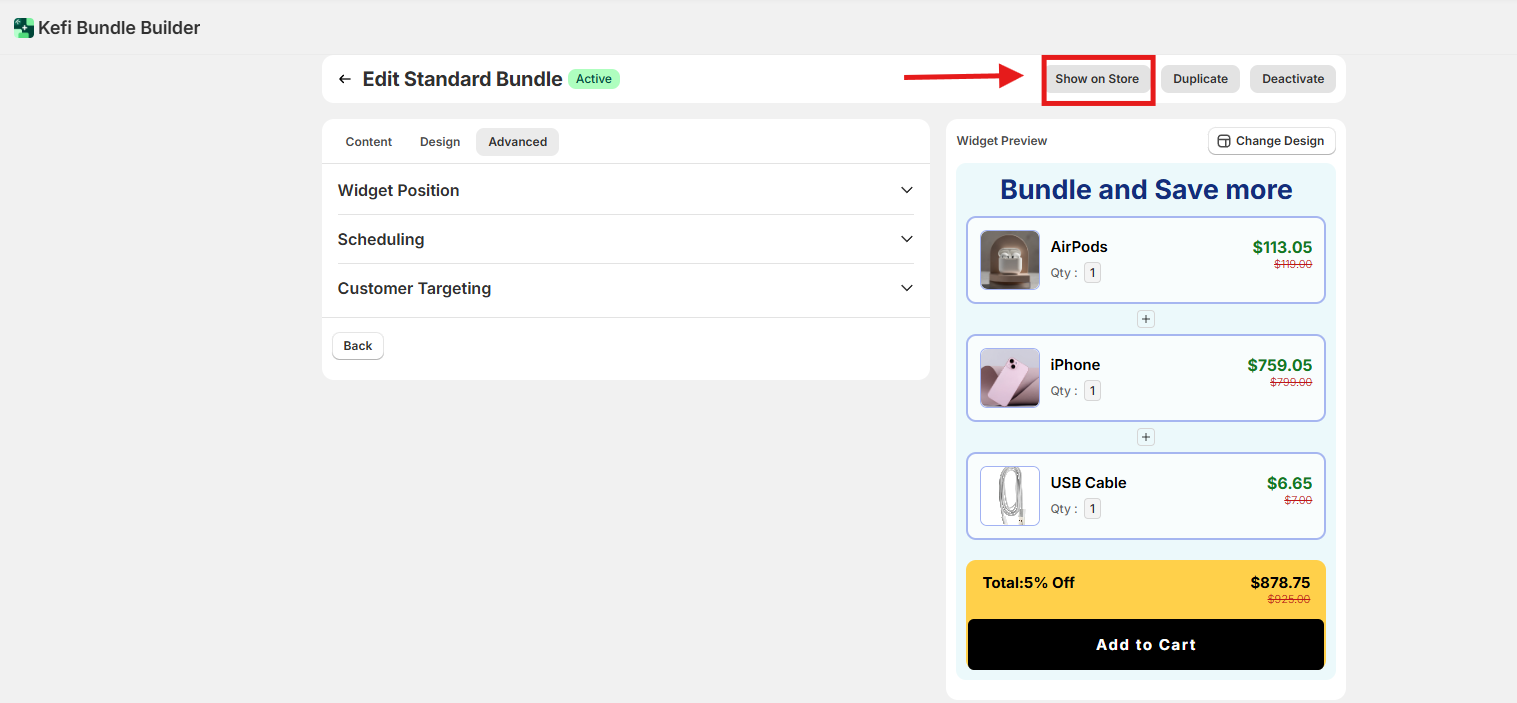
This is how your Bundle as a Product will appear in your store.

We’re here to help!
.svg)
