This guide covers how to set up and customize each step of a Build Your Own Box bundle. By the end, you'll have a working multi-step bundle builder configured with products, rules, and customer-facing labels.
• Setting Up a Standard Step
• Rules and Limits
• Step Info (Labels and Visuals)
• The Review Step
• Add-on Products
• Free Gift Step
• Custom Field Step
• Example: Building a "Pick 6 Snacks" Box
• FAQ
Select the Build Your Own Box bundle type and choose your preferred template. Once you're in the editor, go to the Content tab and scroll down to Configure Steps.
Each step you create becomes one screen in the customer-facing bundle builder. Customers move through steps sequentially — picking products, adding notes, or claiming gifts — before reaching a final review screen.
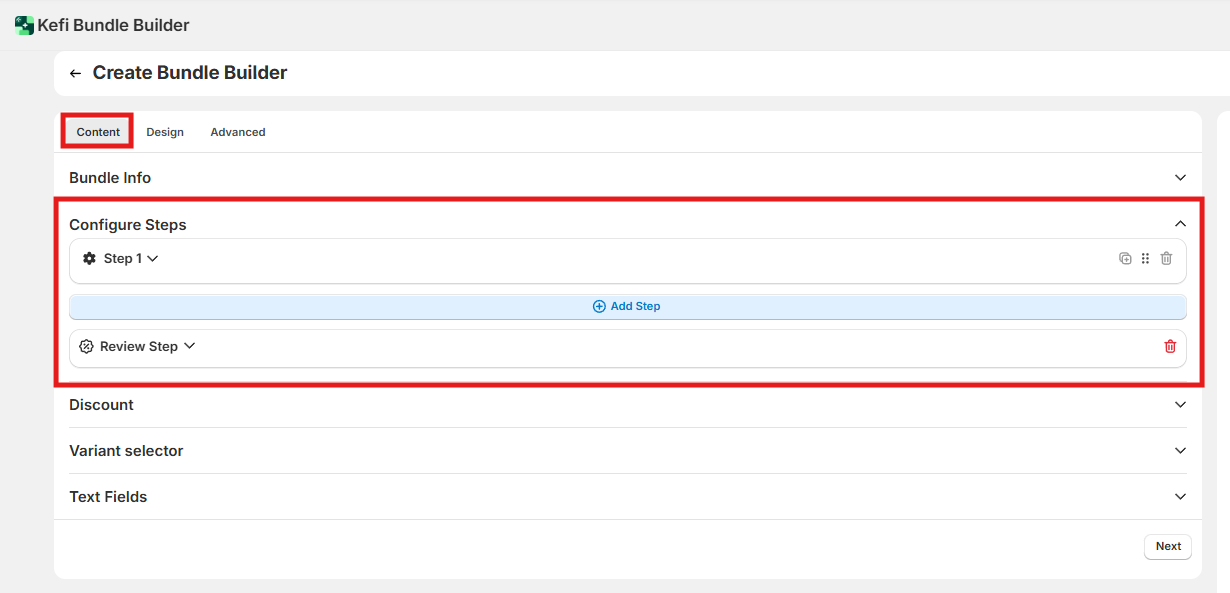
A Standard Step is the core building block. It's where customers browse and select products to add to their bundle.
Select Standard Step from the dropdown.
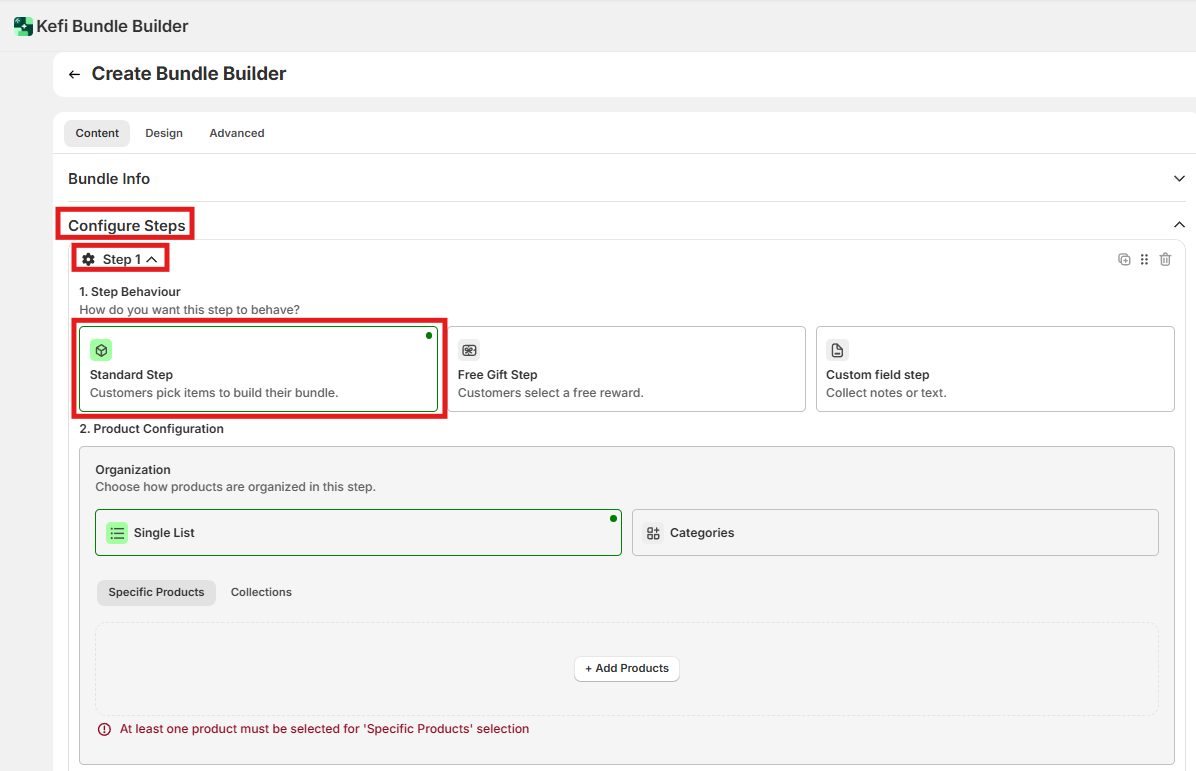
Choose how products are displayed to the customer:
Single List — All items appear in one continuous list. Best for steps with a small number of products (under ~15). You can populate this list using Specific Products or entire Collections.
Categories — Products are grouped under labeled tabs like "Proteins," "Sides," or "Drinks." Best for steps with a larger selection where browsing would otherwise feel overwhelming.

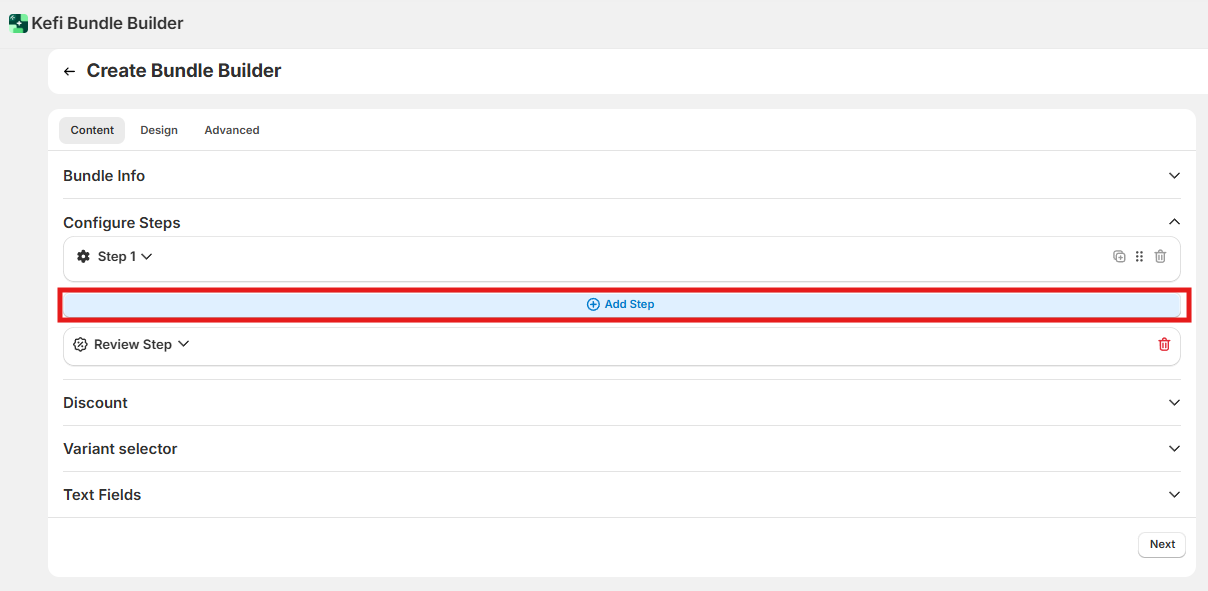
Click + Add Step at the bottom of the current step to create additional stages. There's no hard limit on the number of steps, but keep the customer experience in mind — most successful bundles use 2–4 steps.
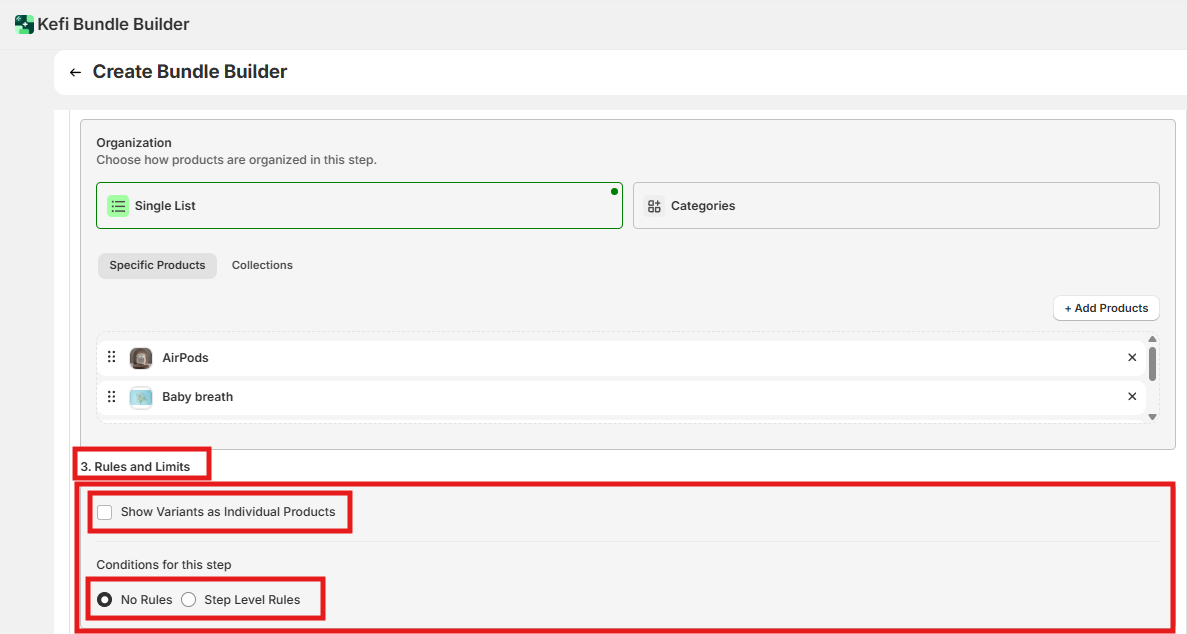
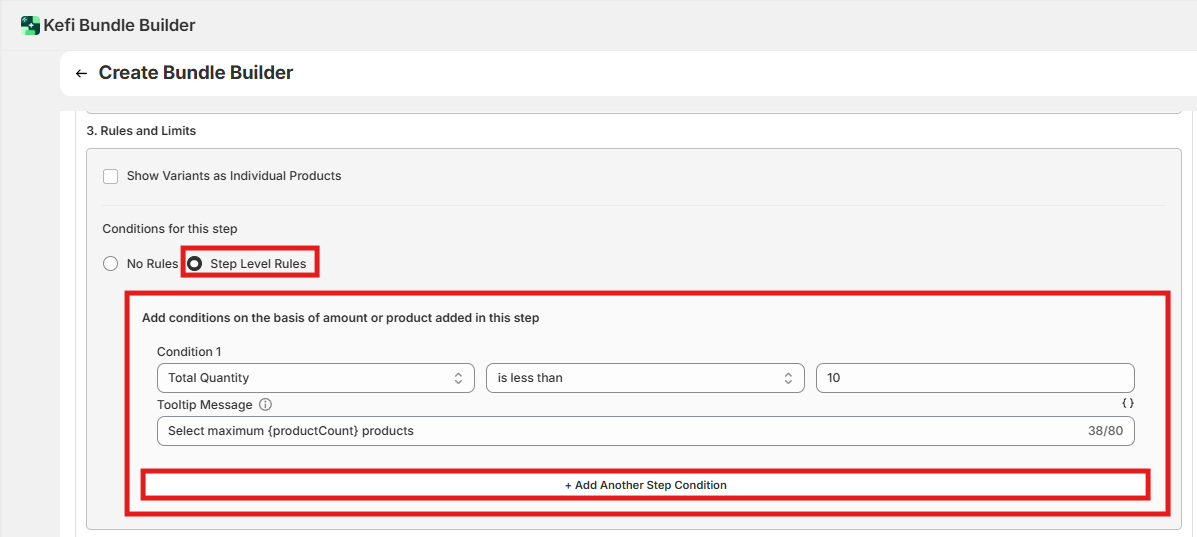
Rules control what customers must do before they can advance to the next step.
Check this box if you want each variant (e.g., "Red / Large" and "Blue / Small") to appear as its own selectable item. Leave it unchecked to group variants under a single product card with a variant selector.
No Rules — Customers can proceed regardless of what they've added. Use this for optional steps.
Step Level Rules — Customers must meet specific conditions before the "Next" button becomes active. If the condition isn't met, the tooltip message you configure will appear to guide them.
To add multiple conditions, click + Add Another Step Condition. All conditions must be met before the customer can proceed.
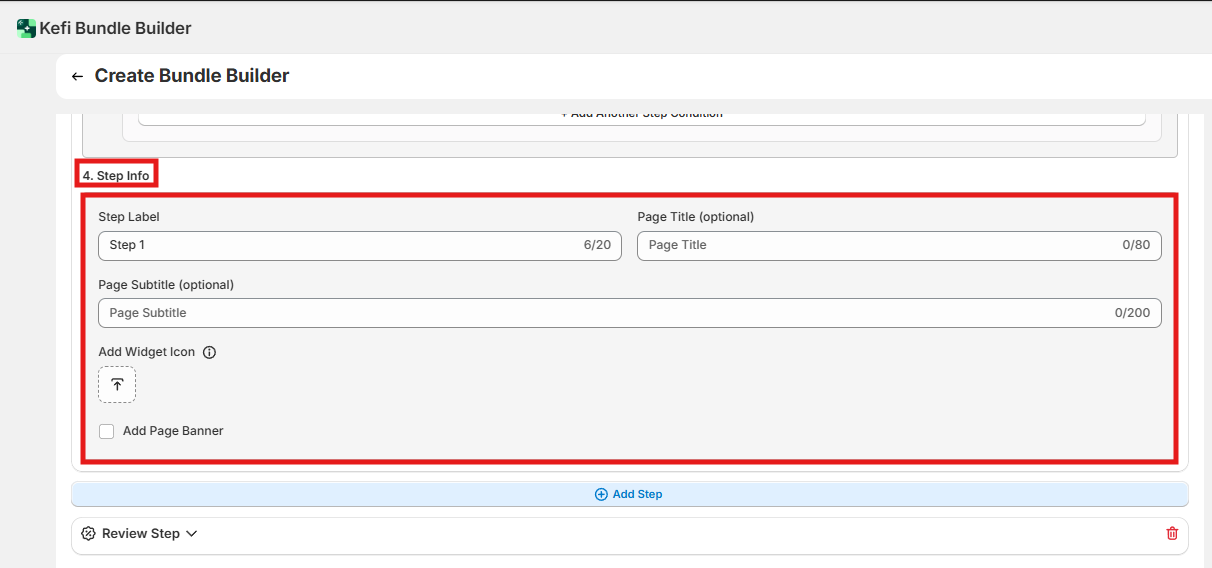
This section controls what customers see for each step in the bundle builder UI.
Step Label — An internal/short name for this step (e.g., "Step 1 - Base"). This may appear in the progress bar.
Page Title — The headline customers see at the top of the page for this step (e.g., "Choose Your Proteins").
Page Subtitle — Supporting text below the title. Use this for brief instructions (e.g., "Pick up to 3 items from the options below").
Widget Icon — Upload or select an icon to represent this step in the progress indicator.
Page Banner — Check Add Page Banner to display a promotional or thematic image at the top of the step page.
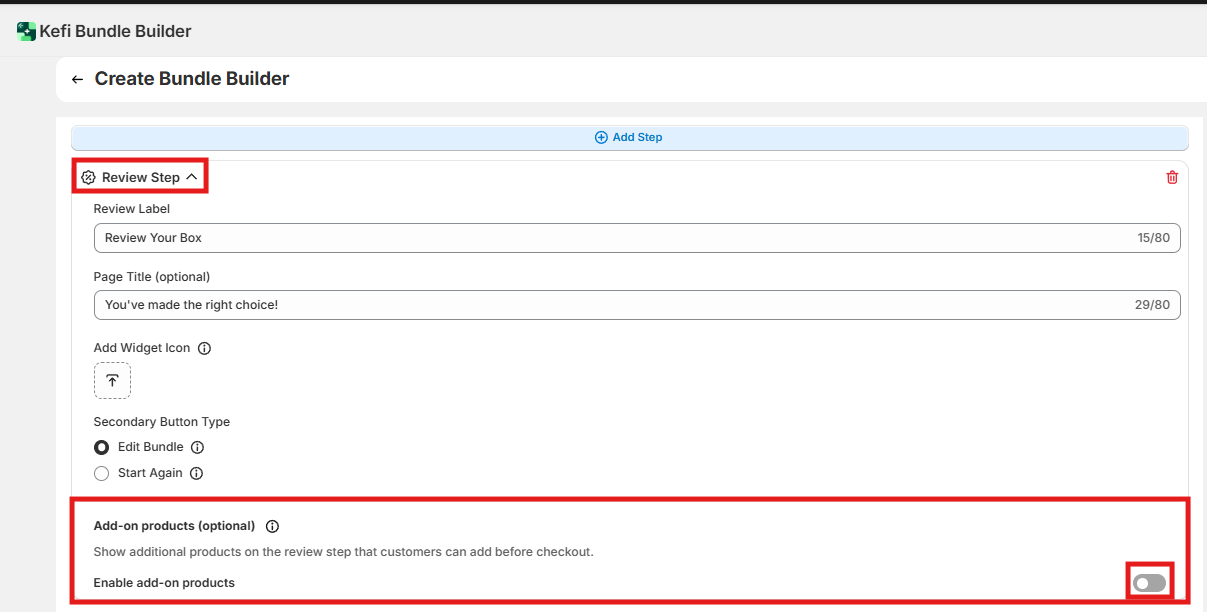
The Review Step is automatically added as the final stage. Customers see a summary of everything they've selected before adding the bundle to their cart.
This controls what happens when a customer wants to make changes from the review page:

Add-on products appear on the Review Step as last-minute suggestions. They're added to the order alongside the bundle, not as part of it.
To enable: Toggle Enable Add-on Products on the Review Step. Then select the specific products or collections you want to offer as add-ons.
Best for: Small, low-cost items that complement the bundle — things like gift wrap, sample packs, or accessories.
Note: Add-on products are charged at their normal price. They are not included in any bundle discount.
Use this step type to reward customers with a free item at a specific stage of the builder.
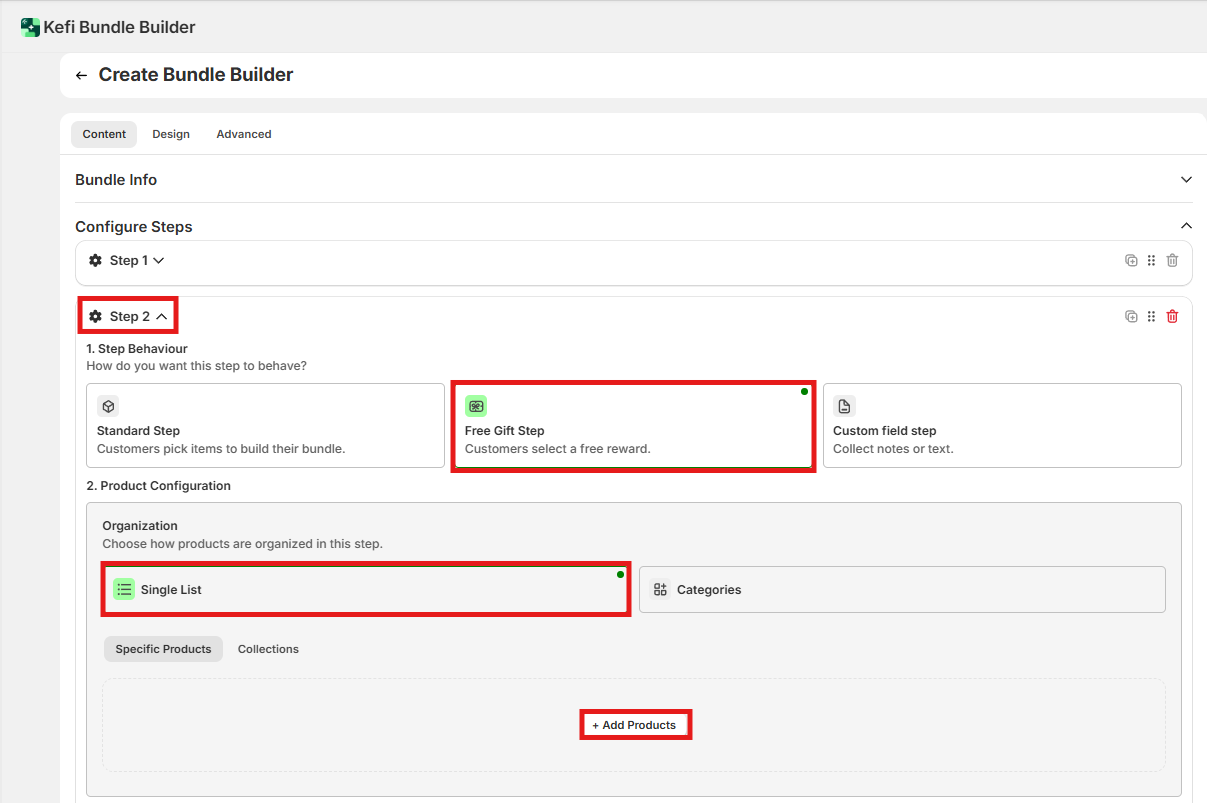
Products offered in a Free Gift Step are automatically discounted to $0 at checkout. You do not need to create separate $0 variants or adjust product pricing — the app handles this.
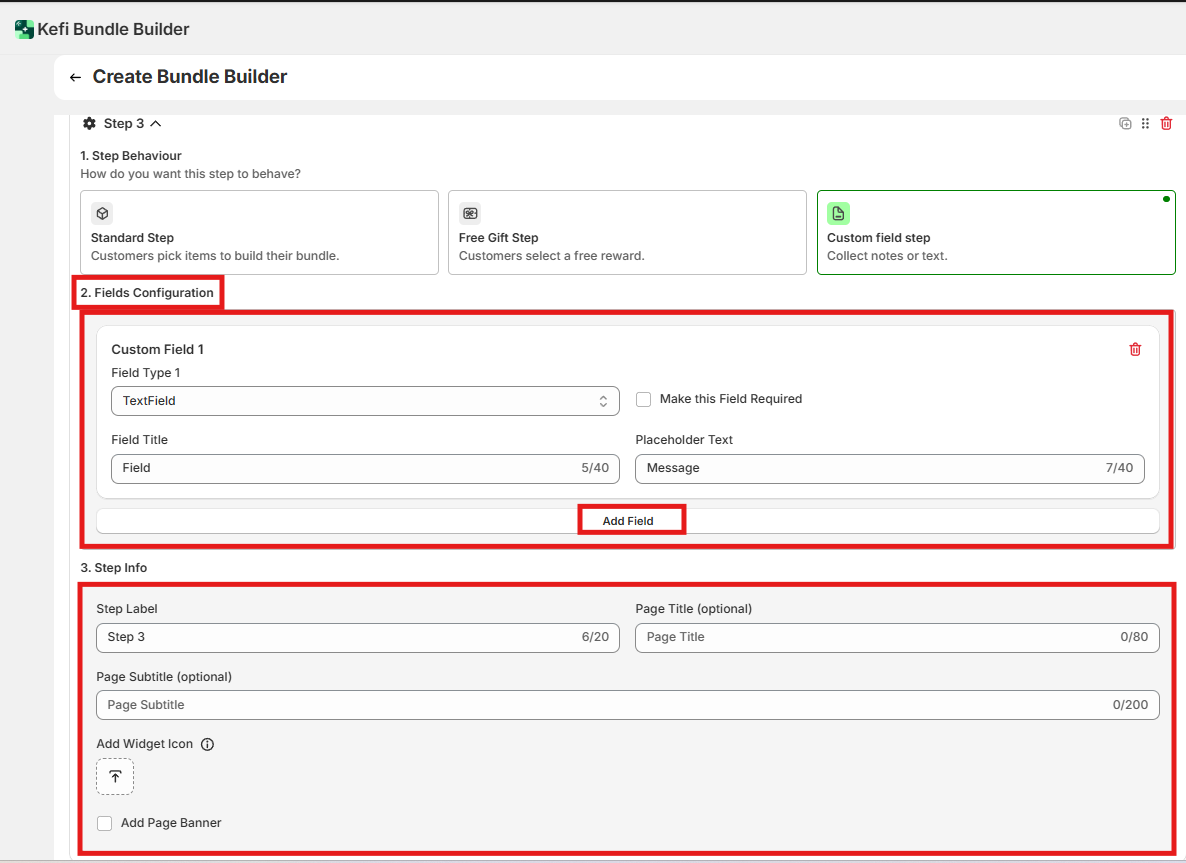
Use this step type to collect information from customers instead of product selections. Common uses include gift messages, delivery instructions, engraving text, or file uploads.

Click Add Field to create each input. You can add multiple fields to a single step.
Field Type options:
Text Field
Dropdown
File Upload
Additional settings per field:
Here's a walkthrough of a common bundle setup from start to finish.
What happens if a customer doesn't meet the step conditions?
The "Next" button stays inactive and the tooltip message you configured is displayed. Customers cannot proceed until all conditions are satisfied.
Is there a limit on the number of steps?
There's no hard limit, but bundles with more than 5–6 steps tend to see higher abandonment. Keep it focused.
Do I need to set gift product prices to $0 for the Free Gift Step?
No. The app automatically discounts Free Gift Step products to $0 at checkout. Keep your normal pricing on the products.
What if a customer closes the browser mid-build?
Progress is not saved between sessions. If a customer leaves and returns, they'll start from Step 1.
.svg)
