How to Configure Flow and Conditional Rules in the Bundle Builder
Flow and conditional rules let you control how shoppers progress through your Build Your Own Box bundle and dynamically hide or reveal steps, substeps, products, or collections based on what is currently in their box. This lets you prevent incompatible item combinations, surface relevant options on the fly, and streamline step progression.
Step 1: Open Conditions in the Bundle Box Settings
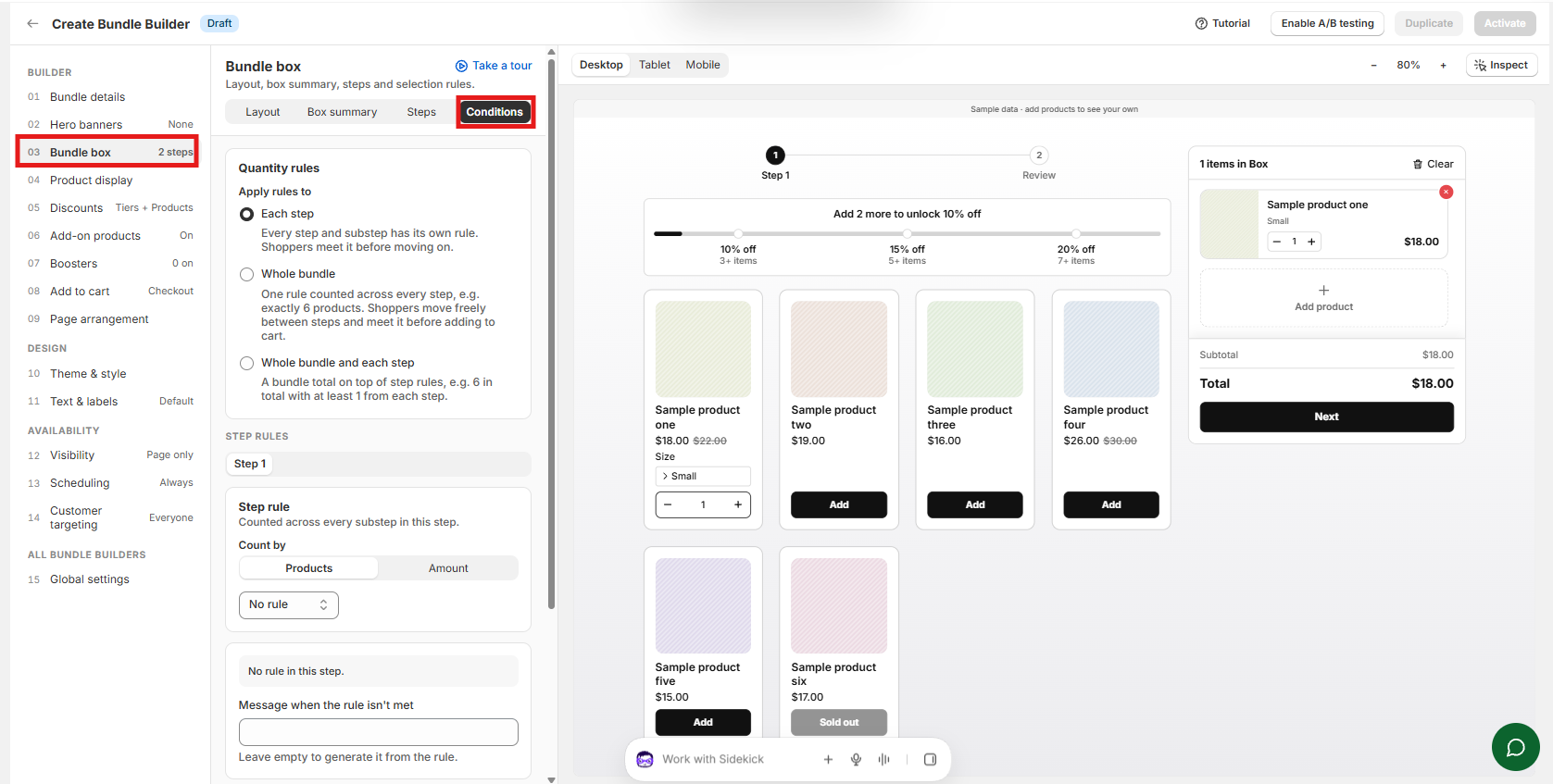
Open your Build Your Own Box bundle in the Bundle Builder editor.
Select 03 Bundle box from the left-hand menu.
Open the Conditions tab.
Step 2: Set Quantity Rules and Auto-Advance
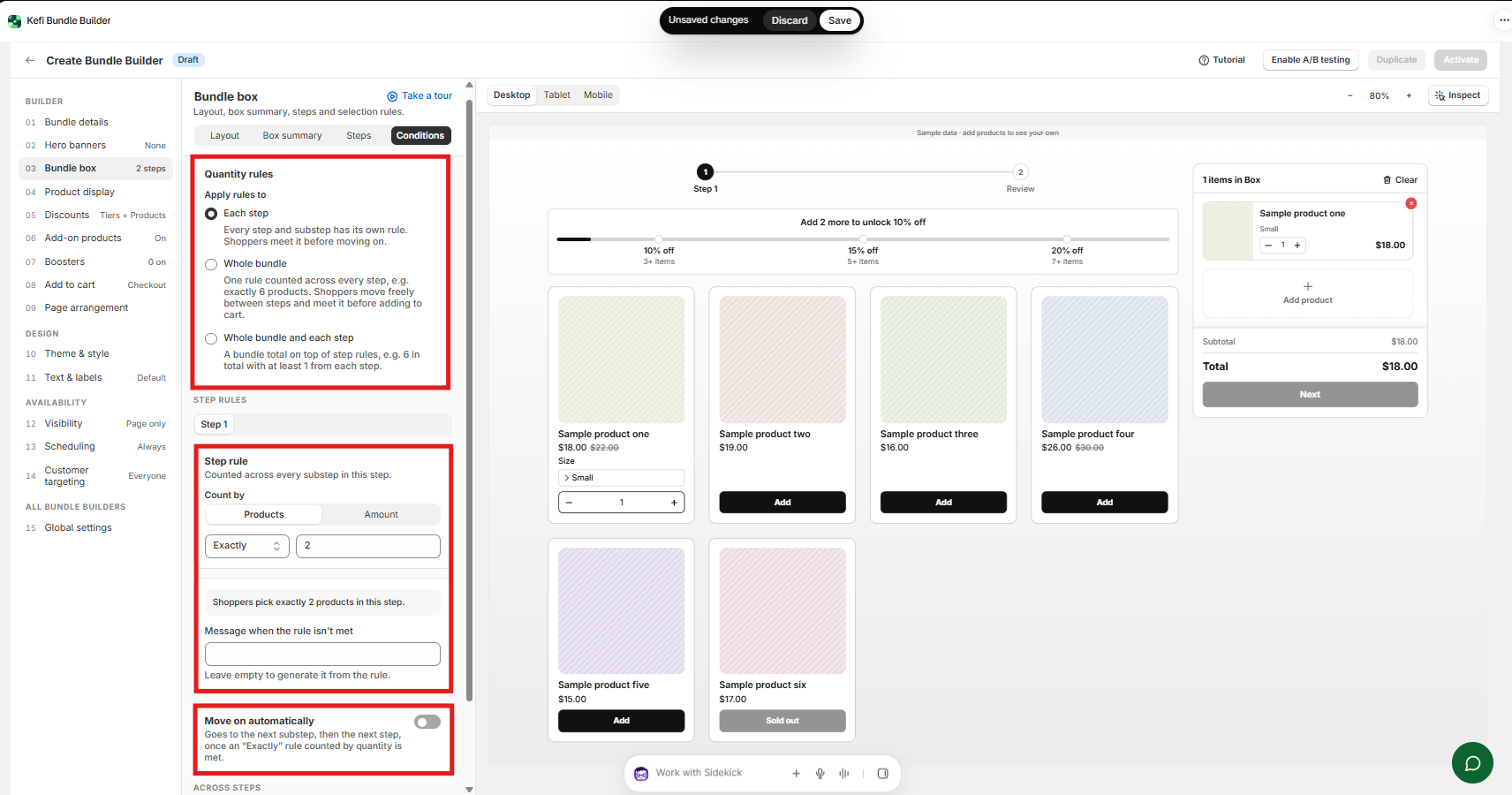
Quantity rules (Apply rules to): Choose how item or spend rules are evaluated across your bundle:
Each step: Every step and substep has its own rule that shoppers must satisfy before moving on.
Whole bundle: One rule counted across every step (for example, exactly 6 products), allowing shoppers to move freely between steps and meet the rule before adding to cart.
Whole bundle and each step: Enforces a total bundle rule alongside individual step rules (for example, 6 in total with at least 1 from each step).
Step rule (Count by & condition): Under STEP RULES, select a step, choose whether to count by Products or Amount, set the condition (No rule, Exactly, At least, At most, or Between) and value, and optionally write a custom Message when the rule isn't met (or leave it empty to generate the message automatically from the rule).
Move on automatically: Toggle this on to automatically advance the shopper to the next substep—and then the next step—once an Exactly rule is satisfied.
Step 3: Configure Conditional Rules Across Steps
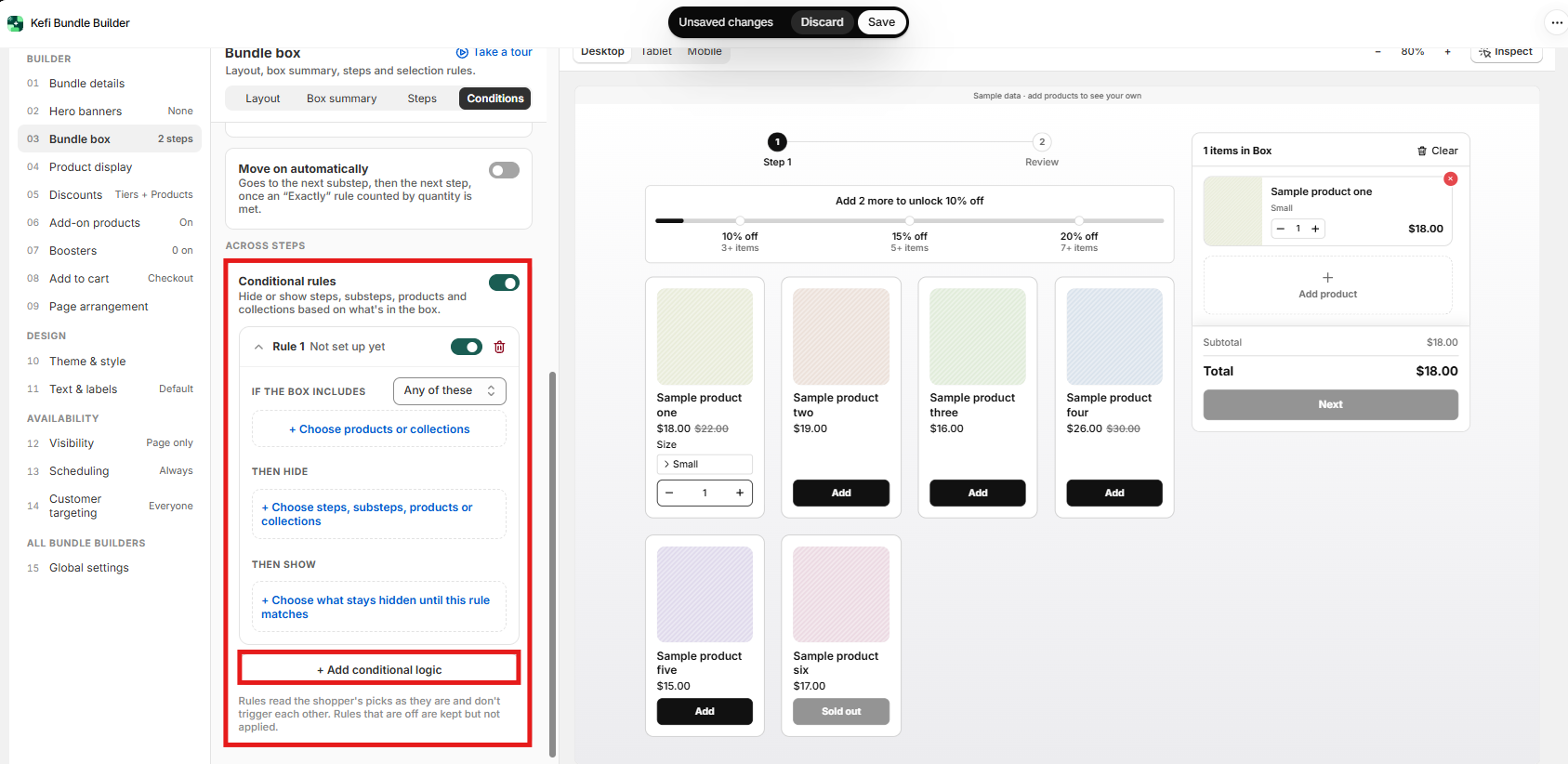
Enable conditional rules: Under ACROSS STEPS, toggle Conditional rules on to dynamically show or hide steps, substeps, products, or collections based on what is in the box.
Set trigger items: Inside a rule block, choose whether the rule matches Any of these or All of these under IF THE BOX INCLUDES, then click + Choose products or collections to pick the trigger items.
Set hide and show actions:
THEN HIDE: Click + Choose steps, substeps, products or collections to hide specific options when the trigger condition matches.
THEN SHOW: Click + Choose what stays hidden until this rule matches to reveal targeted options only after the trigger condition is met.
Add multiple rules: Click + Add conditional logic to add more rules. Each rule reads the shopper's current selections directly without triggering other rules, and toggling a rule off keeps it saved without applying it.
Step 4: Save and Preview
Click Save at the top of the editor and test your selections in the live preview to confirm that step rules, automatic step transitions, and conditional show/hide rules behave as expected.
Using the Legacy Bundle Builder Editor?
Existing merchants may see both the updated Bundle Builder experience and the earlier version on their store. If you are working inside the legacy flow or prefer our earlier setup, you can select one of the Legacy templates (From our earlier Bundle Builder) and follow the legacy guide below.
How to Configure Flow and Conditional Rules in the Bundle Builder (Legacy Guide)
The Flow & Rules settings empower you to create a dynamic and personalized shopping journey. By using conditional logic, you can ensure that the products shown to your customers are always relevant based on their previous selections, and you can streamline the process with automated transitions.
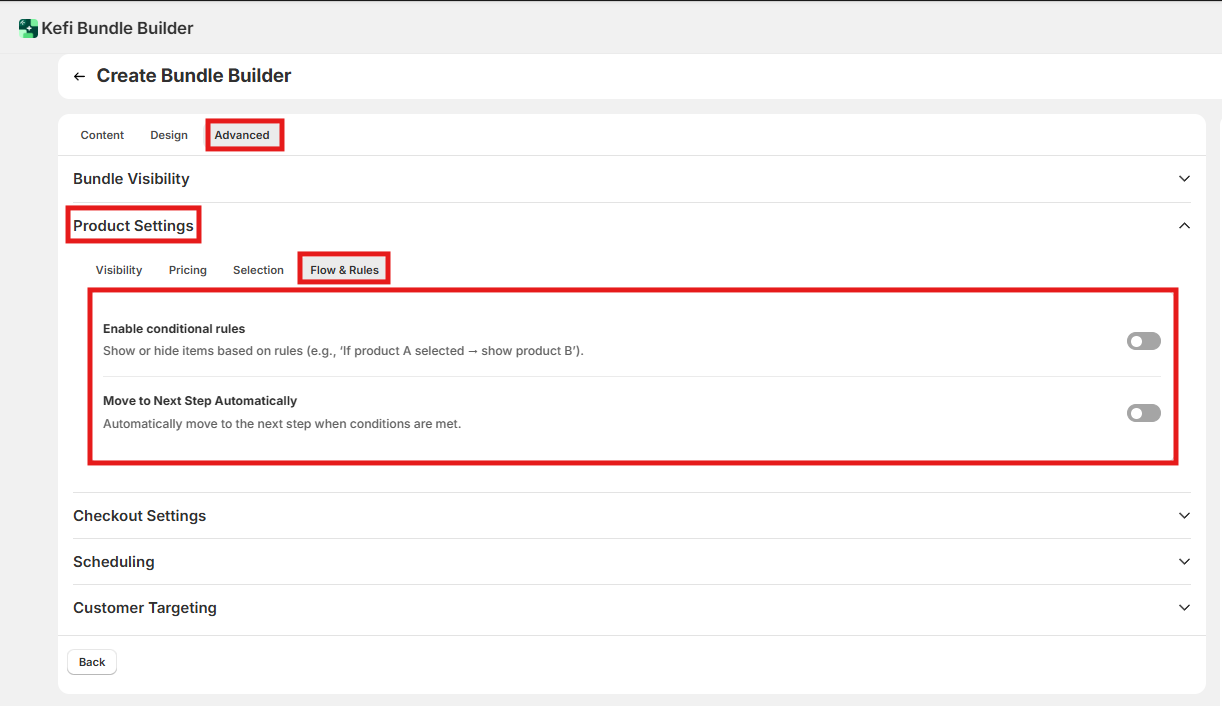
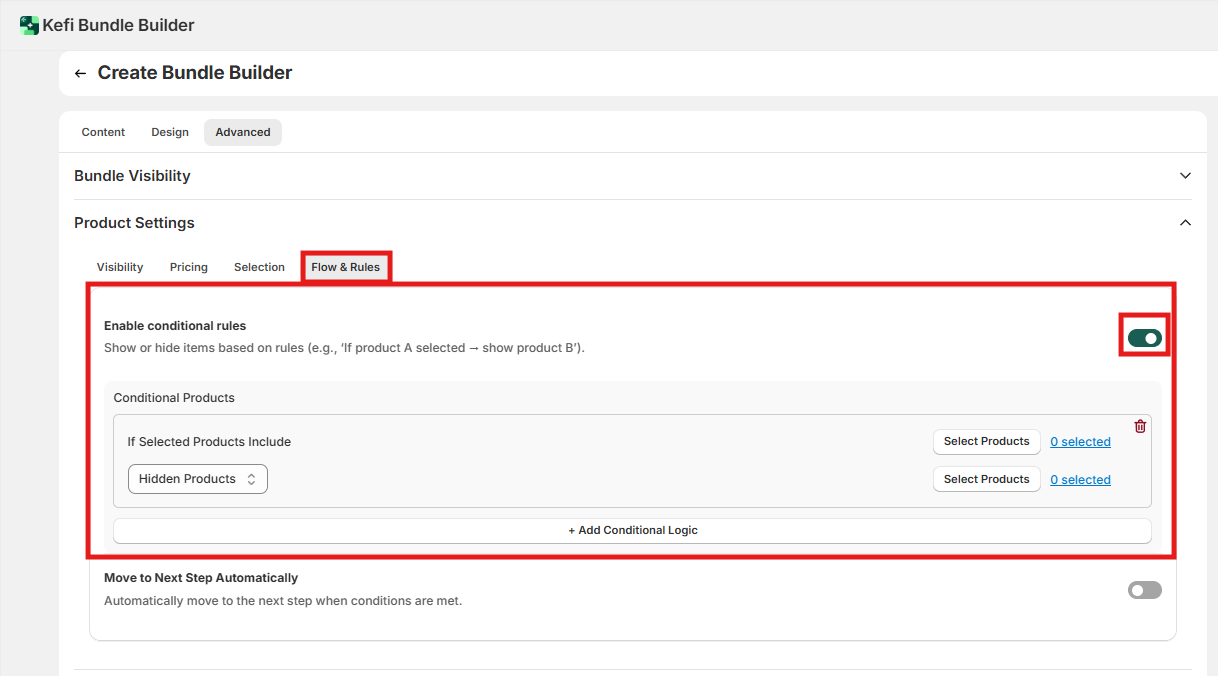
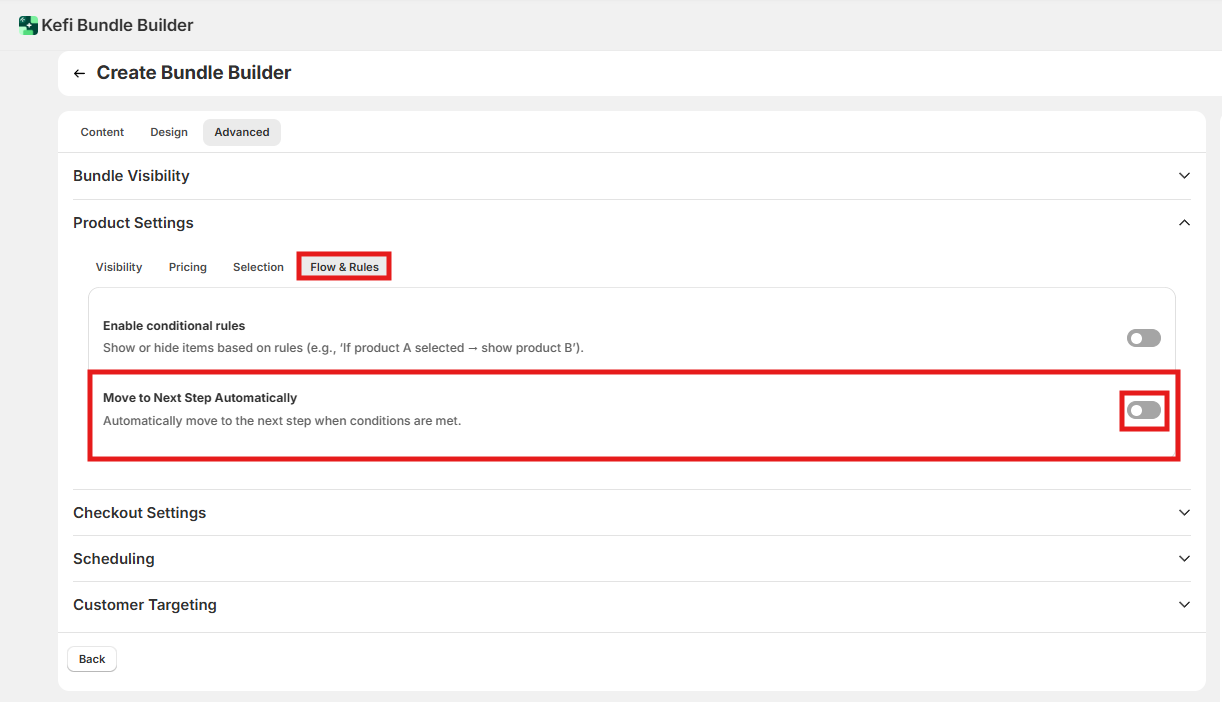
To access these advanced settings, navigate to the Advanced Tab > Product Settings section and select the Flow & Rules tab.
Where to Find These Settings
Go to Product Settings → Flow & Rules tab inside the Bundle Builder.
Conditional Rules
Conditional rules let you control which products are visible in the bundle based on what a customer has already selected. Use them to surface relevant add-ons, prevent incompatible combinations, or guide customers through a logical sequence.
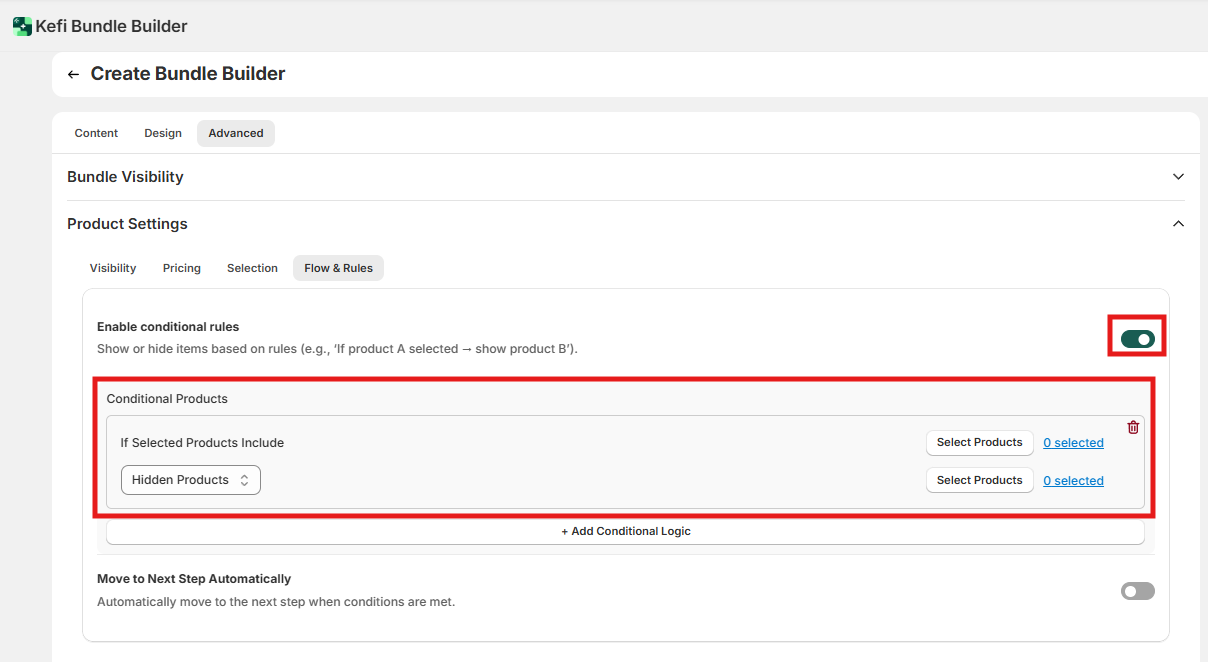
Enable Conditional Rules
Default: Off — all products in the bundle are visible to every customer at all times, regardless of their selections.
When enabled: The rules engine activates. Any rules you've configured will run in real time as customers make selections.
When to enable: Turn this on any time you need the product list to respond to customer choices — for example, to show compatible accessories only after a base product is selected, or to hide conflicting variants.
Note: Enabling this toggle activates the logic engine, but nothing changes for customers until you've also configured at least one trigger and action below.
Trigger: If Selected Products Include
This defines what the customer must select to fire a rule. Pick one or more products; when a customer adds any of them to their bundle, the associated action runs.
When to configure: Set this any time you want a specific product selection to change what else is visible. You can create separate rules with different triggers for different products.
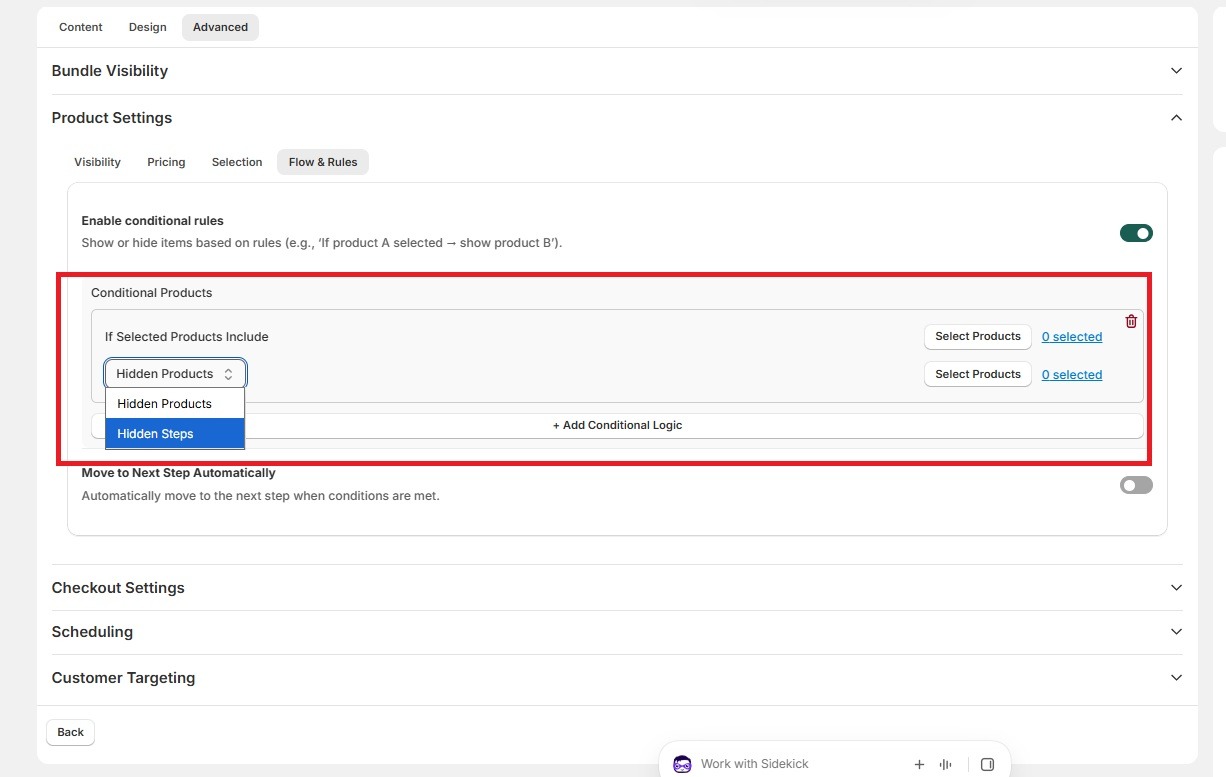
Action: Hidden Products
Once the trigger fires, you choose what happens to a set of other products:
Hide products: The listed products become hidden only after the trigger product is selected. Before that, they're visible.
When to use Hide: Use this to prevent incompatible combinations — for example, hiding a scent variant that can't be bundled with a specific base product.
Action: Hidden Steps
Once the trigger fires, you choose what happens to a next step: hide any step you think is not required if a specific product is selected.
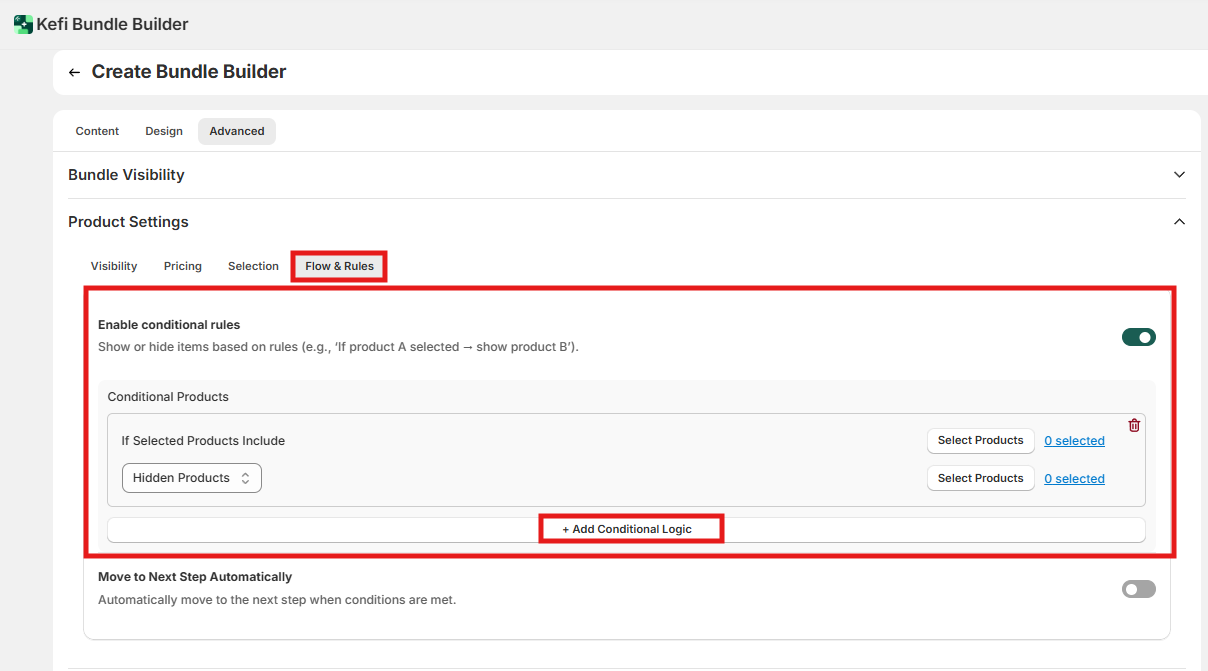
Adding Multiple Rules
Default: One rule block per bundle.
Click + Add Conditional Logic to add additional rules. Each rule has its own trigger and action and runs independently.
When to use: Use multiple rules when you have several products that each unlock or block different options — for example, a three-step build-your-own bundle where each step's selections affect the next.
Automation: Auto-Advance to Next Step
Default: Off — customers must manually click a button to move to the next step in the bundle, even after meeting the step's conditions (e.g., filling a quantity slot).
When enabled: The bundle builder automatically moves the customer to the next step as soon as the current step's conditions are satisfied — no button click needed.
When to enable: Turn this on for simple, linear bundles where you want the fastest possible path to checkout. Works best when each step has a clear completion state (a fixed quantity or item limit). Leave it off for complex bundles where customers may want to review or change their selections before moving on, or where steps use conditional rules that benefit from a deliberate pause.