The Text Fields section allows you to customize every piece of customer-facing text within the bundle builder. This is essential for localizing your store into another language or simply matching the specific "voice" of your brand.
Where to find this: Bundle Builder editor → Content tab → Text Fields
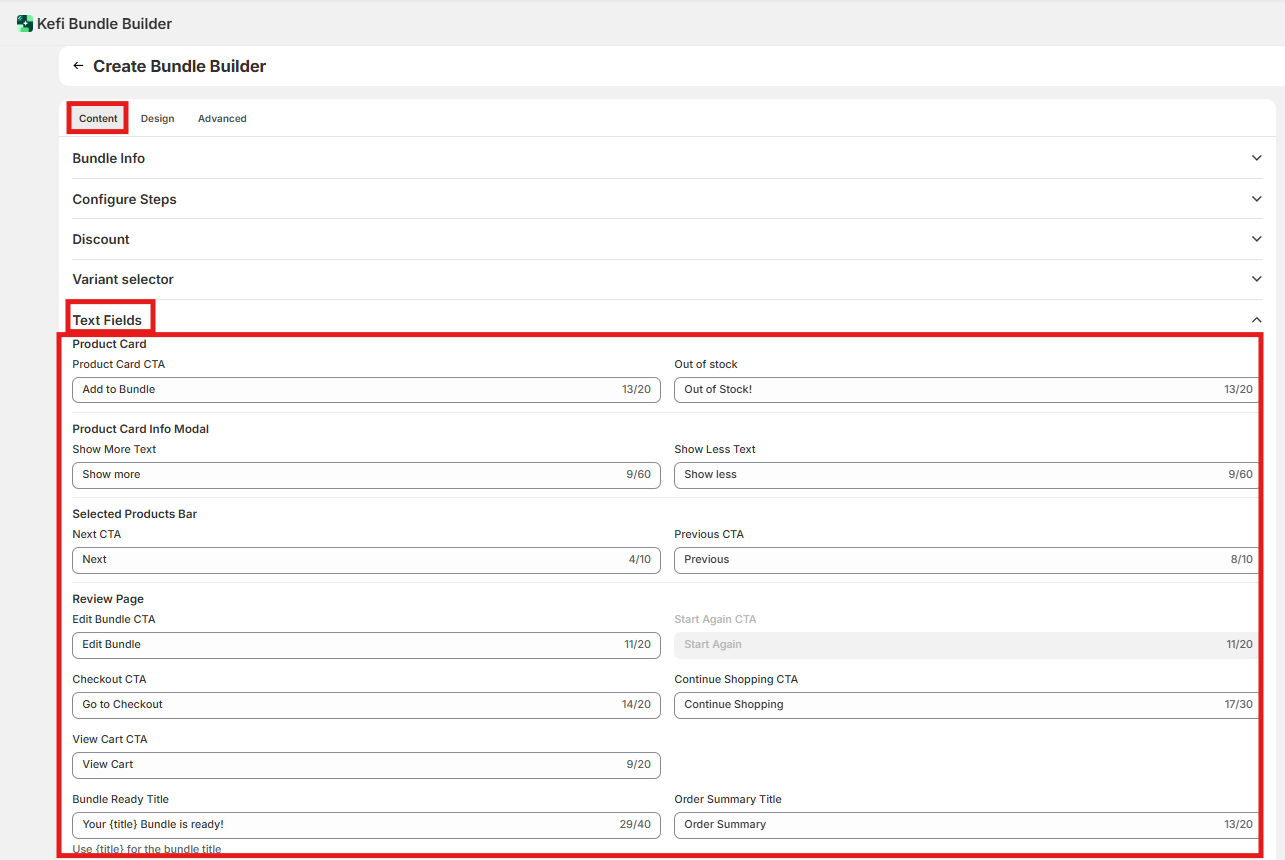
These labels appear on individual product cards and inside the product details modal.
Product Card CTA Default: Add to Bundle The button shoppers tap to select a product. This is the most visible piece of copy in the builder — get this right first. When to update: Any time you're translating or customizing brand voice.
Out of stock label Default: Out of Stock! Shown on a product card when a variant has no available inventory. When to update: Any time you're translating. Also update if your brand uses softer language (e.g., "Currently unavailable").
Show More / Less text Default: Show More / Show Less The toggle inside the product details modal that expands or collapses the product description. When to update: When translating. Low priority for brand voice customization — most customers don't notice this label.
These labels appear in the selected-products bar as shoppers move between bundle steps.
Next CTA Default: Next Advances the shopper to the next bundle step.
Previous CTA Default: Previous Returns the shopper to the prior step.
Bundle Item(s) Added Default: Item(s) Added Status text showing how many selections the shopper has made in the current step (e.g., "2 Items Added"). When to update: Always update Next and Previous when translating. For the items-added string, check whether your language handles plurals differently — a static string may not cover all cases.
These labels appear on the final review screen after the shopper completes all bundle steps.
Bundle Ready Title Default: Your Bundle Is Ready! The headline at the top of the review/confirmation screen.
Checkout CTA Default: Go to Checkout The primary action button that sends the shopper to checkout. Highest-stakes button on the page — translate accurately.
View Cart CTA Default: View Cart Secondary button shown when the bundle is added to cart rather than going directly to checkout. This is a separate field from the Checkout CTA — update the correct one based on how your bundle is configured.
Continue Shopping CTA Default: Continue Shopping Lets the shopper return to the store without checking out.
Edit Bundle CTA Default: Edit Bundle Returns the shopper to the builder to make changes.
Start Again CTA Default: Start Again Clears all selections and restarts from step one.
These labels appear in the order summary panel on the review screen.
Order Summary title Default: Order Summary The heading of the summary panel.
Subtotal label Default: Subtotal Line item label before discounts are applied.
Discount label Default: Discount Label for the discount line in the summary.
Total label Default: Total Label for the final price.
Empty Card Footer text Default: (blank) Text shown in the bundle builder footer when no items have been selected yet. Useful for prompts like "Select your first item to get started." Leave blank for a clean, minimal look.
Free text Default: Free Displayed on a product card when a 100% discount is applied — replaces the price entirely. Update this if your brand uses a different word (e.g., "Gift" or "Bonus").
Note: The Free text field only appears when a product in the bundle actually has a 100% discount applied. If you don't see it during preview, temporarily set a product to 100% off to confirm your translation is saving correctly.
Recommended approach:
Recommended approach:
Recommended approach:
Recommended approach:
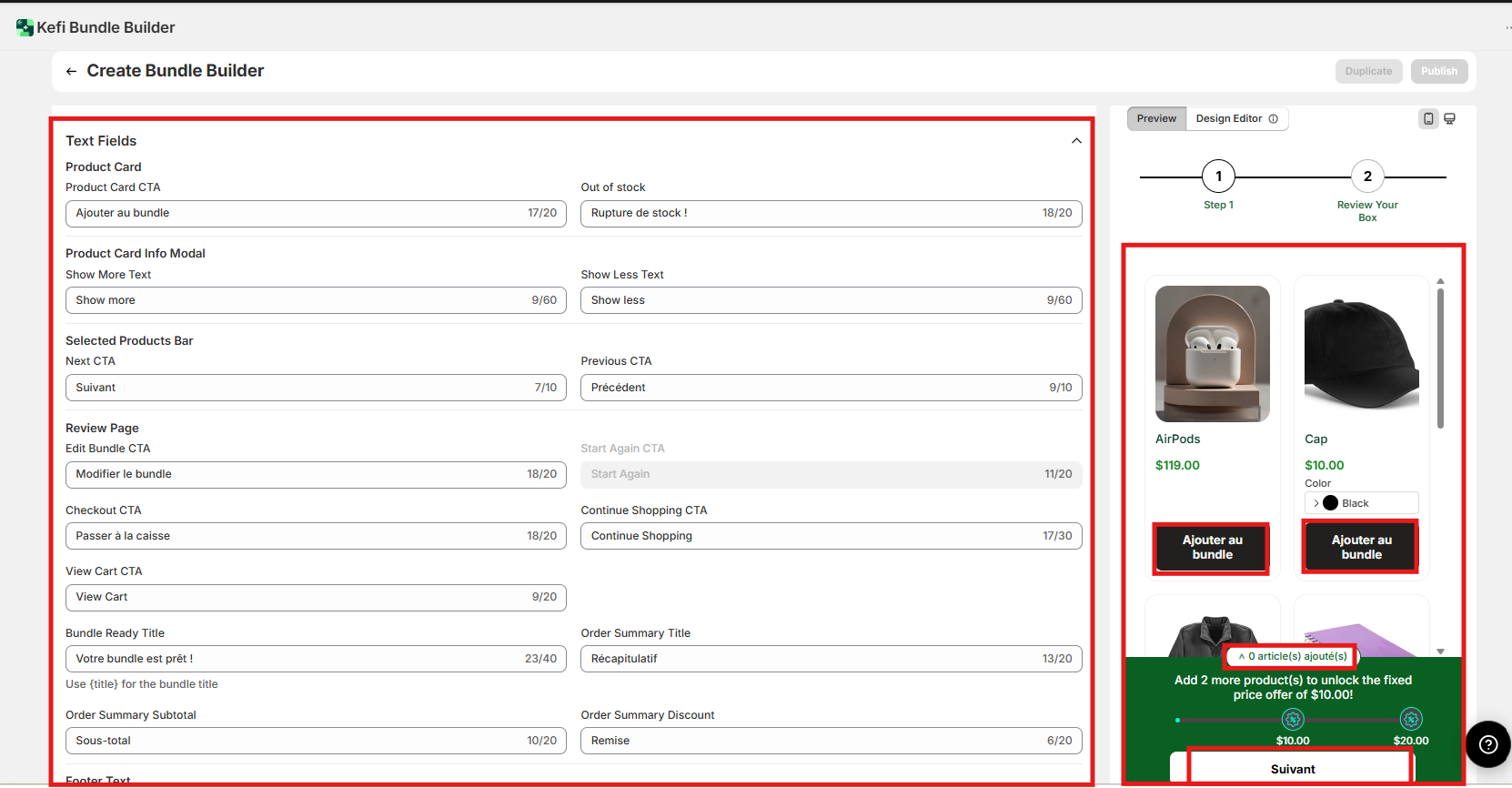
Goal: Create a fully translated Bundle Builder for a French-language storefront. Every text field is translated so customers never see English labels.
What happens if I leave a field blank?
It reverts to its English default. If you're doing a partial translation, shoppers will see a mix of your translated strings and English. There's no way to suppress a field — it will always show either your custom text or the default.
Do these text settings apply to all bundles or just one?
Not confirmed in current documentation. Our assumption is that settings are per-bundle, meaning you'd need to configure Text Fields separately for each bundle. Verify this before doing a multi-bundle rollout.
Can I use different text on mobile vs. desktop?
No. Text field values are the same across all devices. If a label is too long for a mobile button, use a shorter translation or abbreviation.
I updated the Checkout CTA but it still says "View Cart." Why?
These are separate fields. Which button appears depends on your bundle's checkout behavior — if your bundle adds to cart rather than going directly to checkout, the View Cart CTA is the one that shows. Update that field instead.
Is there a way to sync translations automatically from my Shopify language settings?
No. Text Fields require manual entry. There is no automatic sync with Shopify's translation layer or third-party translation apps like Weglot or Langify.
.svg)
