Want to increase your average order value and give shoppers a real reason to buy more? Volume discounts are a powerful way to do just that. But instead of offering a one-size-fits-all deal, imagine being able to set up multiple unique offers, each tailored to different products, quantities, or customer types.
Whether you're running a clearance sale, launching a new collection, or rewarding loyal buyers—multiple volume discounts give you the flexibility to target different goals and audiences, all within a single store.
In this guide, we'll show you how to easily set up these dynamic offers, customize them to fit your strategy, and use them to drive more conversions with every cart.
STEP 1
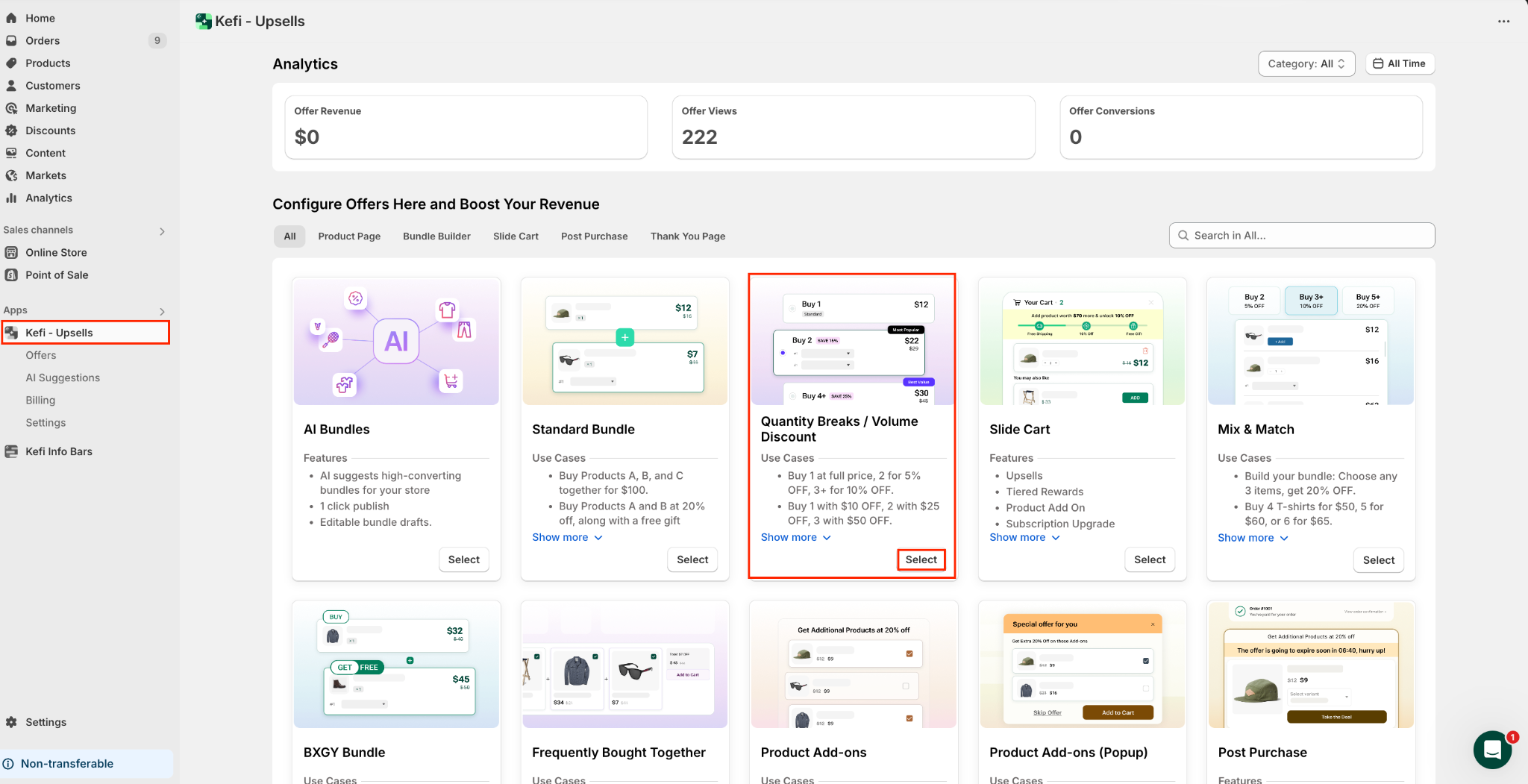
Access the Volume Discount/ Quantity Breaks Bundle:
Navigate to the Kefi Bundles App in your Shopify Admin panel, and click on ‘Select’ available on the Quantity Breaks/Volume Discount Bundle) option.
STEP 2
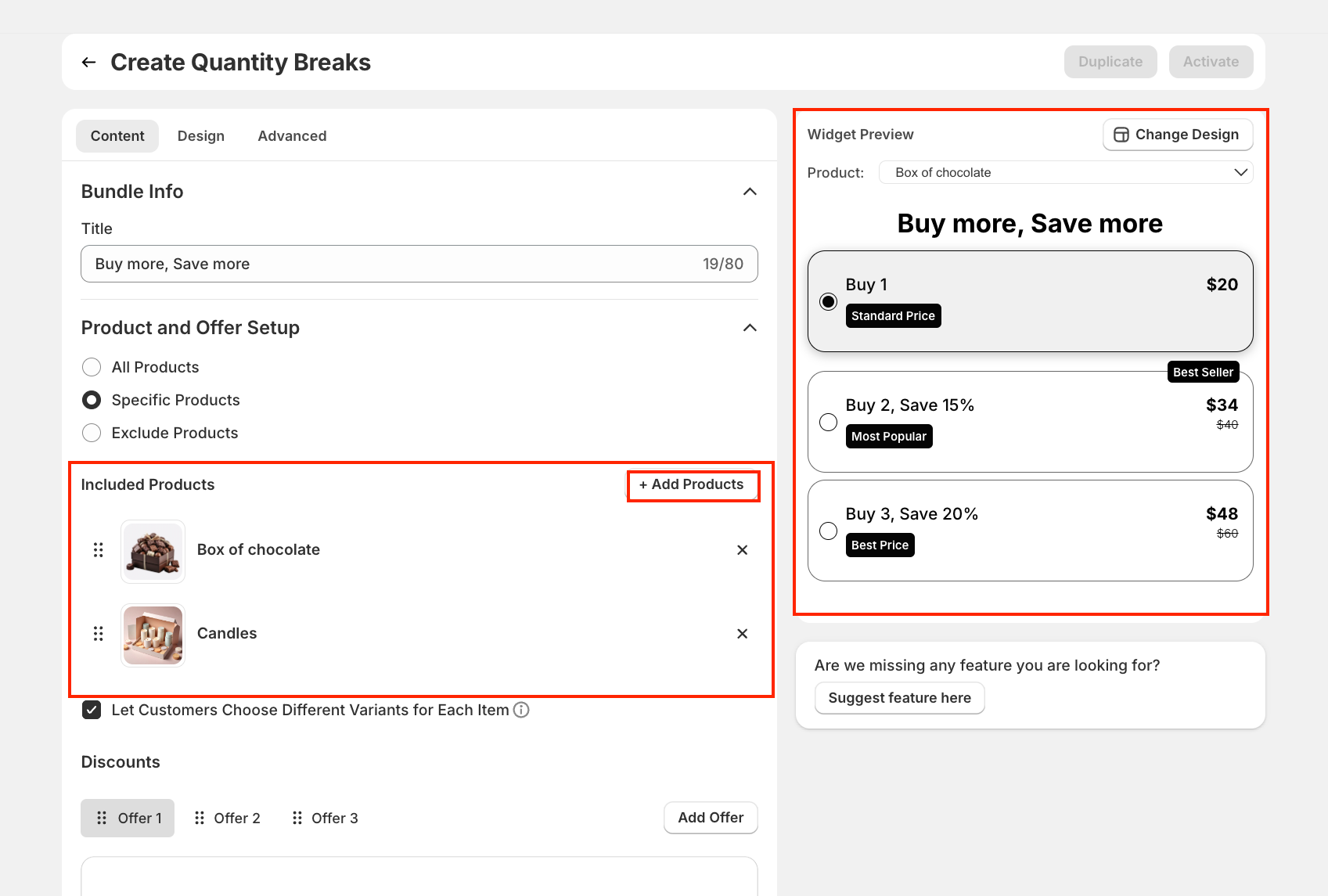
Give Your Bundle a Standout Name:
Start by assigning a distinct and memorable name to your offer—something that reflects the theme or purpose of the bundle. For example:
Next, select the products or collections you want to include in the offer. You can target specific items, all products, or curated sets that complement each other and provide value when purchased together. You can also exclude products.
STEP 3
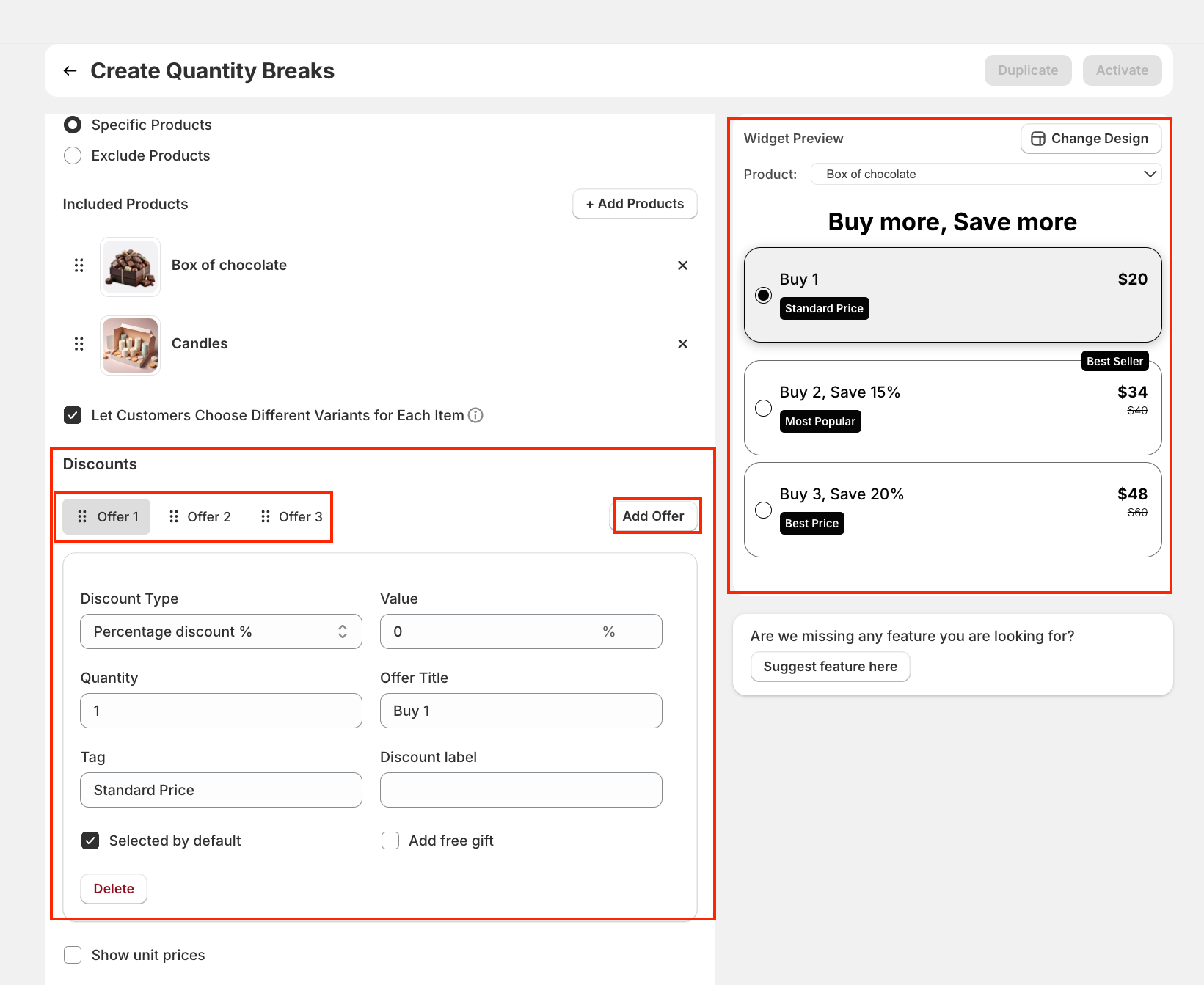
Set Up Discount Tiers (Offers)
You can create multiple offers by clicking "Add Offer". Each offer can have:
STEP 4
Customer Targeting
Display Bundle To - 1) All Customers
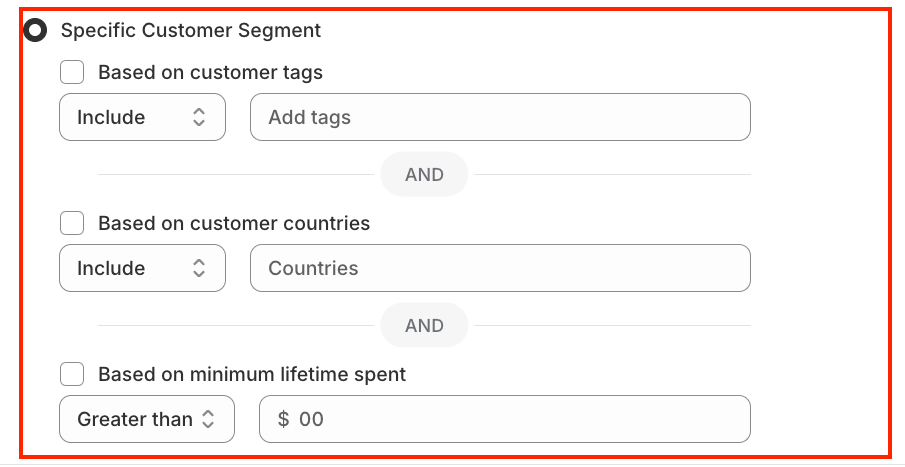
2) Specific Customer Segment
For Specific Customer Segment -
With this feature, you can display your volume discount offers only to select customer groups based on specific criteria. This allows for more personalized and strategic promotions.
You can combine multiple filters using “AND” logic for even more precise targeting.
STEP 5
Save and Activate the Bundle:
Once you've finished setting up your quantity breaks—customizing content, design, and advanced settings—it’s time to save and launch your offer.
Click the Save button at the top to store all your changes. This keeps your offer in Draft mode, allowing you to return later and make edits before publishing.
After saving, click Activate to make your quantity break bundle live on your store. This is the final step to display the widget on the product page for your customers to see and use.

1. Address Unique Customer Needs - Customize offers for different segments—whether it’s first-time buyers, loyal customers, or wholesale clients.
2. Drive More Sales - Encourage higher cart values by rewarding customers for buying in larger quantities with irresistible savings.
3. Maximize Flexibility - Run multiple discount bundles at once, giving you the freedom to promote various products, collections, or seasonal campaigns—all without overlap.
.svg)
