In the world of e-commerce, a smooth, visual, and intuitive shopping experience is key to boosting conversions. For your Kefi product bundles, allowing customers to easily view and select different product variations is essential.
The 'Show Swatches' option transforms your bundle widget from a simple product list into an interactive selection tool, allowing your customers to personalize their bundle without ever leaving the page. This guide will walk you through enabling this feature and customizing every detail of your product swatches.
Swatches are visual representations of your product variants (such as colors, sizes, or styles) that appear directly within the bundle widget on your product page.
When you enable the 'Show Swatches' option, the variants configured for your individual products are pulled into the bundle widget. Instead of a basic dropdown menu, customers are presented with visual cues—like color circles or styled size buttons—to make their selection.
Key Benefit: Swatches improve the shopping experience by providing a quick, visual way for customers to see all available options and select their preferred variant for each product in the bundle.

To begin customizing, navigate to your bundle's configuration page in the Kefi dashboard:
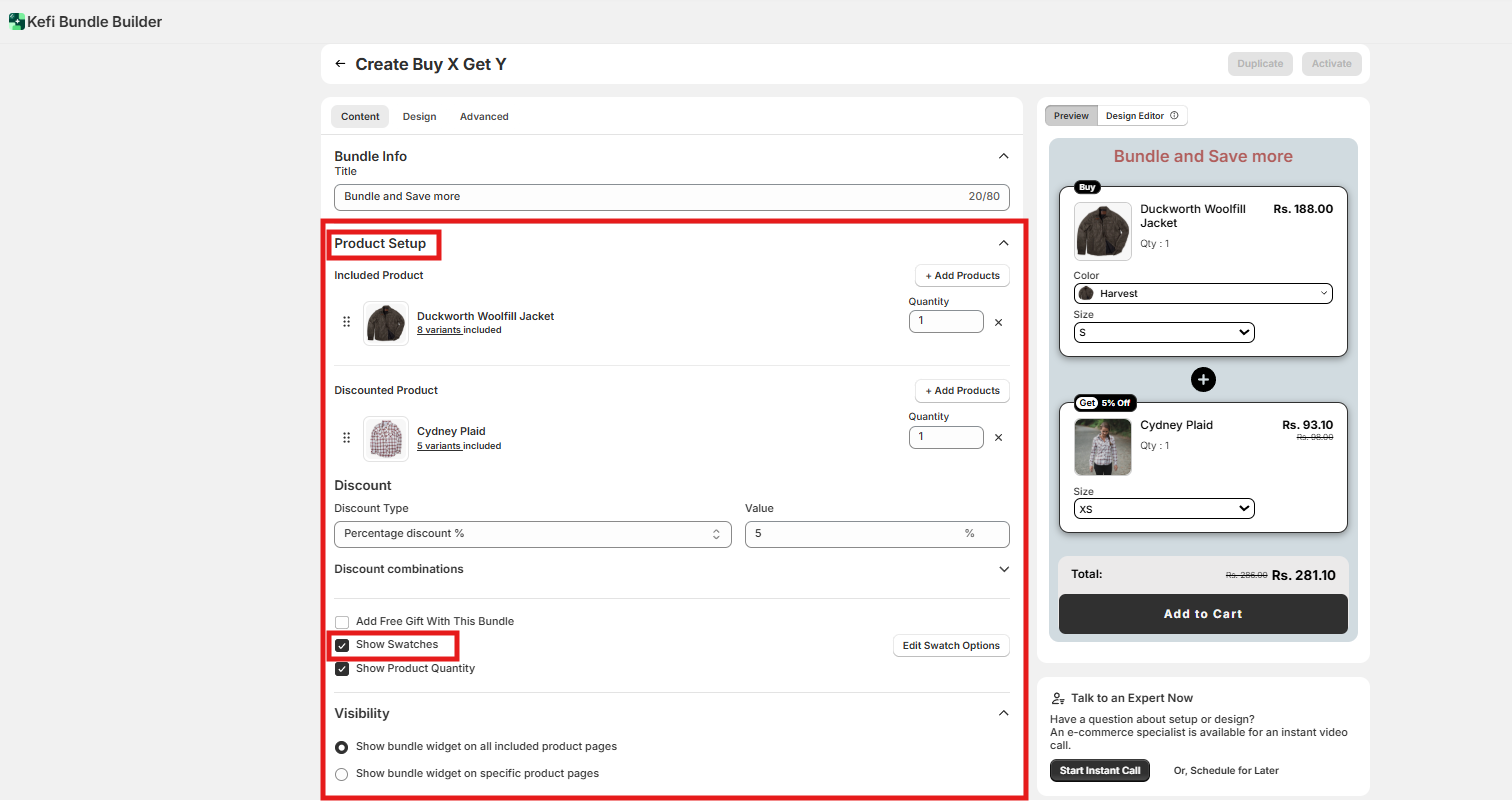

The 'Edit swatches' panel provides extensive control over how your variants are displayed, ensuring they match your brand's aesthetic. Here is a breakdown of the key settings you can configure:
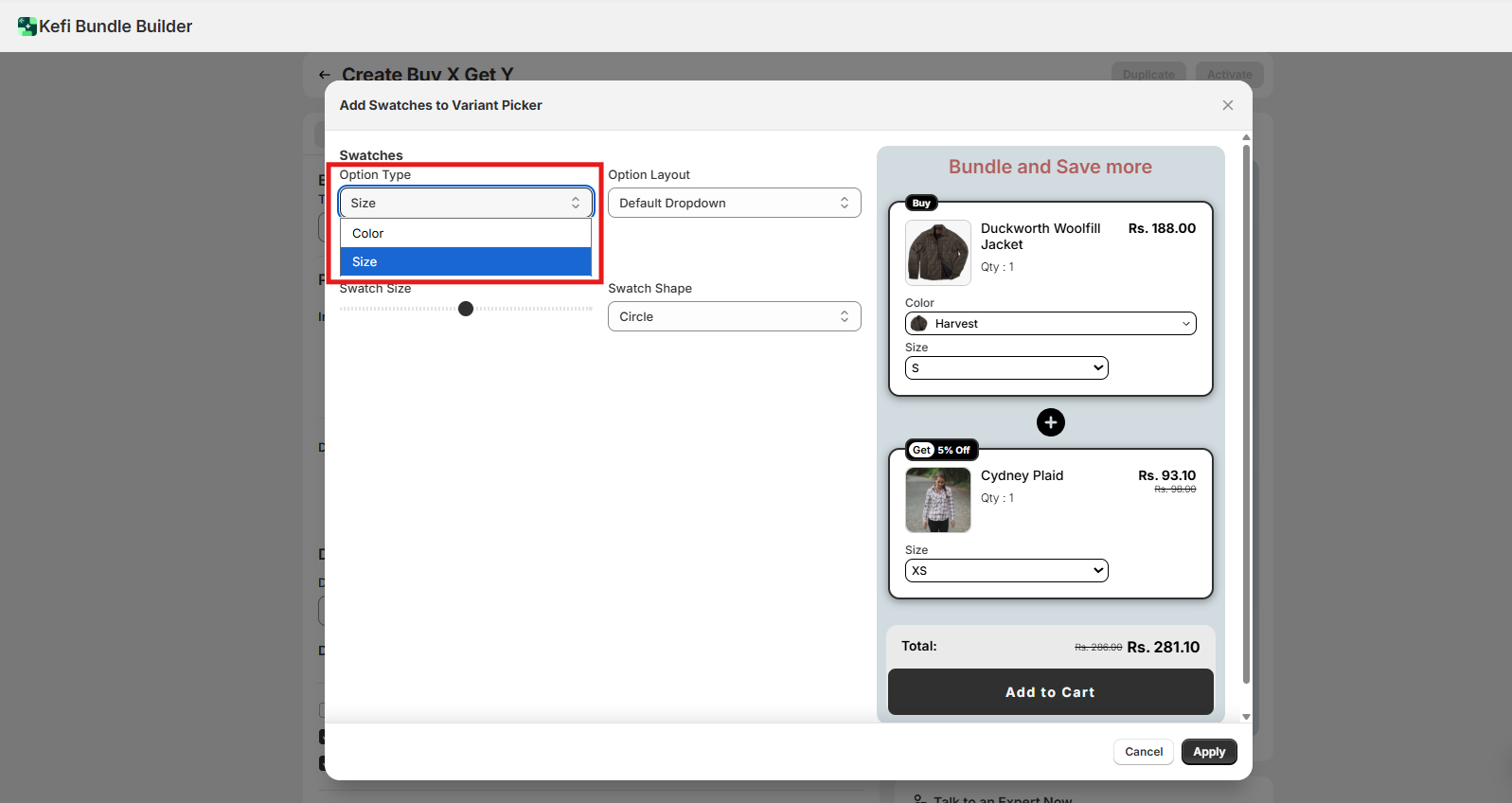
Swatches Option Type
This setting is where you specify which existing product variant option you want to apply custom swatch configurations to within your bundle widget.
The dropdown menu here will list all the variant option names defined in your products (e.g., Color, Size). Since these names are defined by your individual store setup, they will vary from one merchant to the next.
How to Use It:
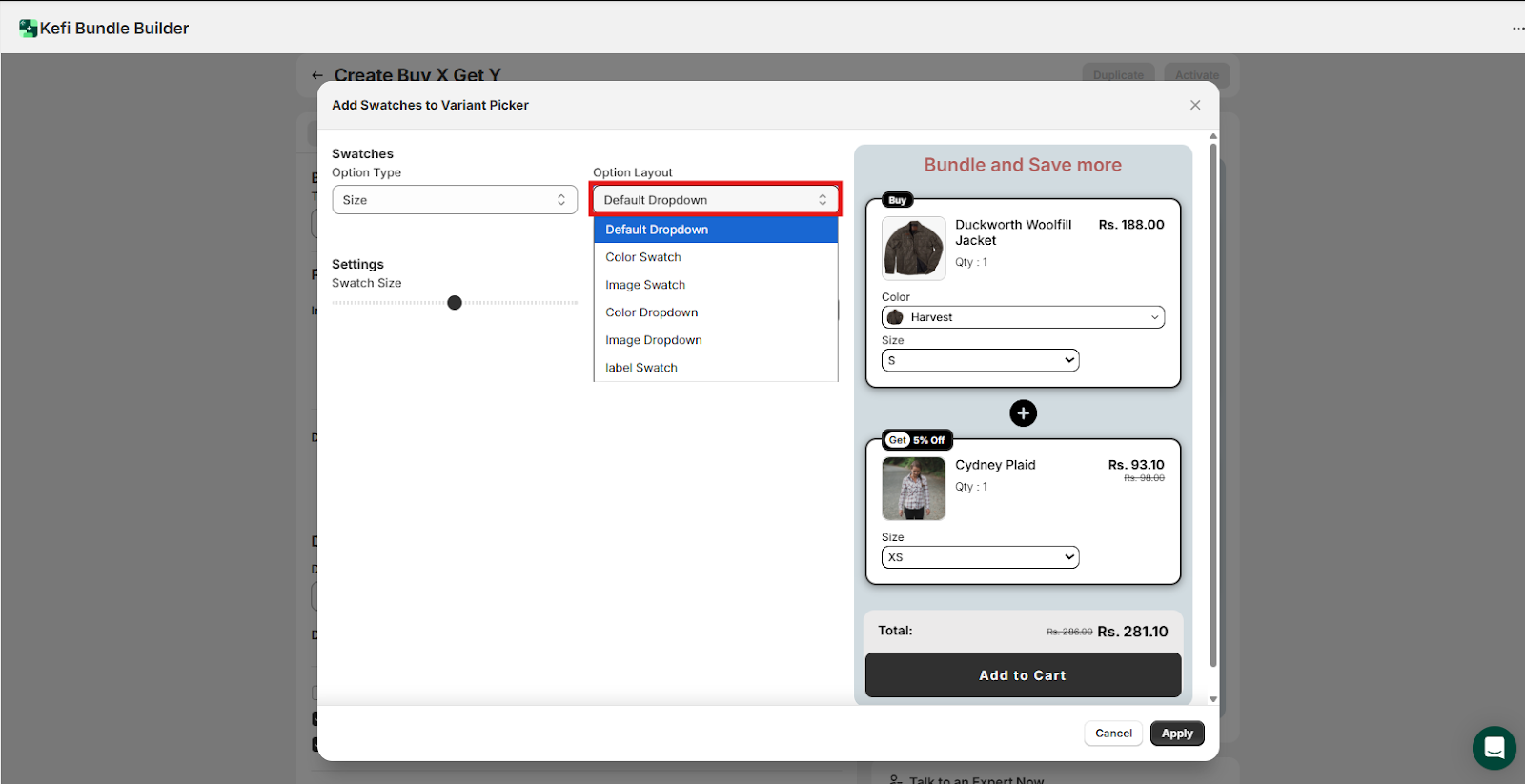
Option Layout (Variant Display Style)
Select the layout you want to be set for the particular variant you selected:
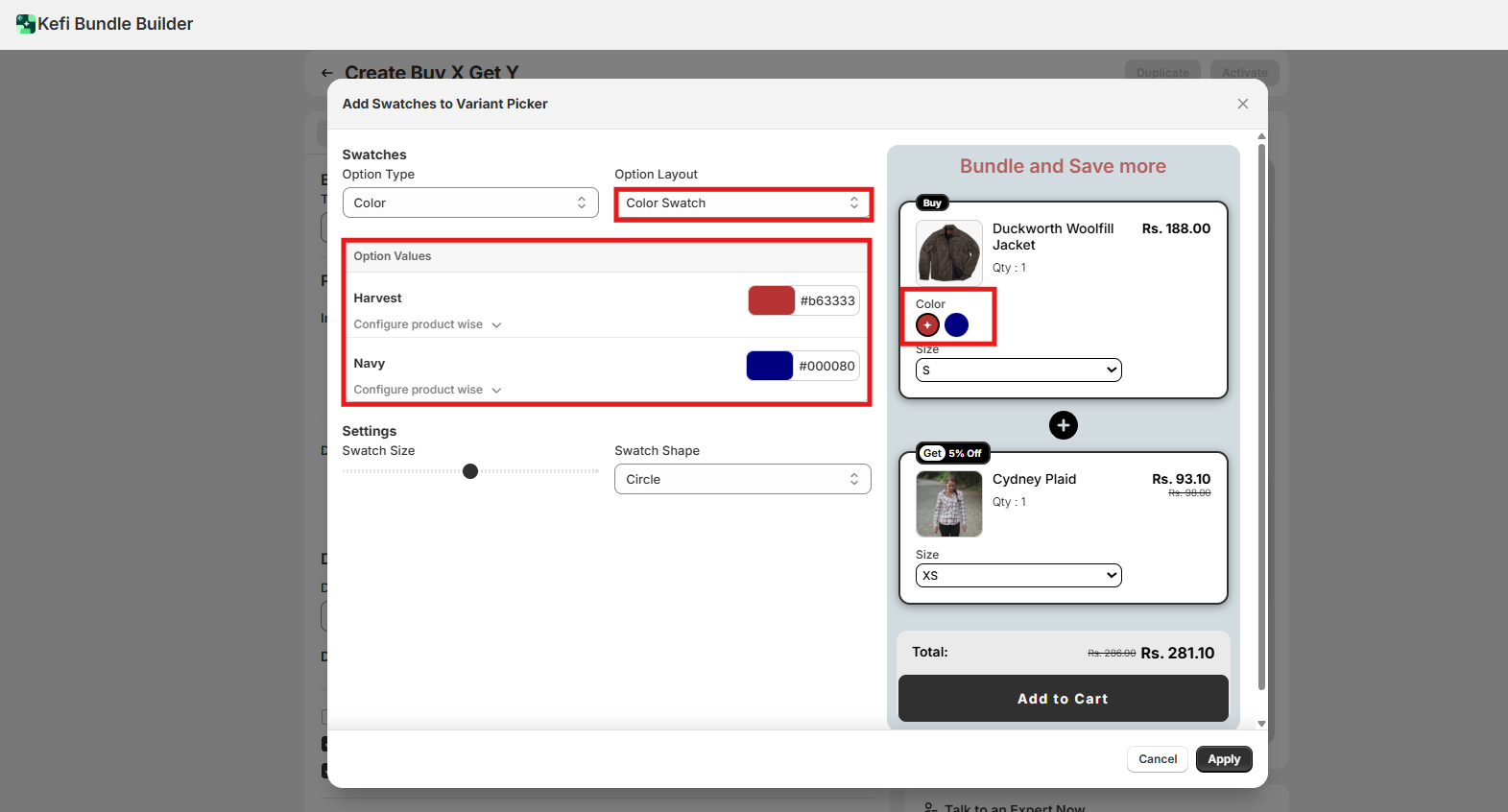
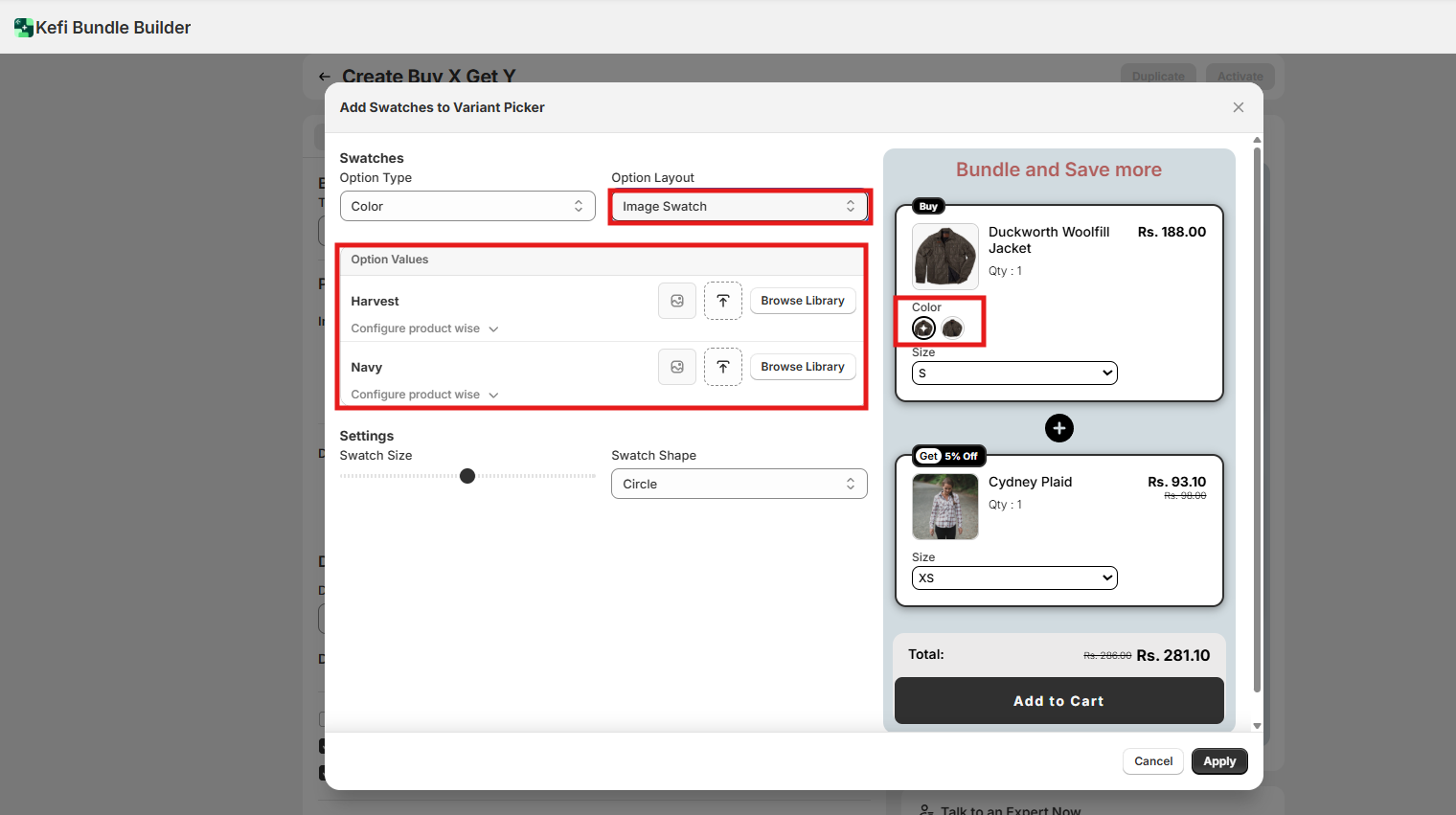
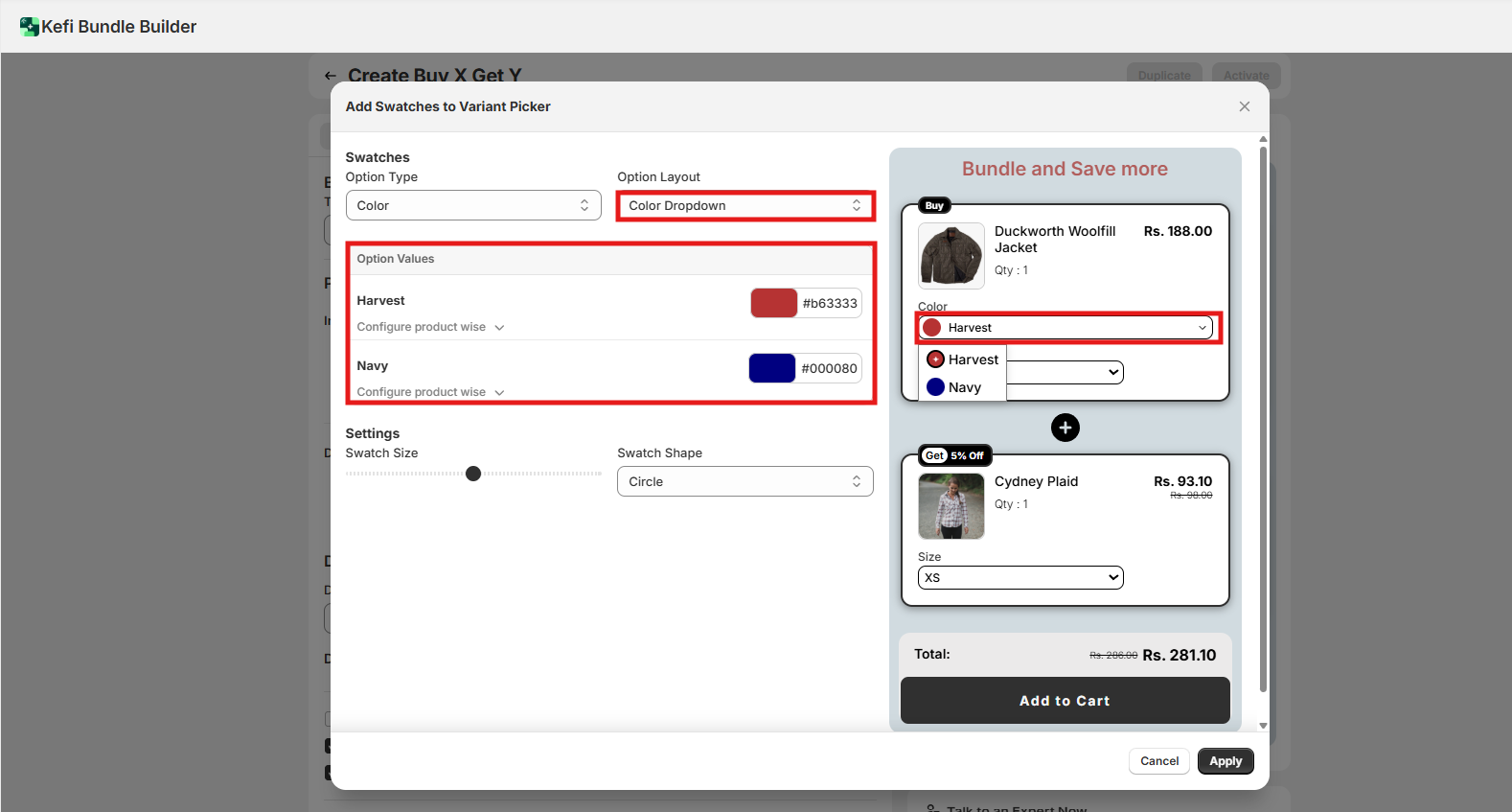
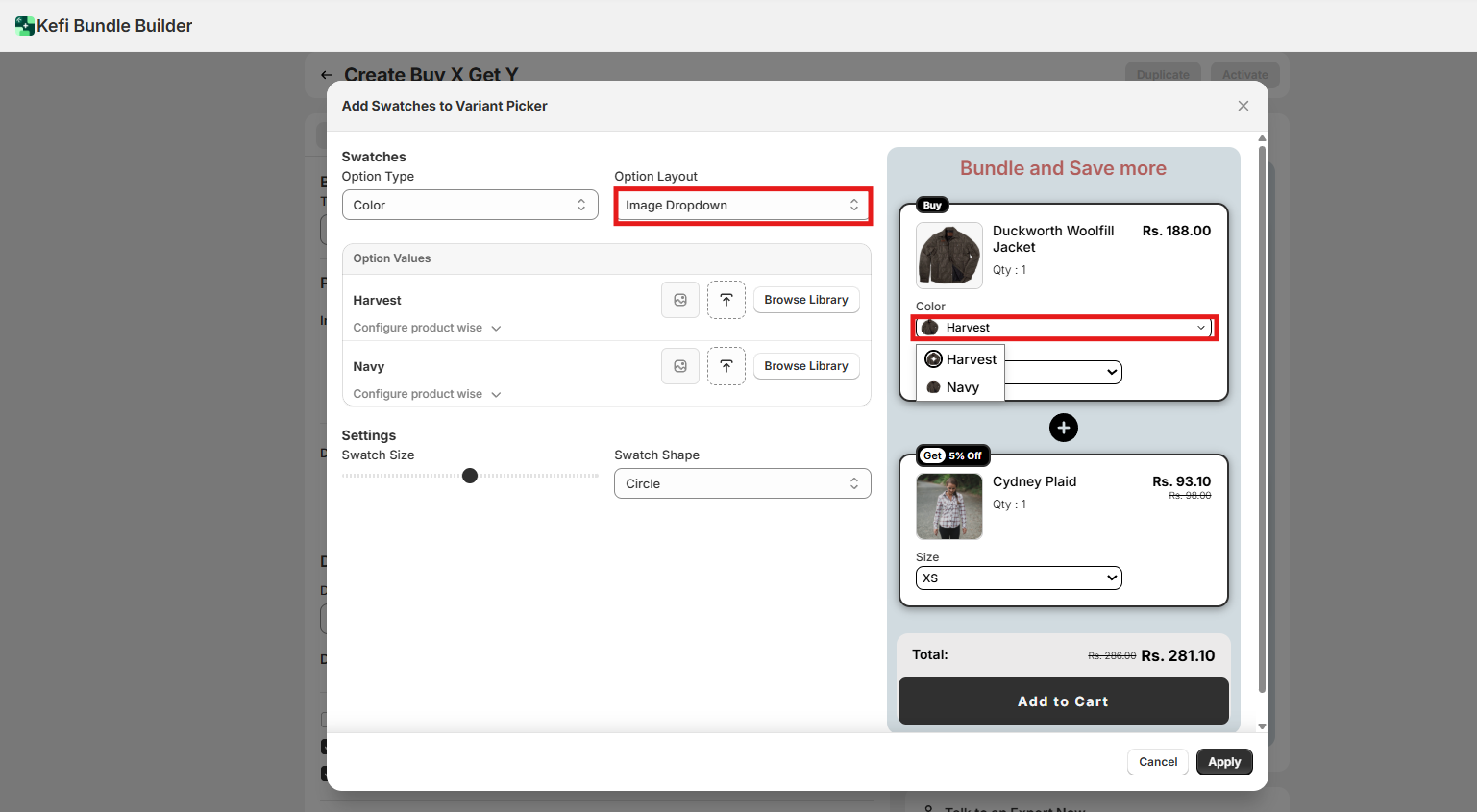
Swatch Size
This setting allows you to control the physical size of the individual swatch elements, impacting visibility and layout:

Swatch Shape
Customize the shape of the swatch icon itself. This helps in brand alignment and distinguishing between different option types:
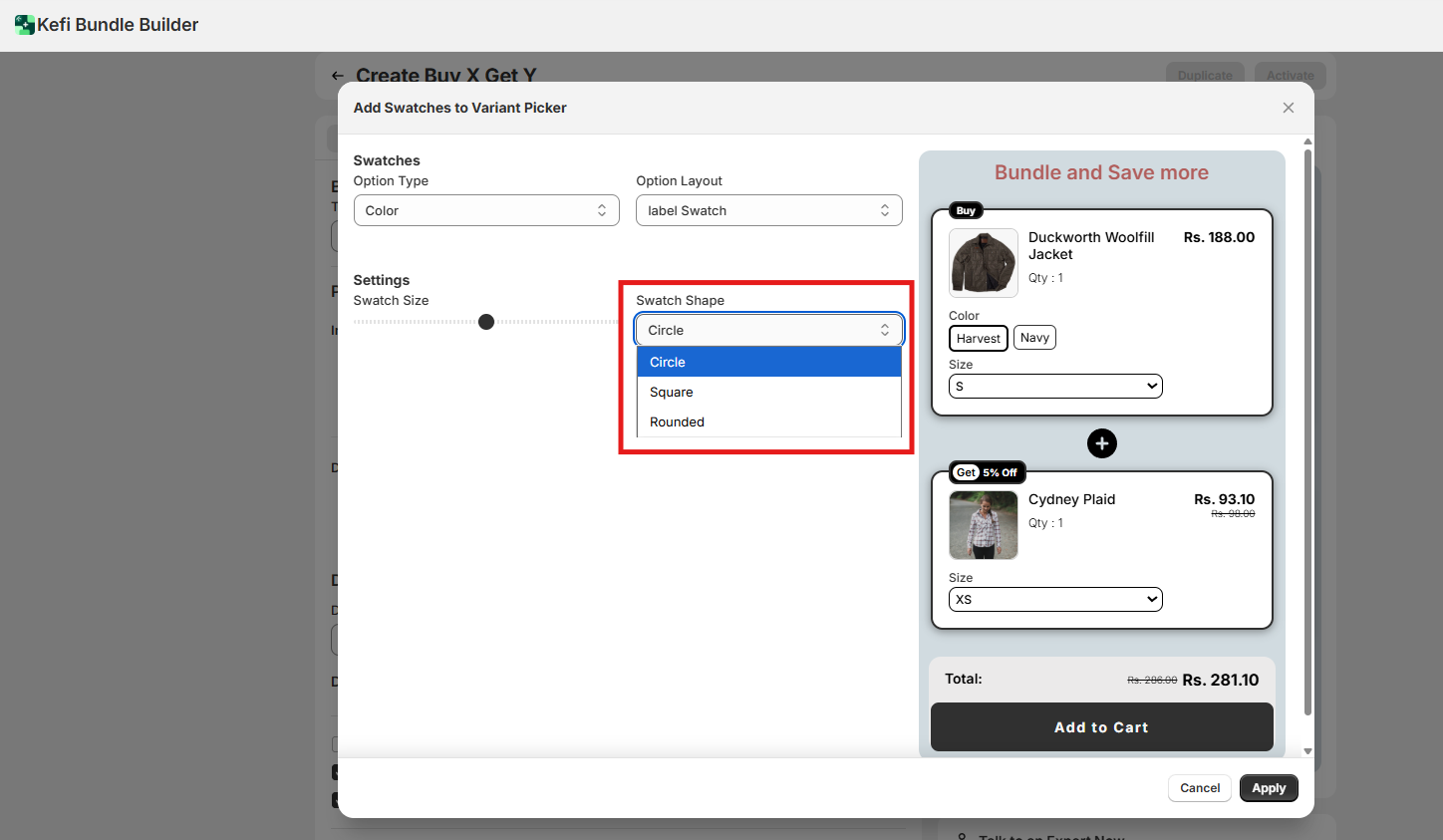
By customizing these four key options, you ensure that:
If you have any questions or need assistance, feel free to contact us:
.svg)
