The Additional Products feature in Kefi Slide Cart is designed to help you enhance your customers’ shopping experience while effortlessly increasing your average order value.
Whether it's giving peace of mind through shipping protection or adding a personal touch with gift wrapping, these micro-decisions can significantly boost both your conversion rate and average order value — without relying on aggressive pop-ups or post-purchase pitches.
1. Increase Average Order Value (AOV): Add-ons like gift wrapping or shipping protection can boost the total cart value effortlessly.
2. One-Click Add to Cart - Customers can enable the add-on with a simple toggle or click, streamlining the upsell experience without disrupting the checkout process.
3. Upsell at the Right Moment - Customers reviewing their cart are most likely to consider relevant add-ons before checkout.
4. Stand Out from Competitors: Offering useful, well-placed add-ons can differentiate your store and build customer loyalty.
5. Seamless Integration with Cart UI - The additional product appears neatly at the bottom of the cart, below the cart summary, maintaining a clean and intuitive user interface.
STEP 1
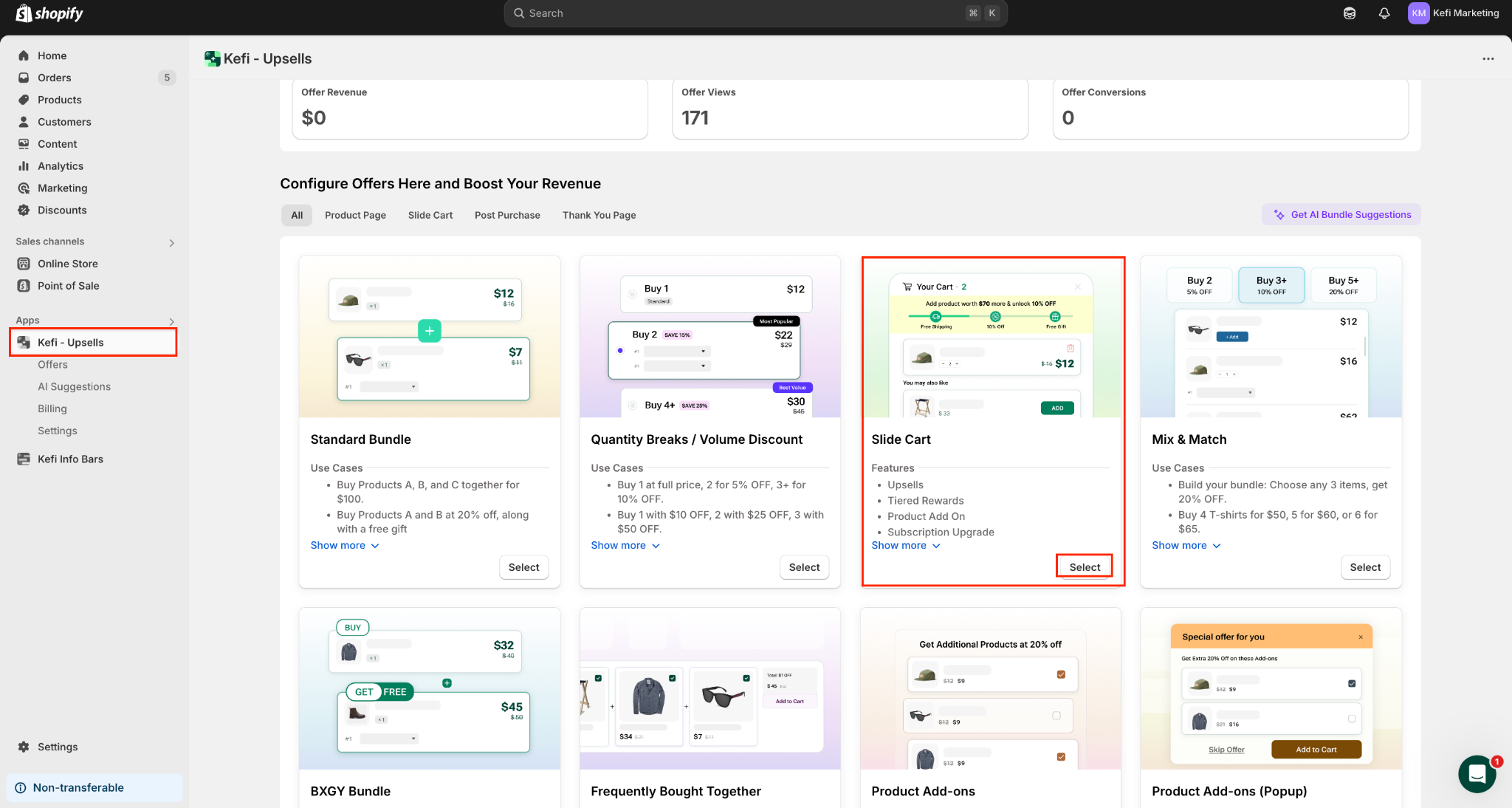
Go to the homepage and choose the ‘Slide Cart’ option. Click ‘Select’.
STEP 2
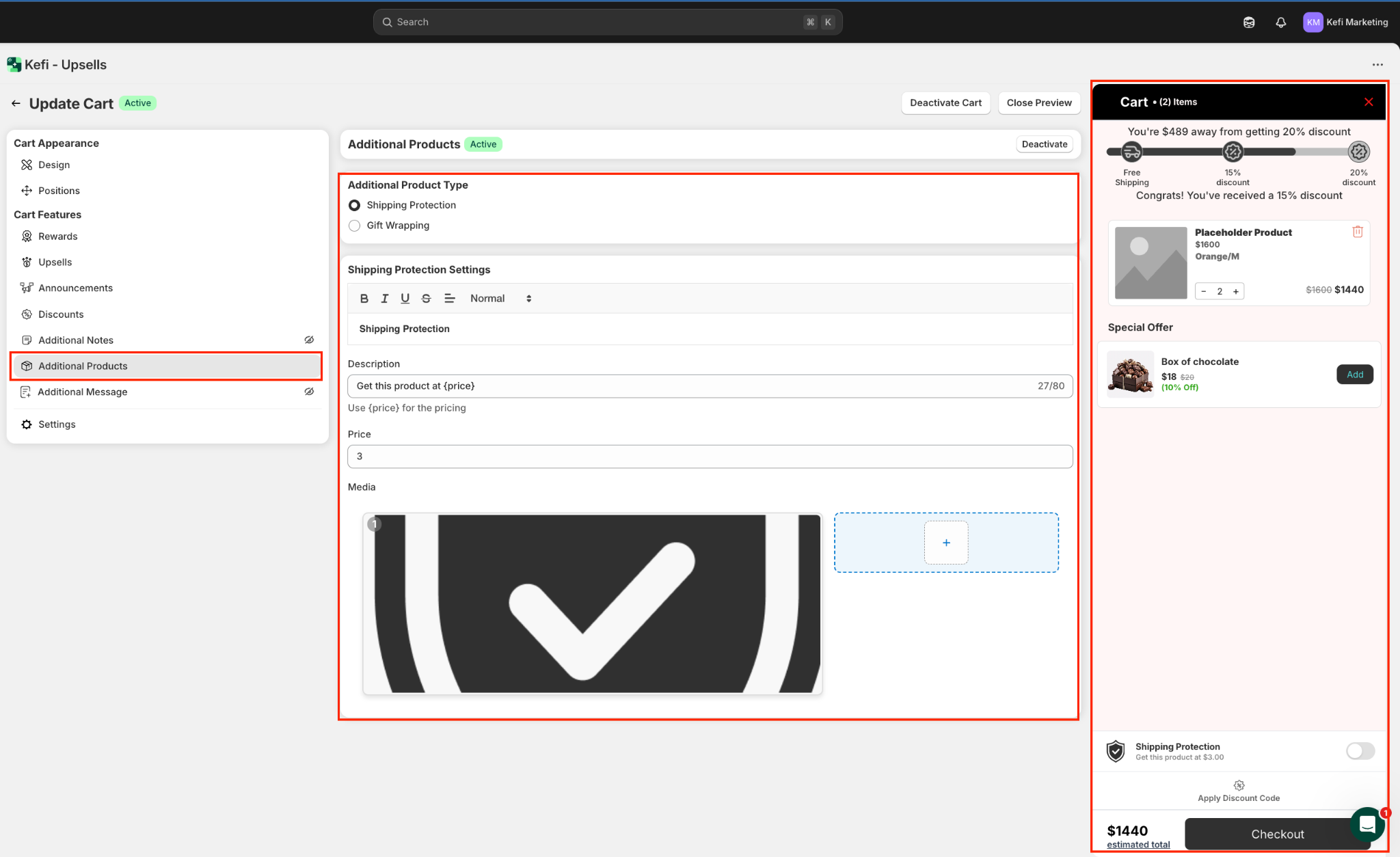
On the redirected page, in the left panel under Cart Features, you’ll find the ‘Additional Products’ section. This section allows merchants to easily add small upsell items like Shipping Protection or Gift Wrapping to the cart experience. Please click ‘Activate’ if it isn’t already activated.
A live preview is available on the right side of the screen so you can instantly see how the additional product will appear in the cart before publishing it.
STEP 3
1. Choose the Additional Product Type -
Merchants can choose between offering Shipping Protection or Gift Wrapping as an add-on. Only one option can be active at a time, allowing for focused upselling based on your business needs. Simply toggle between the options to make your pick.

STEP 4
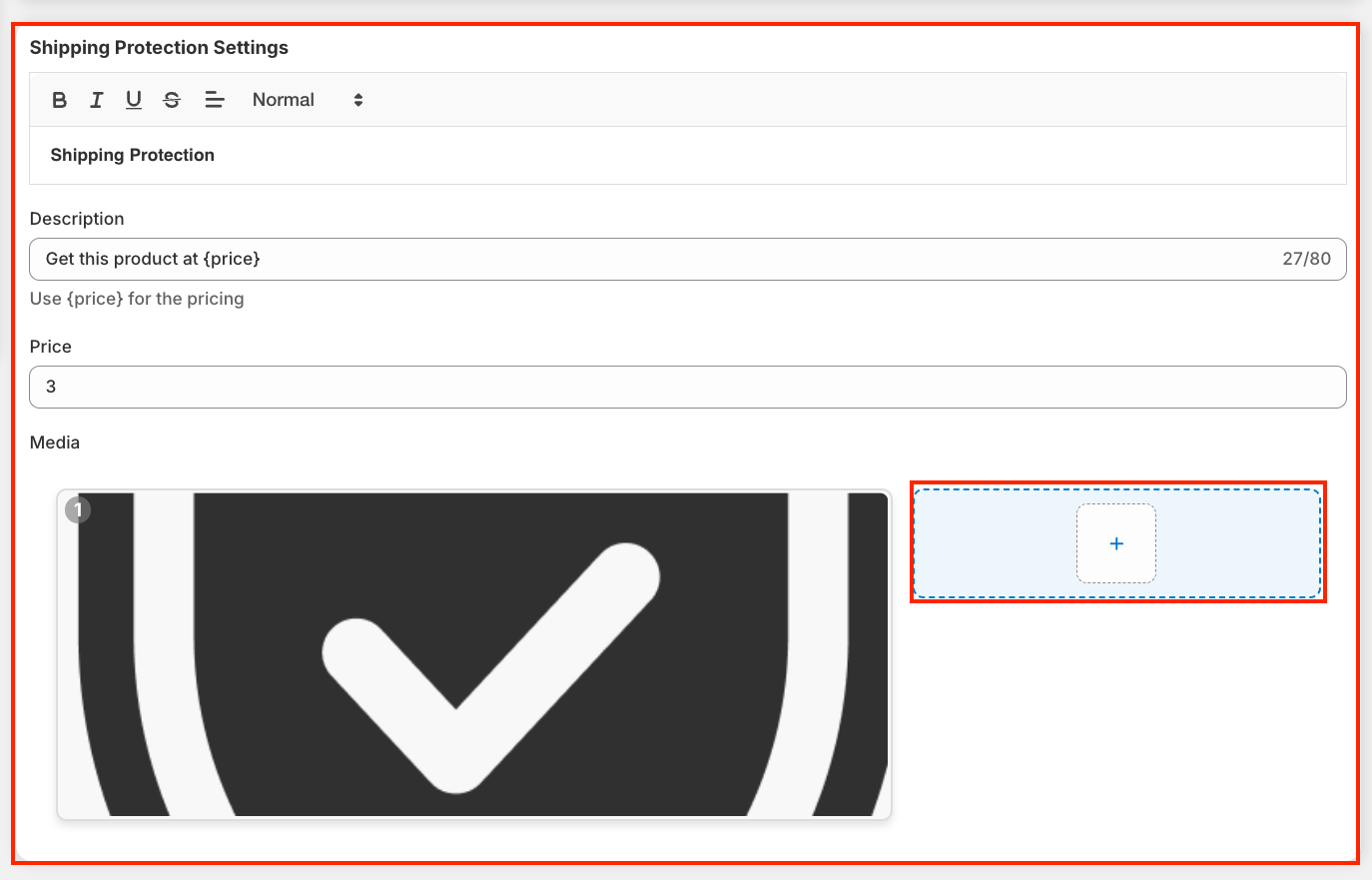
In this case, we’ve chosen ‘Shipping Protection’.
2. Check and Set the Shipping Protection Settings -
STEP 5
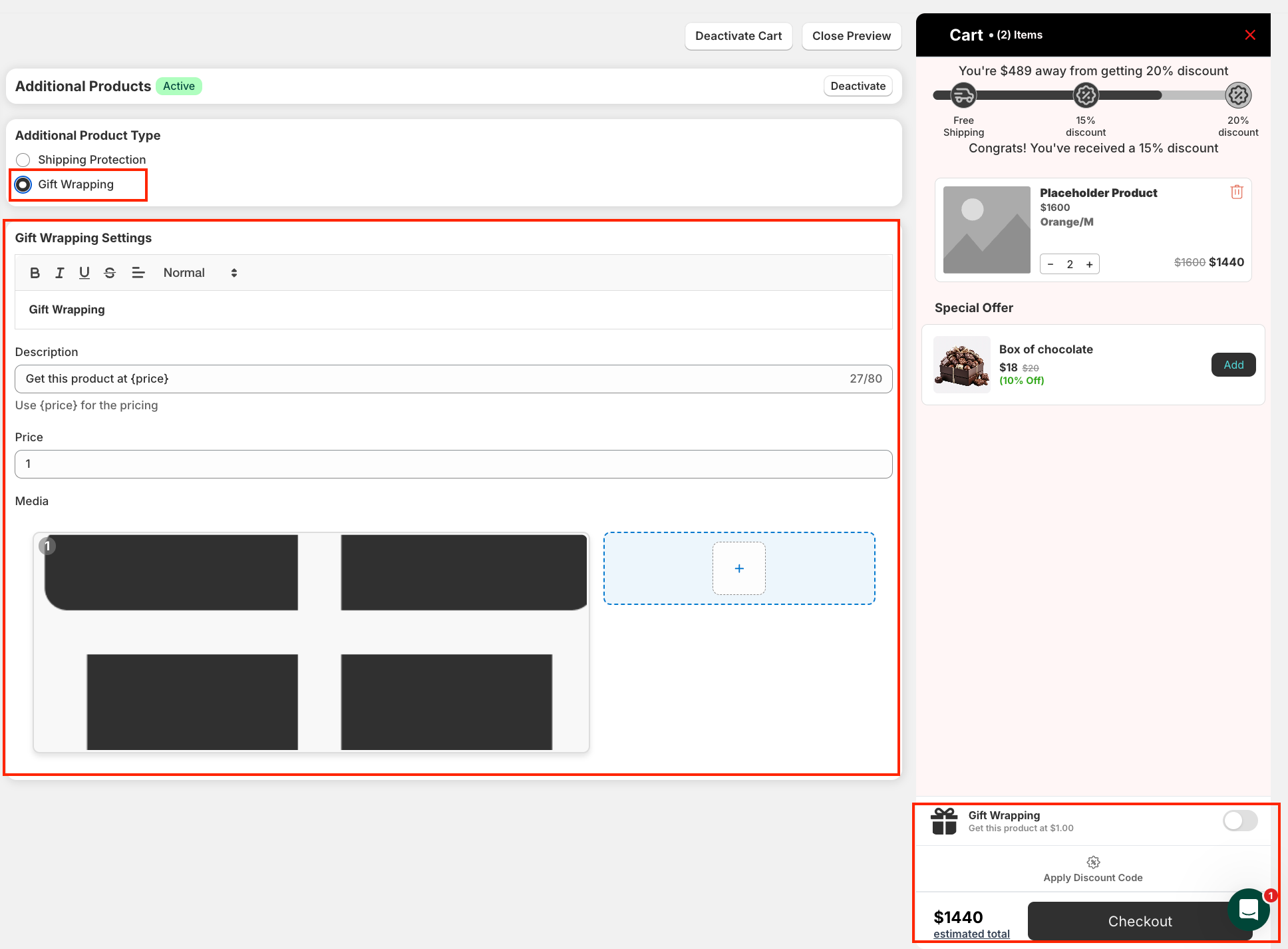
Let’s say you’d want to try out the Gift Wrapping option. In that case, here are the settings available -
STEP 6
Use the live preview on the right to see how your additional product setup—like Shipping Protection or Gift Wrapping—will appear to customers in real time.
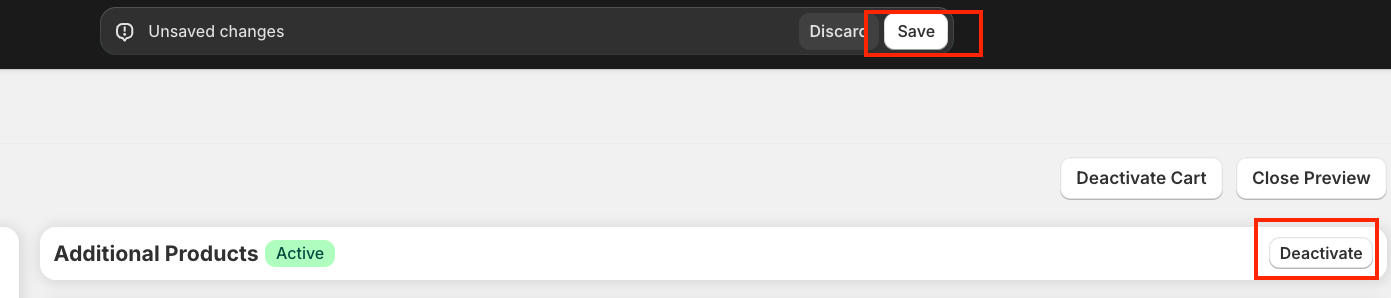
Once everything looks good, click ‘Save’ to apply the additional product settings to your Slide Cart.
If at any point you decide not to offer the additional product, you can click the ‘Deactivate’ button at the top to temporarily disable it without losing your configurations. This gives you the flexibility to turn the feature on or off as needed.
If you have any questions or need assistance, feel free to contact us:
Live Chat: Available via the Kefi Bundles app or website.
Email: wecare@keficommerce.com
.svg)
